
How to use Tickets in My Portal for CloudFerro Cloud
When you need help with a cloud service, a billing enquiry, or a portal task, a ticket keeps the request and the conversation with support together. Use Tickets to create a request, check its status, and provide further information.
The example below asks about Kubernetes services. Its ticket key and account details belong to the example account.
Prerequisites
No. 1 Access to your organization in My Portal
Sign in to My Portal with the account you use for your organization.
No. 2 Details of your question or affected resource
For a failed operation, use Troubleshoot My Portal on CloudFerro Cloud to collect the error message and affected resource details. Record the product, time, and steps that led to the problem.
Open Tickets
Select the question-mark icon in the top bar to open Help.
Under Support, select Tickets.
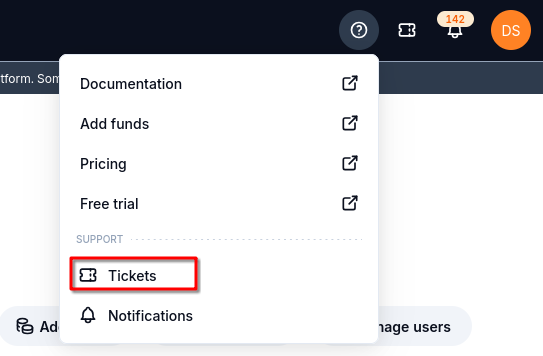
Open the full Tickets page from the Help menu.
Check the Tickets page. The empty state displays No tickets yet and provides Create ticket buttons in the page header and the empty list.
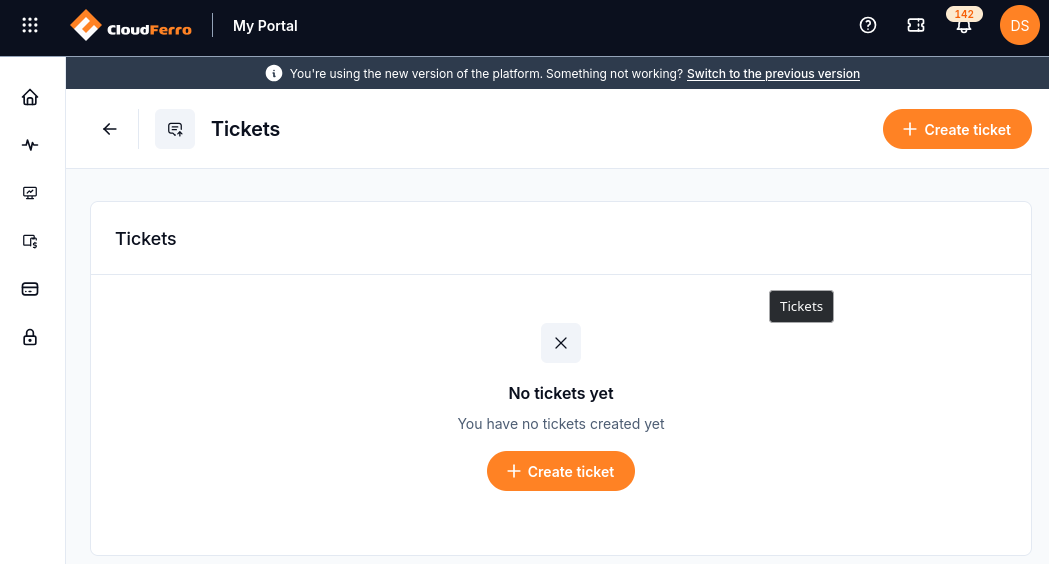
Either Create ticket button opens the request form.
You can also start from Home → Useful links → Support → Create support ticket. The ticket-shaped icon in the top bar opens a compact ticket panel; use the Help menu route above to reach the full page.
Create a ticket
Select Create ticket. The form contains three required fields: Request type, Summary, and Description. An asterisk identifies each required field.
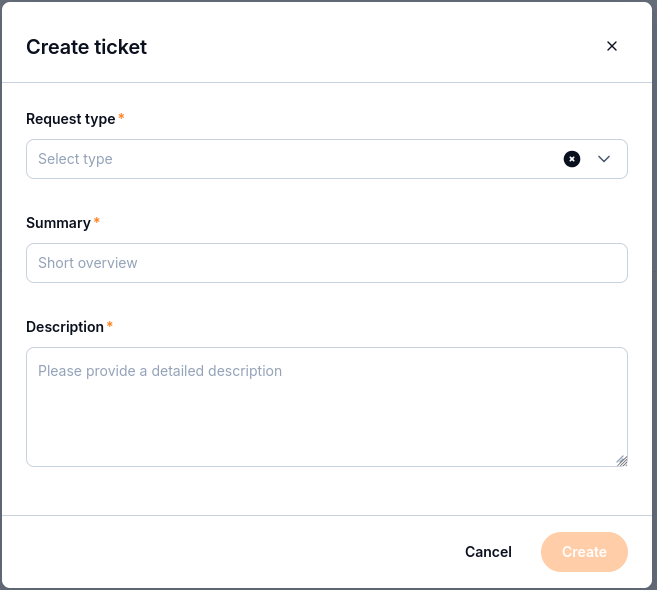
Complete the request fields before selecting Create.
Open Request type and choose the category for your enquiry. The available labels are Info, Free Trial, Sales, Support, Problem, and Billing and Accounting. The example uses Info for a question about Kubernetes services.
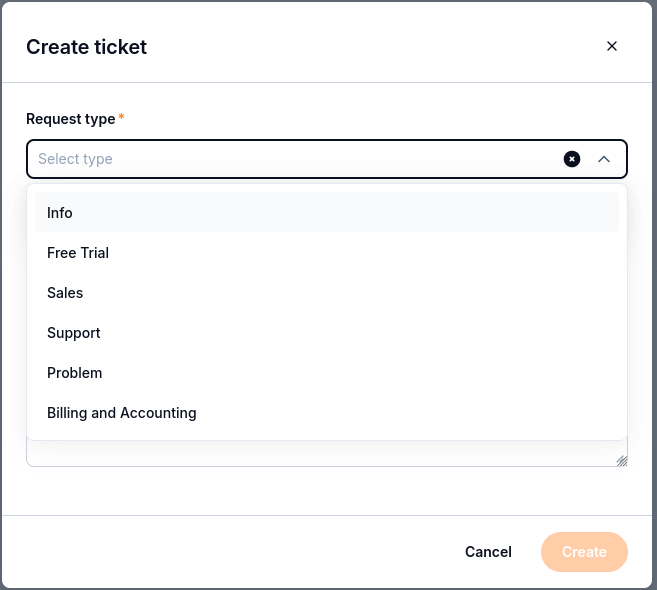
Choose the request type before completing the summary and description.
In Summary, enter a short title that identifies the subject. The example uses I’d like more info on Kubernetes clusters.
In Description, explain the question or problem. The example asks What is the difference between Magnum Kubernetes and Managed Kubernetes? For an incident or billing discrepancy, include the details listed in the next section.
Review the request, then select Create. To leave without submitting it, select Cancel.
Check the resulting ticket details. Record the Ticket key so you can identify the same request later.
Describe what happened
Give support enough information to find the affected task:
The address of the affected page.
The organization and, where relevant, the project and region.
The page or product where the problem occurred.
The affected resource, wallet, payment, or invoice reference, if applicable.
The time of the event, including the time zone.
The steps you followed, what you expected, and what happened instead.
The exact message shown.
Whether Home, navigation, and the billing area still work, and whether the problem affects one product or several.
A service report should identify the product that failed to open and whether you could still open Home. A billing report should identify the wallet or invoice and describe the unexpected data.
Keep passwords, session tokens, and payment-card details out of the ticket. Check screenshots and page addresses for sensitive information before including them.
Read ticket details and add a comment
Open the request from Tickets to review its Ticket details. The example shows:
Field |
What it identifies |
|---|---|
Ticket key |
The request identifier, CFCS-3467 in this example. |
Ticket title |
The summary entered when the ticket was created. |
Status |
The current state. The captured request is WAITING FOR SUPPORT. |
Type |
The selected request type, Info in this example. |
Description |
The question or problem submitted with the request. |
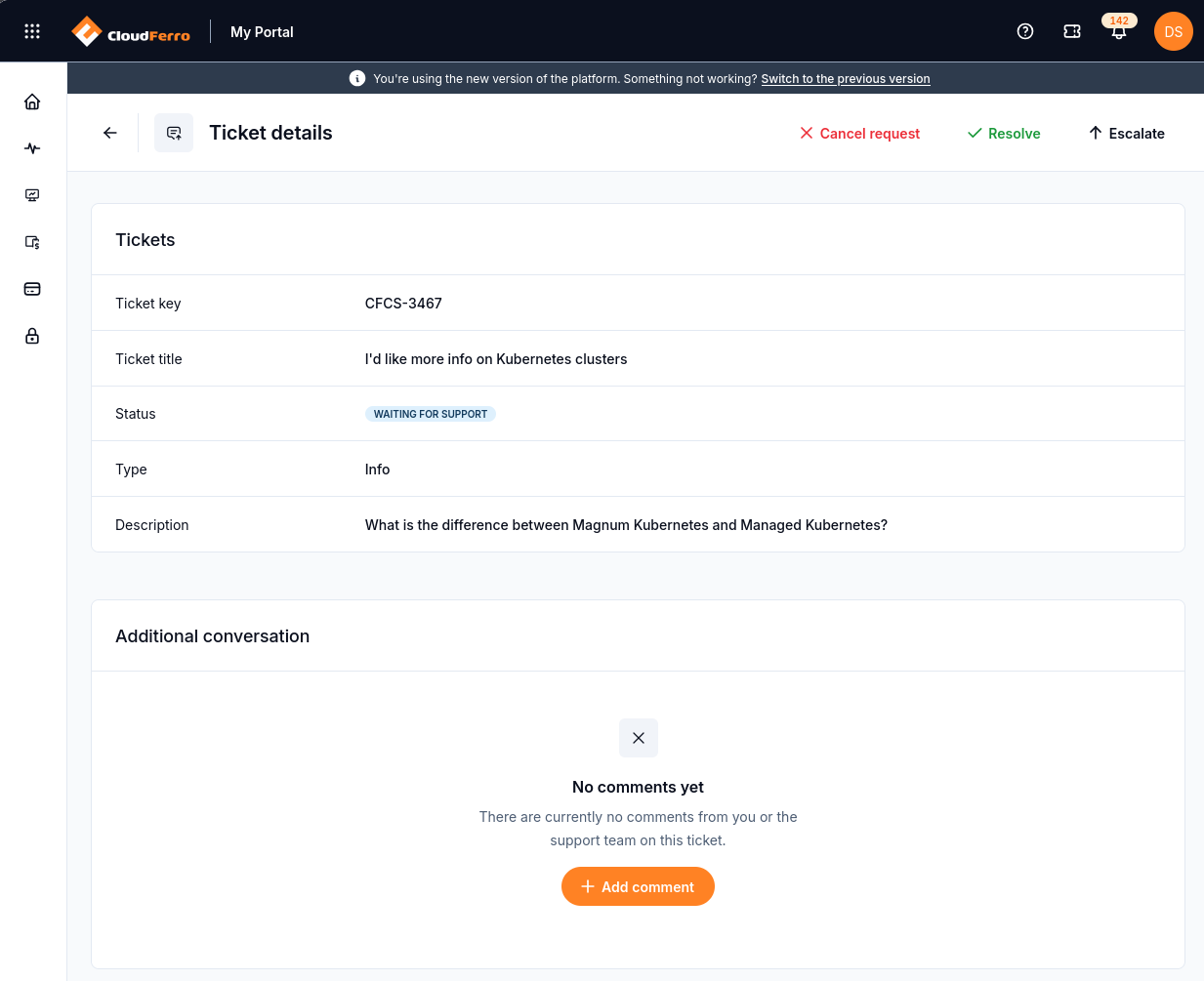
The ticket header provides actions, while Additional conversation holds the discussion.
The Additional conversation area displays messages from you or the support team. No comments yet means the request has no conversation entries yet.
Select Add comment in Additional conversation.
Enter the additional information and submit the comment using the form.
Check that your message appears in the conversation with its author and date and time.
Use a comment to add an error message, explain a change in the problem, or answer a support question on the same request.
Resolve a ticket
When the issue has been addressed, use the Resolve action in the ticket header.
Select Resolve to open Resolve this issue.
Enter a Comment explaining how the issue was resolved.
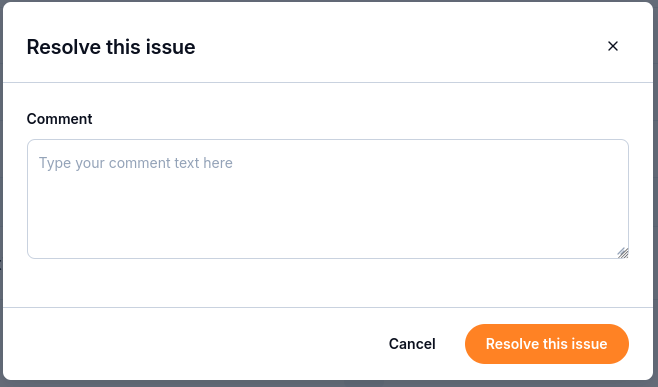
Review the resolution comment before confirming the action.
Select Resolve this issue to submit the action, or Cancel to leave the dialog without submitting it.
Review the status displayed in Ticket details after the action completes.
Escalate a ticket
Use Escalate when you need to request further attention to an existing issue.
Select Escalate in the ticket header.
In Comment, explain why the request needs further attention and describe its current impact.
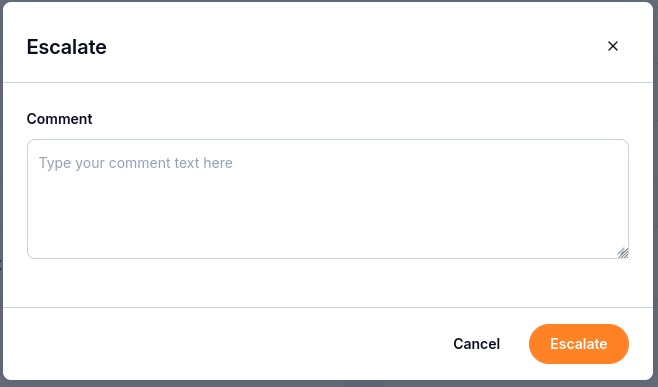
Provide the escalation context in the comment.
Select Escalate to submit the action, or Cancel to leave the dialog without submitting it.
Return to Ticket details to check the displayed status and conversation.
Cancel a request
If you no longer need the request, select Cancel request in the ticket header. Check that its Status changes to CANCELED.
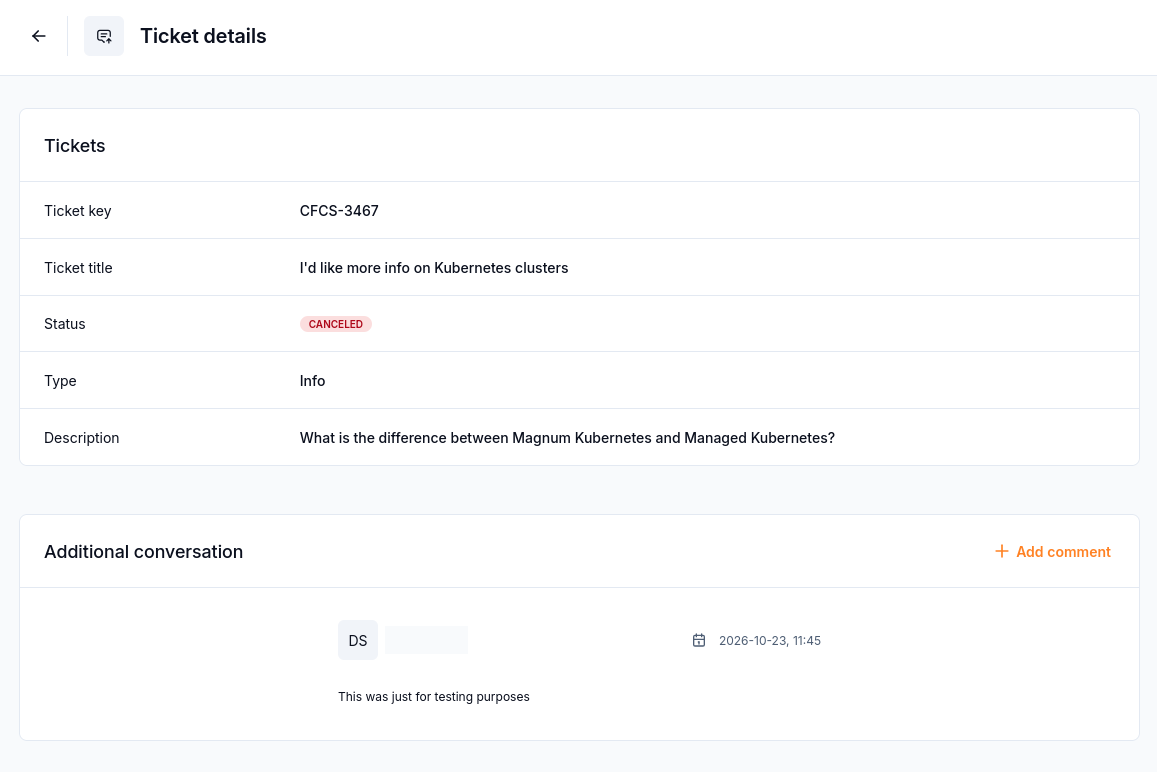
The canceled example retains its request details and conversation. The sample comment has an author and timestamp.
The Cancel button inside the Resolve or Escalate dialog closes that dialog without submitting its action. Cancel request is the separate action on the ticket itself.
When you cannot open Tickets
If sign-in or the portal is unavailable, contact support through your usual support channel. Include the page address, error message, and time of the attempt.