
How to use Notifications in My Portal for CloudFerro Cloud
When a service or account event needs your attention, Notifications lets you read the message and identify the affected resource. For example, a low-wallet-balance notification can prompt you to check the wallet before continuing to use its services.
Prerequisites
No. 1 Access to your organization in My Portal
Sign in to My Portal with the account you use for your organization.
Open the notification panel
Select the bell icon on the right-hand side of the top bar. Its badge shows the unread count; the panel example shows 138.
Read the messages in the panel. Each visible entry has a title, date and time, and an UNREAD label where applicable.
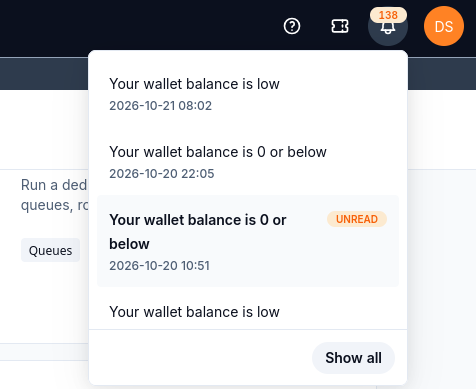
Use the title and timestamp to identify the event. The badge and messages belong to the example account.
Select Show all at the bottom of the panel to open the full notification view.
You can also open Notifications from the Help menu: select the question-mark icon in the top bar, then Support → Notifications.
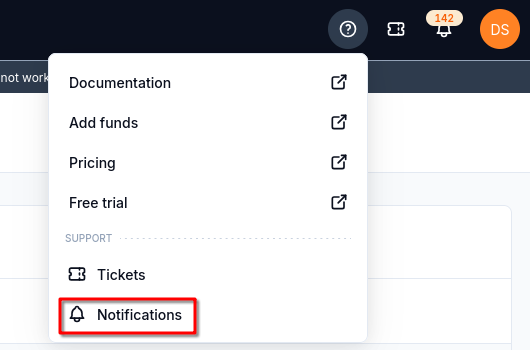
The Help menu provides another route to Notifications.
Find a notification in the list
The full Notifications page shows account messages, service announcements, and maintenance notices in one list. The captured example includes wallet alerts and notices about storage, networking, and other services.
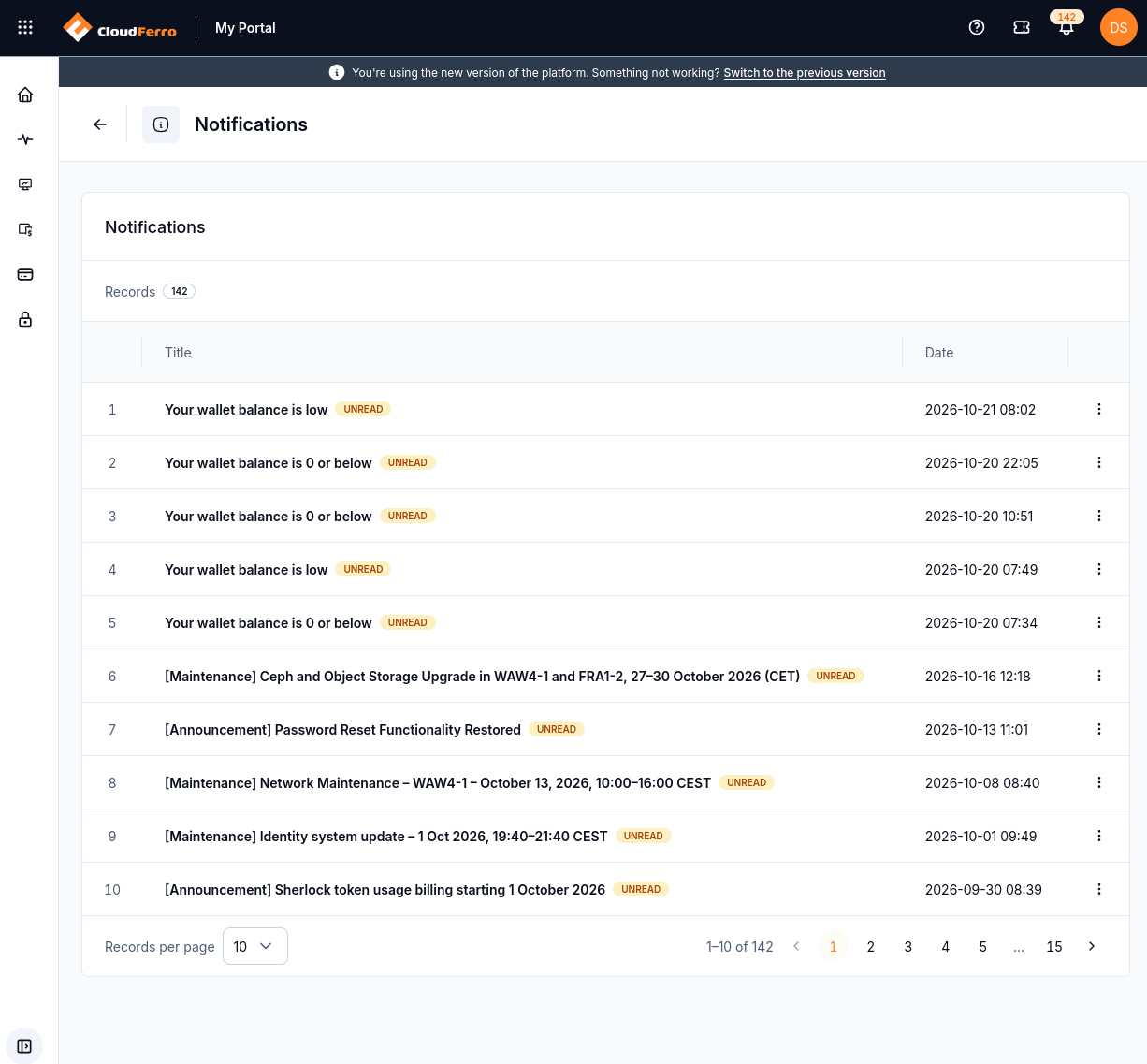
The first page shows ten notifications, each with its own action menu.
Field or control |
What to use it for |
|---|---|
Records |
Check the total number of notifications in the list. |
Title |
Identify the event. Unread entries have bold titles and an UNREAD label. |
Date |
Check the message date and time. |
Three-dot menu |
Open Details or select Mark as read for the corresponding row. |
Records per page |
Choose how many entries the page displays. The example shows 10. |
Page numbers and arrows |
Move between pages. The displayed range, such as 1–10 of 142, identifies the visible records. |
Read a notification
Find the message in Notifications, also called the inbox.
Open the three-dot menu at the right of its row, then select Details.
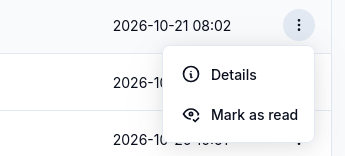
Details opens the full message for the selected row.
Read the Details drawer on the right. It contains the title, timestamp, and message body. Identify the affected resource and the action described in the message.
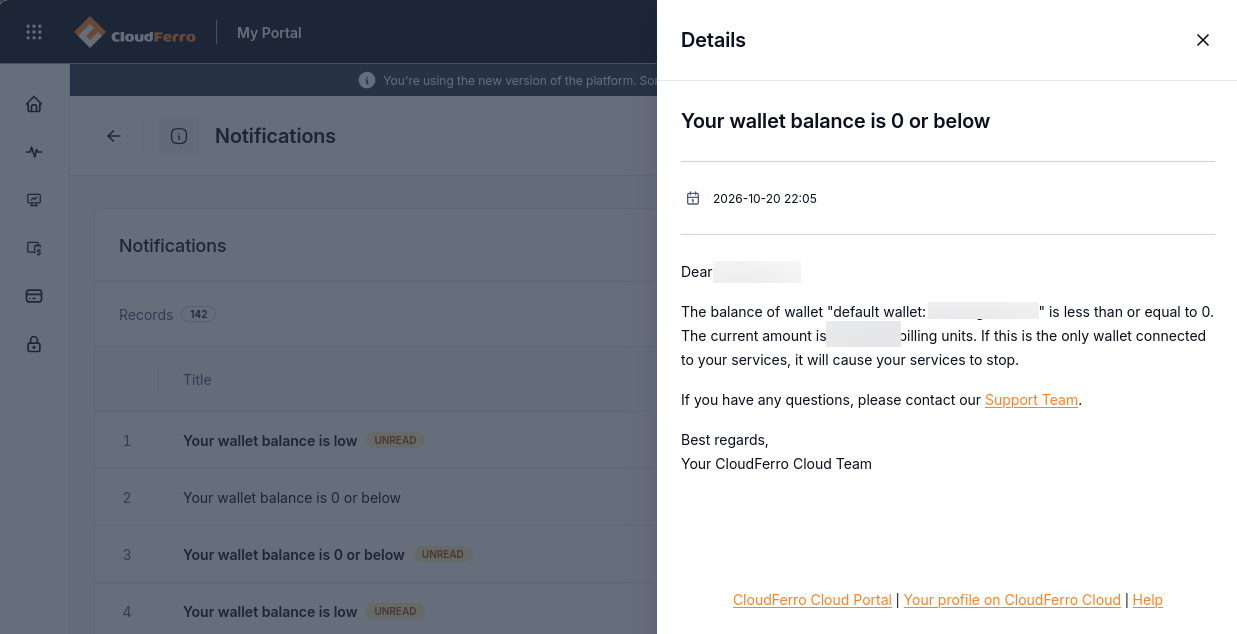
The wallet message identifies the balance condition and explains its effect on services.
Use the × control in the upper-right corner to close the drawer and return to the list.
In the captured Your wallet balance is 0 or below message, the balance is less than or equal to zero. The message explains that services will stop if this is the only wallet connected to them. Check the wallet named in your own message using Wallets/Contracts: review wallets and add Billing Units on CloudFerro Cloud.
For Your wallet balance is low, check the affected wallet and its balance as well. Reading or marking the alert as read does not add funds; follow the wallet procedure if you need to purchase Billing Units.
Mark a notification as read
Open the three-dot menu for the message you have reviewed.
Select Mark as read.
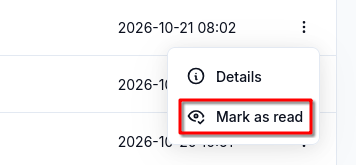
Mark as read changes the notification’s read state.
Check that the row no longer displays UNREAD and its title is no longer bold. The message remains in the list.
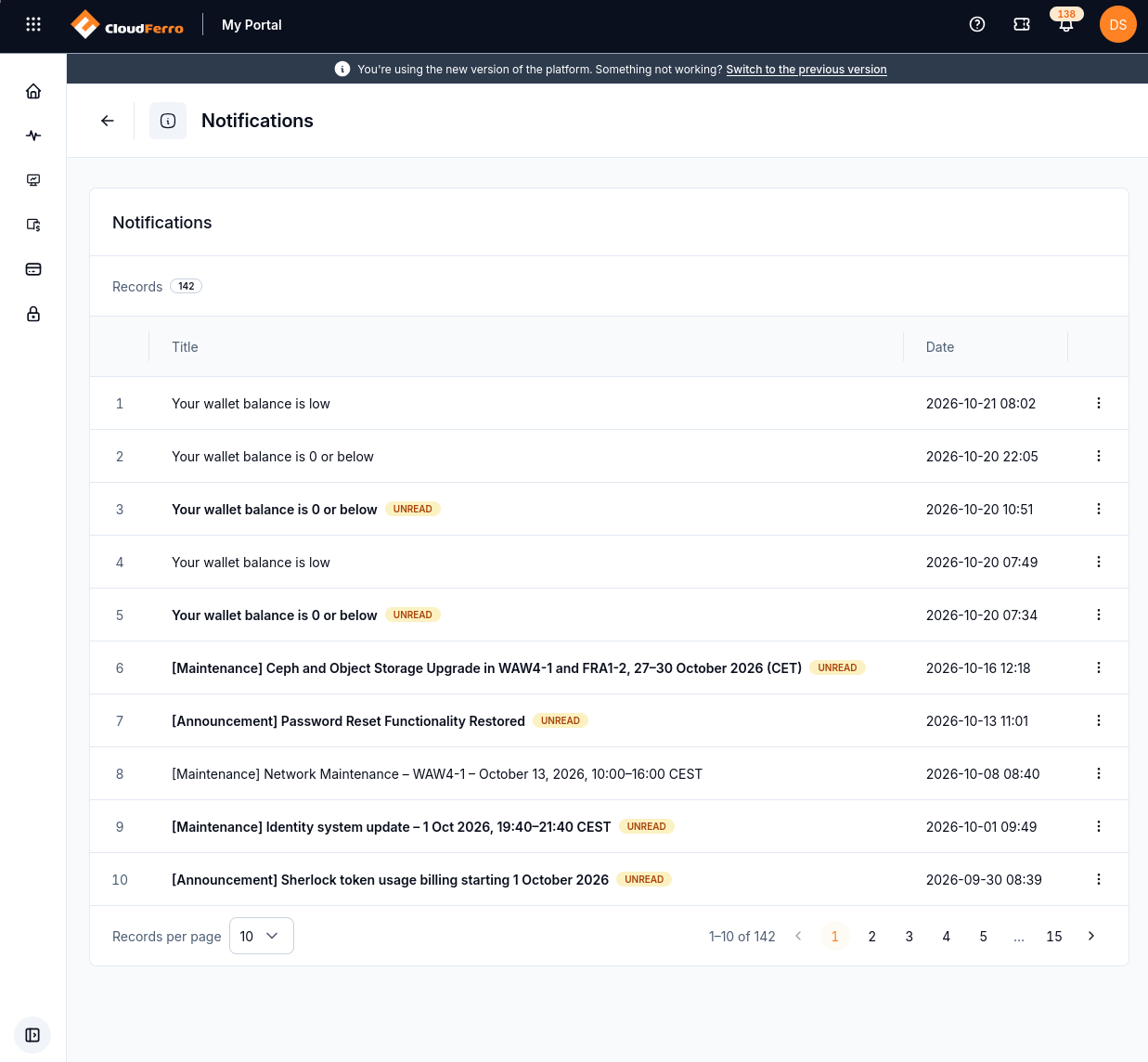
After four messages have been read in the example, Records remains 142 and the bell badge shows 138.
Respond to the event
The read state helps you keep track of messages you have reviewed. Complete any required action in the relevant wallet or product interface.
A service notification may require a different action. For example, a container registry may report that an access token is approaching expiry. Identify the affected token, then use the Container Registry guide for the required action.