
Active Services: review billed resources on CloudFerro Cloud
To investigate which resources contribute to your organization’s usage, start with Active Services. Its tabs separate the resource inventory from fixed-term contract assignments.
Prerequisites
No. 1 Access to your organization’s service inventory
You need access to the organization whose resources you want to review. Check your membership in Register or join an organization in My Portal on CloudFerro Cloud.
No. 2 The resource or billing context to investigate
Have the resource name or ID ready. For project and wallet details, use Cloud projects/Wallets: manage project billing on CloudFerro Cloud to identify the values needed to find its inventory row.
Review All Services
Open Active Services.
Select All Services.
Find the resource by Resource ID or Name. Compare its Cloud, Product, Quantity, Project, and Wallet with the resource you intended to inspect.
Use the table settings to select filters. The page describes Period (in hours) as a window from 1 to 48 hours, and Billing mode as the resource’s latest billing state.
Use the page controls to view additional rows.
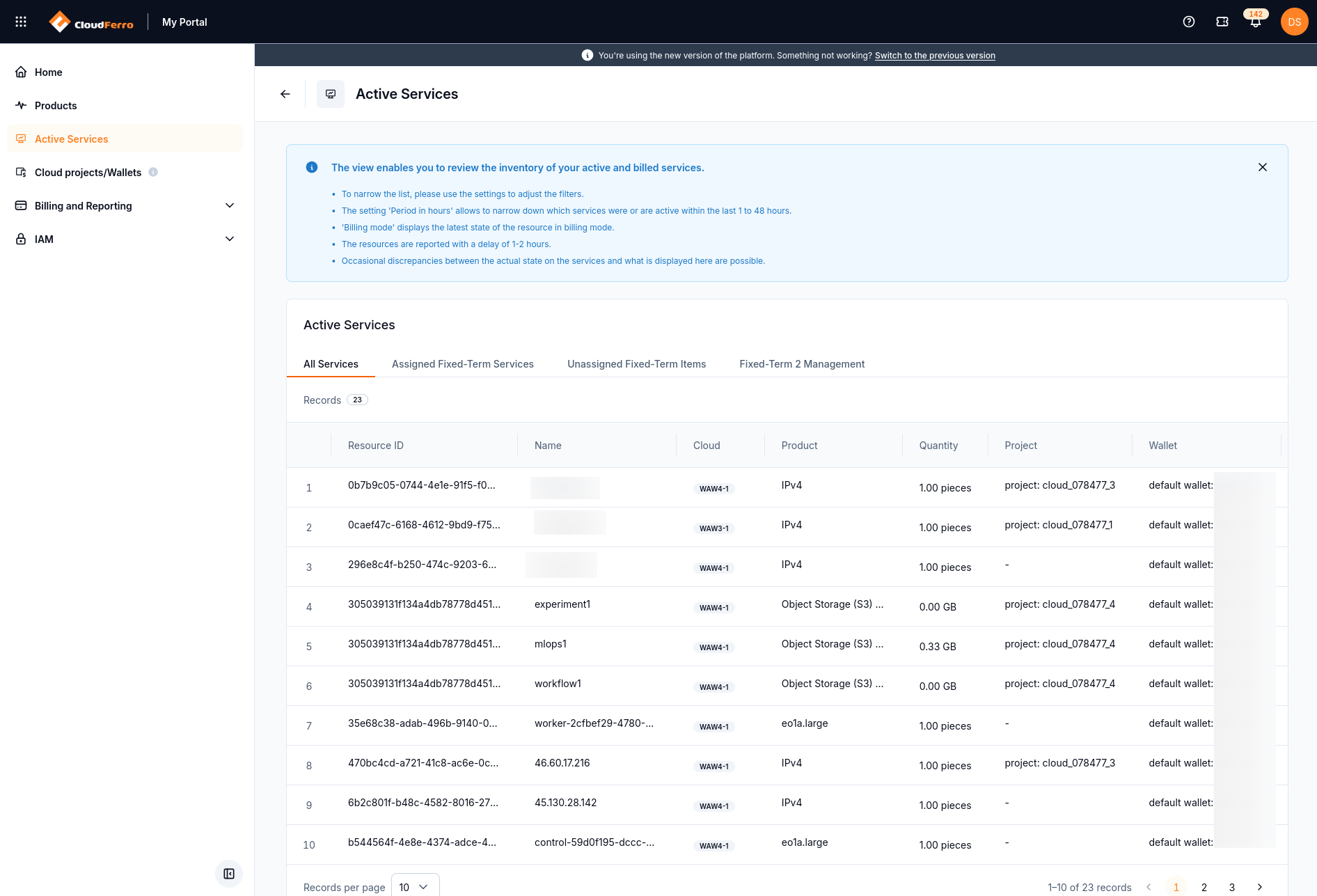
All Services connects billed resources with their project and wallet.
The information panel states that resources can appear with a delay of one to two hours. The displayed inventory can therefore differ from the current state in a product interface. Check the product itself when you need its current resource status.
Check or change the billing assignment
For PPU or PAYG, check the wallet assigned to the project in Cloud projects/Wallets. Follow that guide to change the current wallet or schedule the next one.
For fixed-term billing, first identify the applicable contract and its items using the tabs below. Contact support about contract provisioning. For settlement rules, see Billing periods and fixed-term coverage.
Review fixed-term assignments
Assigned Fixed-Term Services lists contract assignments with the contract name, item, quantity, resource ID, and duration. An empty view states that no assigned services were found.
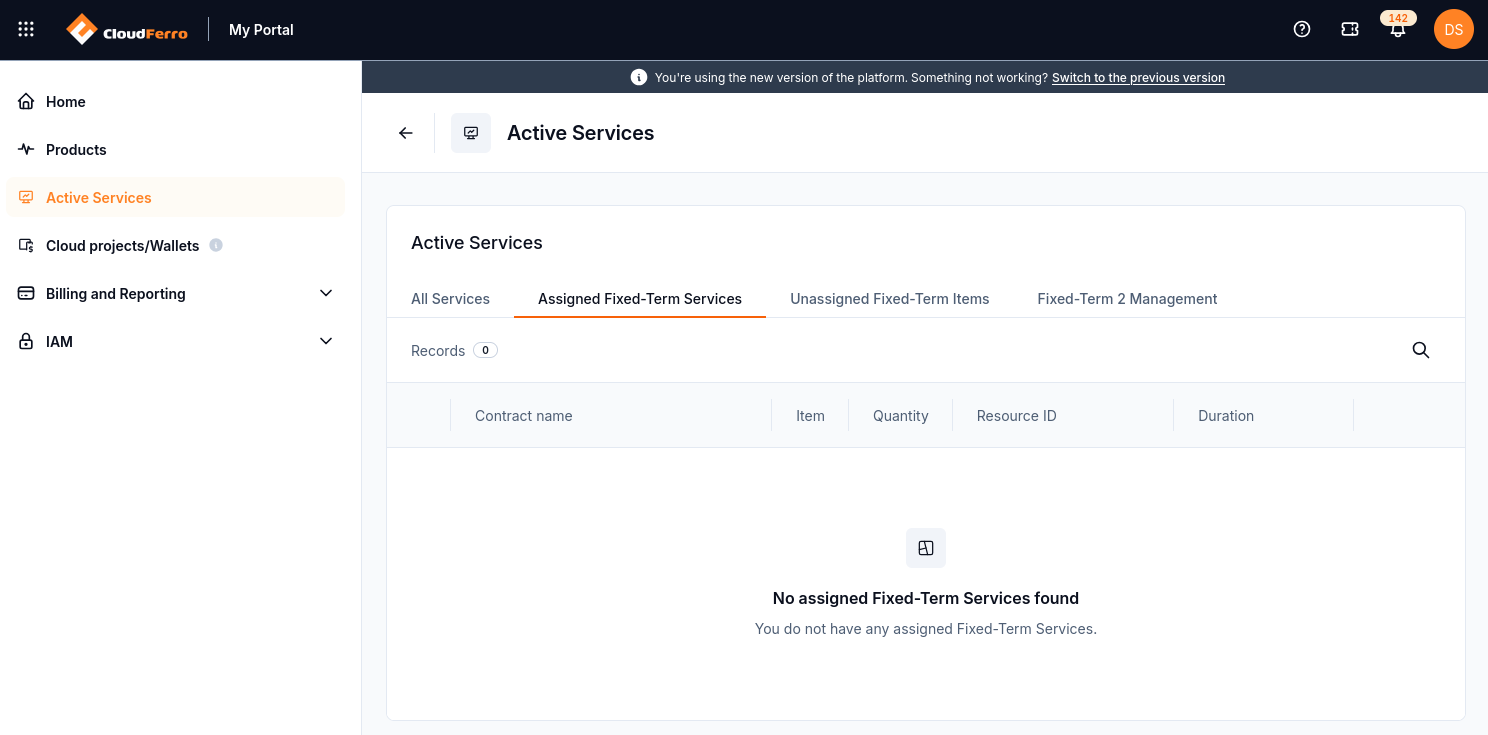
Use this tab to find resources already assigned to fixed-term items.
Unassigned Fixed-Term Items lists contract items with their available quantity and duration. An empty view states that no unassigned items were found.
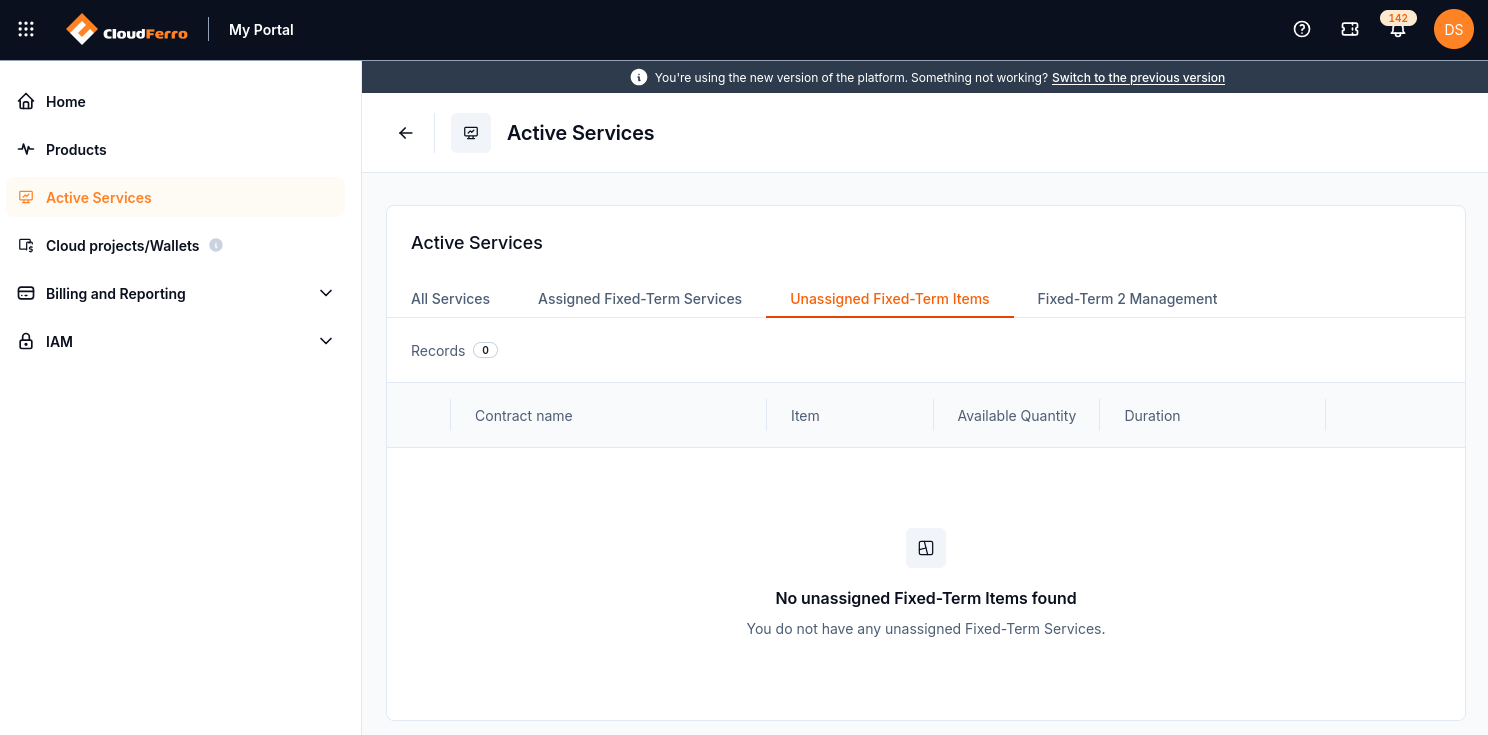
This tab separates available contract items from assigned services.
Understand Fixed-Term 2 Management
The Fixed-Term 2 Management tab describes permanent assignment of a resource to a fixed item in a contract. Its information panel gives this order: select the contract, select the contract item, then select the resource ID.
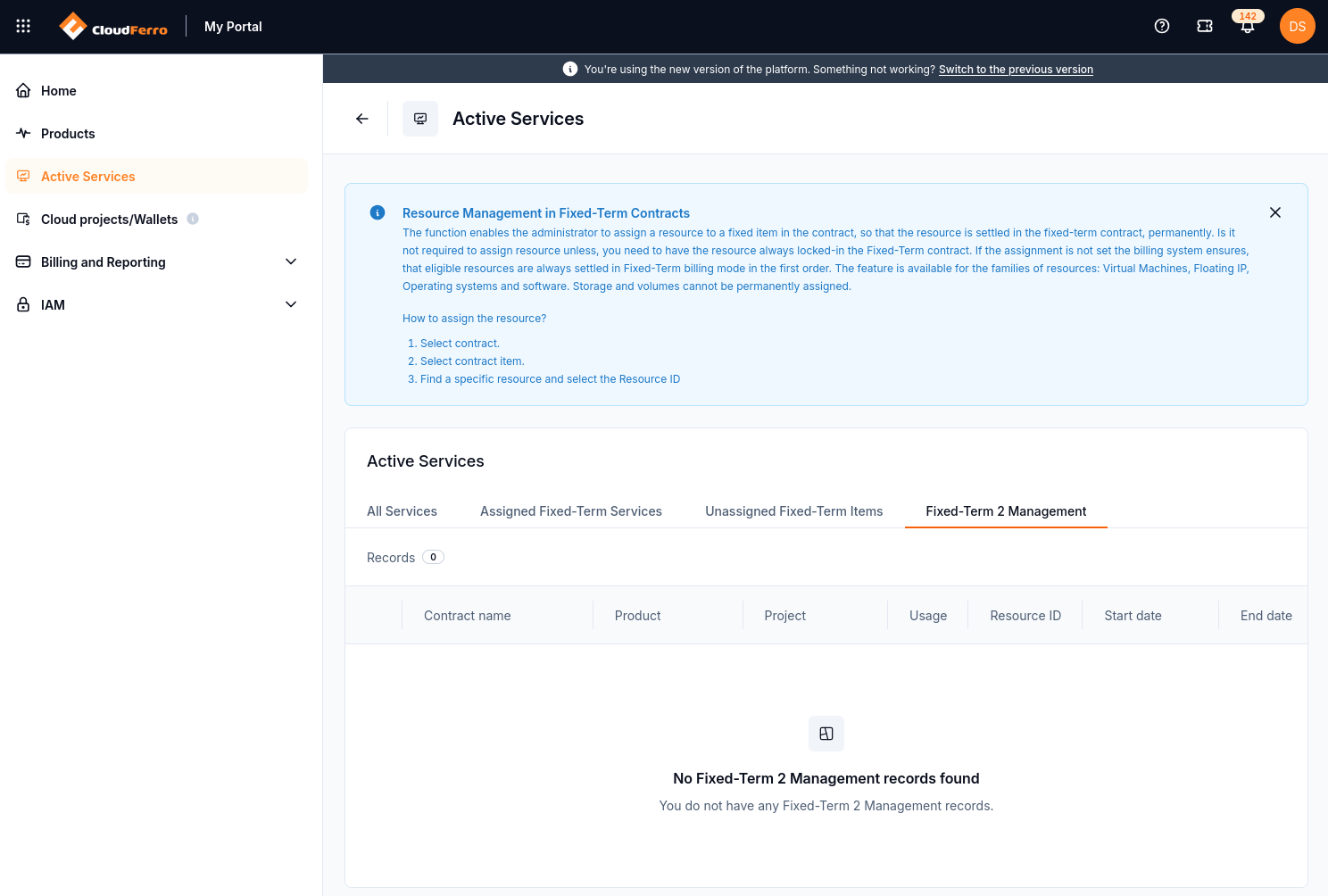
The example account has no Fixed-Term 2 Management records.
According to the panel, permanent assignment is available for virtual machines, floating IPs, operating systems, and software. Storage and volumes cannot be permanently assigned. Without a permanent assignment, eligible resources are still settled in fixed-term billing first; assignment is needed when a particular resource must stay linked to a particular contract item.
For the contracts themselves, use Wallets/Contracts: review wallets and add Billing Units on CloudFerro Cloud. For usage and costs over a billing period, use Billing Reports: review usage and costs on CloudFerro Cloud.