
Wallets/Contracts: review wallets and add Billing Units on CloudFerro Cloud
When you need to check how your organization’s cloud usage is paid for, start with its wallets and contracts. If you use a prepaid wallet, My Portal also provides a route to the store where you can purchase additional Billing Units, commonly called credits.
A prepaid wallet holds Billing Units used to pay for resource usage.
Prerequisites
No. 1 Access to your organization’s wallets
You need access to the organization that owns the wallet. Check your membership in Register or join an organization in My Portal on CloudFerro Cloud.
No. 2 The wallet you intend to review or fund
Find the wallet assigned to your project in Cloud projects/Wallets: manage project billing on CloudFerro Cloud. Have its name or identifier ready to check the checkout details.
Understand the available options
Option |
What the portal shows |
|---|---|
Pay per use |
A prepaid wallet funded with Billing Units. |
Pay as you go |
A postpaid contract for actual usage, invoiced over the agreed period, usually monthly. |
Fixed term |
Specified resources purchased for an agreed period, price, and currency. |
Billing Units are valued at EUR 1 for price-list purposes. Prepaid credits can be purchased through the store or a written agreement. Check the applicable price list and contract terms for rates and payment conditions.
For the relationship between resource groups, billing accounts, and linked wallets or contracts, see Resource groups and billing accounts on CloudFerro Cloud.
Billing periods and fixed-term coverage
PPU and PAYG usage is settled every two hours, with metering precision of up to two seconds. PAYG invoices cover usage assigned to the contract, except resources covered by fixed-term orders.
For a resource to receive fixed-term coverage during a billing session, the contract must:
be active at the start of the session or when the resource starts;
remain active through the end of that two-hour session.
If either condition is unmet, PPU or PAYG billing applies. When a contract is activated after the resource starts, fixed-term coverage begins with the next billing session.
Use Cloud projects/Wallets: manage project billing on CloudFerro Cloud to check which wallet or contract is assigned to the project.
Review a wallet or contract
Open Billing and Reporting → Wallets/Contracts. This link opens the Pay per use view.
Find the prepaid wallet by Name and check its Available BU and BU Limit columns.
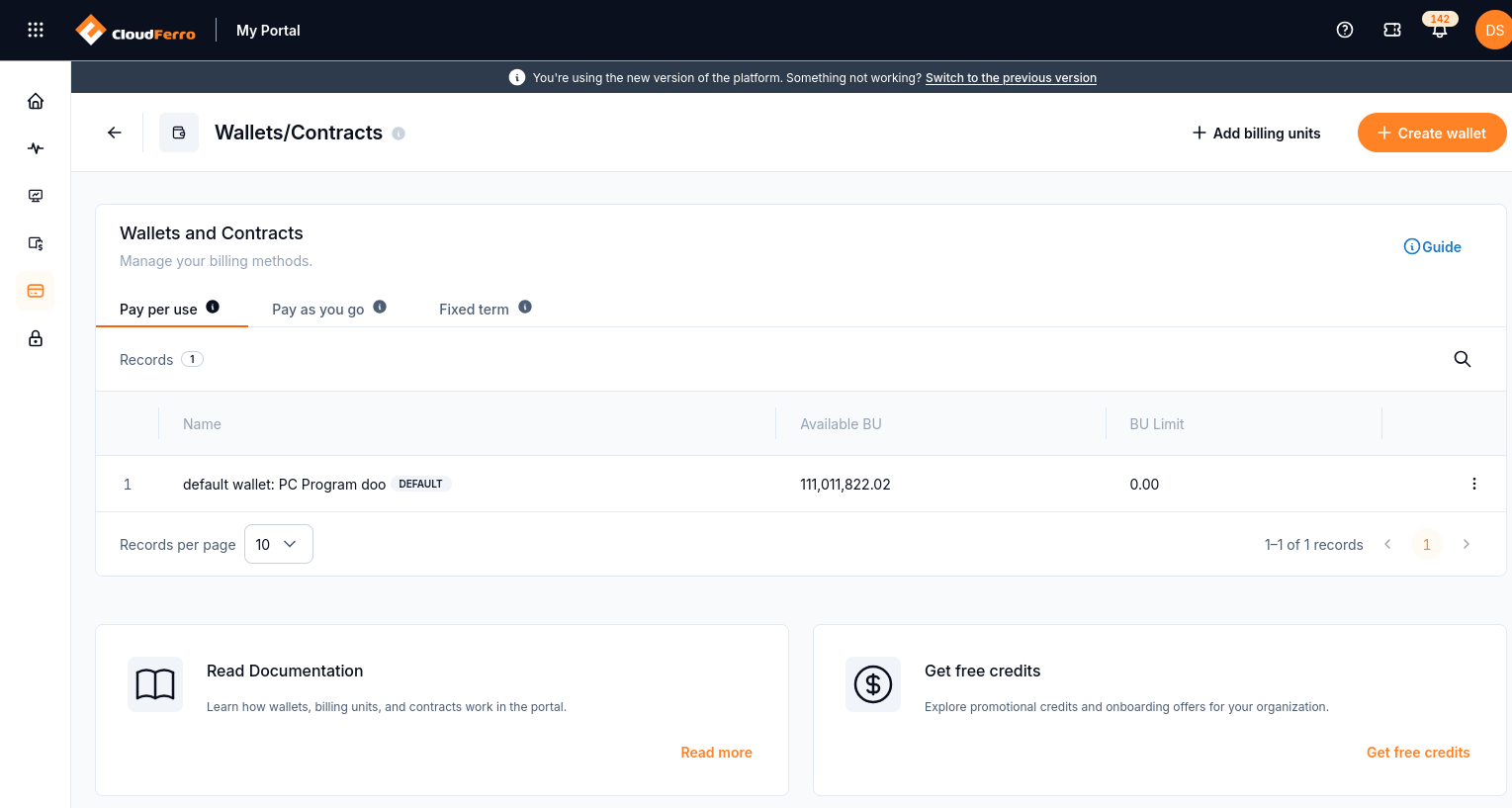
The Pay per use wallet list. Displayed balances belong to the example account.
For a contract, select the Pay as you go or Fixed term tab and find the relevant entry.
Check that the organization and billing arrangement match the work you intend to pay for.
Use the wallet actions menu
Open the three-dot menu at the right of the wallet row. The captured default-wallet menu provides Edit Wallet, Add billing units, Transfer funds, and Billing report.
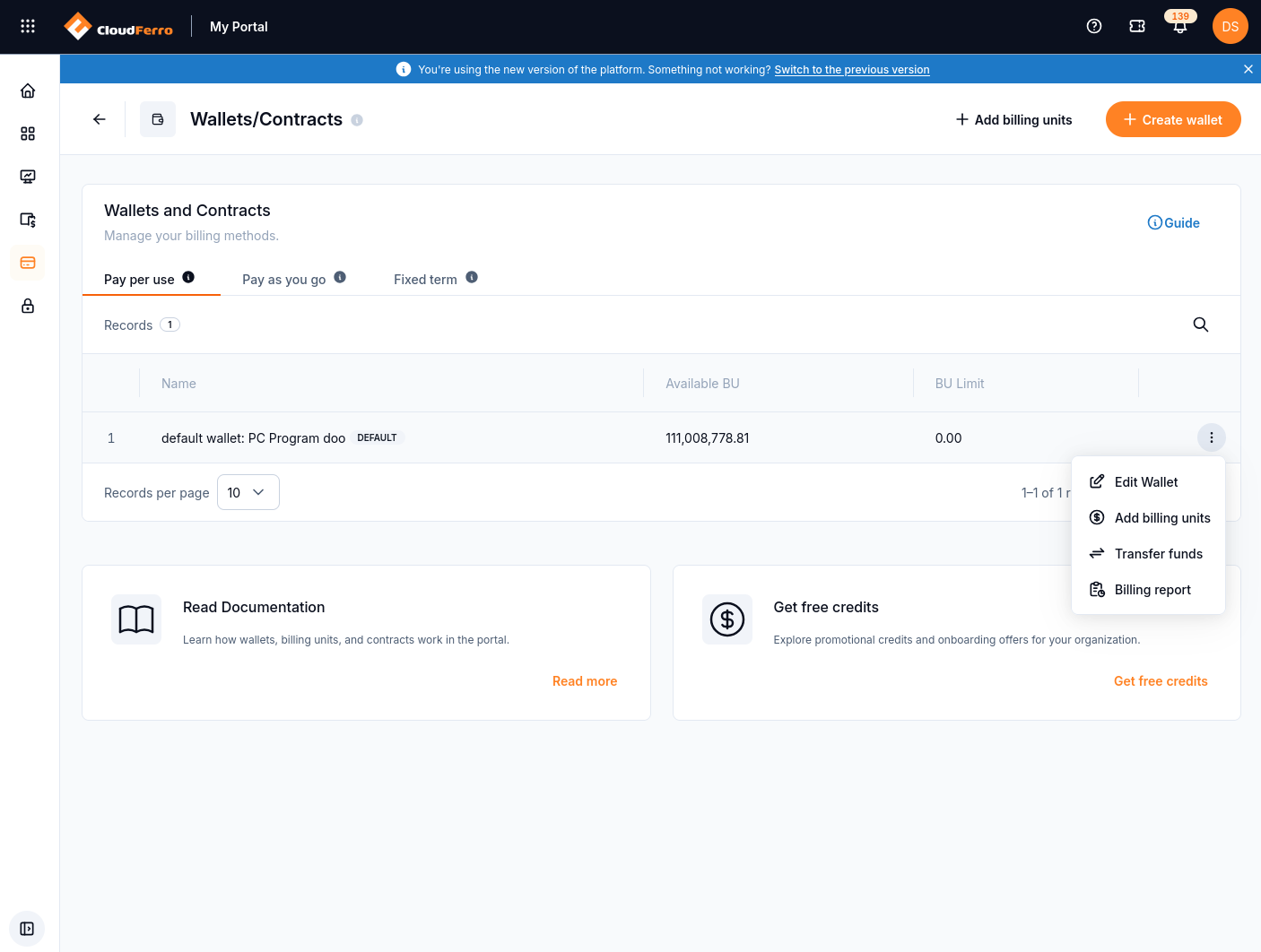
Actions available from the default wallet row.
Select Edit Wallet for wallet settings, Add billing units to begin a purchase, or Billing report to review usage and costs. These actions apply to the wallet whose menu you opened.
Transfer Billing Units between wallets
Identify the source wallet and open its three-dot menu.
Select Transfer funds.
Check the receiving wallet and transfer amount before submitting the transfer.
Review both wallet balances after the operation.
Request wallet removal
Transfer all remaining Billing Units to another wallet before requesting removal. The default-wallet menu shown above has no deletion action. Use Tickets to ask support about removal, identifying the wallet by its name or ID.
Create an additional prepaid wallet
Select Create wallet at the top of Wallets/Contracts.
In the Create wallet dialog, enter the required Wallet name.
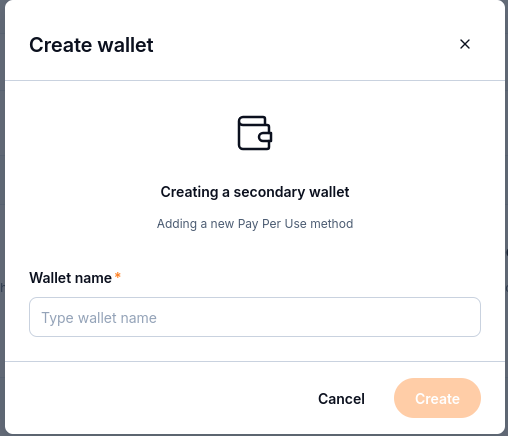
Creating an additional prepaid wallet.
Select Create and follow any validation or confirmation shown.
Check the Pay per use list for the new wallet.
The dialog identifies this as a secondary wallet. Creating it and adding funds are separate actions. To check which wallet pays for a project, use Cloud projects/Wallets: manage project billing on CloudFerro Cloud.
When no contract is provisioned
The Pay as you go and Fixed term tabs can show an empty state when the organization has no contract of that type. Select Request Contact to ask the sales team about a contract.
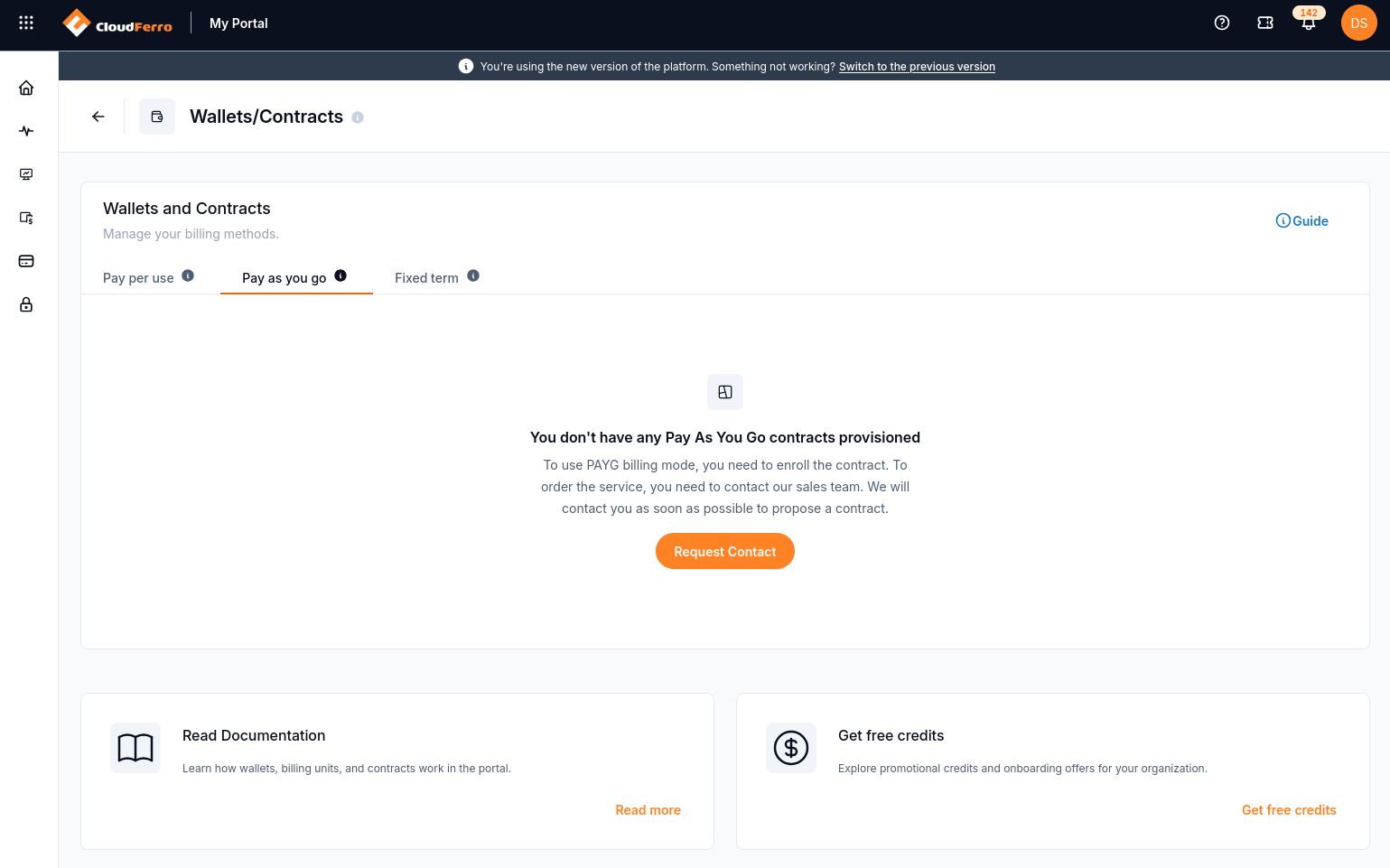
The Pay as you go view for an organization without a provisioned contract.
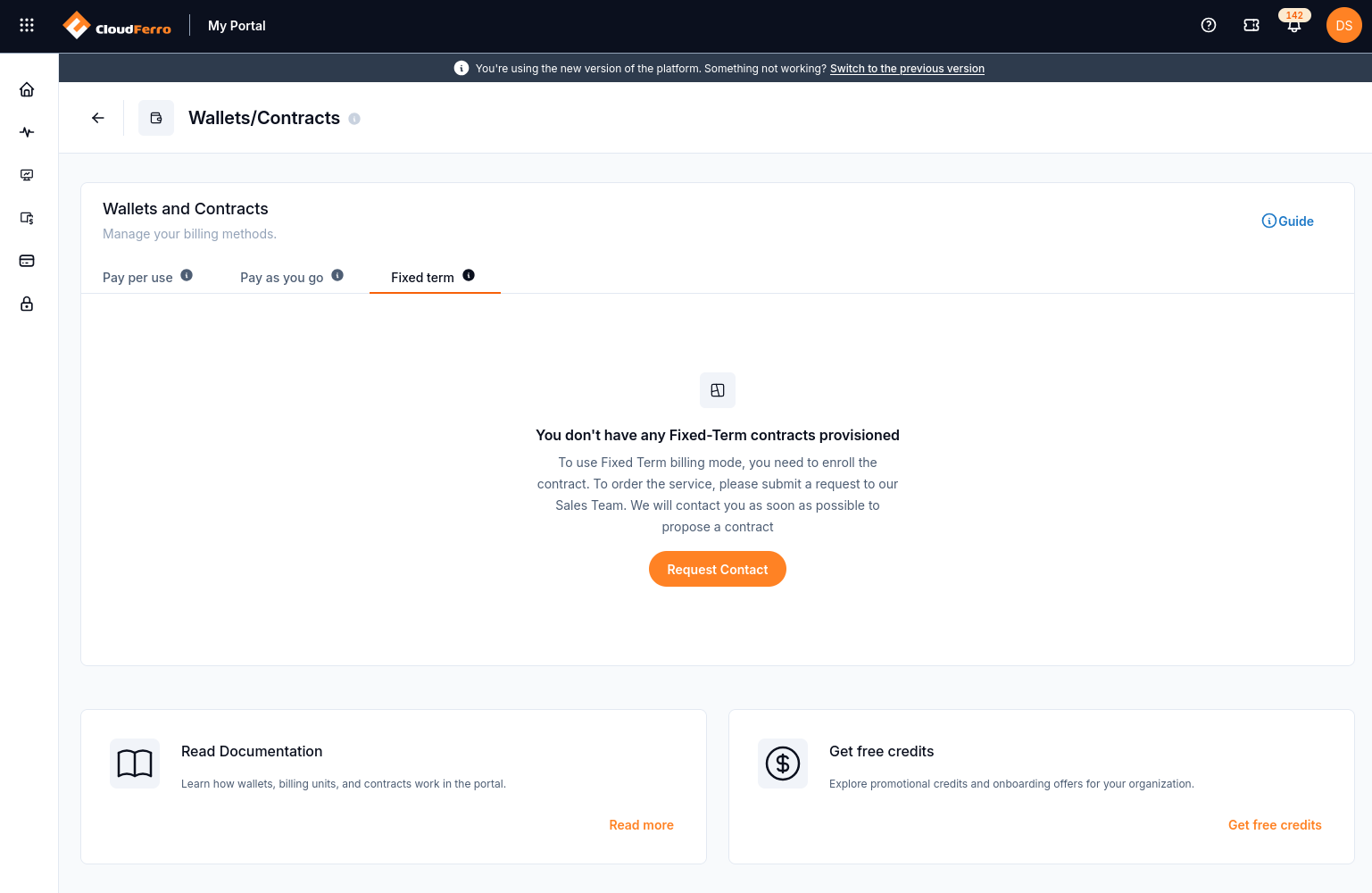
The Fixed term view for an organization without a provisioned contract.
Add Billing Units to a prepaid wallet
Open Wallets/Contracts and identify the prepaid wallet you intend to fund.
Select Add billing units at the top of the page to start the purchase flow.
Continue to checkout.
Check the purchase details and wallet information presented at checkout.
Follow the store’s purchase and payment instructions.
Check the wallet and purchase amount at checkout before selecting a payment method.
If checkout shows the wrong wallet, stop before submitting payment and report the selected wallet and checkout details to support.
Check the result
After completing the store’s flow, return to the wallet details and review the balance and available payment information. If the displayed result is not what you expect, keep the purchase reference and the time of the transaction for your support request.
Do not include passwords, session tokens, or payment-card details in the request. Describe the discrepancy using the wallet identifier, purchase reference, and displayed amounts.
Checkout asks for an organization VAT number
Checkout can show the message Personal tax identification numbers are not accepted. Please provide a valid organization VAT number. The message provides a link back to the portal.
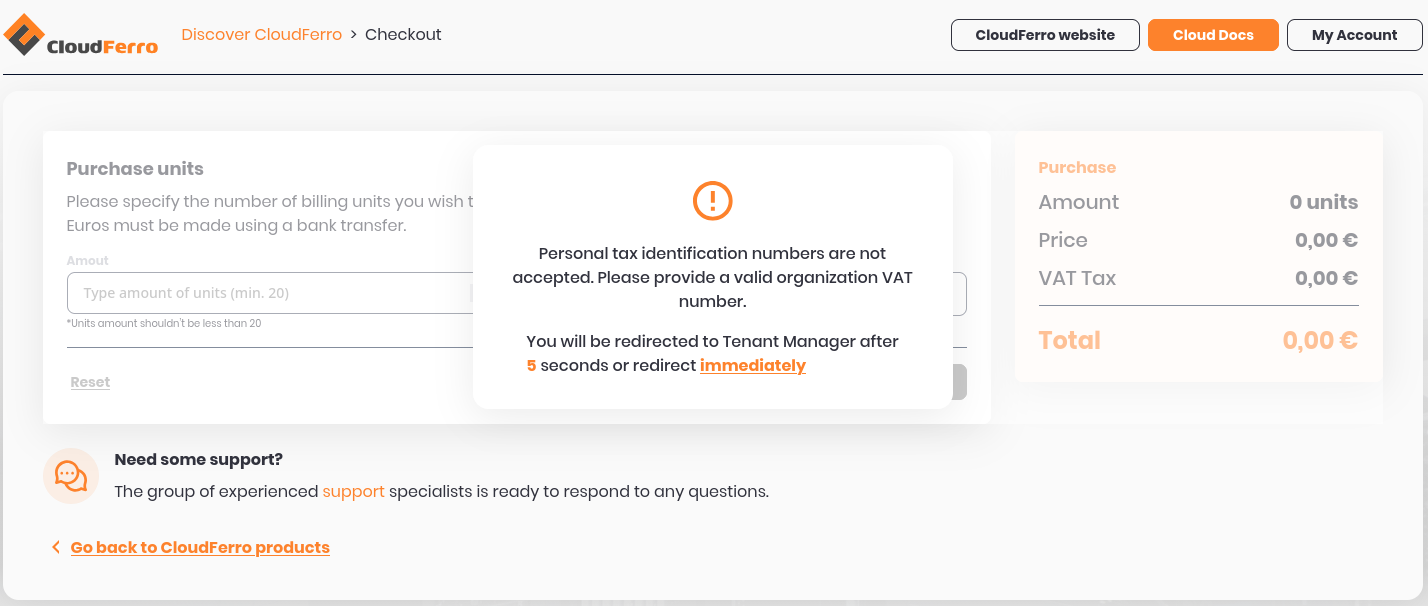
A checkout validation message concerning the organization’s billing details.
If you encounter this message, return to IAM → Organization and check that you are using the intended organization. Ask its administrator to review the company billing details. If checkout still rejects them, include the exact message in your support request.
For the complete credits-purchase procedure and payment-method steps, follow How to buy credits using Pay Per Use wallet on CloudFerro Cloud.