
Payments: check payment history on CloudFerro Cloud
When you need to check a purchase or investigate a payment, use Payments to find the available payment history. Keep the purchase reference and transaction date ready so that you can identify the right entry.
Review payment history
Under Billing and Reporting, open Payments.
Find the payment associated with your purchase or enquiry. Use the search icon when records are available.
Compare Model, Wallet, Description, Invoice, and Amount with the purchase you are checking.
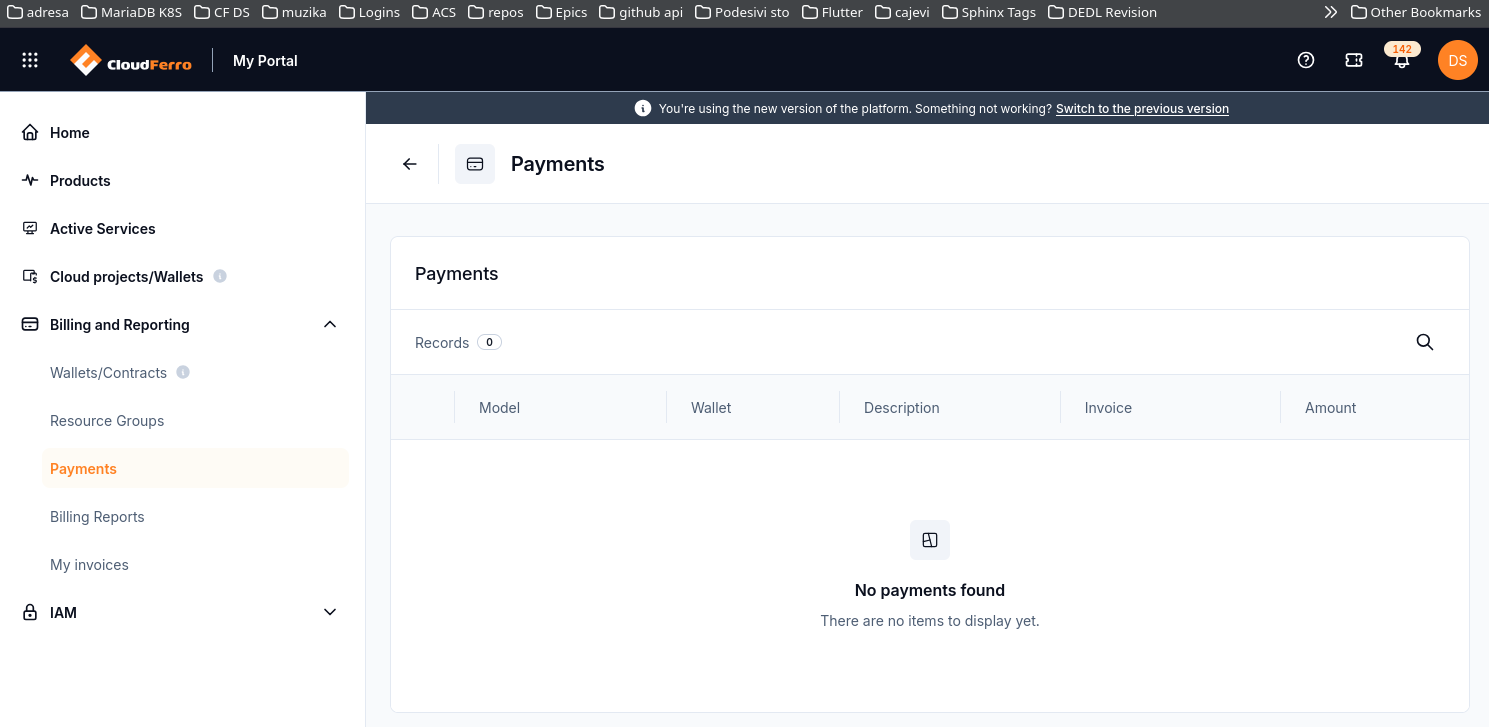
The example has no payment records.
No payments found means that the current view has no payment records to display. The screenshot illustrates that empty view.
If information is missing or unexpected, record the purchase reference, transaction date, and discrepancy for support. Include the payment reference if one is available.
For an unexpected amount or missing record, use Billing and Reporting on CloudFerro Cloud to prepare a billing enquiry. For prepaid purchases, see Wallets/Contracts: review wallets and add Billing Units on CloudFerro Cloud.