
Resource groups and billing accounts on CloudFerro Cloud
To understand your cloud costs, you need to know which resources are billed together and how they are paid for. In My Portal, a resource group identifies which resources belong together, while its billing account defines who pays for them and how.
Understand resource groups and billing accounts
A resource group organizes cloud resources, such as projects or services. It provides a way to structure resources by department, project, environment (such as production or staging), or location. Each resource belongs to exactly one group.
A billing account defines who pays for the resources in a group and how. It holds the group’s payment arrangements: a prepaid Pay per use (PPU) wallet, a Pay as you go (PAYG) wallet, or a Fixed Term contract with a set billing period.
Each resource group has exactly one billing account, created together with the group. Each billing account serves exactly one group and currently cannot be shared between groups.
What this means for you
Each resource group is billed separately. This helps you split costs across departments, projects, budgets, or clients, even when the resources share the same infrastructure.
The billing account keeps payment methods and invoicing details in one place for all resources in the group. You do not need to update each resource individually.
Each newly created organization receives one default resource group. Services that use this billing model currently report usage to that group.
Find resource groups in My Portal
The Resource Groups page in My Portal is visible to all users.
Sign in and check the organization using Register or join an organization in My Portal on CloudFerro Cloud.
Under Billing and Reporting, open Resource Groups.
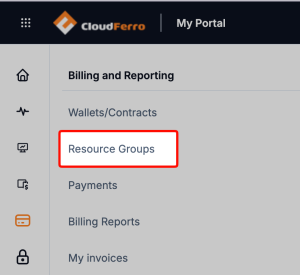
Open Resource Groups from the Billing and Reporting menu.
Find the group by Name and compare Is default, Billable, Billing account ID, and Created at.
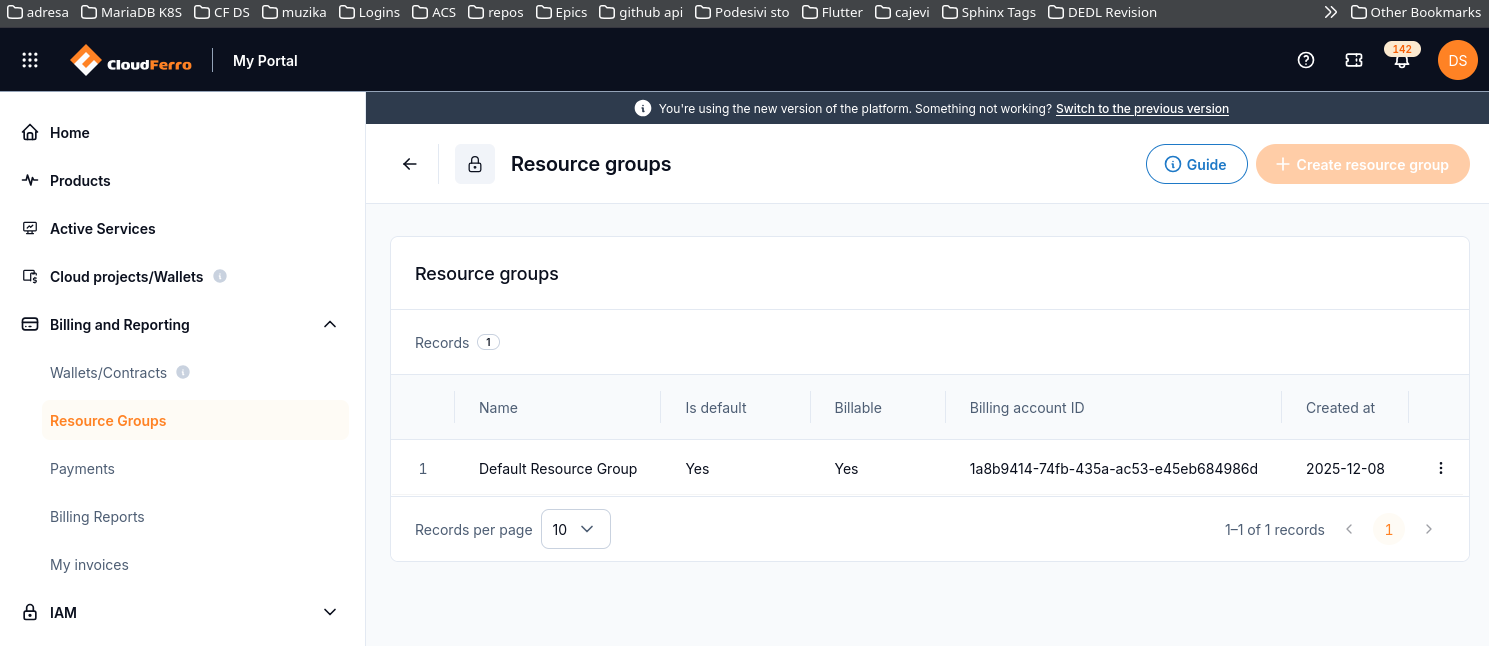
The default group in this example is marked Yes for both Is default and Billable.
The page includes Guide, Create resource group, and a three-dot row menu. The example shows Create resource group disabled.
Open the linked billing account
Open the resource group’s three-dot row menu and select Details. The Edit option is currently disabled.
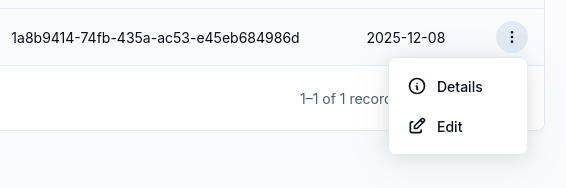
Select Details from the resource group’s row menu.
Check the group’s Name and Billing Account ID in Basic metadata. The Billing account panel below shows the linked account’s ID and Status.
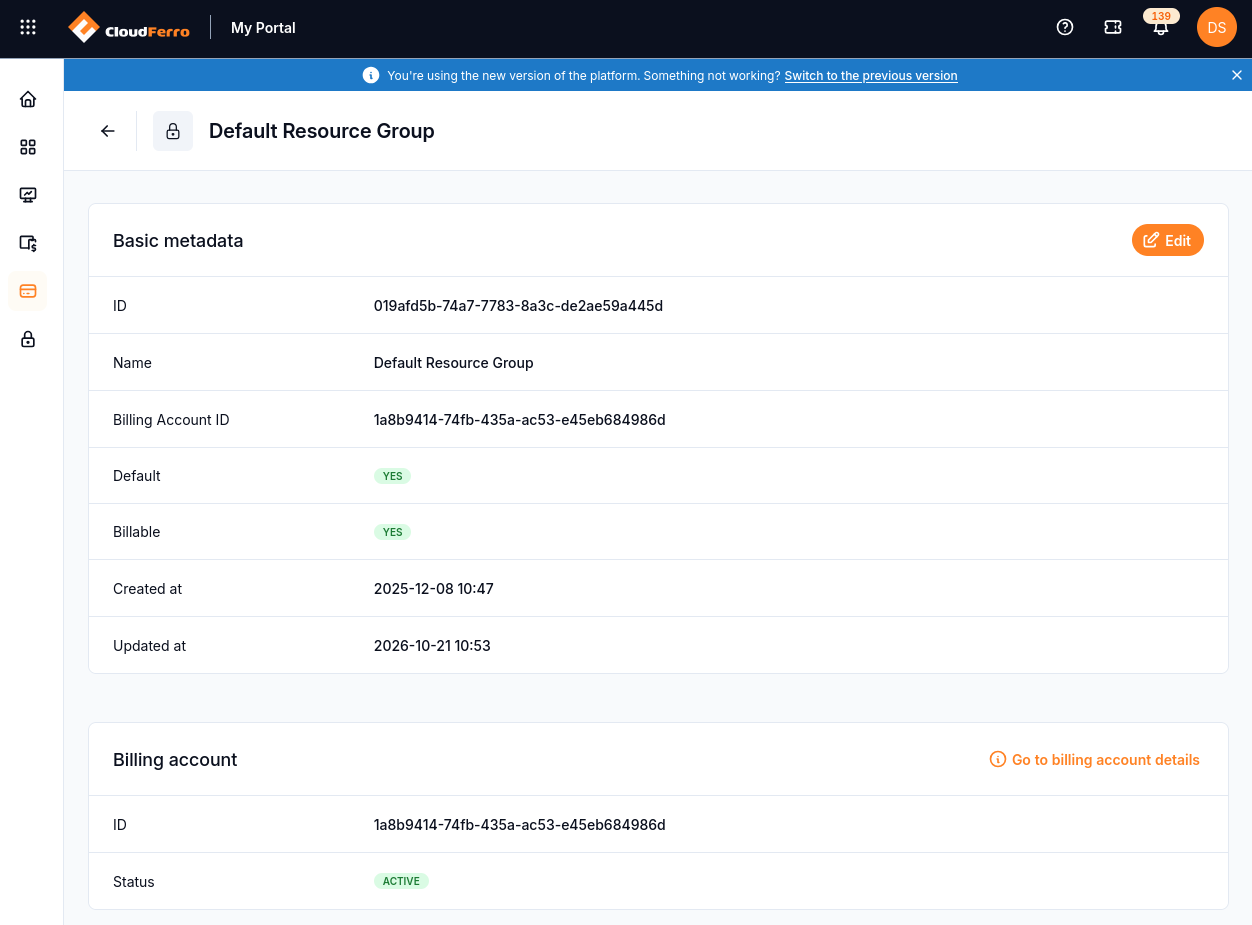
The resource group’s details show its metadata and linked billing account.
Select Go to billing account details to open the linked account.
On the billing account page, check the account name, Status, and Resource group, then find Linked wallets.
Link wallets and set their priority
A billing account can have several Pay per use (PPU) and Pay as you go (PAYG) wallets linked at the same time. Each linked wallet has a usage priority. Use an existing wallet in your organization. For wallet creation, wallet types, and funding a prepaid wallet, use Wallets/Contracts: review wallets and add Billing Units on CloudFerro Cloud.
Note
PAYG wallets always take precedence over PPU wallets, regardless of the configured priority value.
In Linked wallets, select Link wallet.
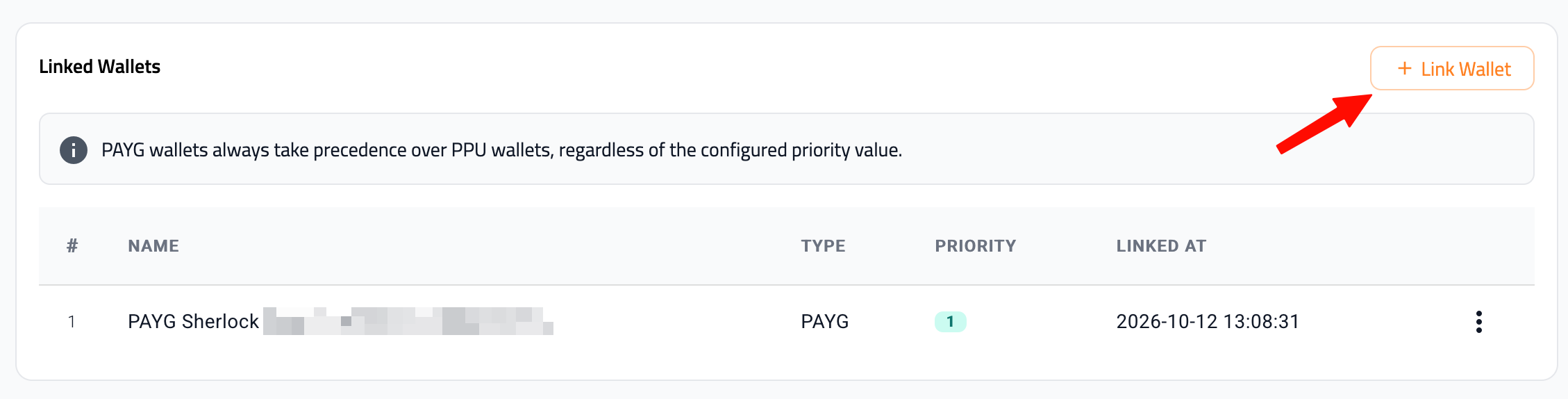
The list shows each linked wallet’s type, priority, and link date.
Choose the wallet in the Wallet list.
Set Priority for the wallet. The example dialog shows 0.
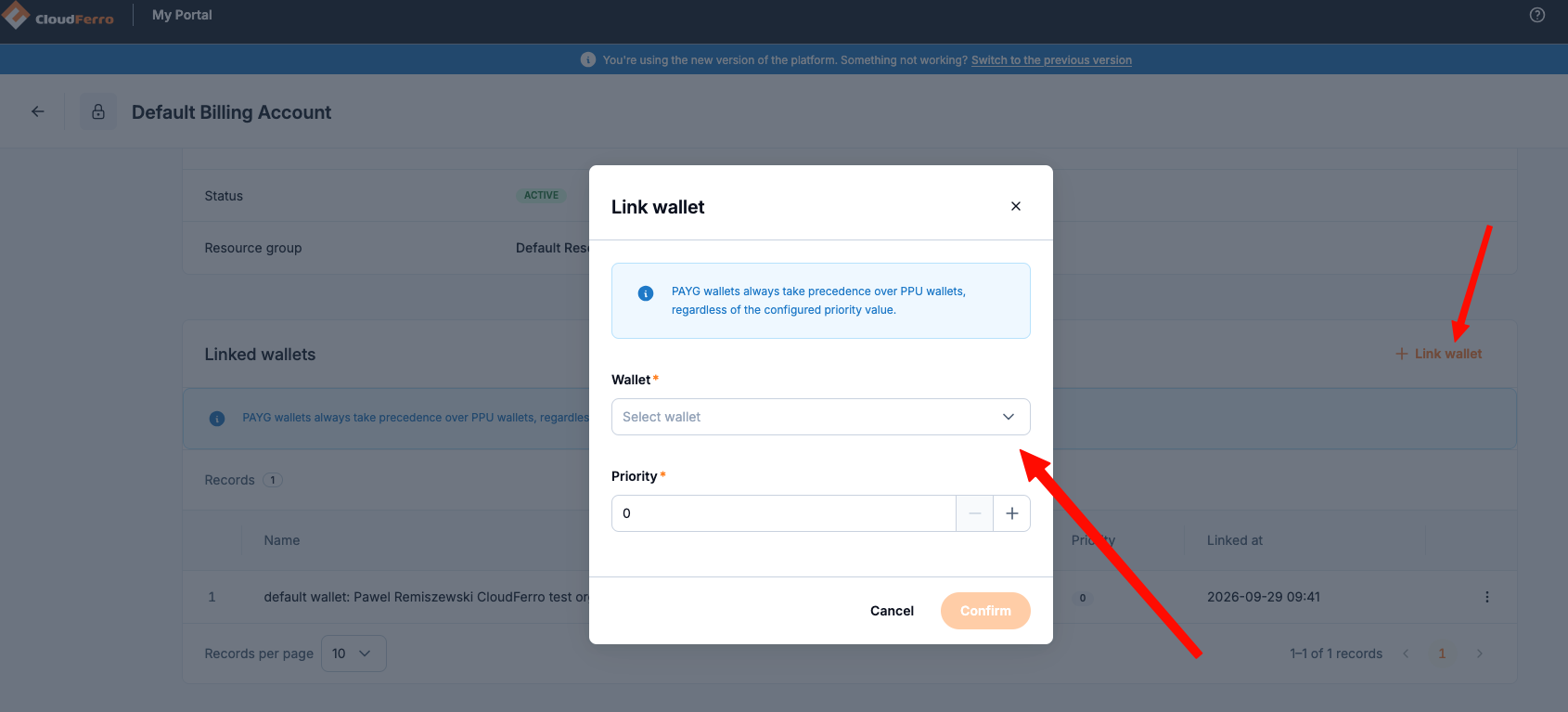
Select a wallet and set its priority before confirming the link.
Select Confirm.
Check that the wallet appears in Linked wallets with the intended priority.
Resource group suspension
The billing account and resource group are suspended when funds in all linked wallets are exhausted and all linked contracts have ended. Services are expected to respond to resource-group suspension, but this response is not yet implemented by every service. Do not assume that suspending the group automatically stops every associated service.