
Your first Workflows instance on CloudFerro Cloud
An instance is the environment where your workflows run. By this stage of the example, the Python file has been uploaded to GitHub and a bucket is available for its logs. The creation form brings these pieces together: it sets up the environment and connects it to the repository and storage.
Once the instance reaches Running, the environment is ready for the first run.
Prerequisites
No. 1 My Workflows in your cloud project
The creation form is reached through My Portal → Products → Workflows → Go to product. The portal route is illustrated in Workflows user guide on CloudFerro Cloud; Access MLOps Studio, AI Experiments, and Workflows from My Portal on CloudFerro Cloud also covers navigation between services.
No. 2 Prepared object storage
The bucket and its access details come from Object storage for Workflows on CloudFerro Cloud. The Object storage section of the creation form uses the same endpoint, region, bucket name, access key, and secret key as the successful test upload.
No. 3 Prepared DAG repository for the example
The previous guide, DAGs and a Git repository on CloudFerro Cloud, supplies first_workflow.py and the steps for putting it in GitHub. Its repository URL, branch name, and read-access token allow the new instance to obtain the file. These details and the object storage connection are needed to complete the instance configuration.
The instance creation form
The My Workflows page lists your instances. Before the first one is created, the page shows No instances yet. The Create New Instance button opens the form shown in the following section.
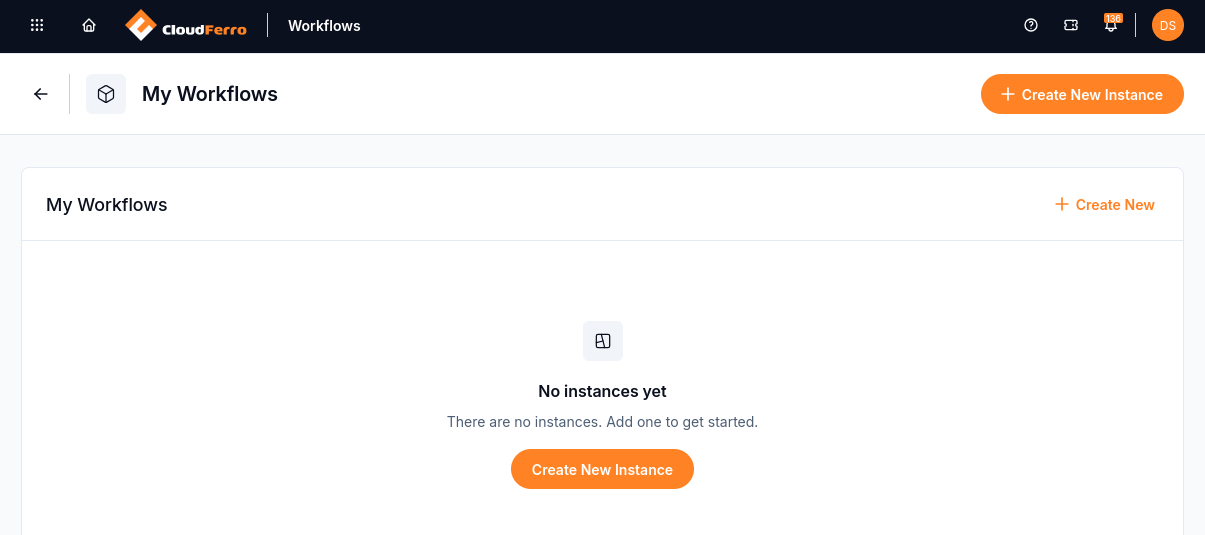
Create New Instance is available above the instance list.
The form starts with Basic Settings, followed by Node pools, DAG Repository Configuration, and Object storage. These sections describe the environment, its computing resources, the source of the Python files, and the destination for logs.
Name, size, version, and availability
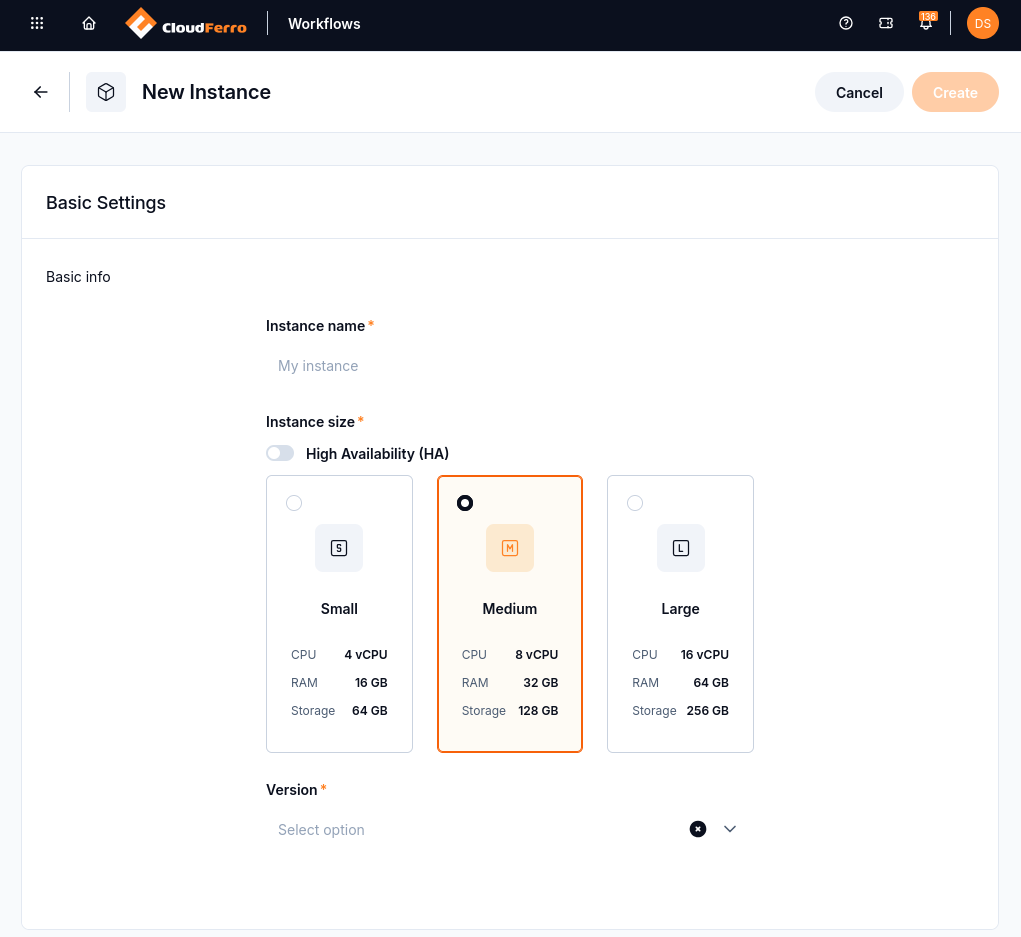
Basic Settings contains the instance name, availability, size, and version.
Enter an Instance name, for example My Workflows.
Choose an Instance size using the size and concurrency comparison. Medium is preselected.
Select a 3.x entry under Version for the downloadable example. The list identifies the recommended stable version.
Enable High Availability (HA) if you need redundant core components for production workloads.
Instance sizes and concurrency limits
Instance size |
vCPU |
RAM |
Storage |
|---|---|---|---|
Small |
4 |
16 GB |
64 GB |
Medium |
8 |
32 GB |
128 GB |
Large |
16 |
64 GB |
256 GB |
The size also limits how much work can run at the same time:
Limit |
Small |
Medium |
Large |
|---|---|---|---|
Tasks running across the instance |
8 |
16 |
32 |
Active tasks per DAG |
8 |
16 |
32 |
Active runs per DAG |
2 |
4 |
8 |
Concurrent tasks per worker |
2 |
4 |
4 |
For this small example, the preselected Medium size is sufficient. For larger jobs, the useful comparison is how many tasks may run at once: both the total across the instance and the number within a single DAG have limits. Some spare capacity allows for overlapping runs. Small suits development and light schedules, while Large supports more concurrent DAGs.
Increasing instance size allows more tasks to run together; an individual task still receives the same baseline resources. A task that needs more CPU or memory can request them in its DAG definition.
High Availability
With HA enabled, the service runs additional copies of the components that accept requests, schedule tasks, and load DAG files: the API server, scheduler, and DAG processor. These copies help the service continue after a component failure. HA does not increase the task limits shown above.
Note
Instance size and HA are selected at creation and cannot be changed later in the UI. Contact your platform administrator or support if you need to change them.
The default node pool
A node pool is a group of machines used to run tasks. The service supplies a default pool when Node pools is left empty, and that pool is sufficient for first_workflow. Custom pools can be considered later for other workloads.
Repository and storage connections
The next two sections connect the instance to the files prepared earlier. DAG Repository Configuration tells Workflows where to obtain the Python file; Object storage tells it where task logs can be saved.
The Git repository
In DAG Repository Configuration, paste the repository’s HTTPS clone URL into GIT Repository URL.
Enter the branch containing first_workflow.py, for example main, in Branch.
Paste the read-access token into Git Access Token / Secret, then click Check connection.
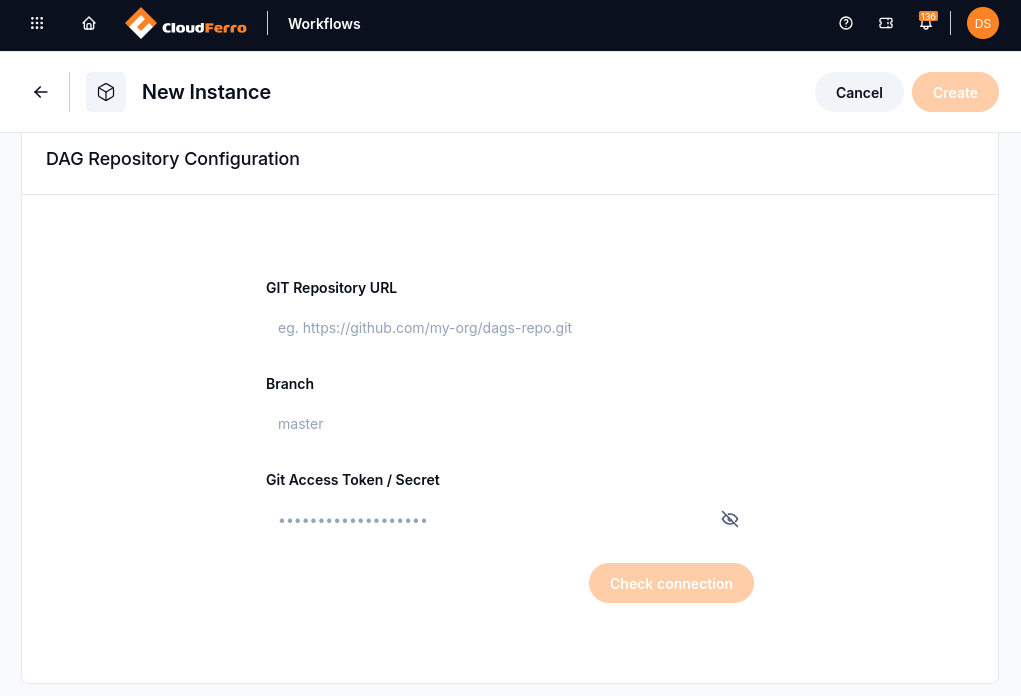
The repository URL, branch, and token connect the instance to your Python files.
The Git check may finish without displaying a success badge. If an error appears, the relevant details are the repository URL, branch name, token permissions and expiration, and any approval required by the repository owner. After the instance is running, the appearance of first_workflow in its DAG list will confirm that the file has been obtained and loaded.
The object storage bucket
The Object storage section is further down the same creation form. It uses the values already checked with the S3 client during storage preparation.
Enter the Access key and Secret key used to access the bucket.
Enter the S3 Endpoint, the Bucket name, and its Region.
Click Check connection.
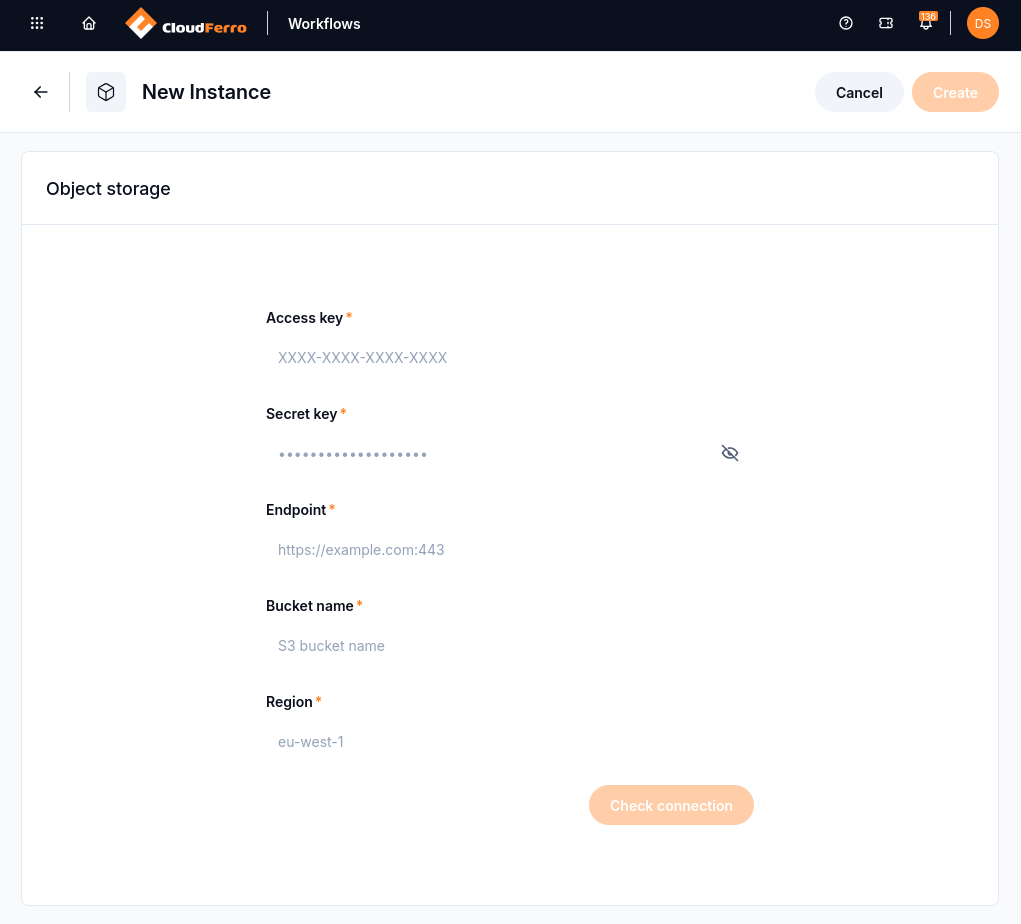
The storage fields connect this instance to the bucket prepared earlier.
A successful storage check displays CONNECTED. The Create button becomes available when this check has succeeded and Basic Settings and the Git repository fields are complete.
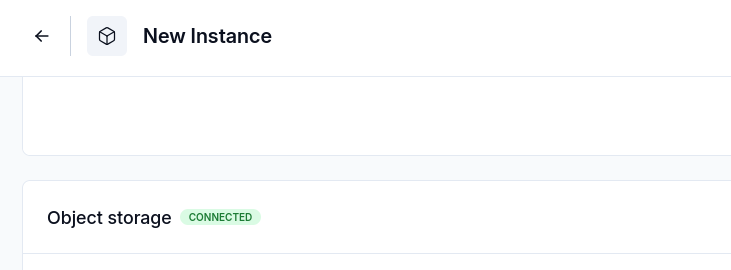
CONNECTED indicates that the storage connection check succeeded.
From Creating to Running
With the form complete, clicking Create starts the setup. A notification confirms the request and the instance appears with the status Creating. Setup takes a few minutes; the status changes to Running when the environment is ready to open.
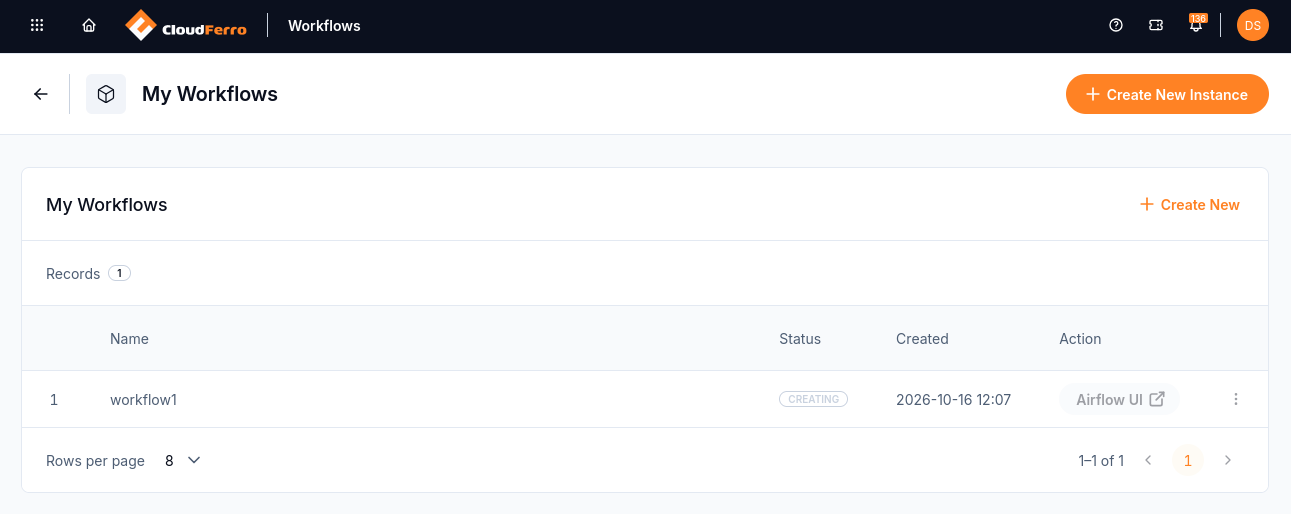
The new instance starts in Creating.
Next steps
The environment is now ready for DAG runs and task logs on CloudFerro Cloud, which follows first_workflow through to Total: 60. Creation failures and a Creating status lasting longer than 30 minutes are covered in Troubleshooting Workflows on CloudFerro Cloud.
Later changes to task machines are described in Node pools on CloudFerro Cloud. If another person needs access, Members and roles on CloudFerro Cloud explains how membership works.