
Node pools on CloudFerro Cloud
A node pool is a group of machines available to run workflow tasks. Each machine is a node, and the settings determine its resources and how many nodes belong to the group. A pool can have a fixed size or grow automatically through autoscaling.
Node pools can be configured at two stages: while creating an instance, and later from that instance’s details page in My Workflows. The first workflow example works with the default pool supplied by the service. Custom pools become useful when you want to choose different machines or control the size of the group.
Prerequisites
No. 1 Access to the instance configuration in My Portal
The pool controls are part of My Workflows in My Portal. The route into the service is described in Access MLOps Studio, AI Experiments, and Workflows from My Portal on CloudFerro Cloud. Node pools appears in the creation form for a new instance and on the details page of an existing one.
During instance creation
On My Workflows, Create New Instance opens the setup form. Its Node pools section follows Basic Settings. This is where you can add a custom pool before the instance is provisioned. If the section remains empty, the service supplies a default pool.
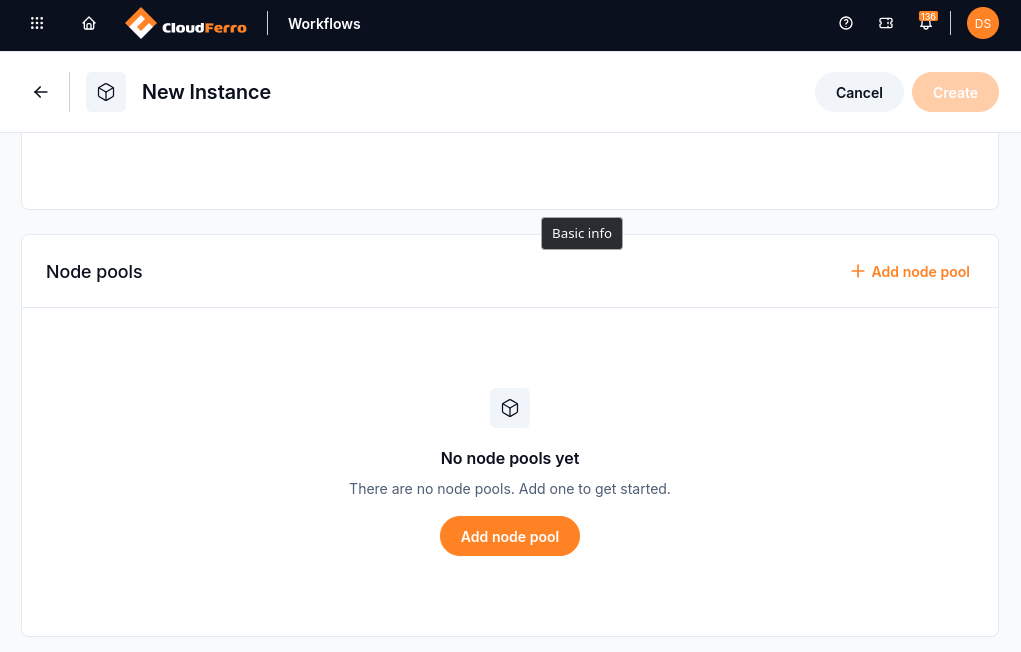
Custom pools are optional during instance creation.
The Add node pool button opens Add Node Pool, a dialog for choosing the machines and scaling settings.
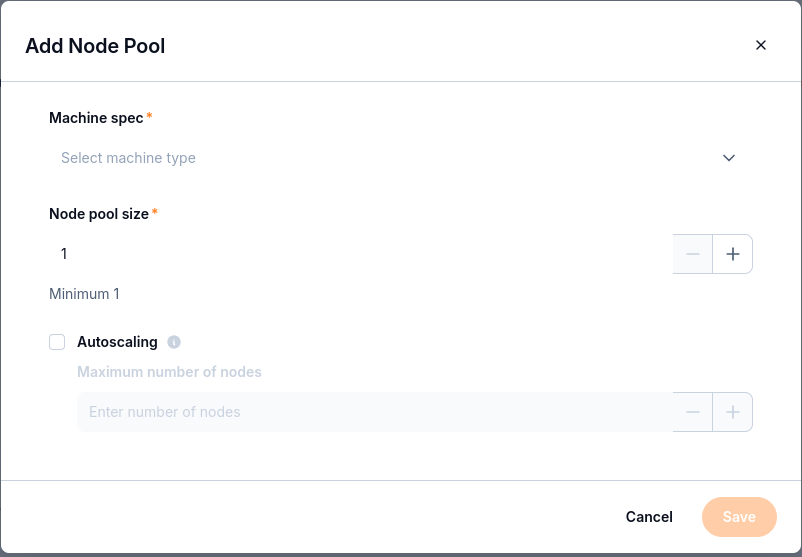
The dialog contains the machine specification, node count, and scaling settings.
Select Machine spec using the machine specification comparison. These resources apply to each node in the pool.
Set Node pool size to the required number of nodes. The minimum is 1. Enter the number or use the minus and plus buttons.
Leave Autoscaling off for a fixed node count, or enable it and enter Maximum number of nodes.
Click Save to add the pool to the creation form. Cancel closes the dialog without adding it.
Saving the pool completes this part of the form. Instance provisioning starts when the required sections are complete and you click Create. The complete form, including Git and object storage connections, is covered in Your first Workflows instance on CloudFerro Cloud.
Machine specifications
Machine spec |
vCPU |
RAM |
Storage |
|---|---|---|---|
Pre-processing / serving |
4 |
16 GB |
64 GB |
Medium CPU workloads |
16 |
64 GB |
256 GB |
Large CPU workloads |
32 |
128 GB |
512 GB |
Autoscaling
With Autoscaling enabled, the pool can adjust its node count automatically. Maximum number of nodes then becomes a required field defining the upper limit. When autoscaling is off, that field is disabled.
Warning
Maximum number of nodes must be greater than Node pool size.
For example, a pool size of 3 with a maximum of 4 allows the pool to grow beyond its configured size. A maximum of 3 would not satisfy the form’s requirement.
Node-pool capacity and instance concurrency are separate settings. Adding nodes does not change the limits associated with the instance’s Small, Medium, or Large size.
On an existing instance
After the instance has been created, its node pools are managed from the instance details page in My Portal. The starting point is the My Workflows list.
Find the instance you want to change in My Workflows.
Click its row to open the instance details page.
Find the Node pools section, which lists the pools belonging to that instance.
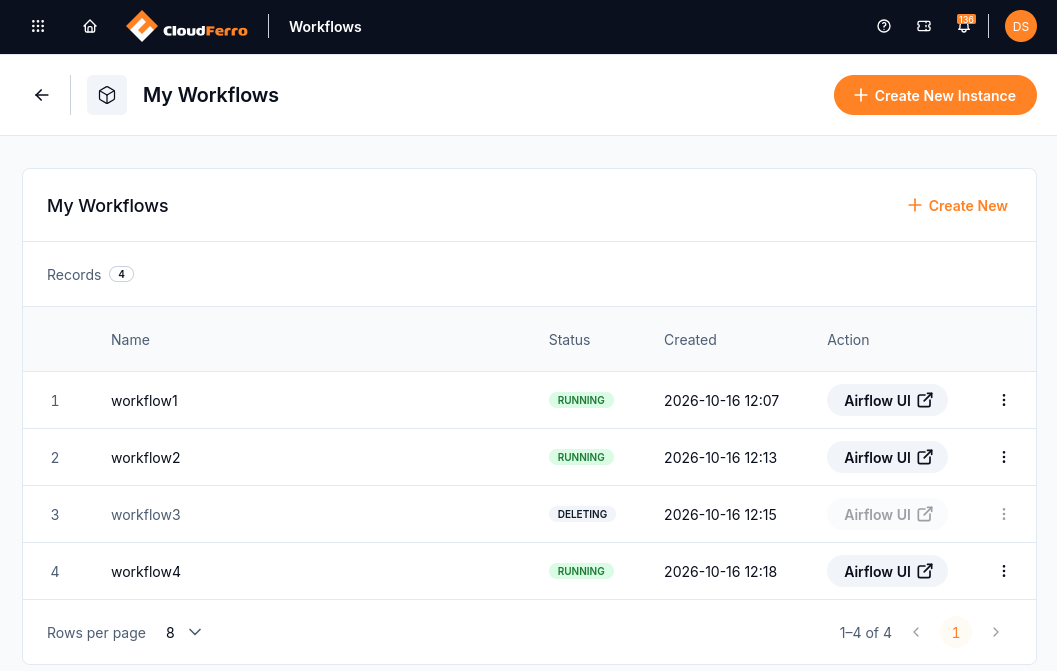
Clicking the workflow1 row opens that instance’s details page.
The Node pools list shows each pool’s machine specification, resources, autoscaling setting, and size. The three-dot menu at the end of a pool’s row contains its Edit and Delete actions.
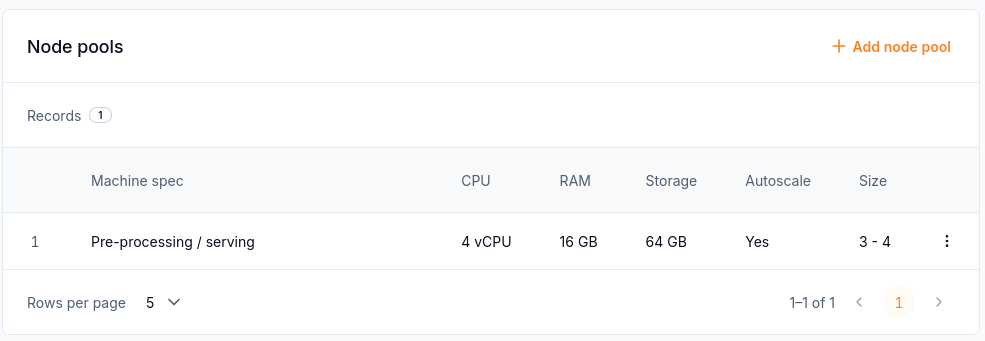
Each pool has an action menu on its row.
Changes to an existing pool
Choosing Edit in a pool’s three-dot menu opens Edit Node Pool. Its Machine spec, Node pool size, and autoscaling fields describe the selected pool.
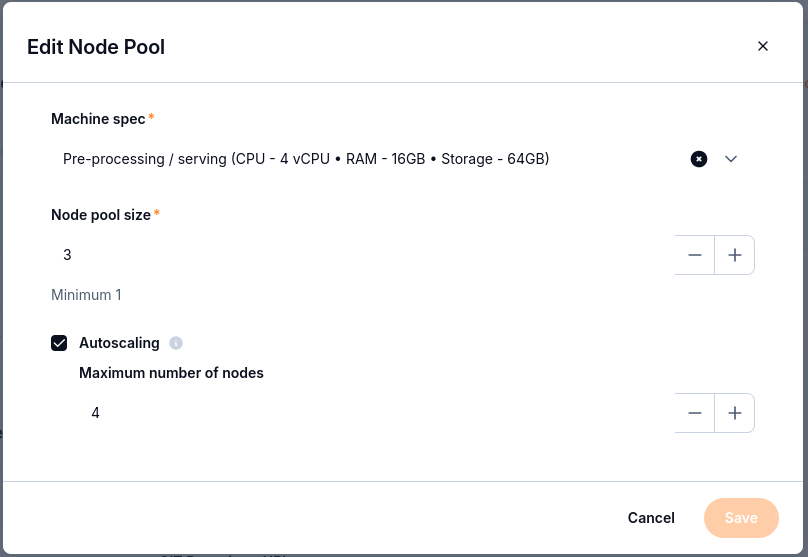
This pool has 3 nodes configured and an autoscaling maximum of 4.
Adjust the machine specification, node count, or autoscaling settings as needed.
Keep Node pool size at 1 or more. If Autoscaling is enabled, Maximum number of nodes must be greater than Node pool size.
Click Save to apply the changes to the pool.
The machine specification comparison and autoscaling settings apply to both new and existing pools.
Additional pools
The Add node pool button in the instance’s Node pools section opens the same Add Node Pool dialog used during instance creation. Saving its settings adds a pool to the existing instance.
Pool deletion
Warning
Choosing Delete in the pool’s three-dot menu deletes the pool immediately. There is no confirmation dialog.
The deletion action applies to the pool whose menu is open. Its row identifies the pool that will be removed.
Next steps
The instance size also limits the number of tasks that can run together. Those limits are listed in Your first Workflows instance on CloudFerro Cloud. Tasks that remain queued are covered in Troubleshooting Workflows on CloudFerro Cloud.