
DAG runs and task logs on CloudFerro Cloud
With the instance running and the example file available, first_workflow can now execute its three tasks. This part of the guide follows that execution through to Total: 60 in the final task log. The interface calls starting a workflow triggering a run. Each run has its own progress information and logs.
Prerequisites
No. 1 A Running instance and membership
The instance created in Your first Workflows instance on CloudFerro Cloud appears in My Workflows with the status Running when it is ready. The User and Admin roles allow DAGs to be started, while Viewer allows results to be read. If you are using an instance provided by someone else, its owner can arrange access as described in Members and roles on CloudFerro Cloud.
No. 2 The example DAG loaded by the instance
The example file comes from DAGs and a Git repository on CloudFerro Cloud. The instance obtains it from the repository and branch selected during creation. Its original list is [10, 20, 30], so the expected sum is 60. Logging uses the storage connection already configured on the instance.
The Workflow web UI
The Airflow UI button on the instance row or details page opens the Workflow web UI. This is the current button label in My Portal, and it becomes available when the instance is Running. The same portal sign-in is used here, without a separate password. Access to the instance is also checked against its member list.
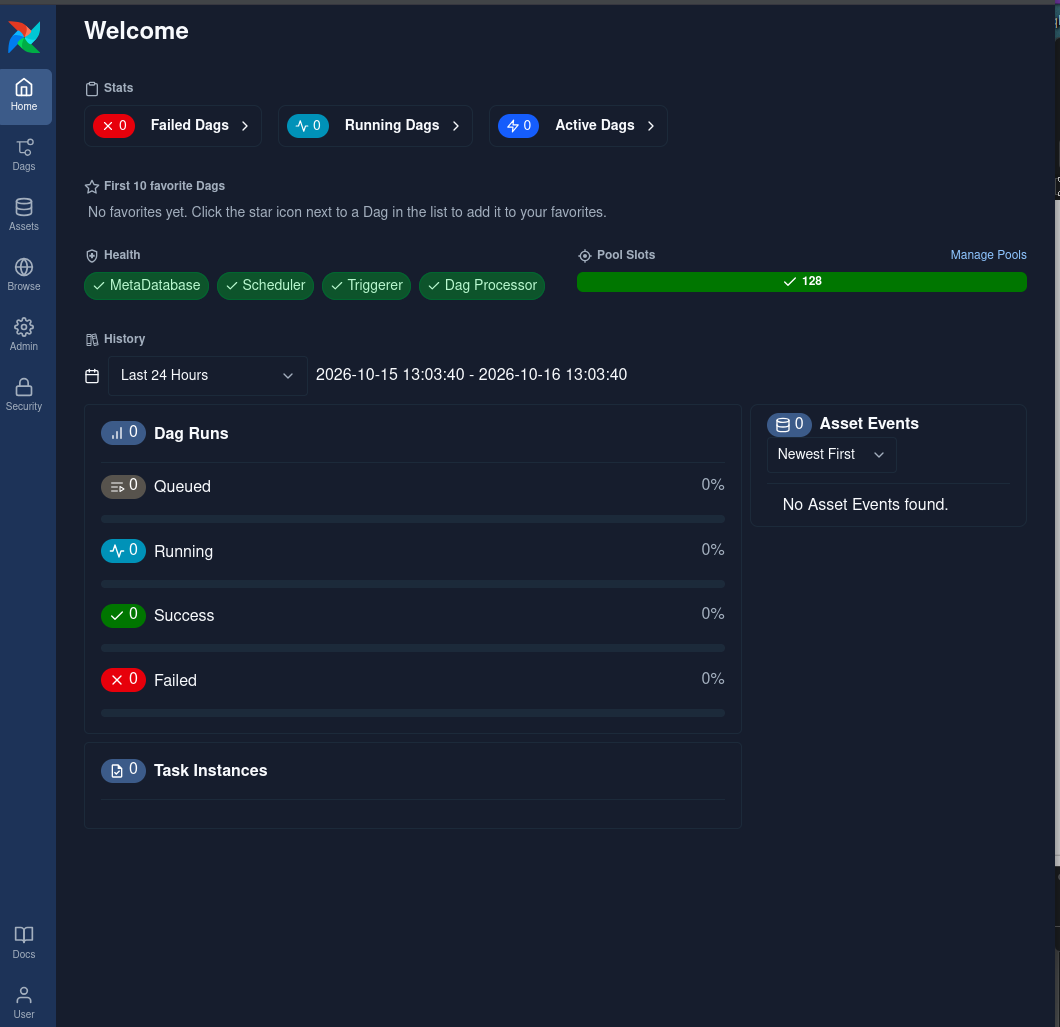
The Workflow web UI provides DAGs, runs, and task logs.
DAG selection and the first run
Select Dags in the left navigation and find first_workflow. Allow time for repository synchronization and Python parsing if it has just been uploaded.
Open the DAG and check that it contains prepare_data, calculate_total, and report_total. If it is paused, enable it with the DAG toggle.
Click the play icon or Trigger to open the run dialog.
Trigger the run without extra input parameters; this example does not require any.
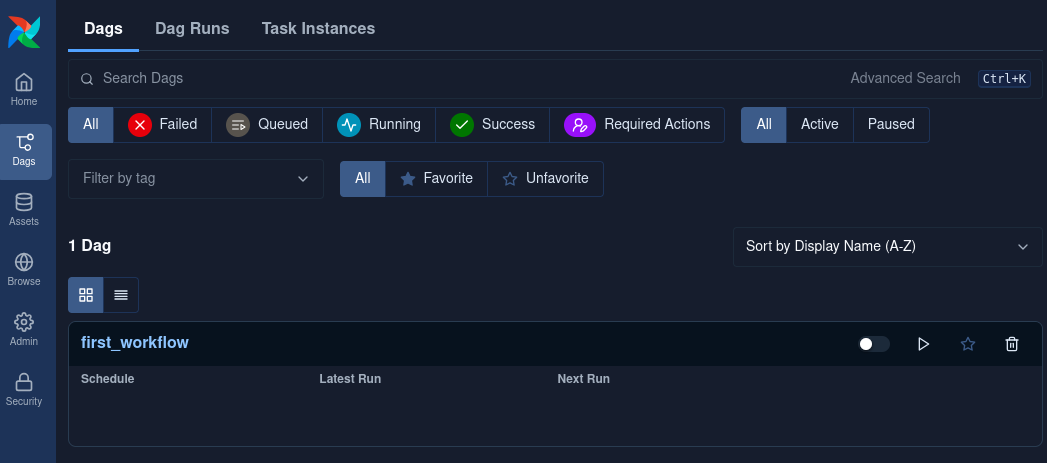
first_workflow appears among the DAGs loaded by the instance.
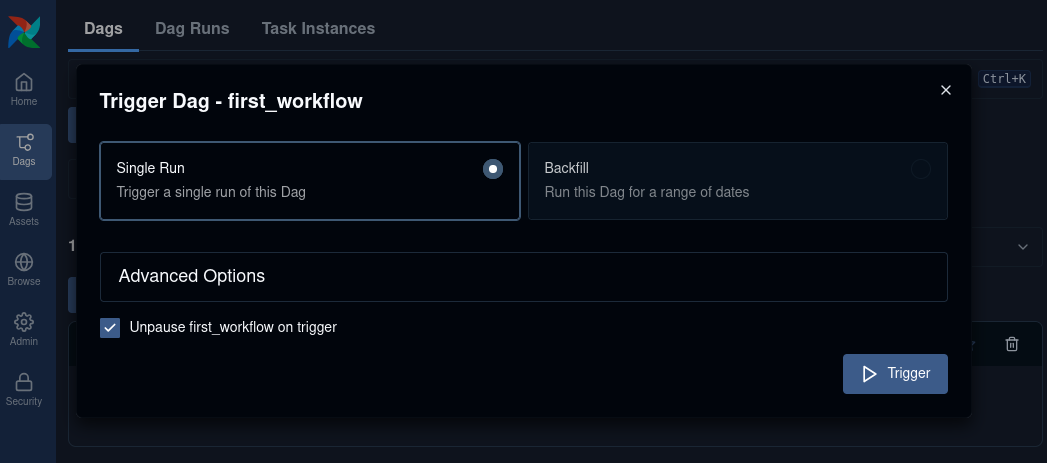
The Trigger dialog starts a manual run of the example.
The DAG list contains definitions that have already been loaded. Changes to the tasks or processing code are made in the repository file and appear after the instance has obtained the updated version.
Progress of a DAG run
The newly created run has its own identifier and start time. In the Grid view, several runs can appear alongside each other. Selecting the latest run before opening a task keeps its messages separate from those of an earlier attempt.
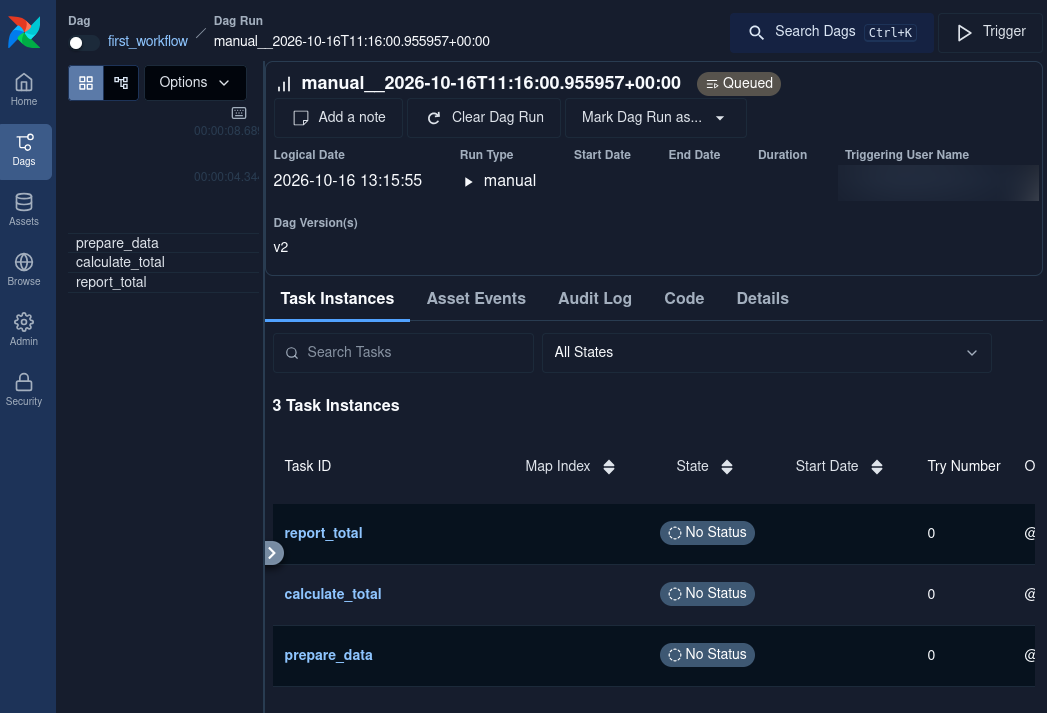
The Grid view connects each run with its tasks and their logs.
A DAG run and its tasks have separate states. prepare_data can succeed while calculate_total fails, leaving report_total unable to run. A successful first task alone does not mean that the entire DAG succeeded. For this example, wait for the run and all three tasks to show Success.
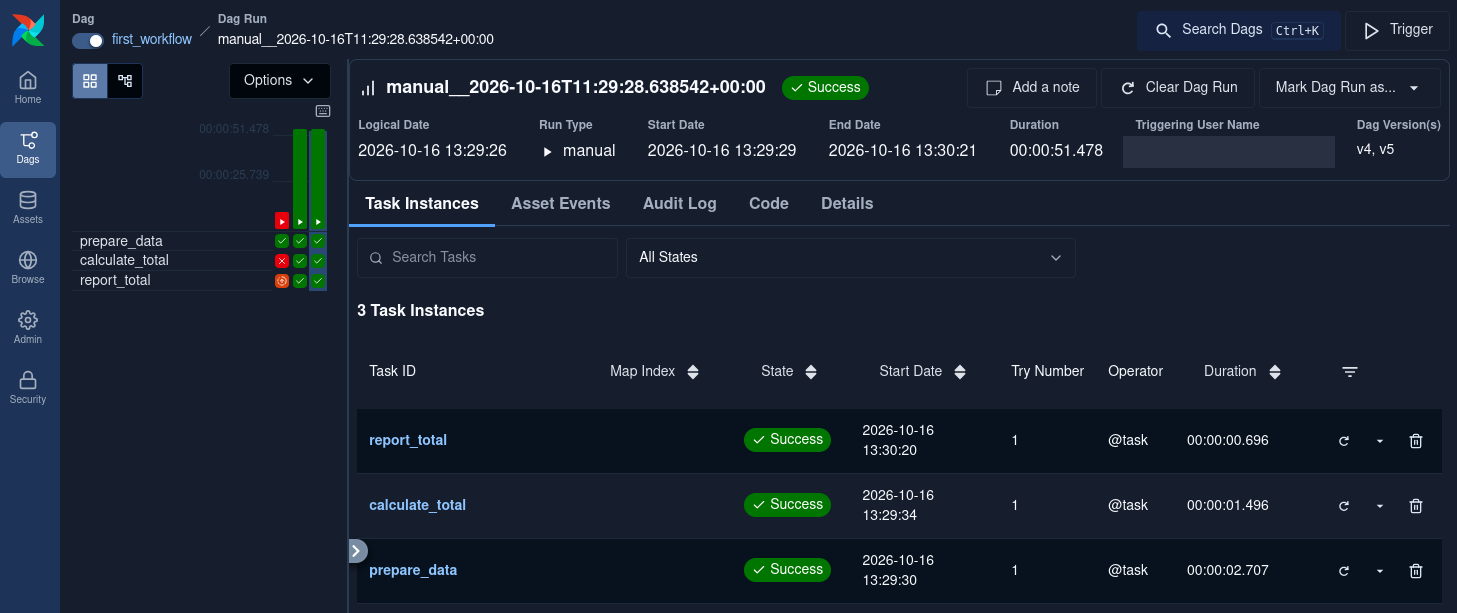
The selected run has three successful tasks. Earlier runs remain in the history.
The result: Total: 60
Keep the successful run selected.
Select the task named report_total. Use its name, since the task table may be sorted differently from the execution order.
Open Logs and find Total: 60.
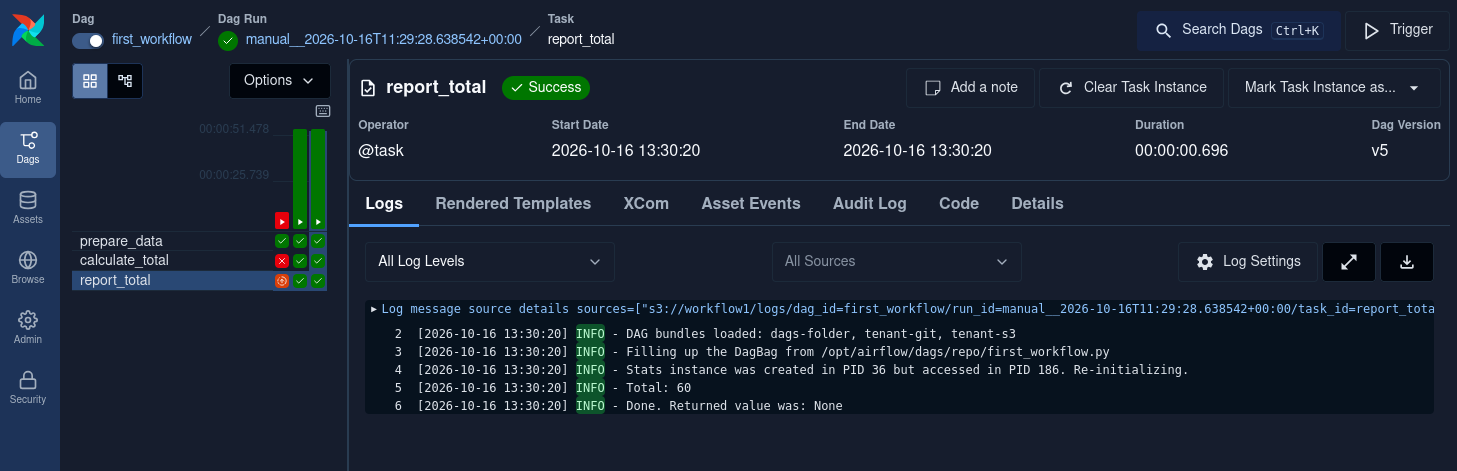
report_total prints Total: 60 to its log.
The tasks produce different log messages:
Task |
Result |
What to look for |
|---|---|---|
prepare_data |
Returns [10, 20, 30] |
The returned list in this task’s log. |
calculate_total |
Returns 60 |
The returned sum in this task’s log. |
report_total |
Prints Total: 60 |
The printed message in Logs. A returned value of None is normal because this task prints the result without returning it. |
A message about Pushing xcom records the transfer of a task’s return value. It is not the final result of the whole DAG. If you only see [10, 20, 30], you are reading prepare_data; select report_total in the same run to find the sum.
The sum is stored as part of the task log. This example does not write a separate output dataset or results file to object storage.
Failed or incomplete runs
The first failed task is usually the most useful place to investigate this example. Its log contains the messages from the work that failed. The tasks depend on one another in the order prepare_data, calculate_total, then report_total, so a later task can be blocked without having run its own code.
A queued task is waiting to start. Other work may already be using the instance’s available task slots, or the instance may have a service problem. A missing DAG or an import error occurs earlier, while the definition is being loaded. After a repository correction has reached the instance, a new run records the result of the corrected code.
Session and logout
The web UI uses your portal SSO session. Signing out of the web UI also signs you out of the platform. Sign out from My Portal when you finish on a shared machine.
Next steps
The bucket layout and downloadable log files are described in Object storage for Workflows on CloudFerro Cloud. Problems with access, missing DAGs, queued tasks, or missing logs are covered in Troubleshooting Workflows on CloudFerro Cloud.
The Workflow UI reference for engine version 3.x describes the graph, run history, and task views in more detail.