
Object storage for Workflows on CloudFerro Cloud
While a task runs, it produces a log: a record of messages about its progress, results, and any errors. Workflows saves these logs in object storage. A bucket is the named container that holds the files; in the example used throughout this guide, its name is workflow1.
The bucket exists separately from the Workflows instance. This allows its files to remain available after the instance has been deleted. For the first setup, the bucket can be empty. Workflows will create the log files when tasks run.
Prerequisites
No. 1 A tool for accessing object storage
Workflows reads and writes stored files through S3, an interface supported by the cloud’s object storage service. Two tools can help with the initial setup:
s3cmd runs commands in a terminal. Its connection settings are explained in Configuration files for s3cmd command on CloudFerro Cloud.
boto3 provides access from Python. Its setup and storage operations are described in How to access object storage from CloudFerro Cloud using boto3.
Either tool can run on your computer; a separate cloud VM is not needed for this setup.
No. 2 S3 access credentials
An access key and a secret key allow a program to access your storage. Workflows uses the same key pair and connection settings as your S3 client. A successful upload and download with that client checks the access needed for task logs. The examples for reading EODATA serve a different purpose: Workflows needs a bucket where it can write files as well as read them.
The bucket in Horizon
In OpenStack Horizon, buckets are visible under Object Store → Containers. In the screenshot, workflow1 is selected in the container list, and the object list shows the path to a task log.
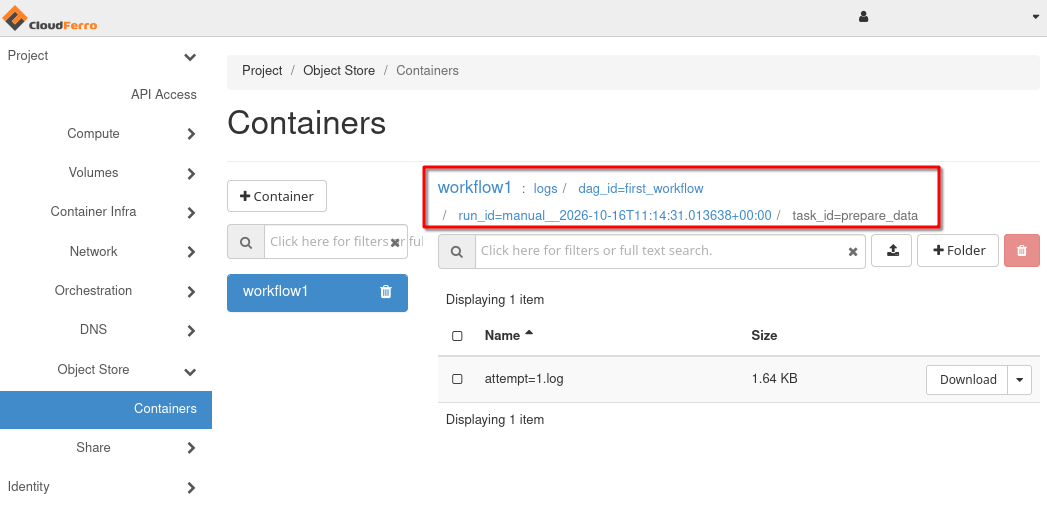
The workflow1 bucket, shown after a task has run. During initial setup, it can be empty; the log folders and files appear later.
A new bucket can be created with the S3 tools described in the prerequisites. An existing writable bucket is also suitable. If the container was created in Horizon, access through S3 still needs to be checked, because that is how Workflows will connect to it.
A small test file is enough for this check. Uploading it to the bucket and downloading it again with the same S3 settings confirms both write and read access. The test file can then be removed. There is no need to create the logs folder or an empty log file yourself.
Connection details for the later setup
The S3 client configuration contains the details that will also be used when creating the Workflows instance. The table explains how these settings correspond to the fields you will see later in My Portal.
Setting |
Meaning |
|---|---|
Endpoint |
The address of the S3 storage service, including https://. It is the address used by the S3 client, rather than the address of the Horizon website. |
Region |
The region value used by the S3 client for this endpoint. |
Bucket name |
The name of the bucket, such as workflow1. It identifies the container itself, without a folder path or an S3 URI prefix. |
Access key |
One part of the S3 credentials used to upload and download the test file. |
Secret key |
The matching secret part of those credentials. These two keys provide storage access independently of your portal password. |
Once the test upload and download work, the storage preparation is complete. The instance creation guide will show where these values belong in the Workflows form. The following sections describe the files that will appear after your first run and how to keep them available.
Logs after the first run
Each task has its own log. A new run of the same workflow produces another set of logs, so the bucket’s paths identify both the run and the task. For first_workflow, the layout is:
workflow1/
└── logs/
    └── dag_id=first_workflow/
        └── run_id=<run identifier>/
            ├── task_id=prepare_data/
            │   └── attempt=1.log
            ├── task_id=calculate_total/
            │   └── attempt=1.log
            └── task_id=report_total/
                └── attempt=1.log
Horizon and S3 clients display these parts of an object’s name as folders. Log message source details in the Workflow web UI shows the S3 location of the log currently being viewed. The run identifier and task name allow you to find the same file in the bucket.
After a successful run, its result can be found in Horizon as follows:
Open Object Store → Containers and select workflow1, or the bucket name used for your instance.
Open logs, dag_id=first_workflow, and the folder for the required run.
Select task_id=report_total, then download attempt=1.log. This is the log containing Total: 60 for the unchanged example.
The downloaded prepare_data log contains the input list [10, 20, 30]. The final sum belongs to the separate report_total log.
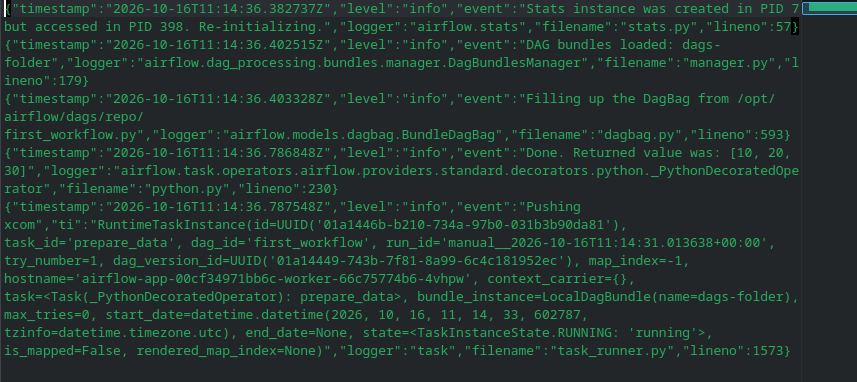
The prepare_data log contains the numbers passed to the next task.
The example passes these small values between tasks through the engine’s XCom mechanism. Its final task prints the sum to a log; it does not create a separate results file. A workflow that saves a dataset or report would include a task that writes that output.
Keeping logs available
The instance continues to need access to the bucket while your workflows are running. If the access key or secret key changes, the instance’s stored credentials need to be updated too; your platform administrator or support can arrange that change.
Deleting the Workflows instance leaves the bucket and its files in place. The service does not make backups of this bucket or decide how long to keep your logs. Those choices are made in the object storage service, where retention and lifecycle rules can keep or remove files according to your needs.
Warning
If the bucket becomes unavailable or its credentials stop working, task logs stop arriving and new tasks may fail. Storage access needs to be restored before logging can resume. Support can help if the instance does not recover afterward.
Next steps
The next part of the first-workflow setup is DAGs and a Git repository on CloudFerro Cloud. It provides the example Python file and explains how the service will obtain it. If that repository is already ready, the next stage is Your first Workflows instance on CloudFerro Cloud.
For a workflow that has already run, DAG runs and task logs on CloudFerro Cloud explains how to read the results directly in the web UI.