
Workflows instances on CloudFerro Cloud
After an instance has been created, My Workflows in My Portal provides a place to return to it. The list shows whether the instance is ready, its details describe the current configuration, and its menu includes deletion when the environment is no longer needed. The workflows running inside it have their own progress and logs in the Workflow web UI.
Prerequisites
No. 1 An existing instance in My Workflows
The instance list is reached through My Portal → Products → Workflows → Go to product, as illustrated in Access MLOps Studio, AI Experiments, and Workflows from My Portal on CloudFerro Cloud. The creation process is covered separately in Your first Workflows instance on CloudFerro Cloud.
Instance status
Each row gives an instance’s name, status, and creation date. Clicking the row opens its details. During Creating, Updating, and Deleting, the row is unavailable until the operation finishes.
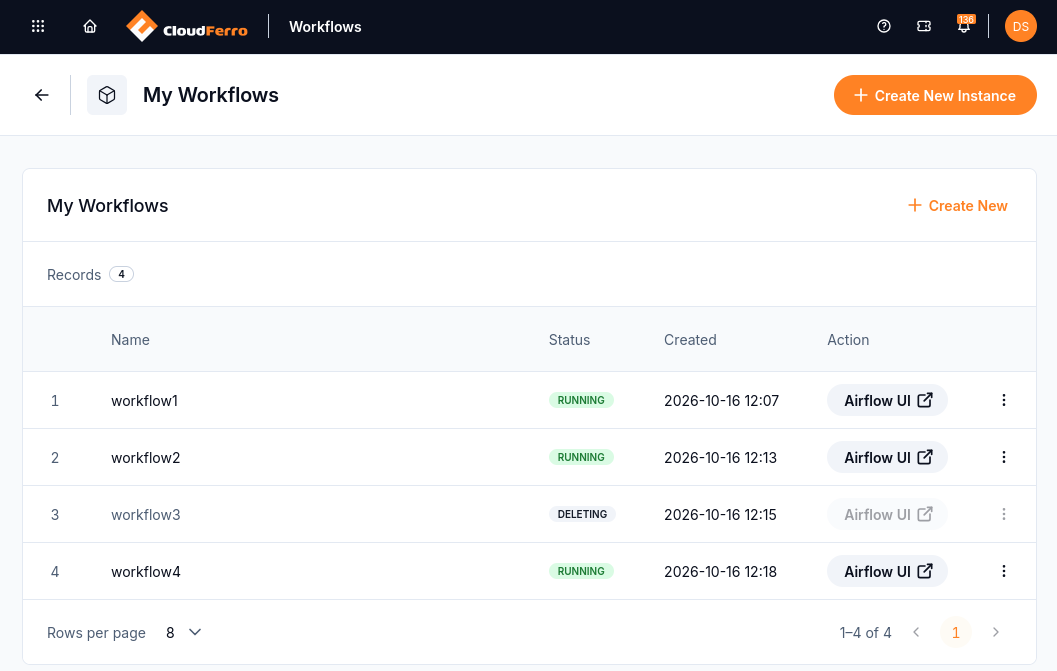
The status shows what is happening to each instance.
Status |
Meaning and action |
|---|---|
Creating |
Provisioning is in progress. Wait a few minutes; contact support if it takes longer than 30 minutes. |
Running |
The instance is ready. Airflow UI opens its Workflow web UI. |
Updating |
The platform is applying a configuration change. Wait for it to finish. |
Paused |
Support has suspended the instance. Contact support to resume it. |
Deleting |
Deletion is in progress. The row disappears when deletion completes. |
Error, Creating error, or Deleting error |
An operation failed. Hover over the status for details, then use Contact Support. |
Partially operational |
The instance runs with degraded components. Hover over the status for details and contact support. |
The instance status describes the service deployment. A Running instance can still contain a failed DAG run; inspect that run’s task logs to diagnose the processing failure.
Instance details
The details page brings together the instance’s Status, Endpoint, creation date, size, CPU, RAM, and engine Version. It also contains Node pools, Members, and the instance URL under Access & Networking.
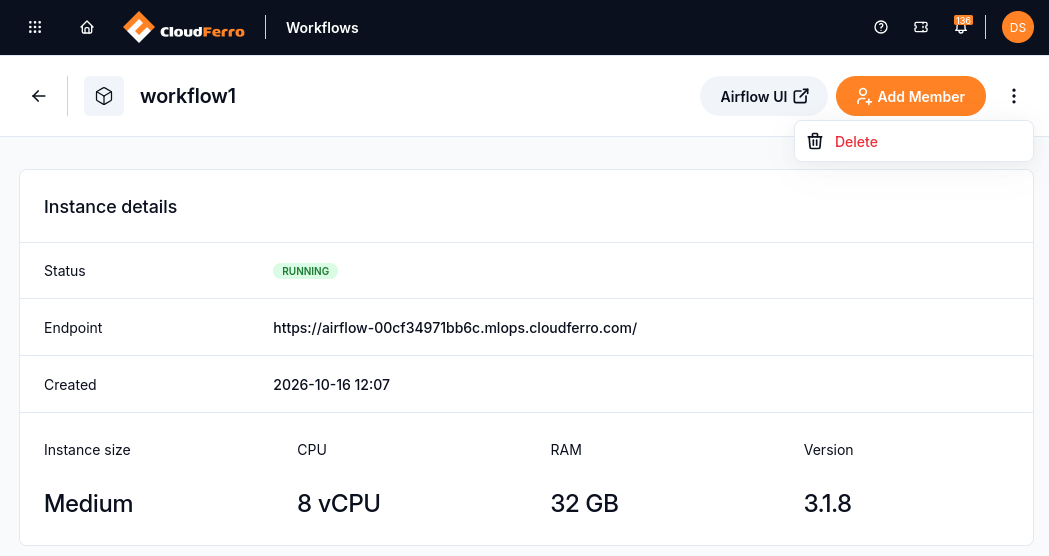
The details page identifies the instance and its configuration.
From this page, Airflow UI opens the workflows themselves, while Add Member provides access for another person.
Instance size and HA cannot be changed in the UI after creation. Contact your platform administrator or support for these changes, or to update an existing instance’s repository, branch, token, or storage credentials.
Instance deletion
Warning
Deleting an instance permanently removes its deployment and metadata. The instance cannot be restored through the portal. Its external object storage bucket and Git repository remain under your control and are not deleted.
Locate the intended instance in My Workflows, or open its details page.
Open the instance’s three-dot menu and choose Delete.
Check the instance identified in the dialog and confirm deletion.
Wait for Deleting to finish and for the instance to disappear from the list.
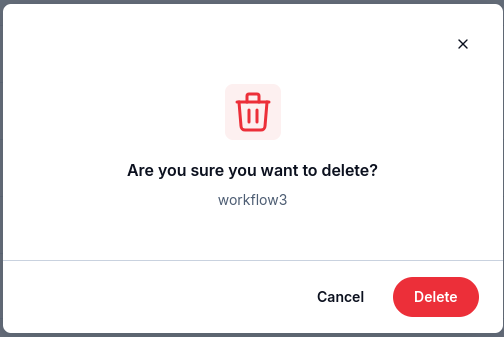
The dialog identifies the instance whose deletion will be confirmed.
Next steps
The computing resources are described in Node pools on CloudFerro Cloud. Access for another person is covered in Members and roles on CloudFerro Cloud.
The jobs inside the instance are covered in DAG runs and task logs on CloudFerro Cloud. Access and service problems are described in Troubleshooting Workflows on CloudFerro Cloud.