
Members and roles on CloudFerro Cloud
If you want another person to run your workflows or read their results, they can be added as a member of the instance. Their role determines what they can do there. Membership is specific to that instance; signing in to the platform does not automatically grant access to every Workflow web UI.
Prerequisites
No. 1 Access to the instance’s member controls
The member controls are on the instance details page in My Workflows. The portal route is illustrated in Access MLOps Studio, AI Experiments, and Workflows from My Portal on CloudFerro Cloud. Add Member, or Manage on the Members card, opens the membership dialog. A person is identified there by the email address used for their platform sign-in.
Available roles
The available roles range from reading results to managing the instance’s workflow settings:
Role |
Access inside the instance |
|---|---|
Admin |
Full control of DAGs, connections, variables, pools, and users. |
User |
View and trigger DAGs; work with DAG runs and task instances. |
Viewer |
Read-only access to DAGs, runs, and logs. |
Public |
No permissions. Keeps an account registered without granting access. |
Someone who needs to run the example can do so with User, while Viewer is sufficient for reading its results. Admin also allows management of connections and variables under Admin in the Workflow web UI. These roles apply inside the instance and do not change the person’s cloud-project role.
New members
On the instance details page, click Add Member, or Manage on the Members card.
In Manage Members, find the user by name or sign-in email. The Member and Non-Member filters narrow the list.
Switch membership on and select the required role.
Click Save.
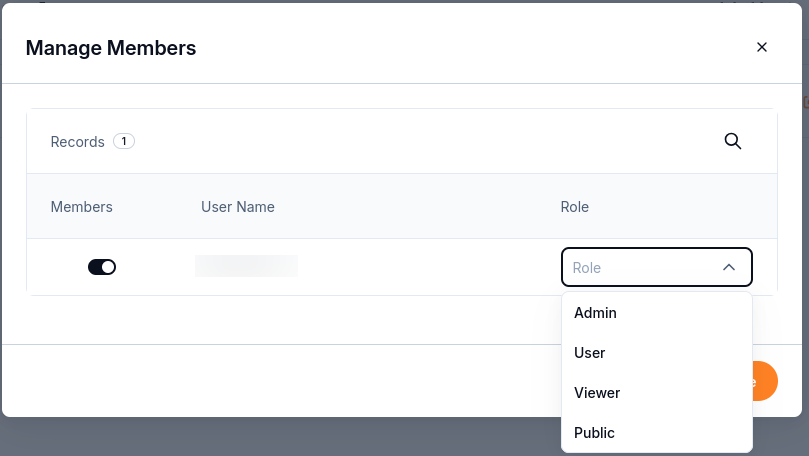
The dialog records membership and a role for each selected person.
The member can then open the instance’s Workflow web UI using Airflow UI in My Portal. Their existing SSO session supplies the sign-in; no separate Workflow password is needed.
Membership changes
Open Manage Members and find the existing member.
Choose another role, or switch membership off to remove access.
Click Save to apply the change.
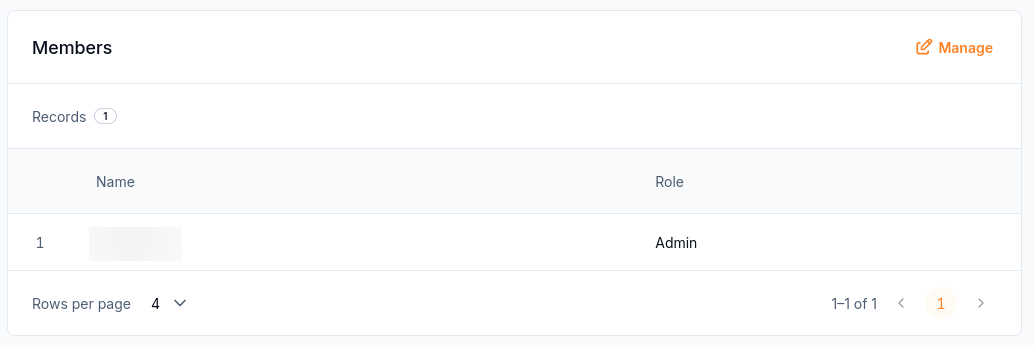
Existing members appear with their current roles.
Removing membership revokes access to this instance. It does not delete the person’s platform account or their membership of other instances.
Note
Keep at least one Admin member on every instance so someone can manage connections and variables in the Workflow web UI.
Next steps
The next actions available to a member are described in DAG runs and task logs on CloudFerro Cloud. Sign-in problems after membership has been saved are covered in Troubleshooting Workflows on CloudFerro Cloud.