
DAGs and a Git repository on CloudFerro Cloud
A workflow needs a Python file describing what its tasks do and how they fit together. This guide provides first_workflow.py and places it in a Git repository so that your Workflows instance will be able to read it. The repository can be prepared before the instance exists.
A repository stores project files and keeps a history of changes. GitHub provides a website for creating repositories and uploading files, so the example can be prepared entirely in the browser. For an instance that already exists, the repository and branch selected during its creation determine which files it reads.
Prerequisites
No. 1 Git hosting account
A GitHub account allows you to create workflows-dags, the repository used for this example. A local Git installation is not needed for this example. GitHub’s guides to creating a repository and managing access tokens explain the account settings.
No. 2 Workflow engine version
The downloadable example requires Workflow engine version 3.x. For an existing instance, Version appears on its details page in My Portal.
The example DAG
A DAG (directed acyclic graph) defines tasks and their dependencies. Each task performs part of the work; a dependency determines which task must finish before the next can start. Dependencies cannot form a circular chain.
The first_workflow example prepares three numbers, calculates their sum, and prints it:
Prepare data → Calculate total → Report total
The complete example is available as first_workflow.py:
"""A manually triggered example DAG for Workflow engine version 3.x."""

import pendulum
from airflow.sdk import dag, task


@dag(
    dag_id="first_workflow",
    schedule=None,
    start_date=pendulum.datetime(2026, 1, 1, tz="UTC"),
    catchup=False,
)
def first_workflow():
    @task
    def prepare_data():
        return [10, 20, 30]

    @task
    def calculate_total(values):
        return sum(values)

    @task
    def report_total(total):
        print(f"Total: {total}")

    report_total(calculate_total(prepare_data()))


first_workflow()
The @task functions define the three tasks. Passing the return value of prepare_data to calculate_total, then passing its result to report_total, creates the dependencies. The final task prints Total: 60. With schedule=None, the DAG waits for a manual or external trigger; uploading the file does not start a run.
The airflow package names in the code are part of the Python interface.
The repository and example file
A repository can contain different versions of its files on separate branches. This example uses one branch, usually called main. A commit saves a change to that branch and records it in the repository history.
In GitHub, choose New repository, select your account as the owner, and enter workflows-dags as the name. Select Private if access should be limited to you and people you authorize. Include a README and create the repository.
Note the branch name. The example uses main; use the actual branch containing your DAG file.
On that branch, choose Add file, then Upload files, and upload first_workflow.py at the repository root.
Commit the file to the selected branch, or merge it there through your project’s pull-request process. Confirm it appears in the branch’s file list.
Open Code, select HTTPS, and copy the repository’s clone URL, for example
https://github.com/my-org/workflows-dags.git.
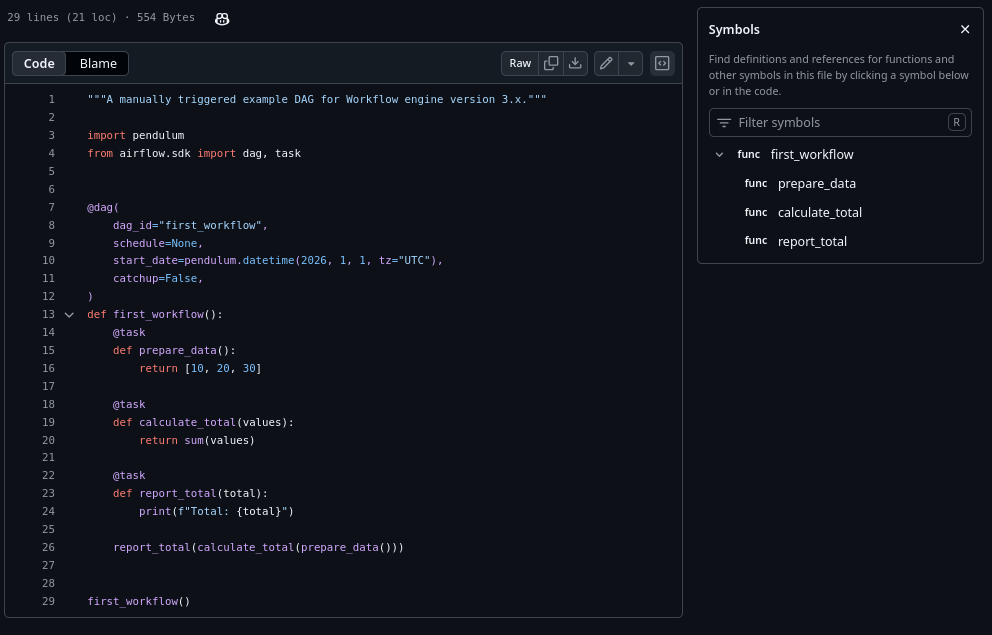
The example file committed to a Git repository.
A token for repository access
The repository can remain private. Workflows gains permission to read it through an access token, a secret value generated in GitHub. A token with Contents: Read-only permission lets Workflows read the files without changing them.
In your GitHub account settings, open Developer settings, Personal access tokens, and Fine-grained tokens.
Create a token with the repository owner as its resource owner. Limit access to the repository containing your DAGs and grant Contents: Read-only.
Choose an expiration date and generate the token. Complete organization approval if required for the private repository.
Keep the token for the Workflows form. Do not put it in the clone URL or commit it in a DAG file.
Your account needs permission to publish code, but the token supplied to Workflows only needs to read the repository.
Repository connection details
The repository provides three values that will be needed later in the instance creation form. That form calls the section DAG Repository Configuration:
Field |
What to enter |
|---|---|
GIT Repository URL |
The HTTPS clone URL. Do not add a file path or branch suffix. |
Branch |
The branch containing your DAGs, for example main. Enter the name even if the form suggests master. |
Git Access Token / Secret |
The token with read access to this repository. |
The repository setup is complete when first_workflow.py is visible on the selected branch and the read-access token has been generated. The instance creation guide shows where these values belong and how the connection is checked.
The following sections describe how the repository connection behaves after an instance has been created. They are useful when you return to change or extend the example.
Changes to DAG files
Once connected, the instance checks the selected branch for changes at short intervals. A new commit is copied to the instance, including its subfolders, and the Python files are loaded. This takes a little time, so an edit saved in GitHub may not appear in the Workflow web UI immediately.
For example, adding 40 to the list in prepare_data changes the expected total to 100. After that edit is committed and the updated code appears in the UI, a new run will use the new list. Its report_total log should contain Total: 100; earlier runs retain their original results.
The access token must remain valid for file updates to continue. If it expires, the UI may keep showing the last copied DAGs without a new error, even though newer files are no longer arriving. Your platform administrator or support can update the repository, branch, or token on an existing instance.
A Python syntax error prevents the affected DAG from loading, while other DAGs continue to work. The DAGs page reports an import error identifying the file and the problem.
Folders and helper files
The first example keeps first_workflow.py at the repository root, alongside the README. Larger workflows can use subfolders and shared Python helpers. Files in the same folder can import one another, for example from file2 import my_helper. A package under the DAGs root can be imported by its package name, for example from include.helpers import my_helper with this layout:
dags/
├── include/
│   ├── __init__.py
│   └── helpers.py
├── dag1.py
└── dag2.py
Only .py files are parsed as DAGs. Other files can be stored alongside the code that reads them: SQL queries (.sql), configuration (.yaml, .yml, .json), templates (.j2, .jinja2), shell scripts (.sh), and small reference data (.txt, .csv). Shell scripts need to be invoked with bash script.sh because synchronization does not preserve executable permissions.
An .airflowignore file can exclude folders containing only helpers from DAG parsing. Such folders need to be separate from the DAG definitions, since an ignored folder is not searched for workflows.
Next steps
The next stage is Your first Workflows instance on CloudFerro Cloud, where the repository and storage are connected to the service. If the instance is already connected to this repository, DAG runs and task logs on CloudFerro Cloud explains the first run.
The TaskFlow tutorial for engine version 3.x develops the ideas used in this example. Synchronization and import errors are covered in Troubleshooting Workflows on CloudFerro Cloud.