
Check instance states and manage the environment on CloudFerro Cloud
When an environment is unavailable, its instance state helps distinguish provisioning from an error or a configuration update. MLOps Studio reports the instance lifecycle separately from the notebook and pipeline statuses inside Kubeflow.
Prerequisites
No. 1 Access to My Portal
Sign in with your platform account and open MLOps Studio from Products. Access MLOps Studio, AI Experiments, and Workflows from My Portal on CloudFerro Cloud shows the sign-in route. Keep the instance list open for the steps below.
No. 2 The intended instance and appropriate permissions
Have the instance name available and open its details. Viewing an instance does not necessarily give you permission to change or delete it. Confirm that your account has the permissions needed for your intended action.
Inspect the instance
Check Status, Endpoint, size, and Version in the instance details. INACTIVE under High Availability (HA) and OFF under GPU describe settings; they do not mean that the instance has stopped. Check node pool capacity separately from the instance size.
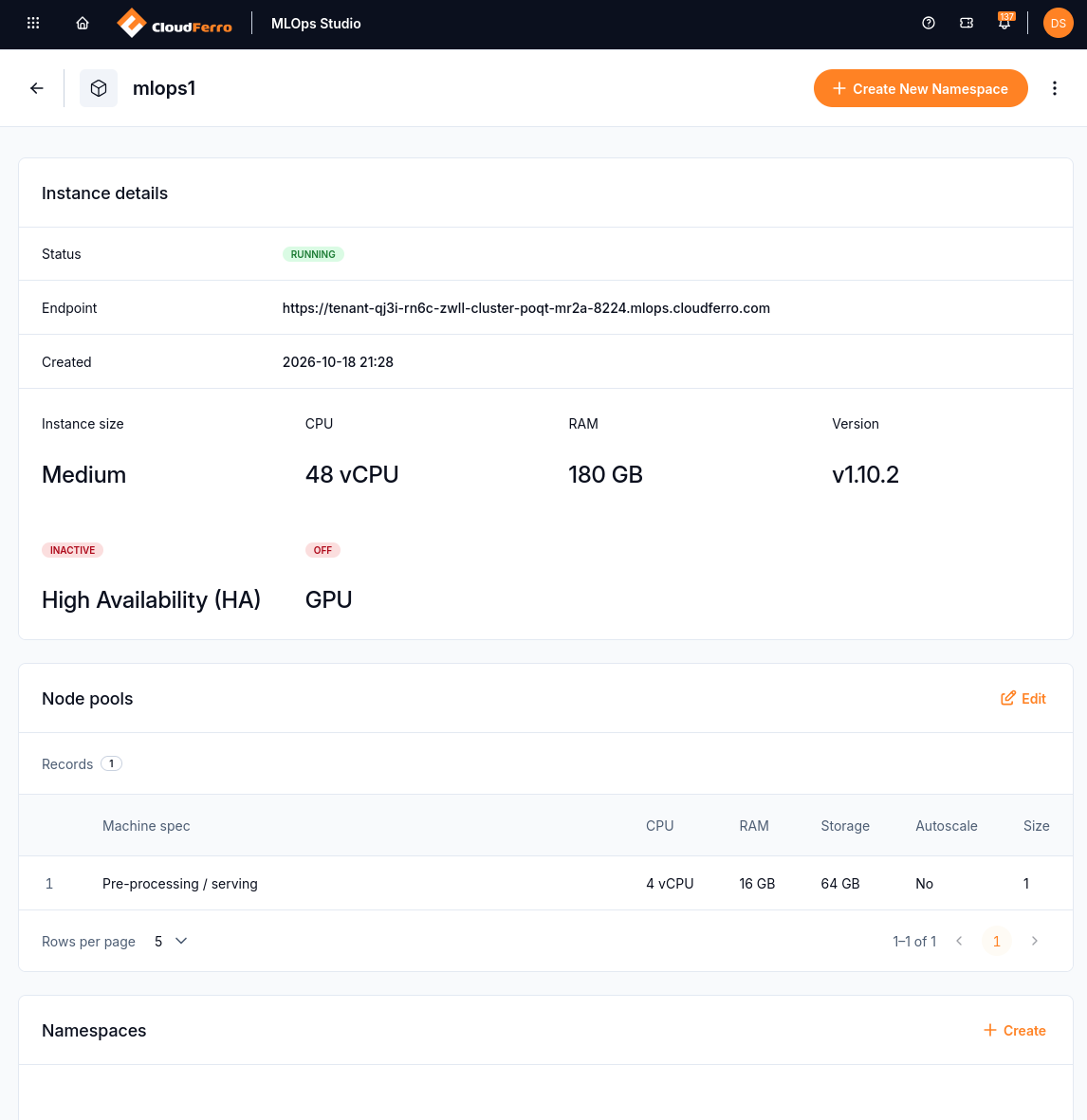
RUNNING describes the instance’s state. The Node pools table shows the workers available for notebooks and other workloads.
States and available actions
The state in the MLOps Studio instance list describes the environment lifecycle. It is separate from the state of a notebook, pipeline run, or model within Kubeflow.
State and badge |
Meaning |
Available actions |
|---|---|---|
creating — CREATING (blue/amber) |
Provisioning is deploying the control plane, nodes, storage configuration, and worker pools. |
Inspect configuration and provisioning logs. Other controls are locked. |
running — RUNNING (green) |
The cluster, infrastructure services, and Kubeflow applications are provisioned and reachable. |
Open Central Dashboard, create namespaces, manage members, modify worker pools, or request deletion, according to your permissions. |
updating — UPDATING |
A configuration change, such as a pool size, autoscaling parameter, or flavor update, is in progress. |
Existing workspace links remain available; modification controls are paused. The state returns to running after completion. |
deleting — DELETING |
Teardown is releasing workers, cloud resources, and storage claims. |
Interactive controls and configuration changes are disabled during teardown. |
deleted — DELETED (grey) |
Compute, storage, and network resources have been reclaimed. |
The historical record remains for auditing and can be filtered or hidden. |
creating_error — CREATING_ERROR (red) |
Provisioning failed, for example because of resource limits, quota exhaustion, or an external dependency. |
Inspect the error details and use Retry Provisioning after addressing the cause. |
deleting_error — DELETING_ERROR (red) |
Teardown failed while releasing infrastructure or persistent volumes. |
Retry deletion from the UI menu or escalate to platform support. |
If your account has permission to delete the instance, its context menu provides the deletion action. The platform asks for confirmation before removing the environment. Closing your browser does not require deleting the instance.
Before deleting an environment
Deletion tears down the environment and releases its resources and storage claims. Copy any notebook files and other data you need to storage outside the resources being removed before confirming deletion. Do not rely on a persistent notebook volume as a backup of the whole environment.
What to do next
Check capacity choices in Choose compute capacity and scaling limits on CloudFerro Cloud. For a running instance with an individual failing workload, start with Troubleshooting and known limitations on CloudFerro Cloud.