
Train, evaluate, and compare models in a pipeline on CloudFerro Cloud
After making a prediction in a notebook, you need to check its error and keep the model that produced it. This pipeline trains the same small model, saves it, and evaluates it on separate data. Run it twice with one setting changed to see how the score changes.
Prerequisites
No. 1 Access to Kubeflow Pipelines
Open Central Dashboard for your running MLOps Studio instance and select your assigned namespace. Pipelines must be installed, and your account needs permission to create pipelines, experiments, and runs. Create namespaces and manage team access on CloudFerro Cloud covers workspace access.
No. 2 Working pipeline storage and package access
The instance needs its configured pipeline storage to save datasets and models. Workers must be able to pull python:3.11-slim and install Python packages. The supplied YAML uses KFP 2.17.0, scikit-learn 1.7.2, and joblib 1.5.2. Use it with a compatible KFP 2.x deployment. No GPU, external dataset, notebook session, or credentials in the example code are required.
The upstream artifact guide explains how tasks exchange saved files. The scikit-learn mean absolute error reference describes the score used here.
Download the ready-to-run pipeline
Download model_pipeline.yaml to your computer. This is the compiled file that you upload to Pipelines. You can use it directly without running Python or opening JupyterLab.
The pipeline has three tasks:
prepare-data saves four training pairs and three separate test pairs.
train-model fits a line to the training pairs and saves the fitted model as an artifact, a file associated with the run.
evaluate-model reloads that saved model, predicts the test values, and records the errors.
Training uses (1, 3), (2, 5), (3, 7), (4, 9), the same pairs as the notebook exercise. Testing uses (5, 11), (6, 13), (7, 15). The training task receives only the training dataset. Keeping the known test answers separate lets you check predictions on inputs the model did not see during training.
The score is mean absolute error (MAE): the average distance between a prediction and its expected answer. Lower is better; zero means all three test predictions match. This invented data follows y = 2x + 1, so you can check the results by hand.
Upload and run the first model
In Central Dashboard, select your namespace and open Pipelines.
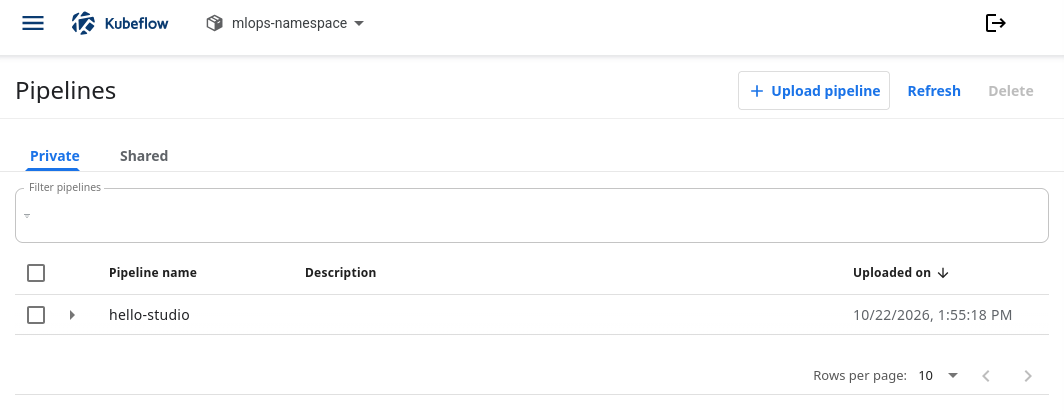
Use Upload pipeline to add the model pipeline to the selected namespace.
Click Upload pipeline and select the left-hand Create a new pipeline option. Enter tiny-model-comparison as the pipeline name.
If the upload form says Pipeline is required, check the radio buttons at the top. Create a new pipeline version under an existing pipeline requires an existing pipeline selected with Choose. Use Create a new pipeline for this first upload.
Keep Upload a file selected, choose model_pipeline.yaml, and click Create.
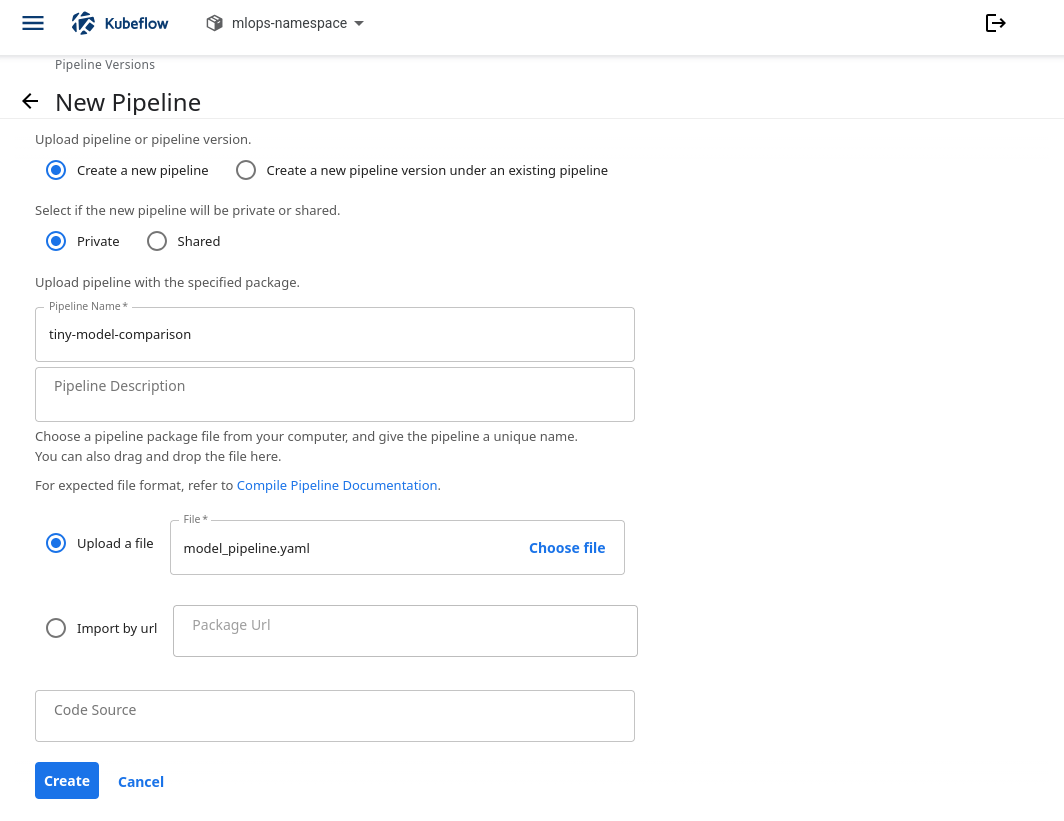
Upload model_pipeline.yaml as a new pipeline named tiny-model-comparison.
On the pipeline’s graph page, click + Create run.
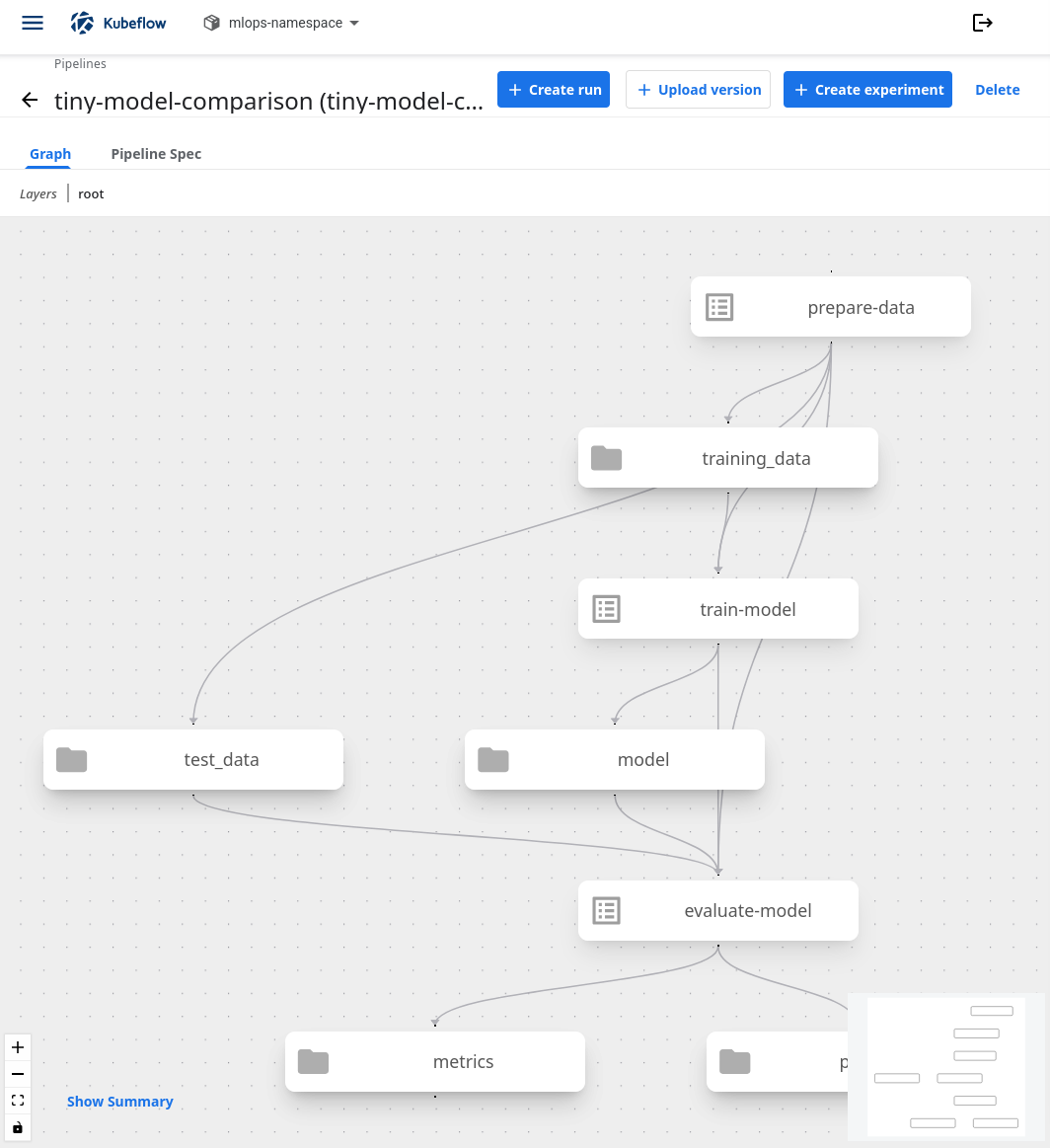
The graph connects three tasks through their artifacts. Folder icons represent the saved datasets, model, and results.
Select the first-examples experiment, or create it if it does not exist. Name the run model-with-intercept.
Keep One-off selected, set fit_intercept to true, and click Start.
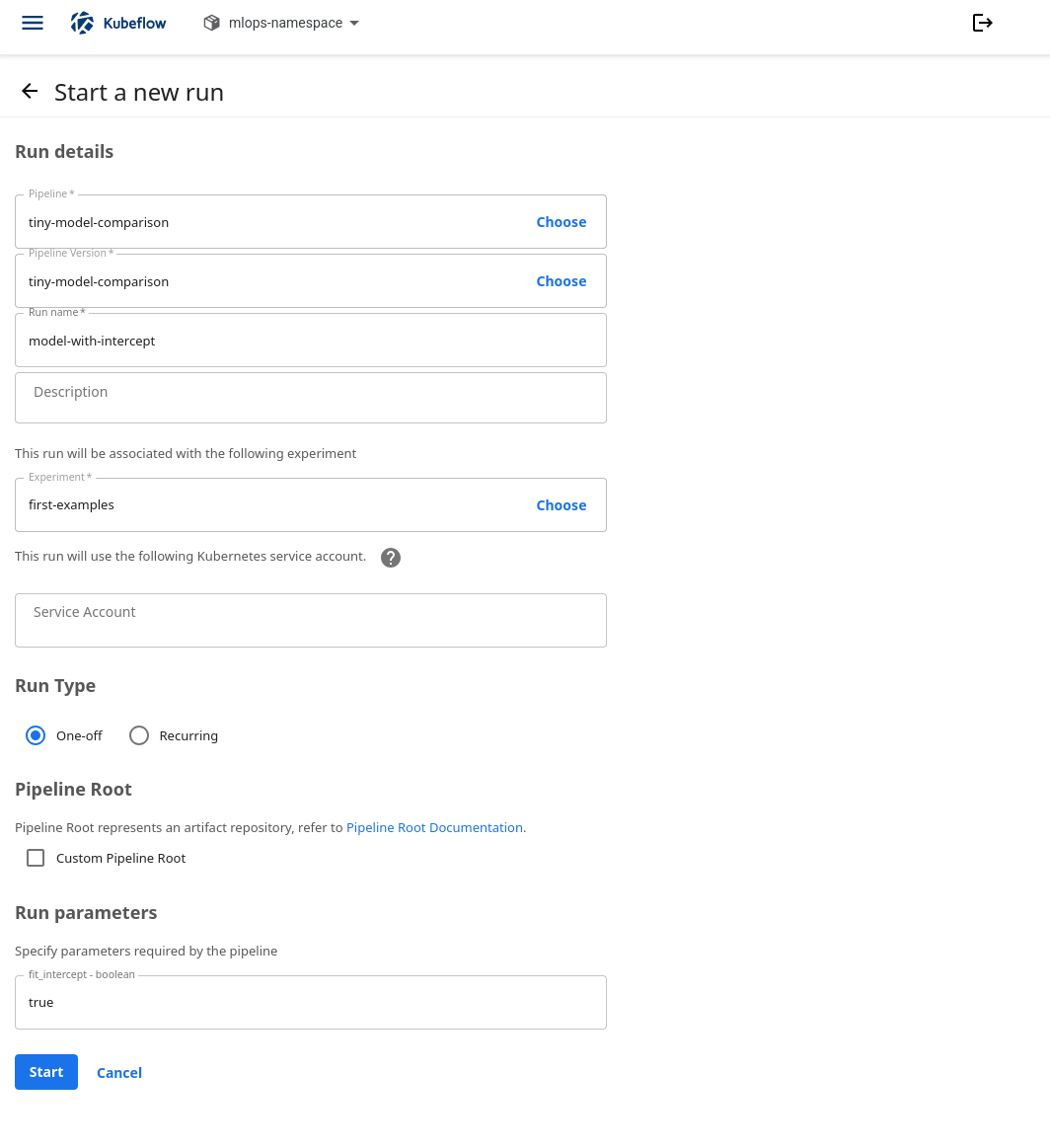
The first run allows the model to learn an intercept.
fit_intercept=true lets the model learn both the slope and the constant added to it. For this data, those values should be 2 and 1. Wait for the run to finish successfully. Image downloads and package installation can take longer than the calculations.
Inspect the saved model and its score
Click train-model in the completed run graph and open Input/Output. Its Output Artifacts includes model, the fitted model saved by that task. Its metadata records the intercept setting, learned coefficient and intercept, and scikit-learn version.
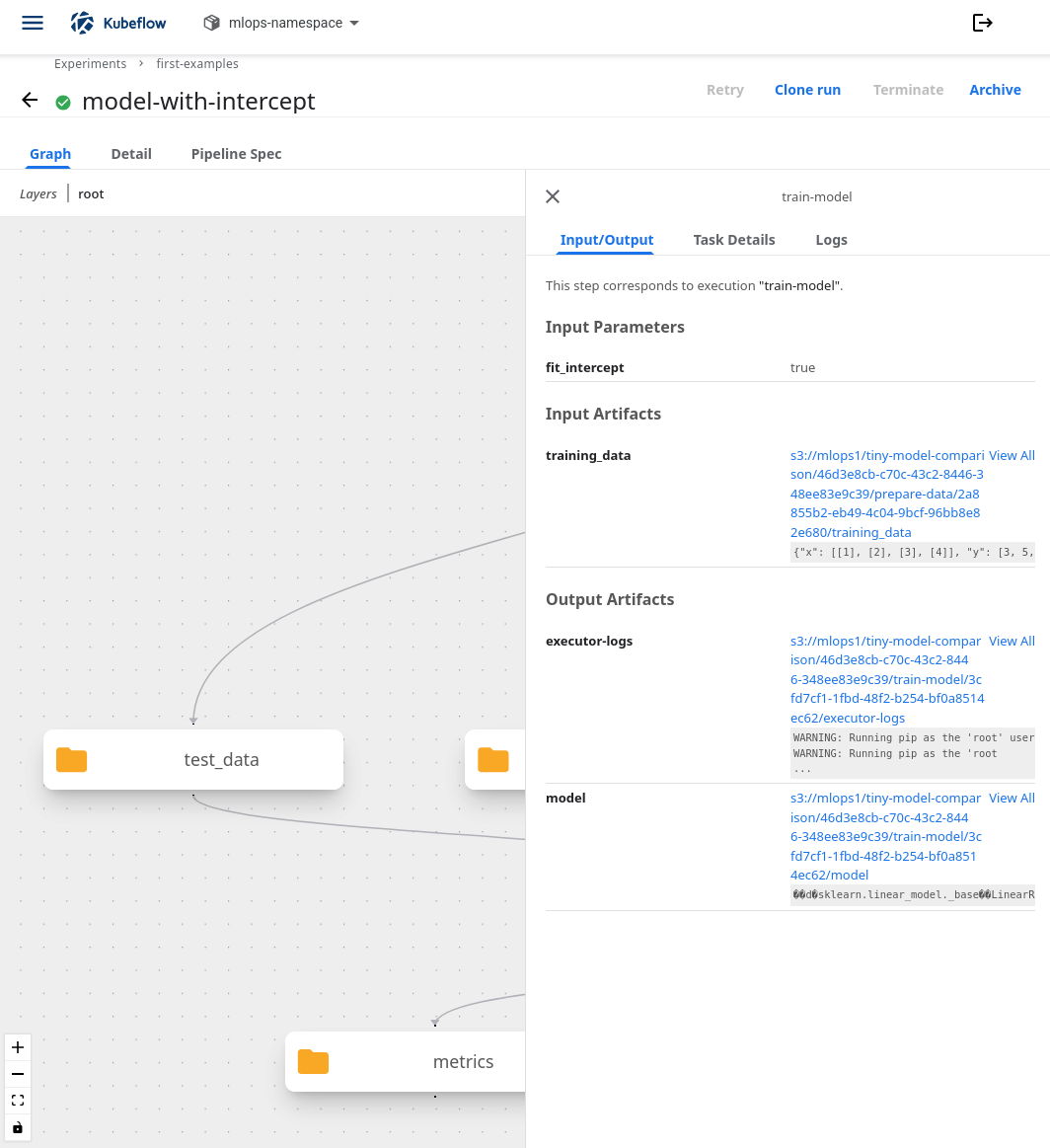
train-model reads training_data and saves the fitted model for the evaluation task.
Click evaluate-model and keep Input/Output selected. The numeric Output is the MAE. It should be zero or a very small value close to zero from floating-point rounding. The task also produces a metrics artifact containing mae and a predictions dataset containing the expected values, predictions, and individual errors.
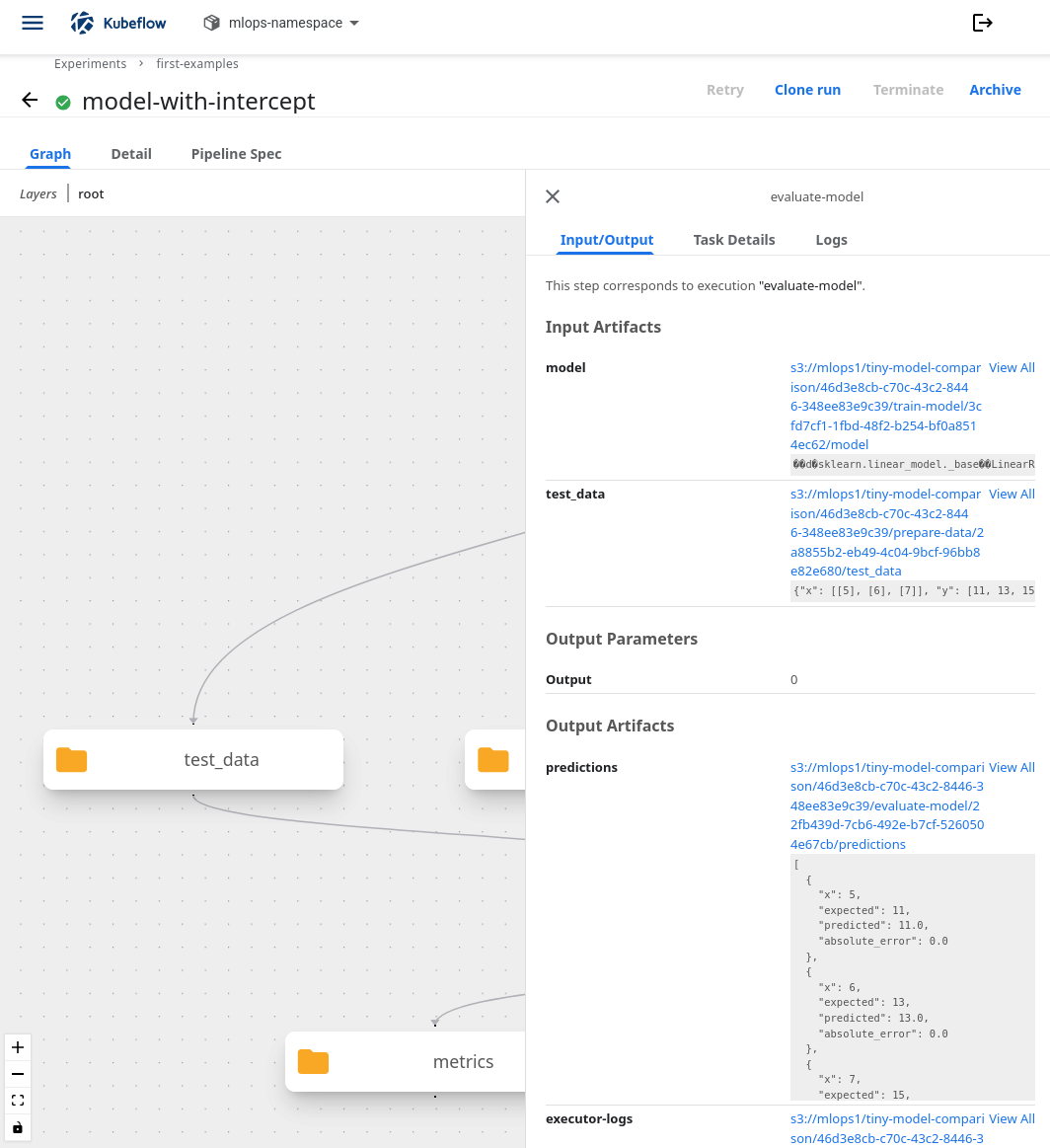
The evaluation uses the saved model and separate test_data. Output 0 means the predictions match the expected values.
Open Logs for evaluate-model and find these lines among the runtime messages:
x=5: expected=11, predicted=11.000000
x=6: expected=13, predicted=13.000000
x=7: expected=15, predicted=15.000000
Mean absolute error: 0.000000
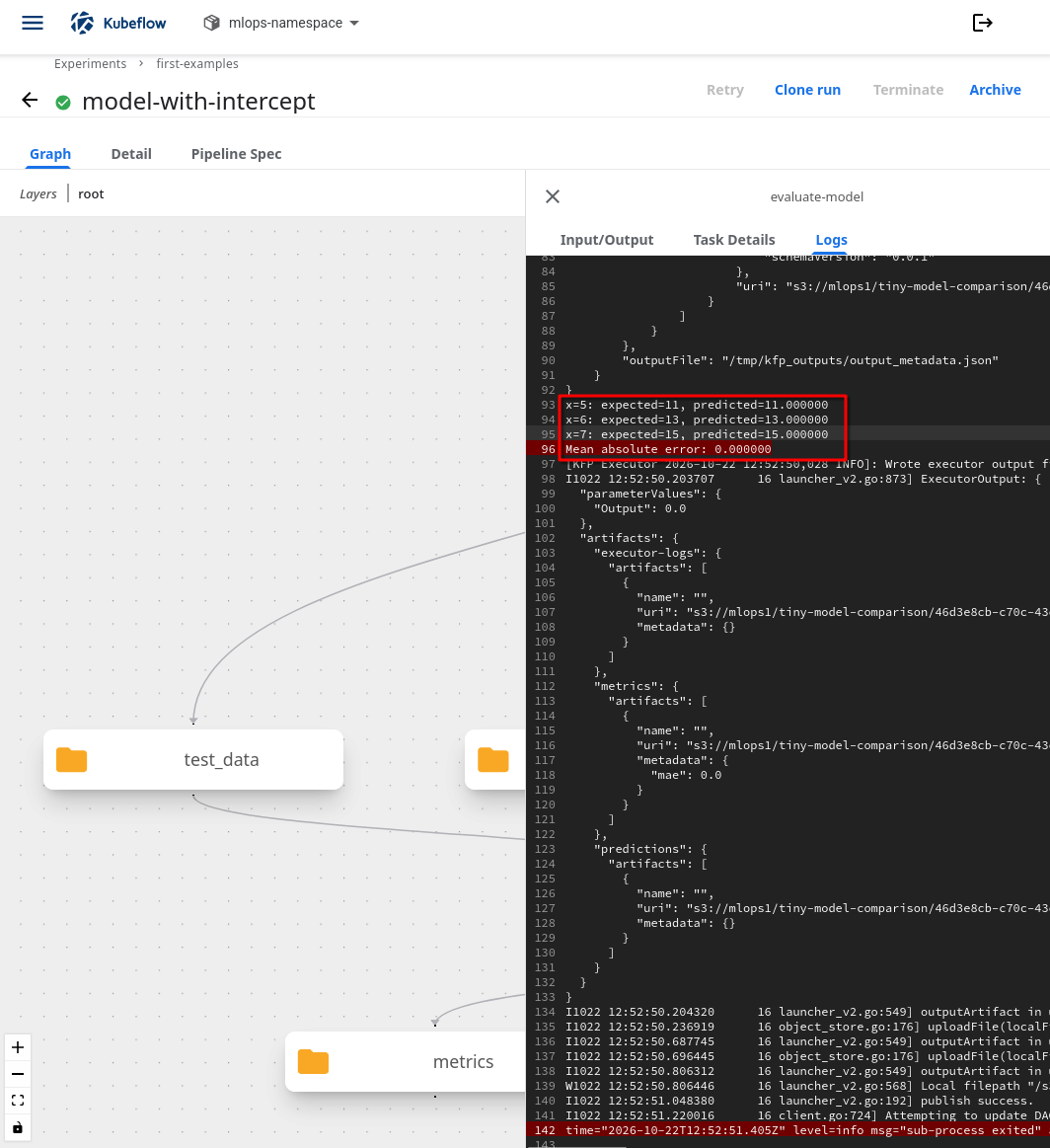
The highlighted log lines show all three predictions and a mean absolute error of 0.0.
The evaluation task loads the saved model in a separate process. It does not use a model left in your notebook’s memory. The model and dataset artifacts belong to the run’s configured storage; they do not appear beside the notebook files in JupyterLab. Their storage locations are shown in Input/Output.
Change one setting and compare
At the top of the completed run page, click Clone run.
Keep the same pipeline and version. If Experiment is empty, click Choose and select first-examples. Name the new run model-without-intercept.
Set fit_intercept to false, then click Start. You do not need to upload or compile the YAML again.
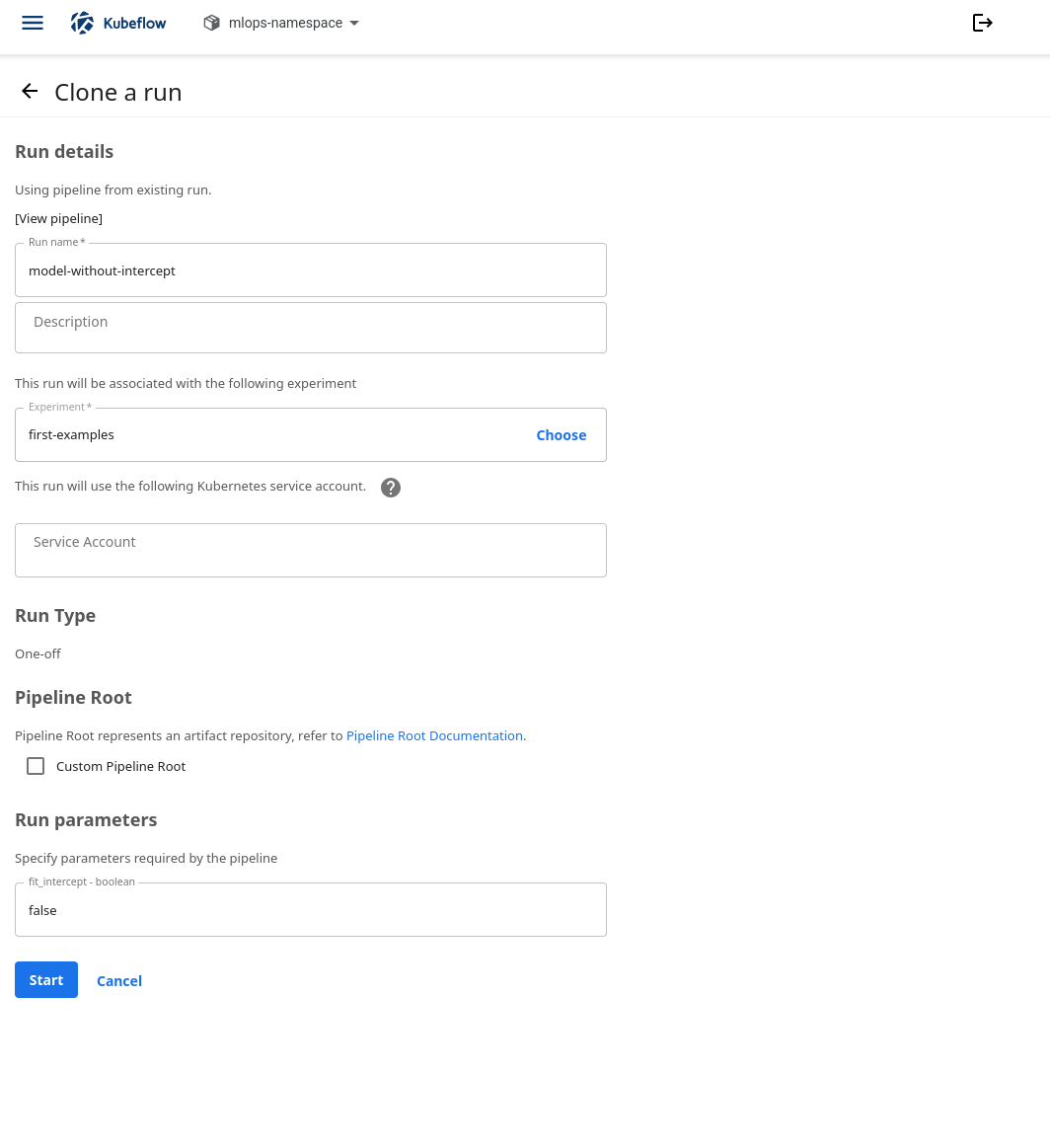
Reuse the pipeline with fit_intercept=false to compare the effect of this setting.
When this run finishes, open evaluate-model → Input/Output and compare its numeric Output with the first run.
Expected results:
Run name |
fit_intercept |
Mean absolute error |
|---|---|---|
model-with-intercept |
true |
Approximately 0.0 |
model-without-intercept |
false |
Approximately 1.0 |
For the second run, evaluate-model → Logs should show:
x=5: expected=11, predicted=11.666667
x=6: expected=13, predicted=14.000000
x=7: expected=15, predicted=16.333333
Mean absolute error: 1.000000
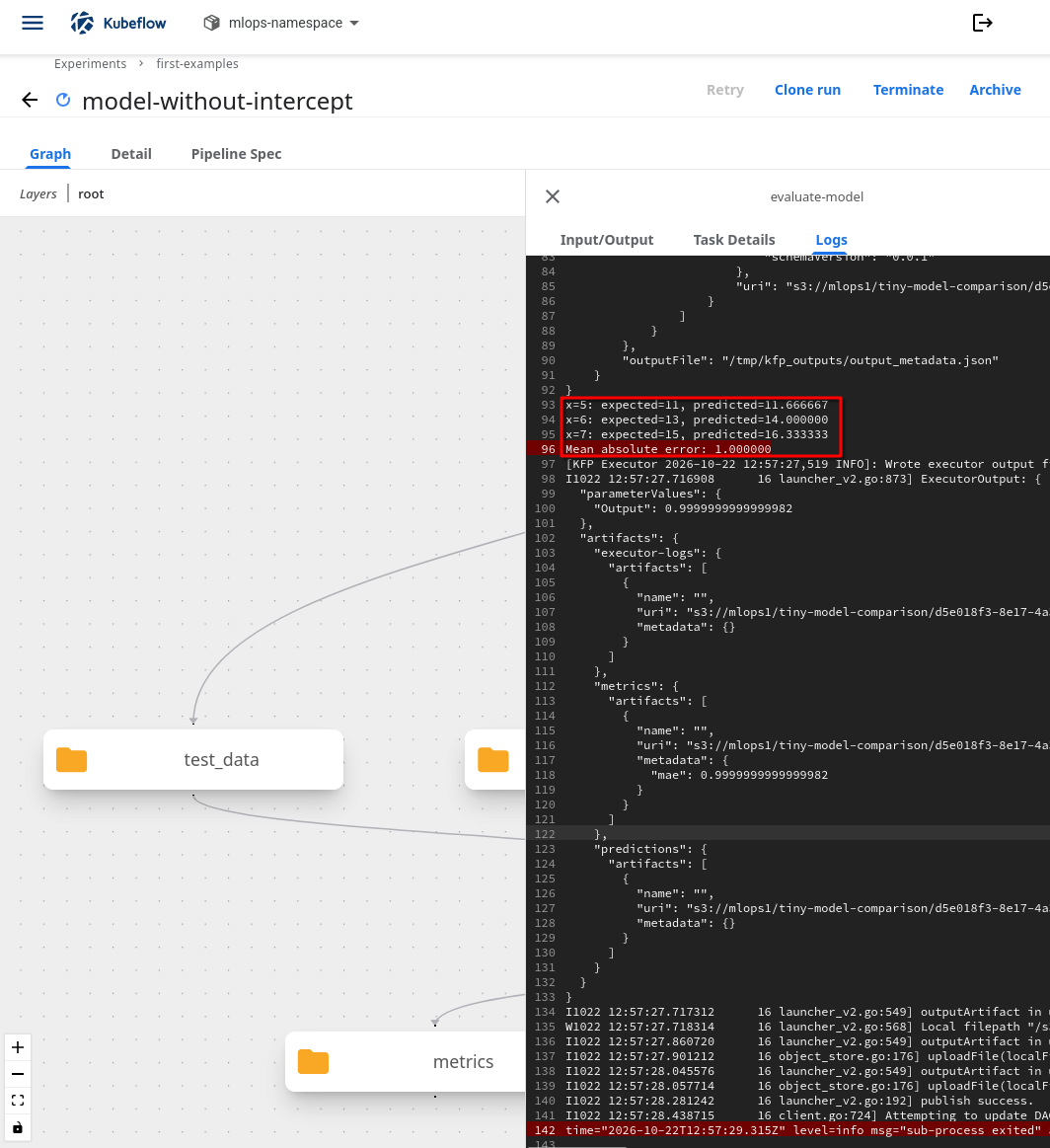
With the intercept disabled, the mean absolute error increases to approximately 1.0 on the same test data.
Disabling the intercept forces the line through zero. Its fitted slope changes to about 2.333333, and its predictions are worse on these test pairs. Both runs can have a green success mark: that means their tasks completed. The error tells you which model performed better on the same test data.
You now have two saved models, their settings, their test predictions, and a score for each. This is a controlled comparison on a tiny dataset. A model for a real task needs representative data and broader evaluation before you rely on its predictions.
Change the Python source if needed
The source is available as model_pipeline.py. Changing a run parameter uses the existing YAML. Edit the Python file only when you want to change the data or task logic.
To compile an edited file, run these commands in a Python environment from the directory containing model_pipeline.py:
python -m pip install "kfp==2.17.0"
python model_pipeline.py
This creates model_pipeline.yaml in the current directory. Upload it as a new pipeline version, choosing tiny-model-comparison with Choose, and select that version for subsequent runs. The two model tasks install their own pinned model libraries. Caching is disabled in this example so both runs execute every task.
What to do next
Keep the pipeline source, compiled YAML, and the successful run names with your experiment notes. If a task fails, Troubleshoot pipeline startup and reused results on CloudFerro Cloud explains how to inspect startup, image, and storage problems. Saving a model artifact does not deploy an inference endpoint or register the model automatically; Choose tools for your machine learning work on CloudFerro Cloud explains the tools for those later steps.