
Say hello and train a tiny model on CloudFerro Cloud
A small example helps you check that your notebook environment can run Python and save a result. Start with a greeting and a text file, then train a model on four numbers and ask it for one prediction.
Prerequisites
No. 1 JupyterLab open with a Python kernel
Follow Create and check a Kubeflow notebook on CloudFerro Cloud to create a notebook environment, or Open an existing Kubeflow notebook on CloudFerro Cloud to open one prepared by your team.
No. 2 scikit-learn for the model example
The greeting uses Python’s standard library. The model example installs scikit-learn in the selected notebook kernel, which needs access to the Python package index. Its LinearRegression documentation describes the training and prediction methods used here.
Open the example notebook
In JupyterLab, create a folder named first-examples in the mounted persistent workspace, then open that folder.
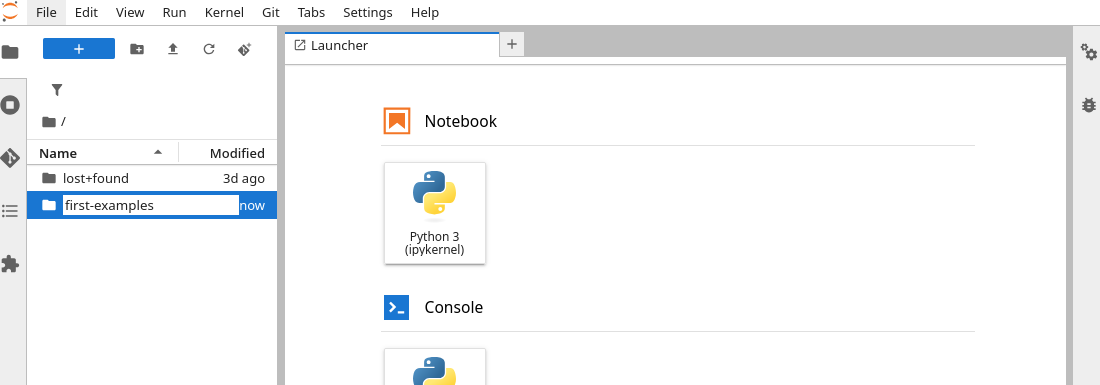
Keep the notebook document and its output files together in first-examples.
Download first_notebook_examples.ipynb and upload it into first-examples using JupyterLab’s file browser. Open it and select a Python kernel. Run its cells in order with Shift+Enter, or enter the code in your own notebook document.
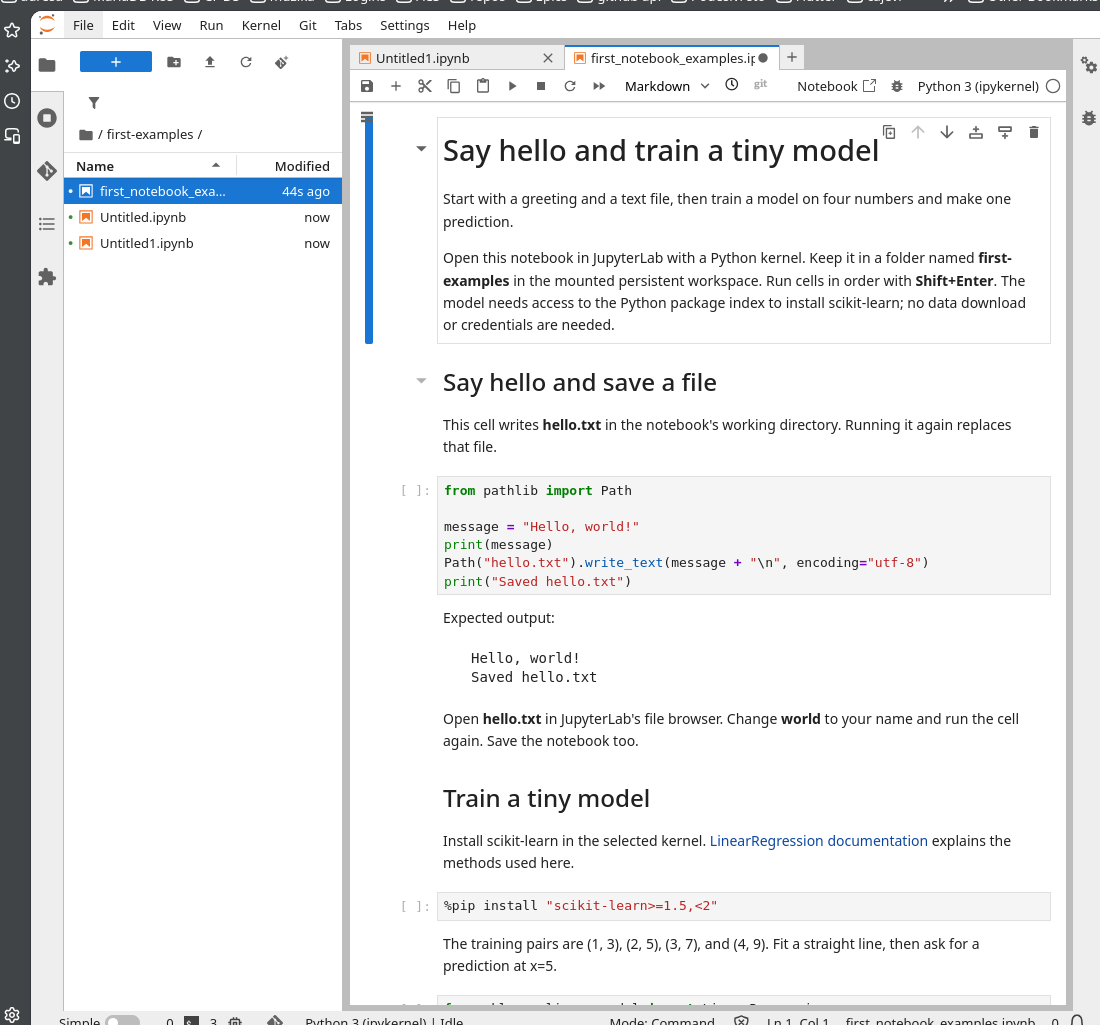
The downloaded notebook contains the instructions, code cells, and expected output. Empty brackets beside a code cell mean it has not run yet.
The code writes files relative to the notebook’s working directory. Keeping this directory in the mounted workspace lets you find those files after reconnecting to the environment.
Say hello and save a file
Run this cell:
from pathlib import Path

message = "Hello, world!"
print(message)
Path("hello.txt").write_text(message + "\n", encoding="utf-8")
print("Saved hello.txt")
The output is:
Hello, world!
Saved hello.txt
Open hello.txt in JupyterLab’s file browser. It contains the same greeting. Change world to your name and run the cell again; the cell replaces the file with the new greeting. Save the notebook document too.
Train a tiny model
Run this cell to install the package in the current kernel:
%pip install "scikit-learn>=1.5,<2"
The training data pairs 1, 2, 3, 4 with 3, 5, 7, 9. The model fits a straight line through these invented points, then predicts the value for 5:
from sklearn.linear_model import LinearRegression

inputs = [[1], [2], [3], [4]]
targets = [3, 5, 7, 9]
model = LinearRegression().fit(inputs, targets)
prediction = float(model.predict([[5]])[0])

print(f"Learned line: y = {model.coef_[0]:.1f} * x + {model.intercept_:.1f}")
print(f"Prediction for x=5: {prediction:.1f}")
Expected output:
Learned line: y = 2.0 * x + 1.0
Prediction for x=5: 11.0
fit() learns the line from the supplied pairs. predict() applies that line to a new input. This is a small exercise in training and prediction using data that you can check by hand.
Save the prediction as a second file:
import json
from pathlib import Path

result = {"input": 5, "prediction": round(prediction, 1)}
Path("prediction.json").write_text(json.dumps(result, indent=2), encoding="utf-8")
print("Saved prediction.json")
Open prediction.json in the file browser. It records input 5 and prediction 11.0. The model ran in the notebook environment’s Python kernel; no separate training job was submitted.
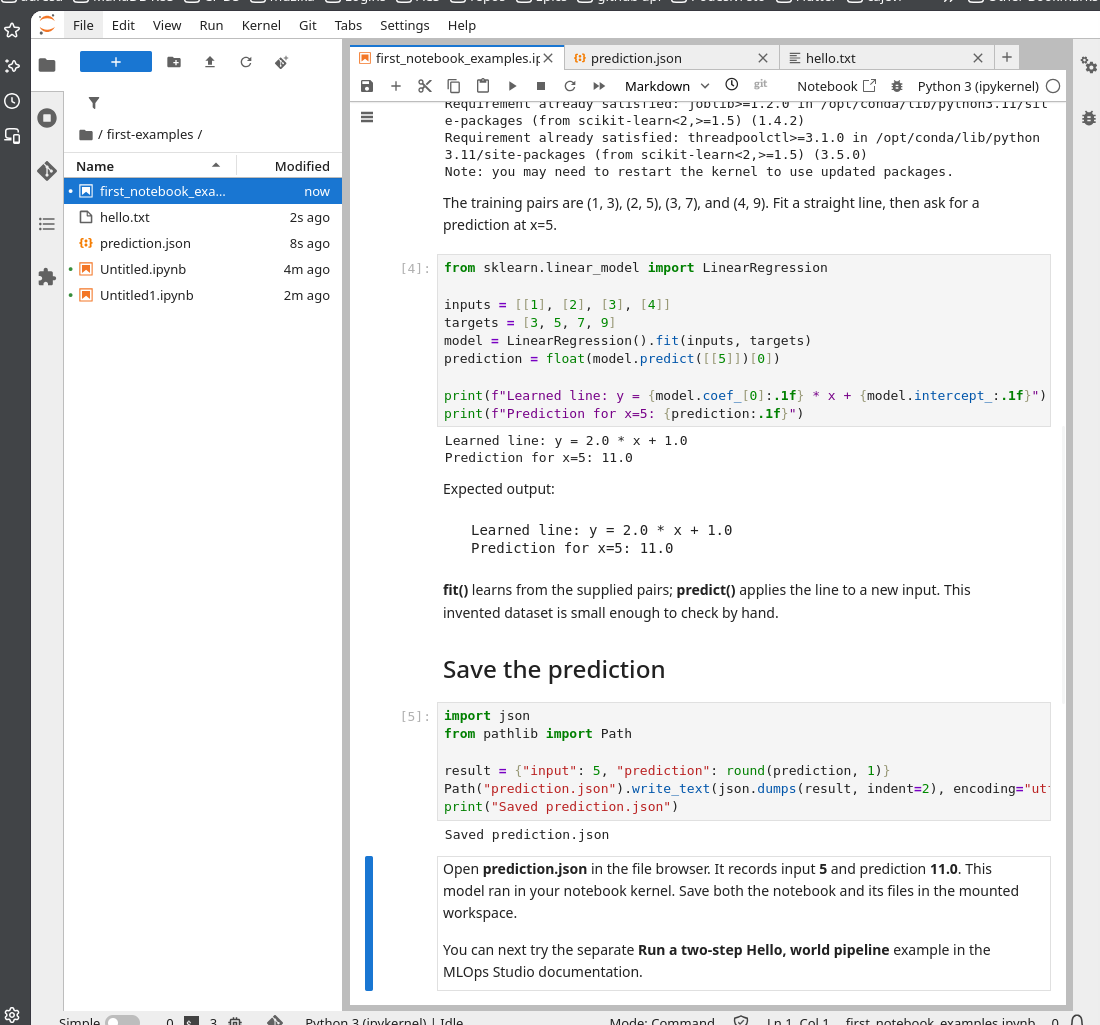
The model predicts 11.0 for input 5, and both output files appear in first-examples.
What the result demonstrates
The model used four example pairs to learn a relationship, then applied it to 5, an input absent from its training data. You have checked that the notebook environment can install a library, train a model, make a prediction, and save the result. The invented data follows an exact line, so you can verify the answer by hand.
For a real task, the predicted value would be something you do not already know, such as a measurement for a new observation. You would first test the model against known answers kept out of training and measure its errors. The value 11.0 confirms that this exercise works; it does not establish accuracy on real data.
What to do next
Continue with Train, evaluate, and compare models in a pipeline on CloudFerro Cloud to save this model in a pipeline, test it on separate data, and compare two training settings. For a first look at pipeline tasks, try Run a two-step Hello, world pipeline on CloudFerro Cloud. Both pipelines provide YAML files ready to upload. For packages that remain available after a notebook environment restart, use Keep Python packages across notebook restarts on CloudFerro Cloud.