
Run a two-step Hello, world pipeline on CloudFerro Cloud
To see how pipeline tasks pass results to each other, run a small greeting example. The first step creates a greeting. The second receives that greeting and counts its words. Download the compiled YAML and upload it directly to Pipelines; no notebook session is needed.
Prerequisites
No. 1 A running MLOps Studio instance with Pipelines installed
Open Central Dashboard and select your assigned namespace. You need permission to create pipelines, experiments, and runs there. Choose tools for your machine learning work on CloudFerro Cloud explains the application choices; Create namespaces and manage team access on CloudFerro Cloud covers namespace access.
No. 2 Access to the example’s image and Python packages
The pipeline workers must be able to pull the public python:3.11-slim image and install the KFP runtime package from the Python package index. The instance also needs its configured pipeline storage. The supplied YAML was compiled with KFP 2.17.0 for a compatible KFP 2.x deployment. The example contains no storage endpoint, secret, or service account override.
The upstream Python component guide describes component execution. The pipeline run guide illustrates uploading and starting a run.
Download the compiled pipeline
Download hello_pipeline.yaml to your computer. This file is ready for the Upload pipeline form. The Python source and a notebook for compiling it are optional downloads at the end of this article.
make-greeting returns a string. count-words receives that result, so it waits for the first task. Caching is disabled for this exercise, so repeating the run executes both tasks again.
Upload and start a run
Return to Central Dashboard, select the same namespace, and open Pipelines.
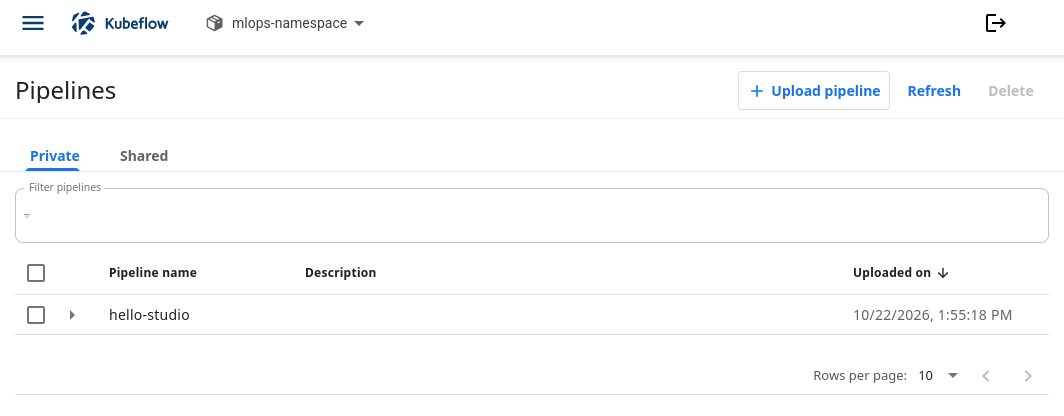
Pipelines lists the definitions available in the selected namespace.
Click Upload pipeline. Select the left-hand Create a new pipeline option and enter hello-studio as the pipeline name.
If the upload form says Pipeline is required, the existing-pipeline-version option is selected without a pipeline chosen using Choose. Select Create a new pipeline for this first upload.
Keep Upload a file selected, choose hello_pipeline.yaml, and click Create.
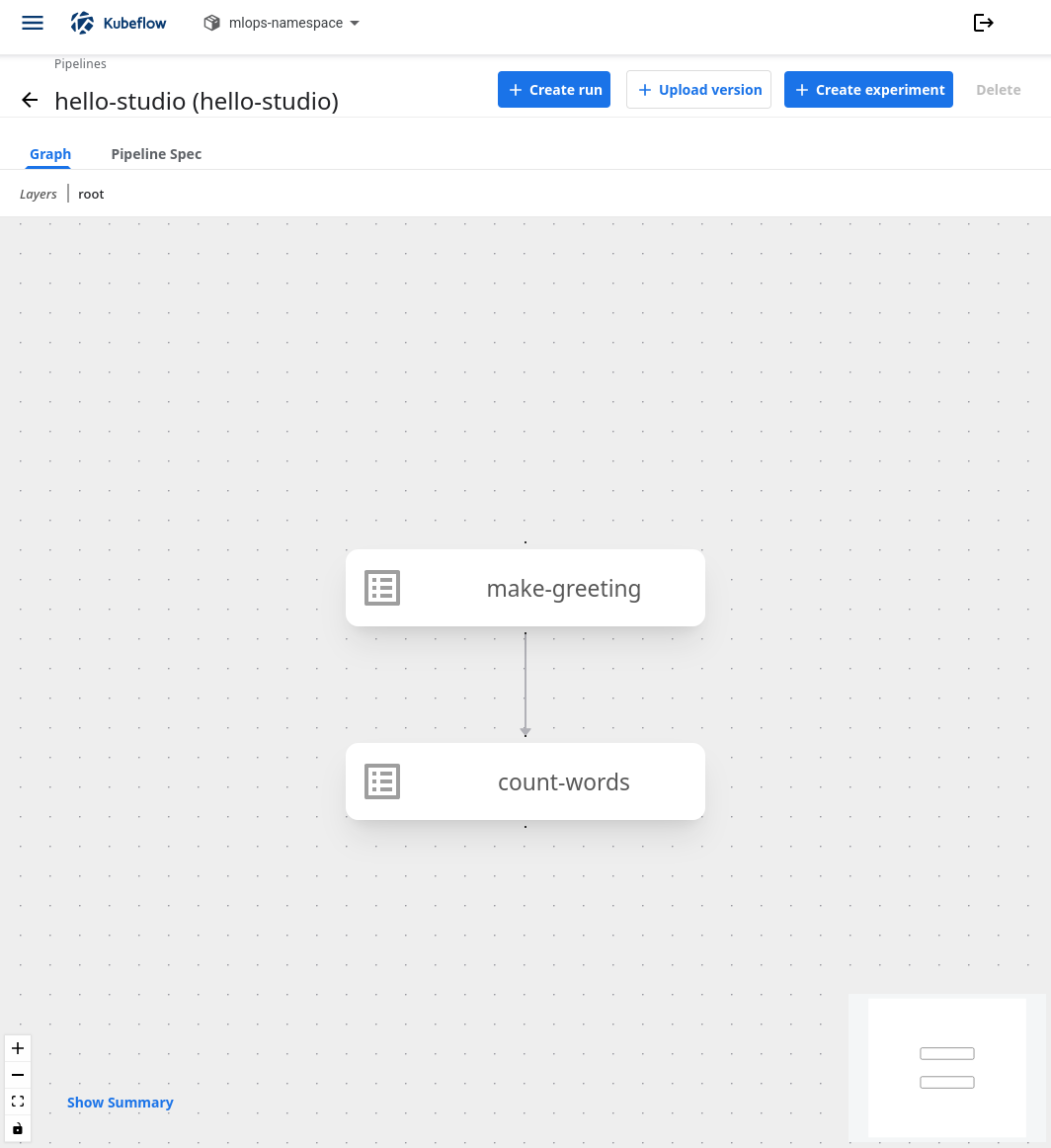
The uploaded pipeline defines two tasks. Use + Create run to execute them.
On the pipeline’s graph page, click + Create run.
Select an existing experiment, or create one named first-examples. A Kubeflow experiment groups pipeline runs; it is separate from the AI Experiments product.
Name the run hello-world-1, or keep the generated run name. Keep One-off selected, leave the name parameter as world, and click Start.
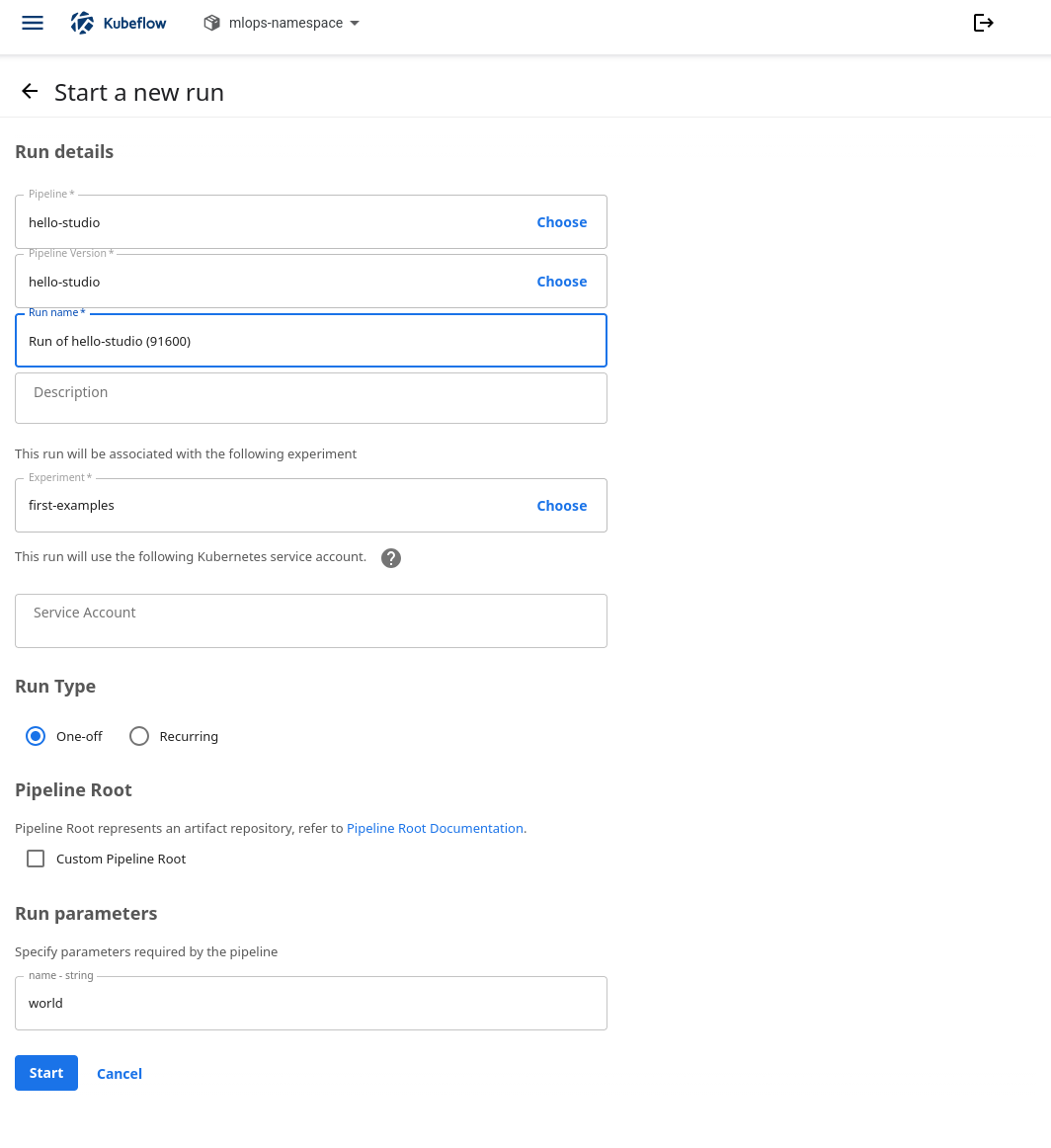
The run uses the selected pipeline version and passes world to its name parameter.
Wait for both tasks to finish. The graph should show make-greeting followed by count-words, with both tasks successful. Image downloads and package installation can take longer than the two short Python functions.
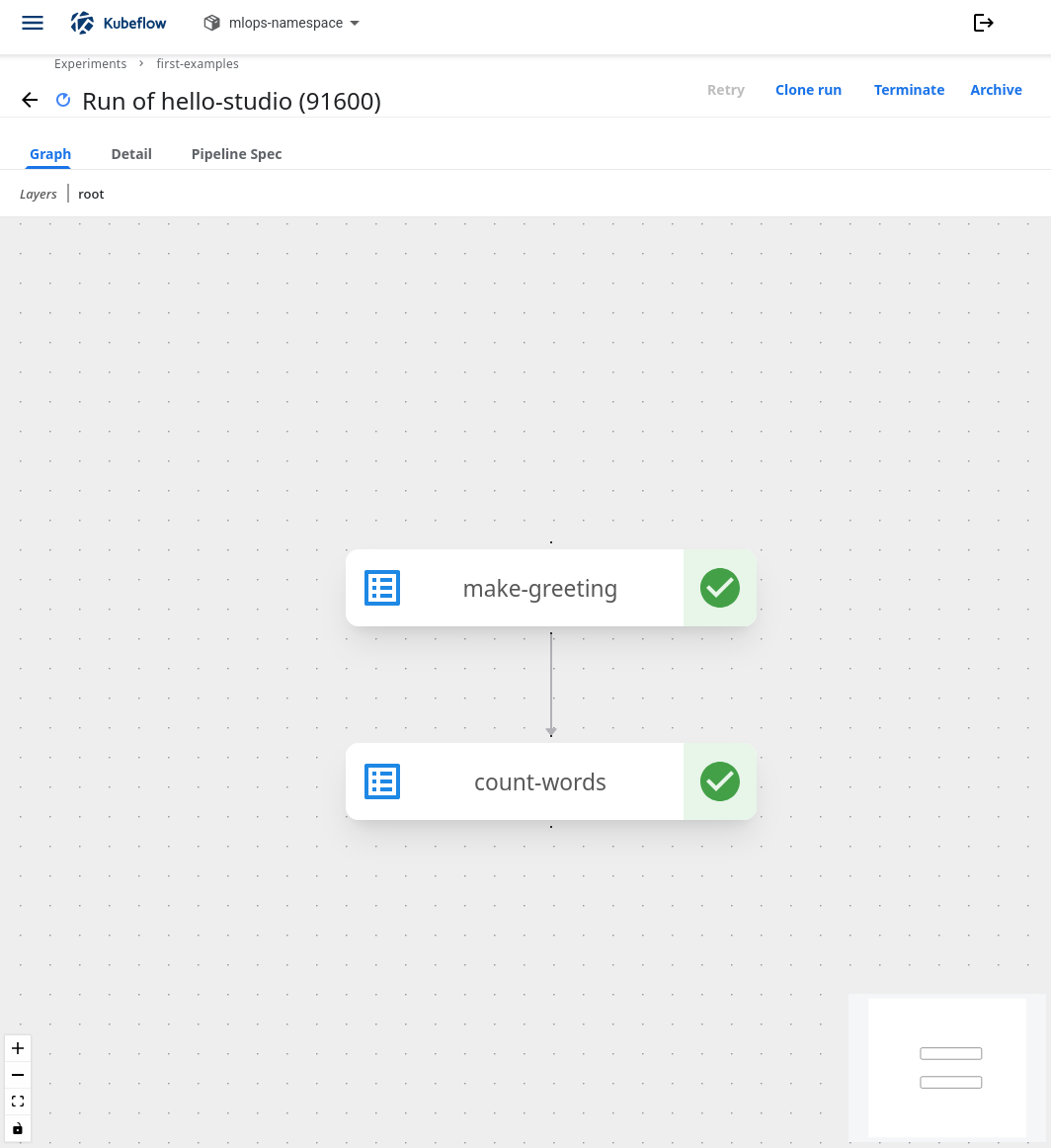
Green check marks show that both tasks have completed successfully.
Read the result
Select make-greeting in the completed run graph and open Input/Output. Its input is world, and its Output is Hello, world!. The Logs tab also includes:
Hello, world!
Select count-words. Its Input/Output panel should show Hello, world! as the input and 2 as the output. Its logs include:
Received: Hello, world!
Word count: 2
Click Clone run at the top of the completed run page. If Experiment is empty, click Choose and select an experiment. Use first-examples to keep both runs together, or choose another experiment. Set the name parameter to MLOps Studio, then click Start.
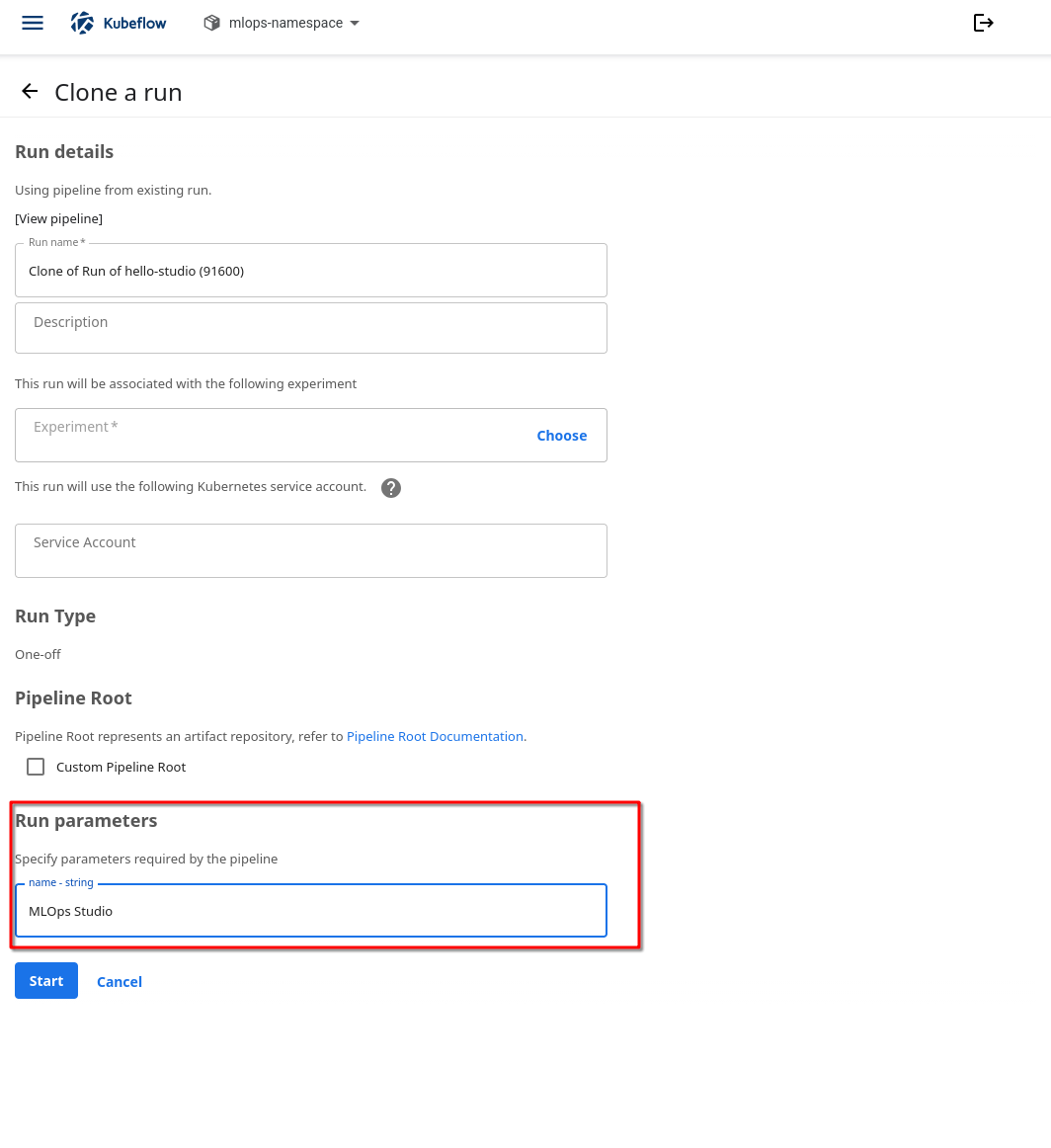
Change name to reuse the pipeline with a different greeting. Select an experiment before starting the cloned run.
When the cloned run finishes, select count-words and open Input/Output. Its greeting becomes Hello, MLOps Studio!, and the word count becomes 3. You have changed a run parameter without editing or compiling the pipeline again.
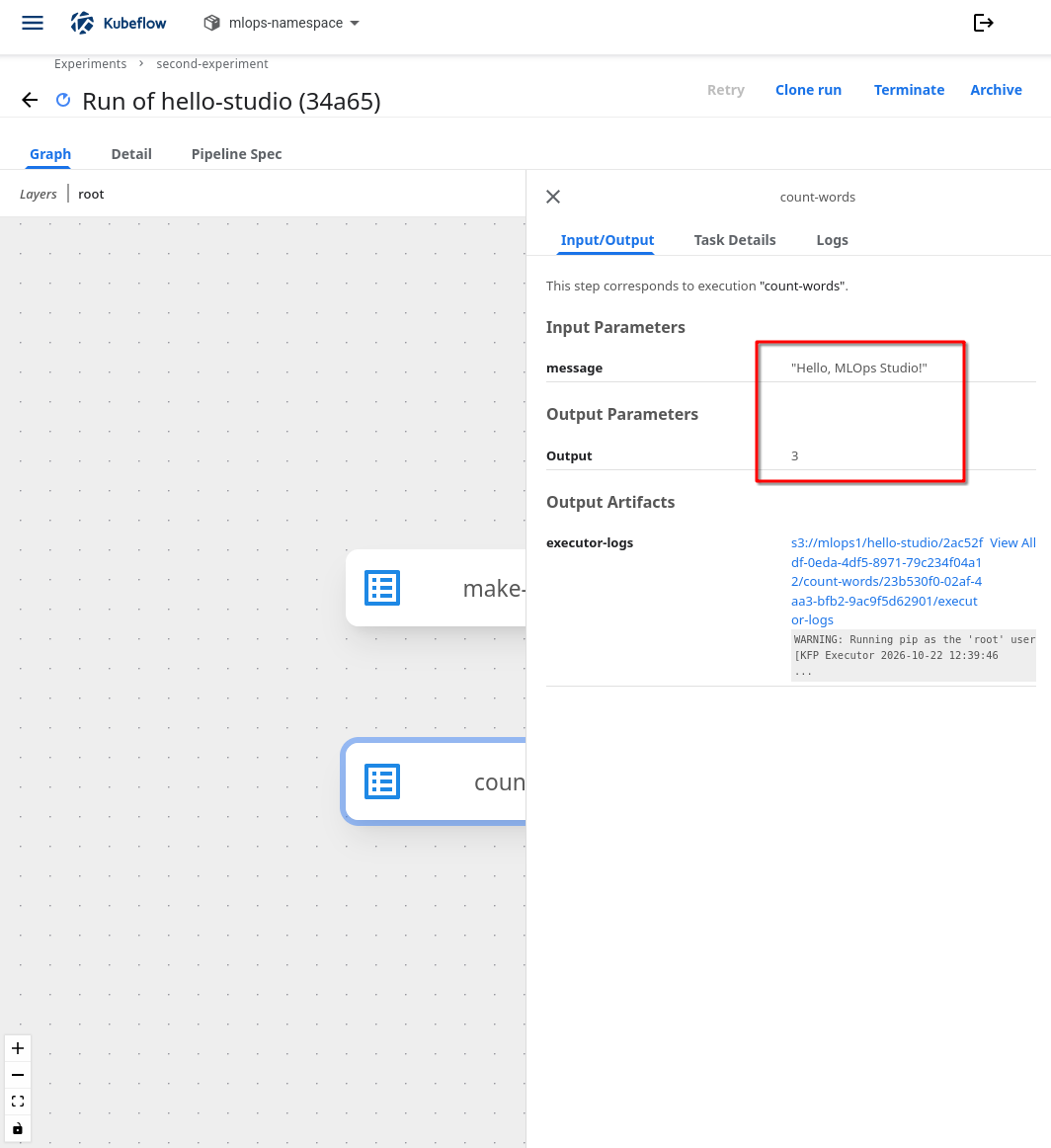
count-words receives the new greeting from make-greeting and returns 3.
Change the source if needed
Download hello_pipeline.py if you want to change what the tasks do. In a Python environment, run these commands from the directory containing the file:
python -m pip install "kfp==2.17.0"
python hello_pipeline.py
This creates hello_pipeline.yaml in the current directory. The optional hello_pipeline.ipynb performs the same compilation in JupyterLab. Both methods prepare a pipeline definition; uploading it and starting a run are separate actions.
What to do next
Continue with Train, evaluate, and compare models in a pipeline on CloudFerro Cloud to train a model, save it, and compare prediction errors across two runs. If a task stays pending or fails, Troubleshoot pipeline startup and reused results on CloudFerro Cloud covers startup failures, image access, and cached results. Keep the namespace, run name, and task name when asking for help.