
Choose tools for your machine learning work on CloudFerro Cloud
After a notebook works, the next tool depends on what you want to do with the result. The application descriptions below help you choose between interactive work, repeatable processing, training, and serving a model. The available applications depend on the choices made when the instance was created.
Choose a tool for your next task
Use this list as a map of the workspace, not as a sequence of tools you must learn. A notebook is useful for exploration. When a sequence of processing steps needs to be repeated, it can become a pipeline. Model registration and serving become relevant when another person or application needs to use the trained model.
Tool |
What it provides |
|---|---|
Notebooks (JupyterLab) |
A browser workspace for writing and running code, exploring data, and viewing results. Start here for the first Python exercise. |
Trainer |
Runs model training jobs, including work spread across multiple workers. Use it when training needs more resources than an interactive notebook. |
Kubeflow Pipelines (KFP) |
Runs a sequence of processing steps, such as preparing data and training a model, so you can repeat the same workflow and inspect its results. |
KServe |
Makes a trained model available to applications through an endpoint: an address where they send input and receive predictions. |
Model Registry |
Keeps a catalog of models and their versions, with information identifying the saved model files. |
Katib |
Tries different training settings and compares the results. These settings, such as a learning rate, are called hyperparameters. |
Feast |
Manages and shares features, the input values used by a model, for training and prediction. |
TensorBoards |
Displays training measurements, such as loss and accuracy, so you can inspect how training progresses. |
Spark Operator |
Runs Apache Spark jobs that process large datasets across multiple workers. |
Volumes Web App |
Creates and inspects persistent volume claims (PVCs), which request the storage used by notebooks and pipeline tasks. |
Open the instance details in MLOps Studio and find Instance components to see which tools were installed for your environment.
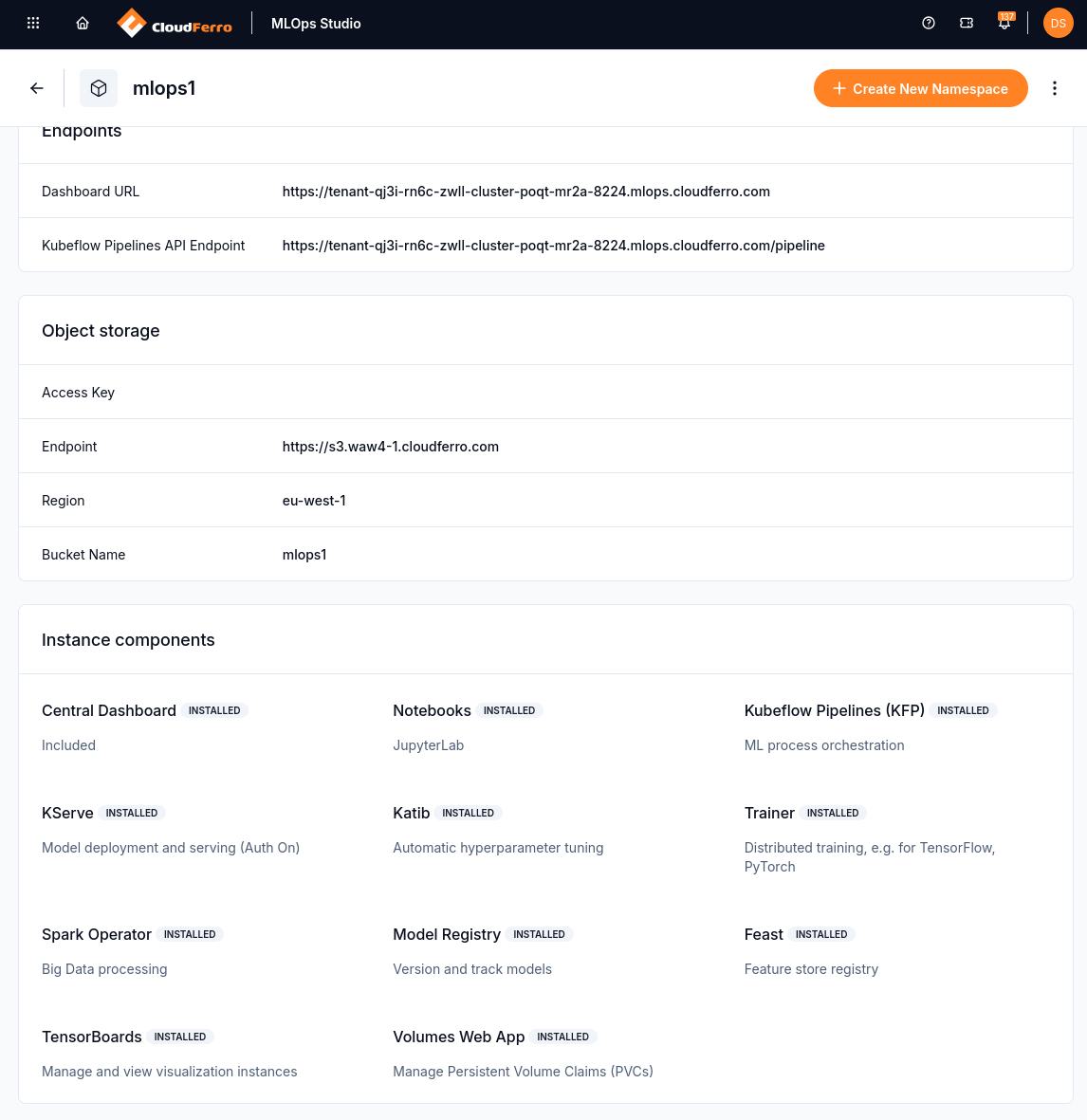
INSTALLED identifies the tools included in this instance. Open Central Dashboard to use the tools available to your namespace.
Recognize the model registration screens
Once you have a trained model to record, the View Models shortcut opens Model Registry. No models in selected registry means that the selected registry has no active registered models.
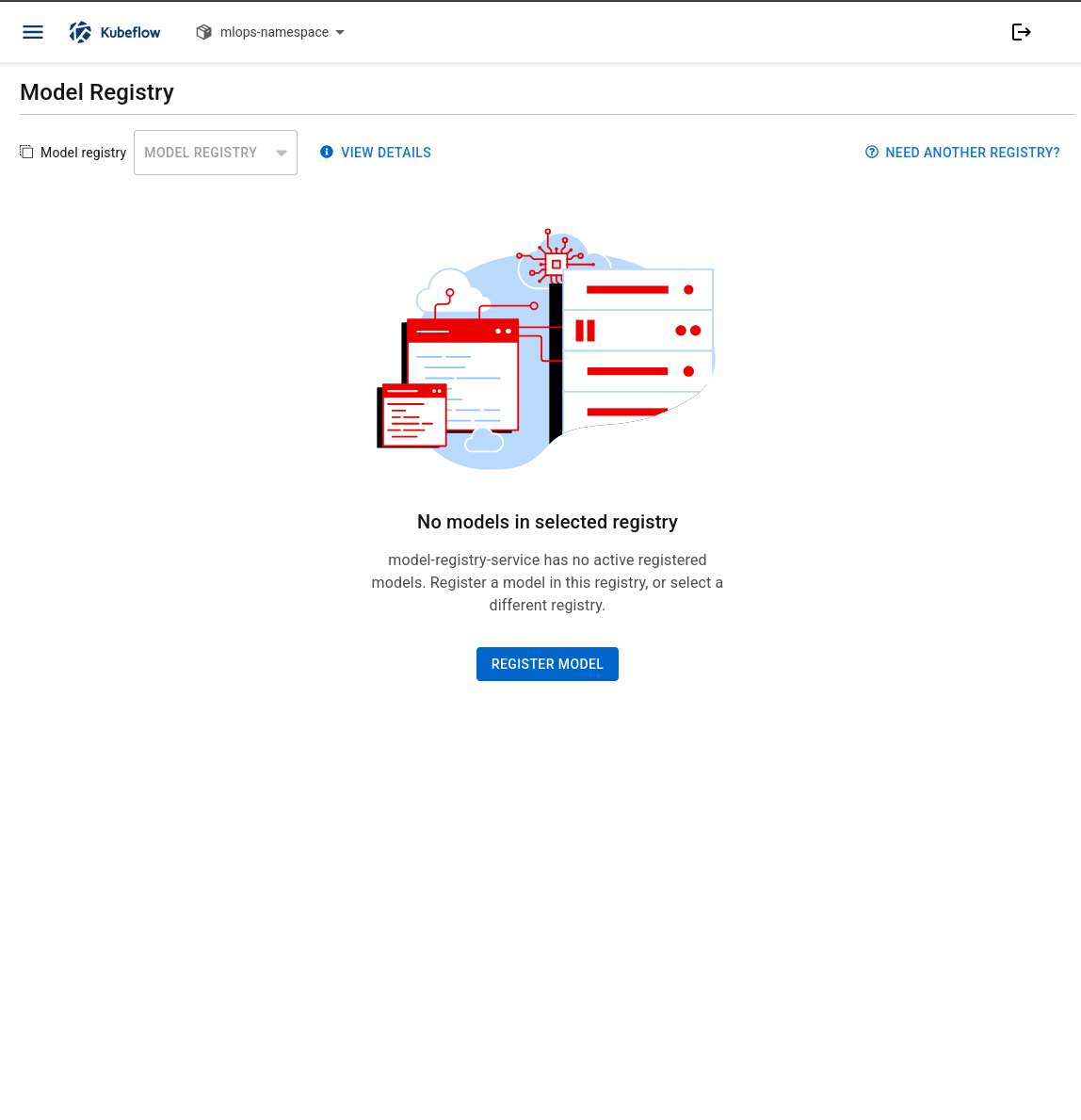
A registry can be available before any models have been registered in it.
REGISTER MODEL opens a form for the model’s name, description, first version, and saved model location. Prepare the model files before filling it in. Registration records a model that already exists; it does not train one.
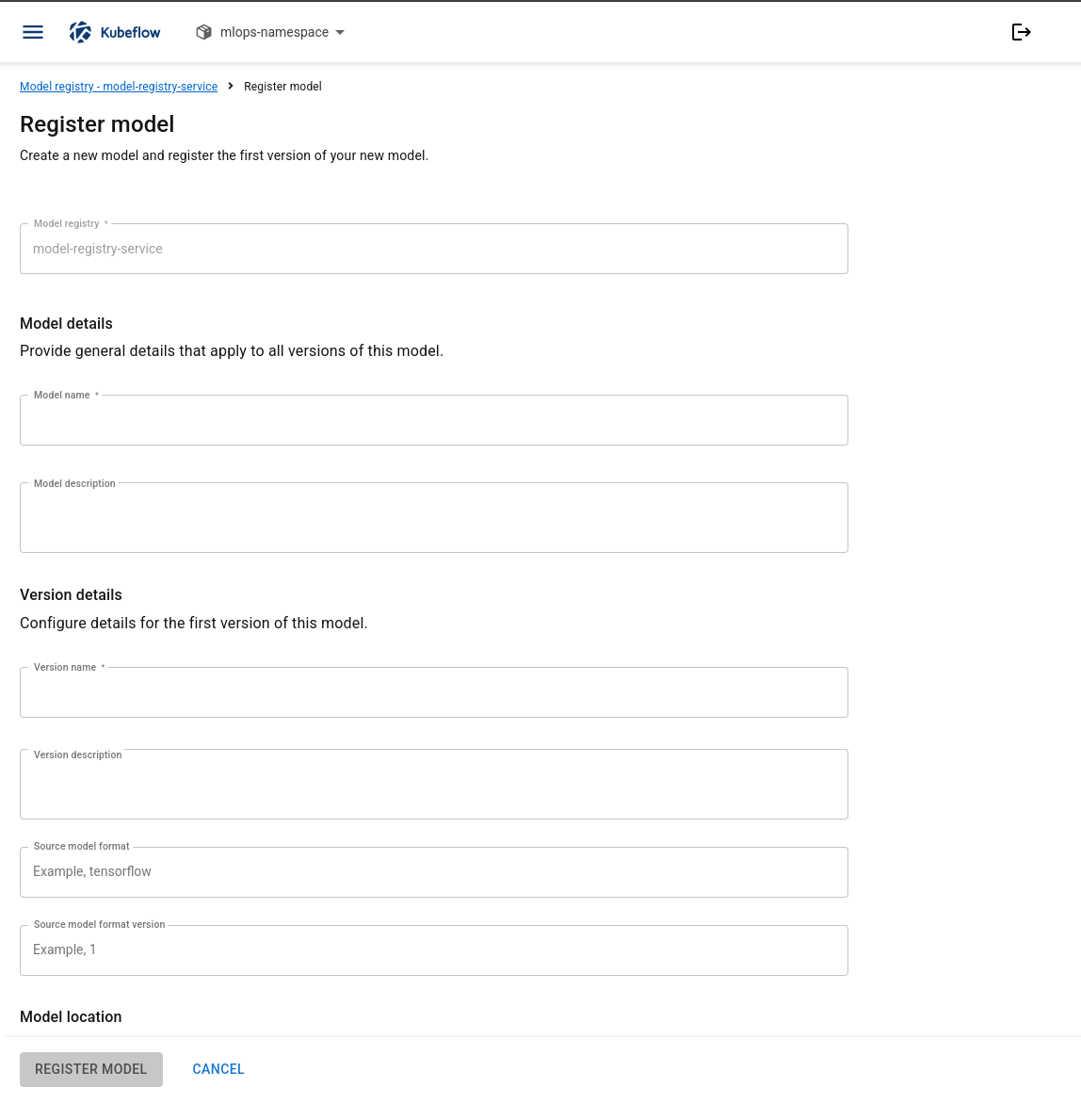
Model details identifies the model; Version details identifies the first version you are recording.
What to do next
For interactive work, start with Create and check a Kubeflow notebook on CloudFerro Cloud. To prepare the installed applications for a team, use Create an MLOps Studio instance on CloudFerro Cloud. The separate AI Experiments user guide on CloudFerro Cloud service records and compares results in MLflow; Workflows user guide on CloudFerro Cloud runs workflows in Airflow. Those services have their own setup guides.