
Connect a local editor to a Kubeflow notebook on CloudFerro Cloud
A local editor can work with the code and Python kernel in an existing Kubeflow notebook. Choose a VS Code tunnel for the illustrated route, or Kubernetes port forwarding for a client that accepts a Jupyter server URL. The browser notebook is sufficient if you do not need a local editor.
Prerequisites
No. 1 A working notebook and workspace access
Complete Create and check a Kubeflow notebook on CloudFerro Cloud or open a notebook supplied by your administrator. Confirm that CONNECT opens the workspace and that Python executes. Keep the instance, namespace, and notebook names available.
No. 2 Tools and credentials for the selected connection method
For a tunnel, install local Visual Studio Code with Remote - Tunnels. Add the Jupyter extension if you will run notebook documents. The tunnel requires its own account sign-in; this is separate from My Portal access. The download command below targets a Linux x64 remote environment.
For port forwarding, install kubectl, download the namespace’s kubeconfig using Create namespaces and manage team access on CloudFerro Cloud, and select the intended cluster context. Your permissions must allow pod port forwarding. Have the notebook’s Kubernetes Service name available; it is a Service, even when its name matches the notebook.
No. 3 Enough notebook resources for the editor
The documented tests found 0.5 CPU / 1 GB RAM unstable. 1 CPU / 2 GB RAM handled light tasks and a roughly 512 MB memory test, but reconnects returned around a 900 MB load. The tested guidance recommends at least 2 CPU / 4 GB RAM for more headroom. These observations are not a universal minimum; agree on resources for your workload with the administrator.
Connect through a VS Code tunnel
Open a terminal in the running JupyterLab notebook environment.
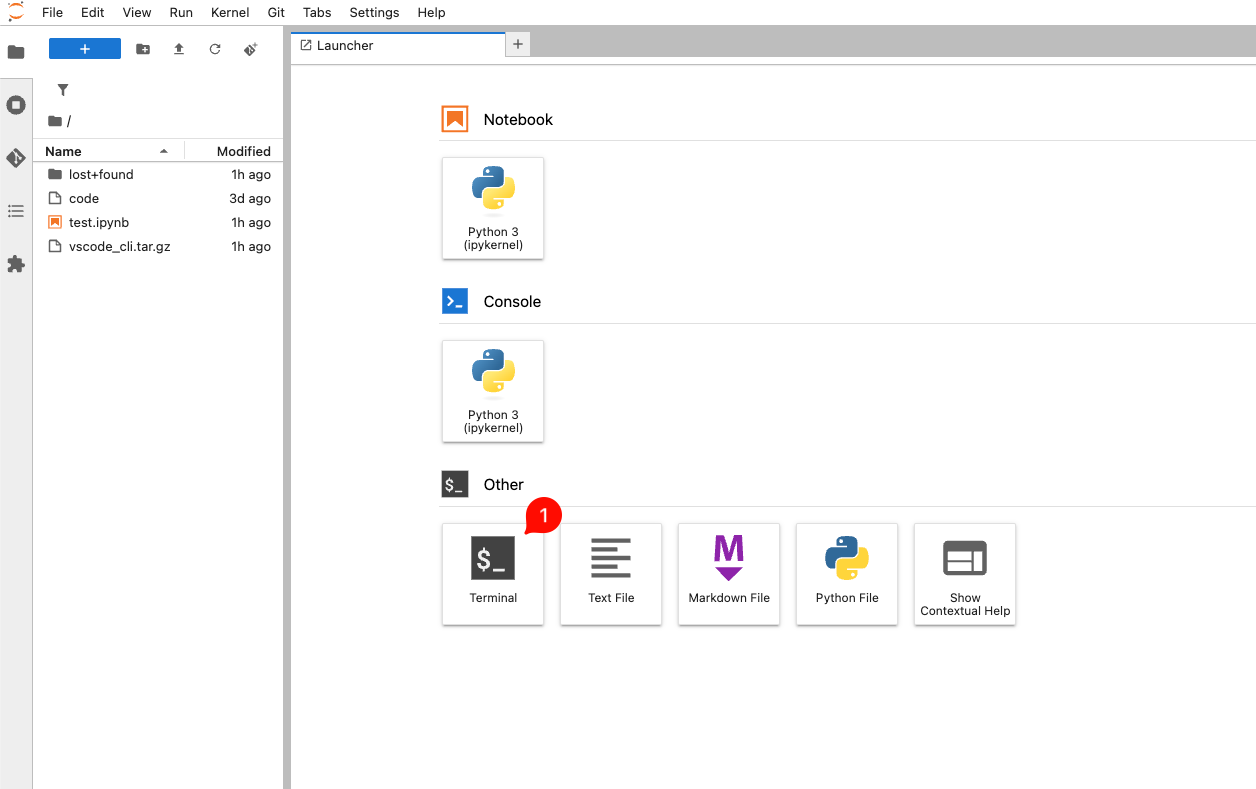
Open the terminal in the remote notebook environment.
For the Linux x64 notebook image used in this example, download and unpack the VS Code CLI, then start the tunnel. Follow the prompts to authenticate and name it:
curl --fail --location 'https://code.visualstudio.com/sha/download?build=stable&os=cli-alpine-x64' --output vscode_cli.tar.gz
tar -xf vscode_cli.tar.gz
./code tunnel
The terminal prints the sign-in instructions and tunnel status.
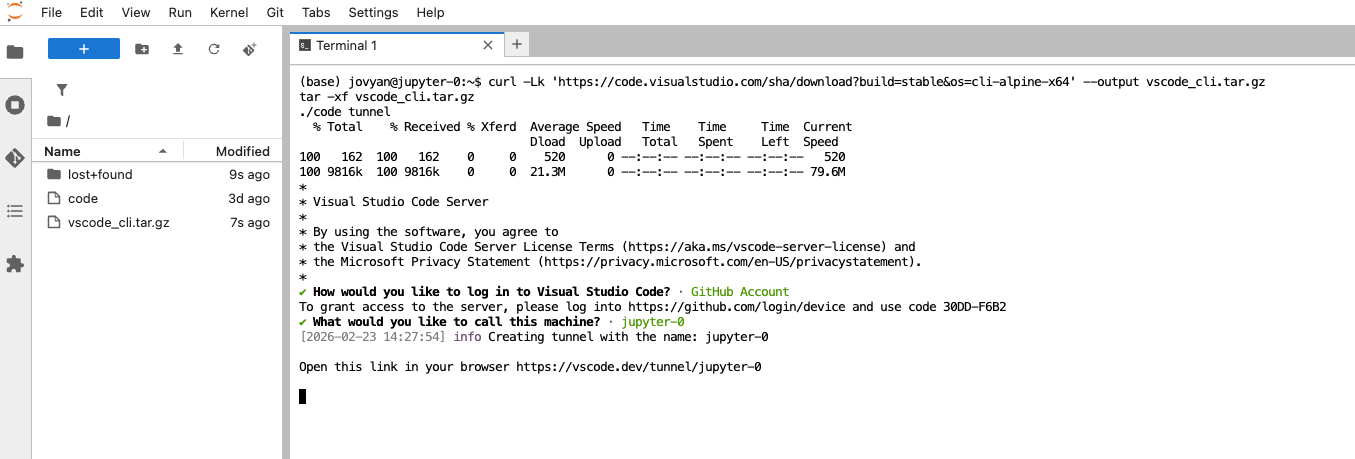
Follow the CLI’s authentication prompts. Use the download command above; this older capture illustrates the sign-in prompts and tunnel name.
In local Visual Studio Code, open the Command Palette with Ctrl+Shift+P and choose the Remote Tunnels connection command.

Choose the remote-tunnel connection from the Command Palette.
Sign in with the same account used to create the tunnel and select the named remote environment.
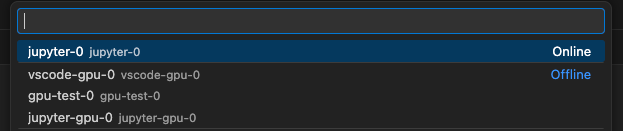
Select the tunnel created in the notebook environment.
Once you connect to the notebook, open the /home/jovyan directory. To run a notebook, select Run or Run All, open the kernel picker, and choose an existing Jupyter kernel. Do not select a standalone Python environment, because code executed outside the existing Jupyter kernel does not report activity to the notebook controller.
The output appears beneath the executed cell.
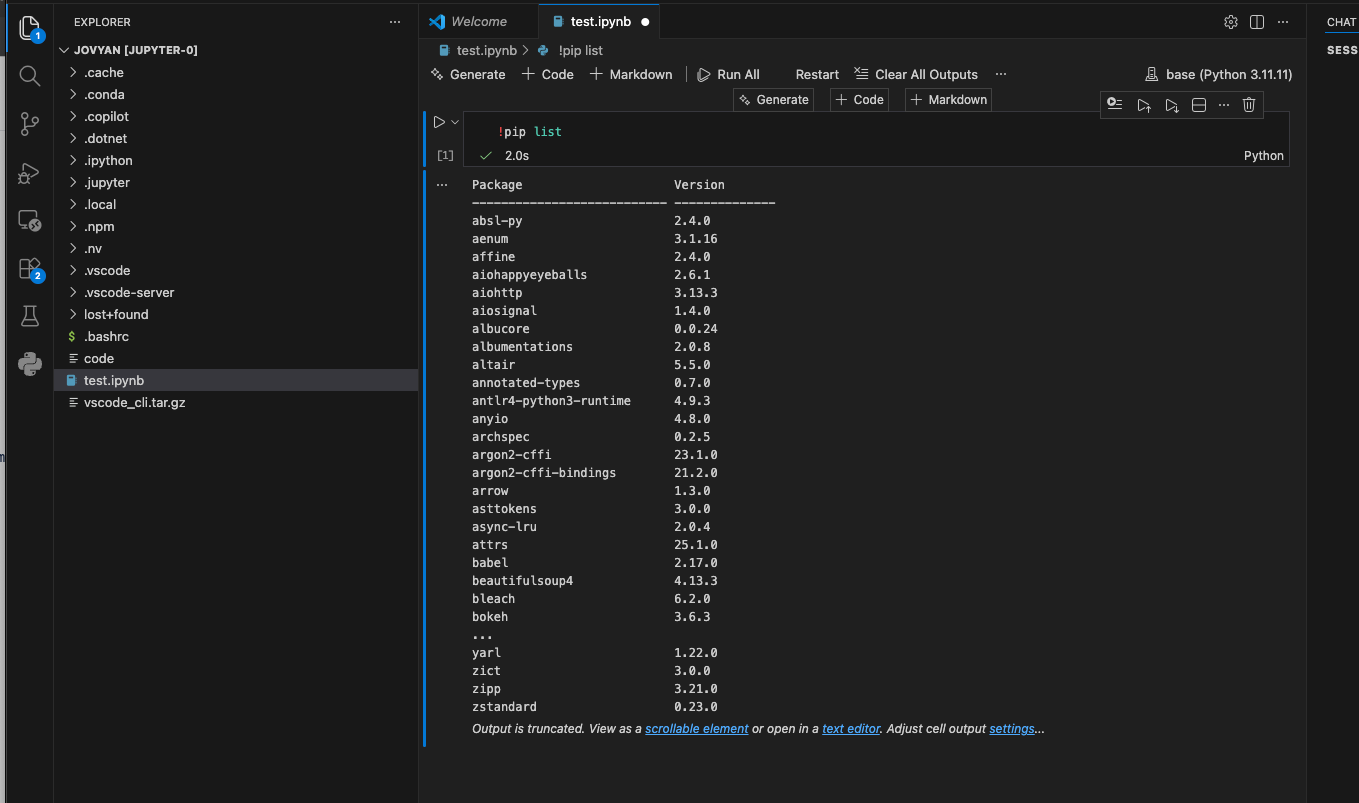
Cell output appears below the code. This example displays an installed-package list.
Keep notebook work visible to the controller
The tunnel method also works with a Kubeflow VisualStudio Code environment. Its integrated terminal runs commands, but terminal activity does not supply the Jupyter heartbeats described below.
Warning
The notebook controller uses Jupyter kernel activity and heartbeats to determine whether a notebook is idle. Work started outside the kernel does not send those heartbeats and may be culled by the controller, even while the external process is still running. Running a process with nohup, tmux, or in the background does not prevent this: the process still stops when the notebook pod is culled.
Run package installation and data downloads from a notebook cell or VS Code interactive window connected to the existing Jupyter kernel, rather than from a separate terminal. Use %pip to install a package into the active kernel environment:
%pip install <package-name>
For data downloads, use Python in a cell or launch the download command from a cell so that the kernel remains busy and reports activity while the download runs:
from pathlib import Path
from urllib.request import urlretrieve

urlretrieve("<download-url>", Path("<destination-file>"))
Alternatively, run an appropriate command from the cell, for example !curl --fail --location <download-url> --output <destination-file>. Keep the notebook or interactive window connected until the operation finishes. Starting the same command in a Jupyter terminal, the VS Code integrated terminal, tmux, or a background process does not create kernel activity and does not protect the notebook from culling.
For workloads that must run outside a Jupyter kernel, use one of these alternatives:
Run the workload as a separate Kubernetes
Job, Kubeflow Pipeline, or pod so that it can continue independently of the notebook pod.Use a scheduled workload for recurring tasks.
If the platform supports it, ask an administrator to increase the idle timeout or exempt the notebook or namespace from idle culling.
Generating artificial Jupyter activity or heartbeats is fragile and is not recommended. For terminal-based or other long-running workloads, a separate Kubernetes Job or Kubeflow Pipeline is the preferred approach.
Connect through Kubernetes port forwarding
On your local computer, replace the Service name and namespace below, then leave the terminal running:
kubectl port-forward svc/<your-notebook-service-name> 8888:80 -n <your-kubeflow-namespace>
The documented deployment exposes the notebook’s Jupyter service on port 80. The forwarded URL must also include the notebook’s base path:
http://localhost:8888/notebook/<your-namespace>/<your-notebook-name>/
Enter this URL as the remote Jupyter server in your editor and select an existing kernel. Run the Python check from the notebook creation guide to verify the connection. Stopping the forwarding command disconnects this local route; it does not delete the notebook.
What to do next
For files and installed packages, use Keep Python packages across notebook restarts on CloudFerro Cloud. Client-specific instructions cover VS Code remote Jupyter servers, PyCharm Jupyter servers, and VS Code Remote Tunnels.