
Create namespaces and manage team access on CloudFerro Cloud
A running instance still needs a workspace and assigned members before the team can use it. A namespace groups that workspace’s resources and access. Create it in MLOps Studio, assign each person a role, and give them the names they need to find it in Central Dashboard.
Prerequisites
No. 1 Access to My Portal
Sign in with your platform account and open MLOps Studio from Products. Access MLOps Studio, AI Experiments, and Workflows from My Portal on CloudFerro Cloud shows the sign-in route. Keep the instance list open for the steps below.
No. 2 Permission to manage the environment
Your account must be allowed to perform the instance or namespace changes described below. Ask the platform administrator to confirm your access; signing in to My Portal alone does not establish those permissions.
No. 3 A running instance
Follow Create an MLOps Studio instance on CloudFerro Cloud if the environment does not yet exist. Open the intended instance and confirm RUNNING. Have the workspace name, intended members’ platform accounts, and any agreed resource limits ready.
Create the namespace and assign roles
An instance can be RUNNING while its Namespaces panel still shows No Namespaces. Open the instance details and find that panel.
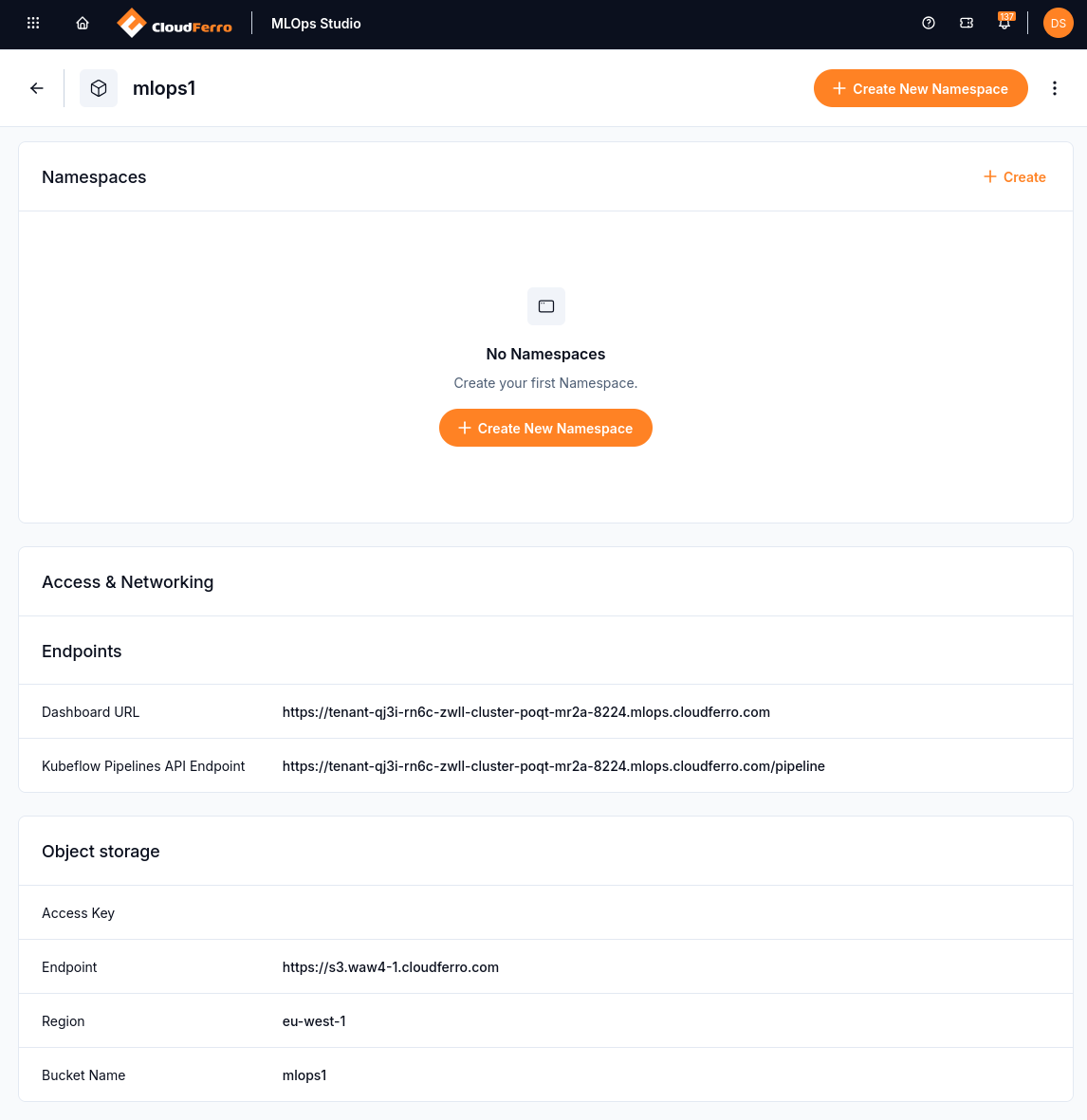
No Namespaces means that the instance still needs a workspace for its users.
Click Create New Namespace and enter a name for the team’s workspace. This guide uses mlops-namespace. Where namespace quota settings are available, set maximum CPU (max_cpu), RAM (max_ram), and storage (max_storage) to define its resource limits. The example screen disables these fields until a quota is defined for the parent Kubeflow instance.
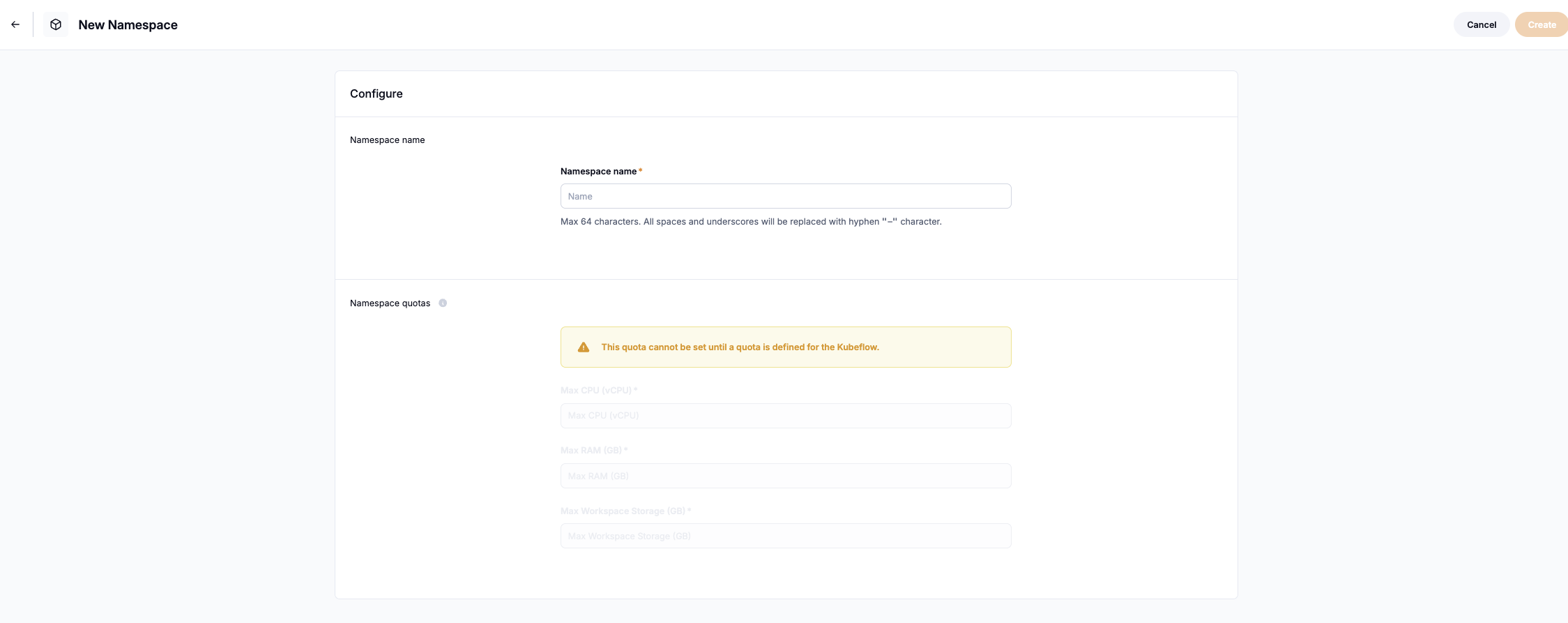
Enter the workspace name. The message above the quota fields explains why those fields are unavailable in this example.
Not defined in a namespace’s Max CPU, Max RAM, or Max Storage field means that no limit has been set at that namespace level. It does not mean unlimited physical resources: the parent cluster’s capacity and quotas still bound the workload.
Open the saved namespace to find its Endpoint and Add Members action. The namespace endpoint in the example ends with ?ns=mlops-namespace. The three-dot menu also provides Download kubeconfig for command-line work; this download is not required to open a notebook in the browser.
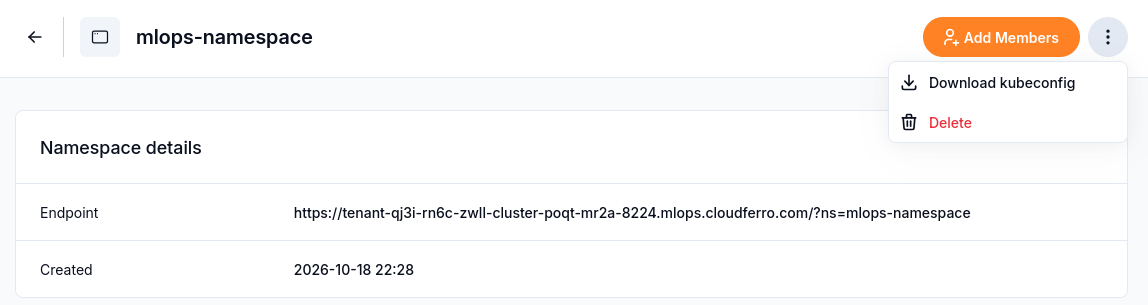
Add members to the namespace that they will use in Central Dashboard.
Click Add Members to open Manage Members.
Find the person’s platform account under User Name and enable its Members switch.
Select Edit for someone who will create notebooks, or View for inspection, then click Save.
Assign the role needed for the person’s work:
Role |
Intended access |
|---|---|
Edit |
Create and change notebooks, pipelines, KServe model instances, persistent volume claims, and other workspace resources. This is the working role for data scientists, ML engineers, and developers. |
View |
Inspect pipeline executions, notebook logs, model registry entries, and metrics. This is intended for people who need to review work without changing it. |
The documented Katib limitation allows a user with View permissions to create and remove Katib experiments. Where experiments need protection from other users, the documented workaround is a separate namespace with restricted membership. Do not treat the View role alone as that protection.
Administrators can change or revoke membership through the role controls. Provide members with the instance name, namespace name, and assigned role so they can open their assigned workspace.
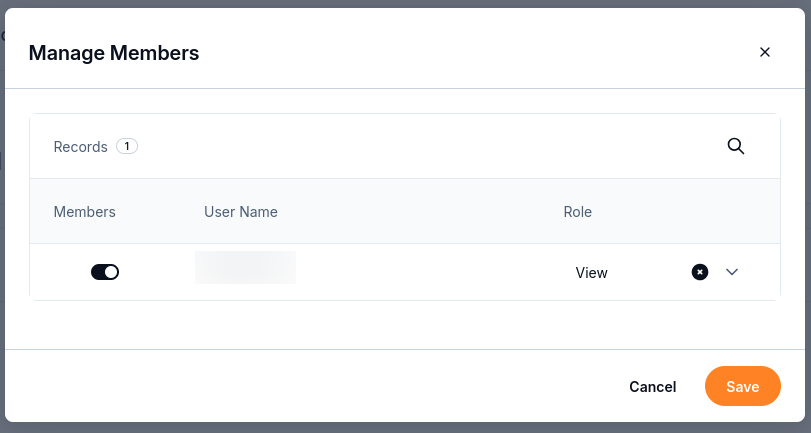
This capture shows View selected. Choose Edit for the notebook creation procedure.
Use command-line access when needed
The namespace’s Download kubeconfig action supplies the configuration used by kubectl and tools that connect to Kubernetes. Download it to the computer where those tools run. For example, after replacing the path with the downloaded file’s location:
export KUBECONFIG="/path/to/downloaded-kubeconfig"
kubectl config current-context
kubectl get pods --namespace mlops-namespace
Replace mlops-namespace with your assigned namespace. A pod is a running or pending workload unit, such as the container behind a notebook. A successful list, including No resources found, confirms access to list pods in that namespace. A forbidden response requires an access check by the administrator; downloading the file does not add permissions. Keep kubeconfig private and select the intended context before running diagnostic commands.
What to do next
Team members can continue with Open an existing Kubeflow notebook on CloudFerro Cloud or Create and check a Kubeflow notebook on CloudFerro Cloud. Troubleshoot Katib experiments on CloudFerro Cloud describes the View-role limitation in more detail.