
Prepare object storage for MLOps Studio on CloudFerro Cloud
Pipeline artifacts, staged datasets, and trained model files need storage that the instance can read and write. Prepare an S3-compatible bucket before opening the instance creation form. A bucket is a named container for objects; it is separate from the persistent volume mounted inside a notebook.
This is the first preparation step for a new environment. If your team already provides a running instance and workspace, continue with Open an existing Kubeflow notebook on CloudFerro Cloud.
Prerequisites
No. 1 Storage access and an S3 client
Obtain the endpoint, region, access key, and secret key from the administrator of your storage service. Portal sign-in and namespace membership do not supply S3 credentials. For client configuration and bucket operations, use Configuration files for s3cmd command on CloudFerro Cloud or How to access object storage from CloudFerro Cloud using boto3. Use the values for your writable bucket, rather than credentials for a read-only data collection.
Create or select the bucket
Use the configured client to create a bucket, or select an existing bucket assigned to this environment. The example uses mlops1.
Upload a small test file and download it again with the same key pair. Resolve any access errors before provisioning the instance.
Record the bucket name, endpoint, and region for the creation form. Keep the key pair available privately.
Match the connection fields
The environment uses S3-compatible Object Storage for pipeline artifacts, staged datasets, and trained model files. Enter the values for the bucket prepared for this environment:
Field |
Value to supply |
|---|---|
Access key |
The S3 access key for the bucket prepared for this environment. |
Secret key |
The secret key paired with that access key. |
Endpoint |
Your object store endpoint. The example uses https://s3.waw4-1.cloudferro.com. |
Bucket name |
The existing bucket for the environment. The example uses mlops1. |
Region |
The region value required by your S3 endpoint. The successful check shown below uses eu-west-1. |
Use the endpoint and region accepted by your storage service. Do not derive the region from the endpoint hostname. The instance name and bucket name happen to match in this example; entering the bucket name in MLOps Studio connects an existing bucket and does not create it.
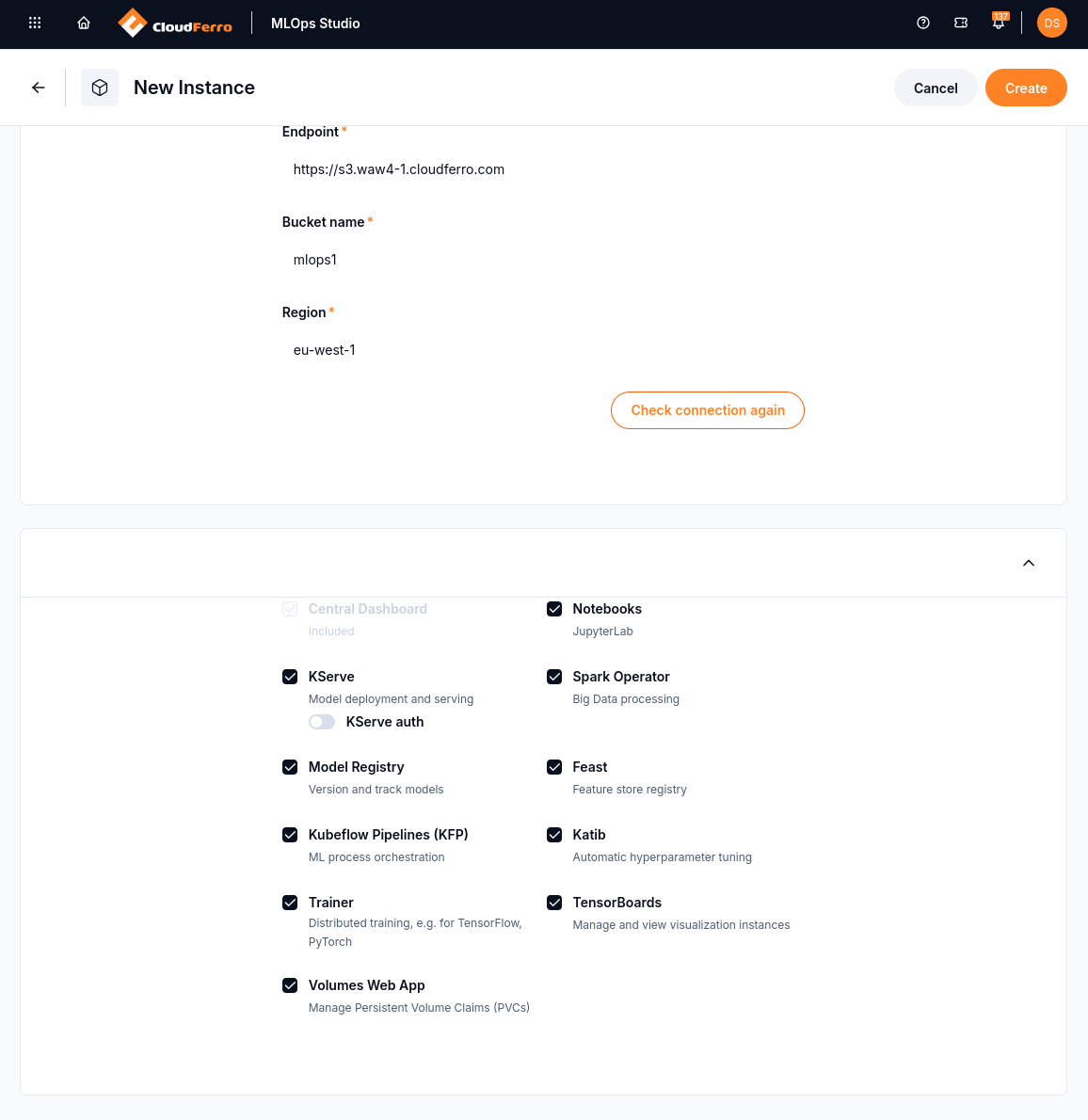
The example form offers Check connection again after testing the supplied storage settings. Test your own connection and resolve any errors before creating the instance.
Keep object storage and notebook volumes separate
The S3 connection above supplies object storage for the environment. A notebook workspace uses a persistent volume claim (PVC), mounted at a path such as /home/jovyan. Configuring the S3 bucket does not replace that mounted workspace or make packages installed in the container’s system directories persistent.
What to do next
Storage preparation is complete when the bucket exists and its endpoint, region, bucket name, access key, and secret key are ready. Next, use Choose compute capacity and scaling limits on CloudFerro Cloud to choose the resources for your work. Create an MLOps Studio instance on CloudFerro Cloud then brings those choices and the storage connection together in the creation form.