
Obtain CloudFerro Cloud Managed Kubernetes API token
To access CloudFerro Cloud Managed Kubernetes programmatically, create an API token in the dashboard and provide it, for example, to
a Terraform provider,
the Managed Kubernetes CLI,
to communicate with the API directly using curl,
CI/CD pipelines, or
your own applications.
Prerequisites
No. 1 Hosting account on CloudFerro Cloud
You need an active CloudFerro Cloud account https://portal.cloudferro.com/ and access to the CloudFerro Cloud Managed Kubernetes dashboard at https://managed-kubernetes.cloudferro.com/.
No. 2 Programmatic endpoint
Select the endpoint for the region in which your cluster is running:
Programmatic Endpoints for CloudFerro Cloud Managed Kubernetes
No. 3 Required token permissions
Select only the permissions required by the workflow that will use the token. For instance:
monitoring may need only read operations,
automated scaling may also need permission to update node pools, and
Terraform may require read and lifecycle operations for all resources managed by its configuration.
Create an API token
Open the CloudFerro Cloud Managed Kubernetes dashboard and select the region. In the new launcher, the Tokens table is below Clusters on the same page. In the previous launcher, open Tokens from the left sidebar.
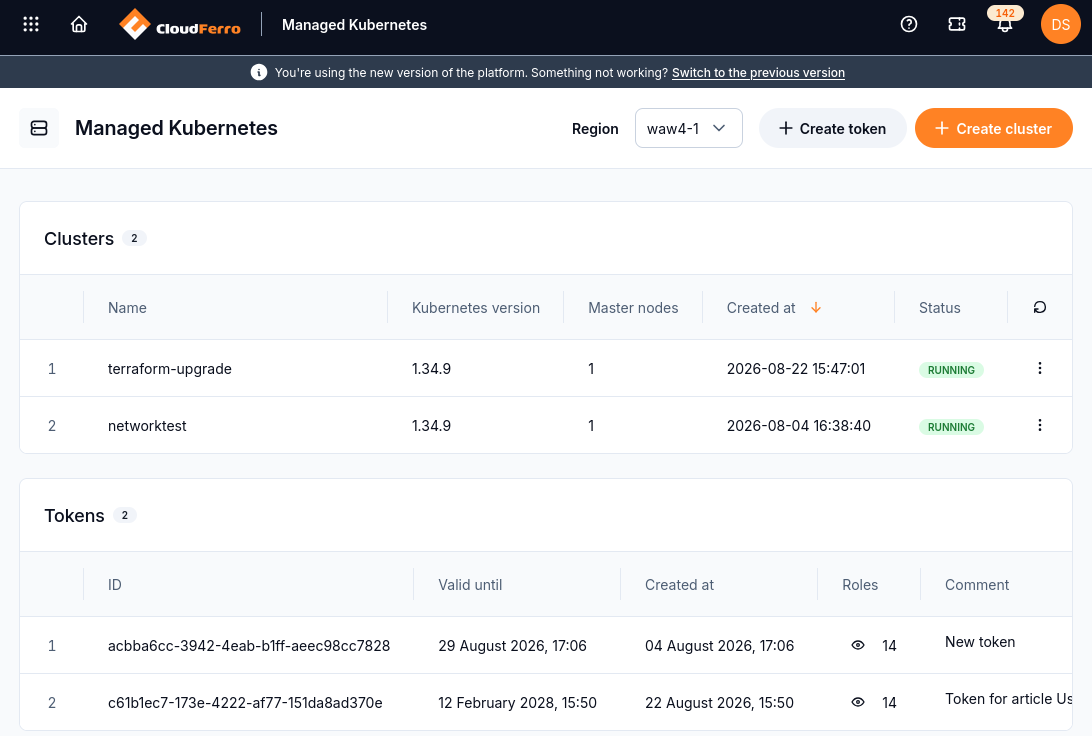
The launcher displays API tokens below the cluster list.
The Tokens view lists your existing tokens. If no token has been created yet, the list is empty.
Click Create token above the cluster list. In Valid until, set the expiry date. In Roles, select the operations the application needs. The grid groups permissions by Cluster, Machine Spec, Node Pool, Region, Version and Kubeconfig. Use Comment to record the token’s purpose.
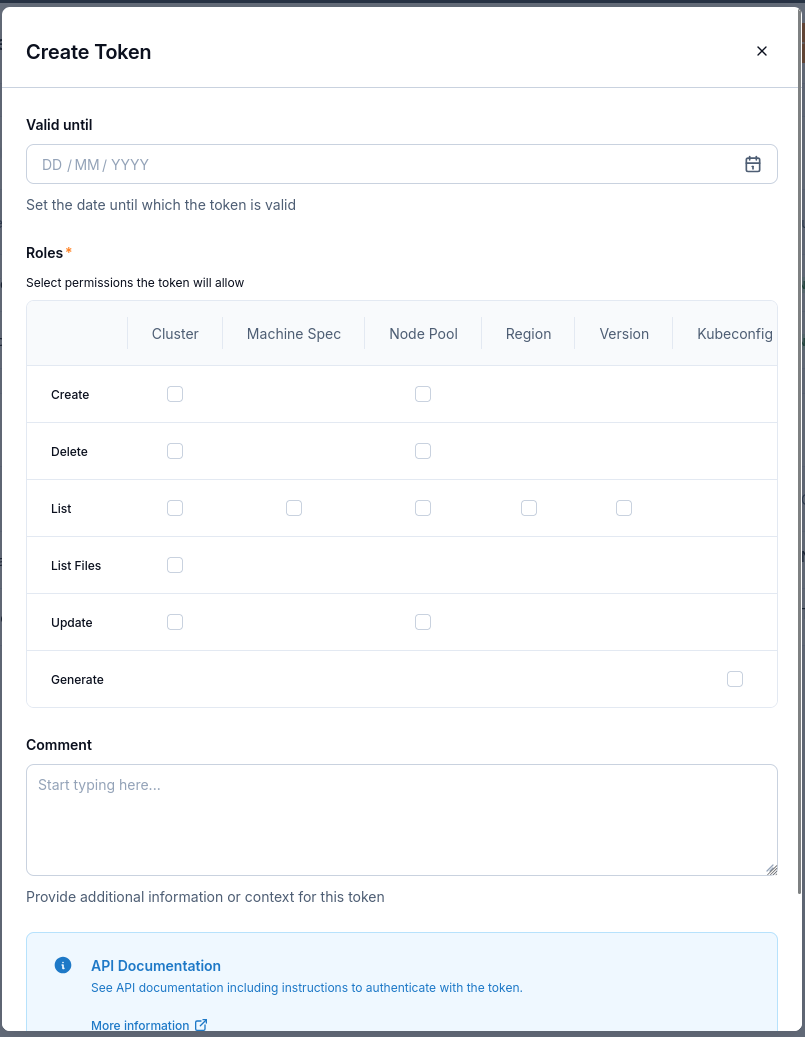
Set the validity date, select the required roles and optionally enter a comment.
Click Create token.
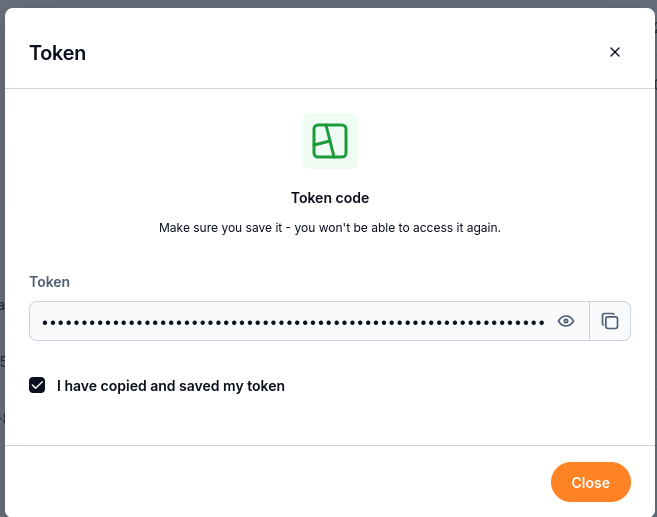
Copy and save the token before closing the dialog; its value is masked in this screenshot.
Copy the generated token with the copy icon and store it securely. The token value is available only when it is created and cannot be retrieved later. Select I have copied and saved my token, then click Close.
After creation, the token appears in the Tokens view:
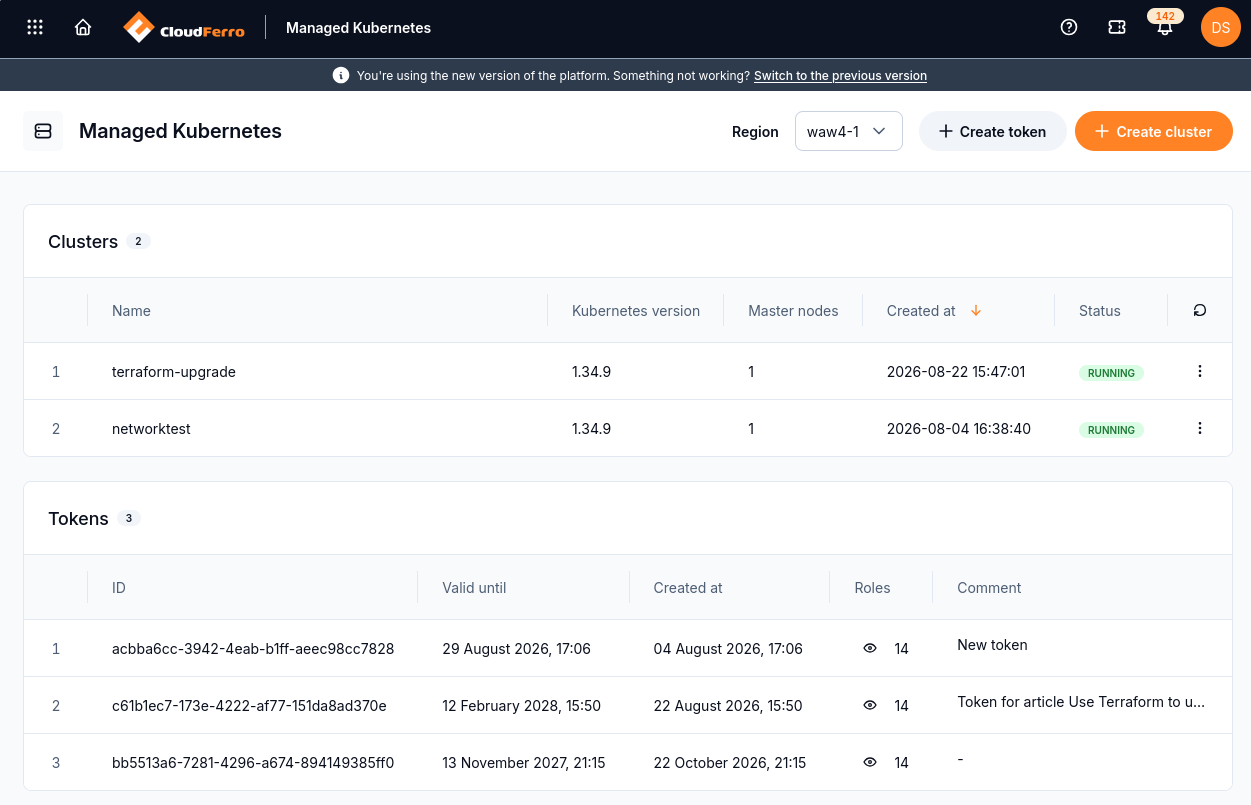
The new token appears in the Tokens table with its validity date and assigned role count.
The permissions assigned to a token are determined when you create it. Click the eye icon in the Roles column to review them.
If an existing token does not have a permission required by your workflow, create a new token with the appropriate permissions.
Use the API token
To call the CloudFerro Cloud Managed Kubernetes API directly, you need the token, the regional API endpoint, and the ID of the cluster you want to access.
Obtain the cluster ID
In the CloudFerro Cloud Managed Kubernetes dashboard, choose the appropriate region. Open the three-dot menu next to the cluster and select View details. Copy its Cluster ID from Cluster Details.
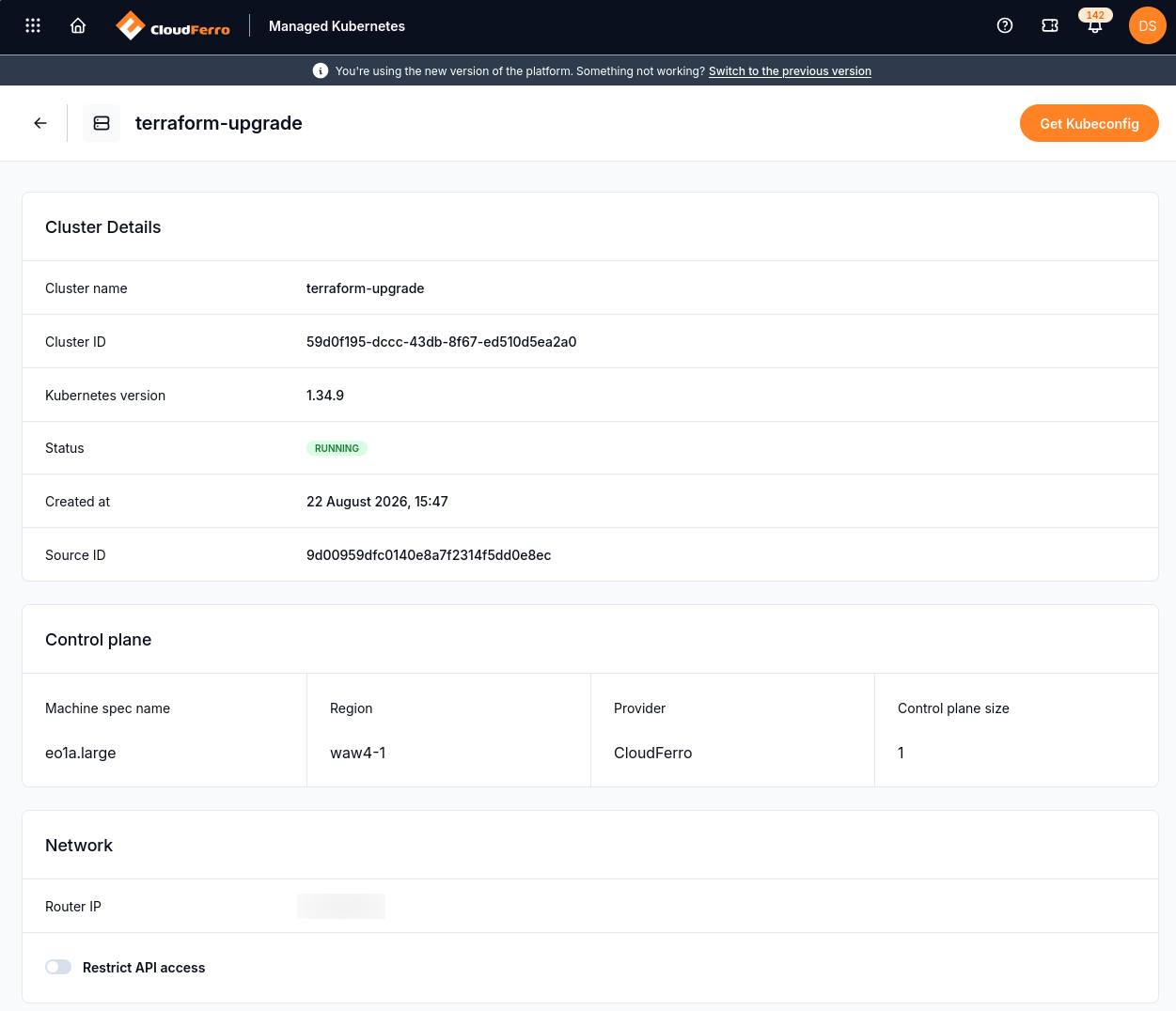
Copy the Cluster ID from the cluster details for API requests.
Call the API
CloudFerro Cloud Managed Kubernetes expects the token in the HTTP Authorization header using the Token authentication scheme:
Authorization: Token <API_TOKEN>
Do not use Bearer instead of Token.
The following example retrieves information about a cluster. Enter the cluster ID and token created in the previous steps, and use the tab corresponding to the region in which the cluster is running.
export CLUSTER_ID=""
export TOKEN=""

curl -X GET "https://managed-kubernetes.fra1-3.cloudferro.com/api/v1/cluster/${CLUSTER_ID}" \
  -H "Authorization: Token ${TOKEN}" \
  -H "Content-Type: application/json"
export CLUSTER_ID=""
export TOKEN=""

curl -X GET "https://managed-kubernetes.lcj1-1.cloudferro.com/api/v1/cluster/${CLUSTER_ID}" \
  -H "Authorization: Token ${TOKEN}" \
  -H "Content-Type: application/json"
export CLUSTER_ID=""
export TOKEN=""

curl -X GET "https://managed-kubernetes.waw4-1.cloudferro.com/api/v1/cluster/${CLUSTER_ID}" \
  -H "Authorization: Token ${TOKEN}" \
  -H "Content-Type: application/json"
A successful request returns information about the selected cluster. The same token can be supplied to other applications, such as Terraform or the CloudFerro Cloud Managed Kubernetes CLI, according to the configuration expected by that application.
Important
Treat an API token as a password. Do not commit it to Git or include it in documentation, screenshots, tickets, or logs. For automated workflows, store it in the secret-management mechanism provided by the application or CI/CD system.
If the token does not work
When an API request fails, first verify the three CloudFerro Cloud Managed Kubernetes-specific settings used in the request:
the API endpoint belongs to the same region as the cluster;
the authorization header uses
Authorization: Token;the token has the permission required for the requested operation.
A 401 Unauthorized response normally indicates that the token is missing, invalid, expired, or supplied incorrectly. A 403 Forbidden response normally means that the token was accepted but does not permit the requested operation.
Older tokens remain limited to the permissions assigned when they were created. If you do not know how an existing token was configured, or its permissions are insufficient, create a new token instead.
API documentation
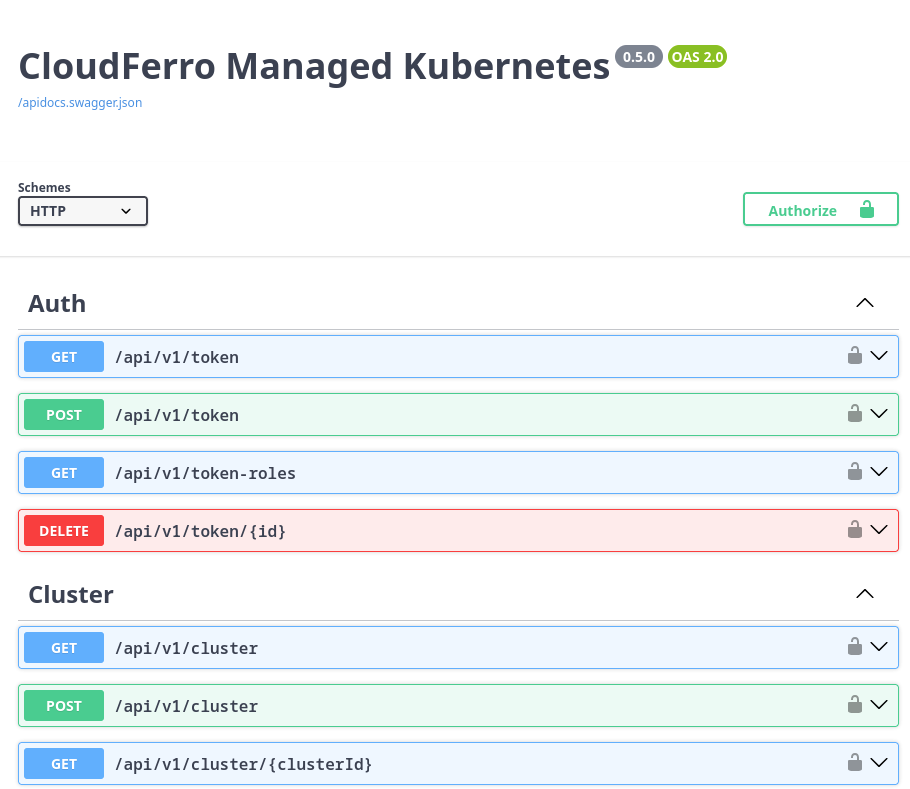
The complete CloudFerro Cloud Managed Kubernetes API is documented in Swagger. As with the API itself, use the Swagger documentation for the region in which your cluster is running.
FRA1-3: https://managed-kubernetes.fra1-3.cloudferro.com/swagger
LCJ1-1: https://managed-kubernetes.lcj1-1.cloudferro.com/swagger
WAW4-1: https://managed-kubernetes.waw4-1.cloudferro.com/swagger
What to do next
With the API token ready, you can use Terraform to create and manage CloudFerro Cloud Managed Kubernetes resources programmatically.
Create a Managed Kubernetes Cluster with Terraform on CloudFerro Cloud