
How to create a Kubernetes cluster using the CloudFerro Cloud Managed Kubernetes launcher GUI
In this tutorial, you will learn how to create a new Kubernetes cluster using the CloudFerro Cloud Managed Kubernetes launcher graphical user interface (GUI). The launcher lets you create and manage Kubernetes clusters directly from your browser. To access the created cluster from your workstation, you will later use kubectl and a downloaded kubeconfig file.
Kubernetes clusters contain two groups of nodes:
- Control plane
One or more nodes that manage and coordinate the cluster.
- Node pools
Worker nodes, that is, the virtual machines that run your applications and workloads.
You can create a cluster in two valid ways:
Control plane first, node pools later – create the control plane (master nodes) and add one or more node pools afterwards.
Control plane + node pools in one flow – add one or more node pools during cluster creation.
This article shows the control plane first flow (to keep the setup steps clear). If you already know your worker requirements, you can add node pools during cluster creation instead. See: Add node pools to CloudFerro Cloud Managed Kubernetes cluster using the launcher GUI.
What You Will Do
In this article, you will:
open the Managed Kubernetes launcher from the cloud dashboard,
define the cluster basics,
configure the control plane,
optionally add worker node pools,
create the cluster,
download the access configuration,
connect to the cluster using kubectl,
verify that the cluster is ready for use.
Prerequisites
Hosting account on CloudFerro Cloud
To use CloudFerro Cloud Managed Kubernetes, you need:
access to the CloudFerro Cloud Managed Kubernetes dashboard at https://managed-kubernetes.cloudferro.com/.
Access to Managed Kubernetes
If you do not yet have access to the Managed Kubernetes service, contact Support and request that it be enabled for your account.
See: Helpdesk and Support
Billing and available funds
Managed Kubernetes resources on this brand are billed. Before creating a cluster, make sure that billing is enabled for your account and that sufficient funds are available for the resources you plan to use.
Warning
You must ensure that your usage stays within your intended spending level. The service will not be stopped automatically when that level is exceeded, and the full usage amount will still be billed.
Quotas and resources
On CloudFerro Cloud, available resources are governed through your standard cloud project quotas. Check the quotas and flavor limits available to your project before creating the cluster.
See: Dashboard Overview – Project Quotas And Flavors Limits on CloudFerro Cloud
If the currently available resources are not sufficient for the cluster you want to create, you can proceed in two stages:
First, create only the control plane.
Then, contact Support (see Helpdesk and Support) to request additional resources before adding worker nodes.
Installation of kubectl
You will access the cluster using kubectl. Standard installation methods for kubectl are described on the official Kubernetes page: Install Tools.
In this article, you will also learn how to point kubectl to the managed Kubernetes cluster you create.
Create a new cluster
Open the CloudFerro Cloud Managed Kubernetes launcher. If the Select region dialog appears, select the region and click Choose. You can also change the region using the Region selector above the cluster list.
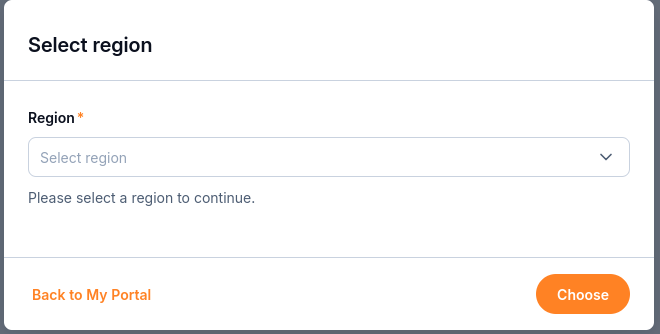
Select a region before opening Managed Kubernetes.
The launcher lists the clusters and API tokens in the selected region:
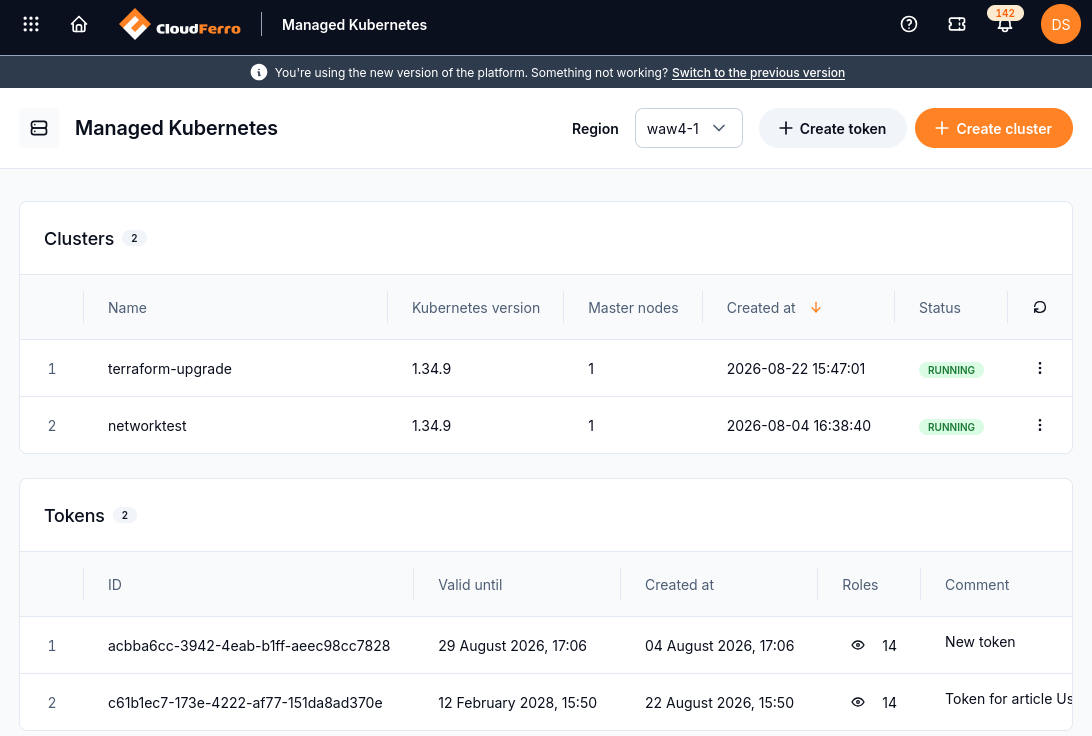
The cluster list shows names, Kubernetes versions, control plane sizes and statuses.
Click Create cluster to open the Create Cluster form. Use Quota limits to check the resources available for the cluster.
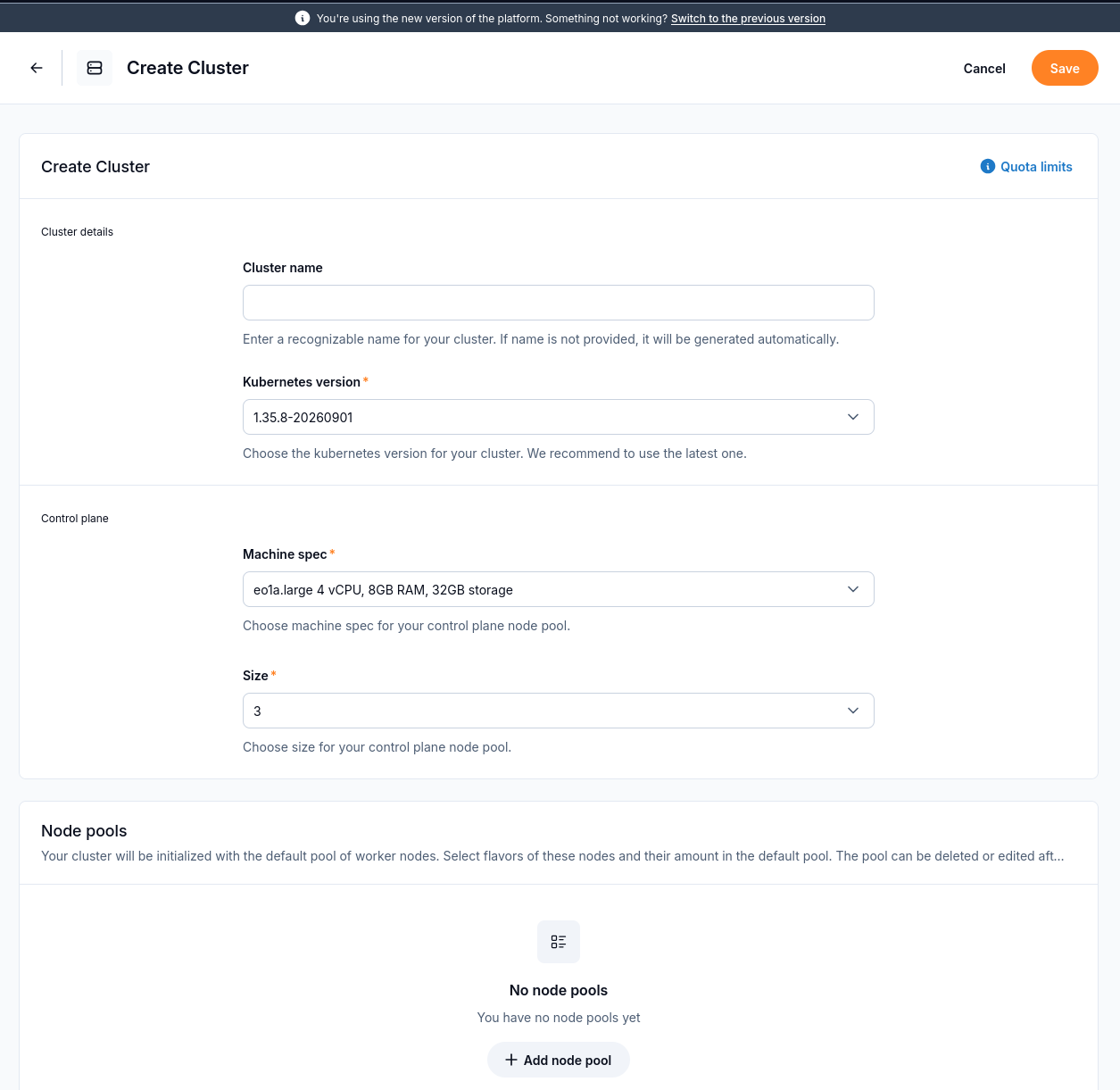
Set the cluster name, Kubernetes version and control plane configuration.
Define Cluster Name and Kubernetes Version
- Cluster Name
Enter an appropriate name for your cluster. If this field is left empty, the system will automatically generate a cluster name.
- Kubernetes Version
For new clusters, it is recommended to use the latest version. To upgrade to a newer version of Kubernetes, see Upgrade Managed Kubernetes cluster on CloudFerro Cloud
Add Control Plane Nodes
- Machine spec
Select the flavor for the virtual machines in the control plane. The selector shows the CPU, memory and storage of each machine specification.
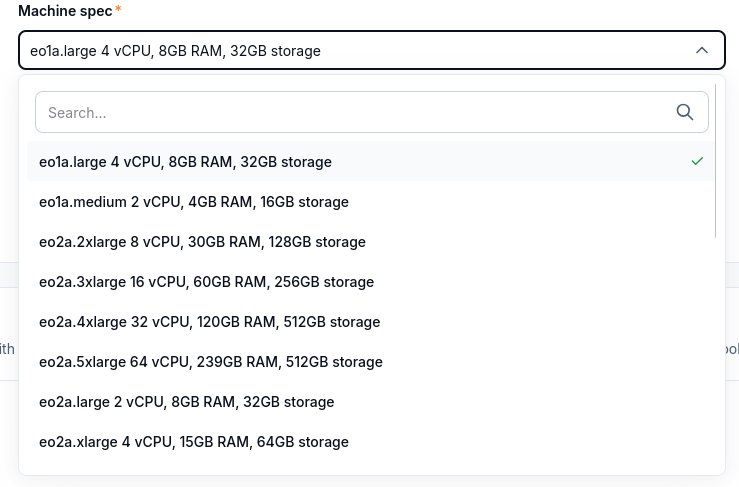
Choose a machine specification for the control plane.
- Size
Choose 1, 3, or 5 control plane nodes.
Use 1 for testing, and 3 for production-grade High Availability.
Tip
For production-grade reliability, choose 3 control plane nodes to achieve high availability. Use 1 only for development or testing.
Adding node pools (optional)
You can add node pools now (during cluster creation) or later (after the control plane is created). See: Add node pools to CloudFerro Cloud Managed Kubernetes cluster using the launcher GUI
Review the form before submitting it. The example below uses cluster1 and one control plane node. The version shown is an example from the captured session; select a version appropriate for your environment.
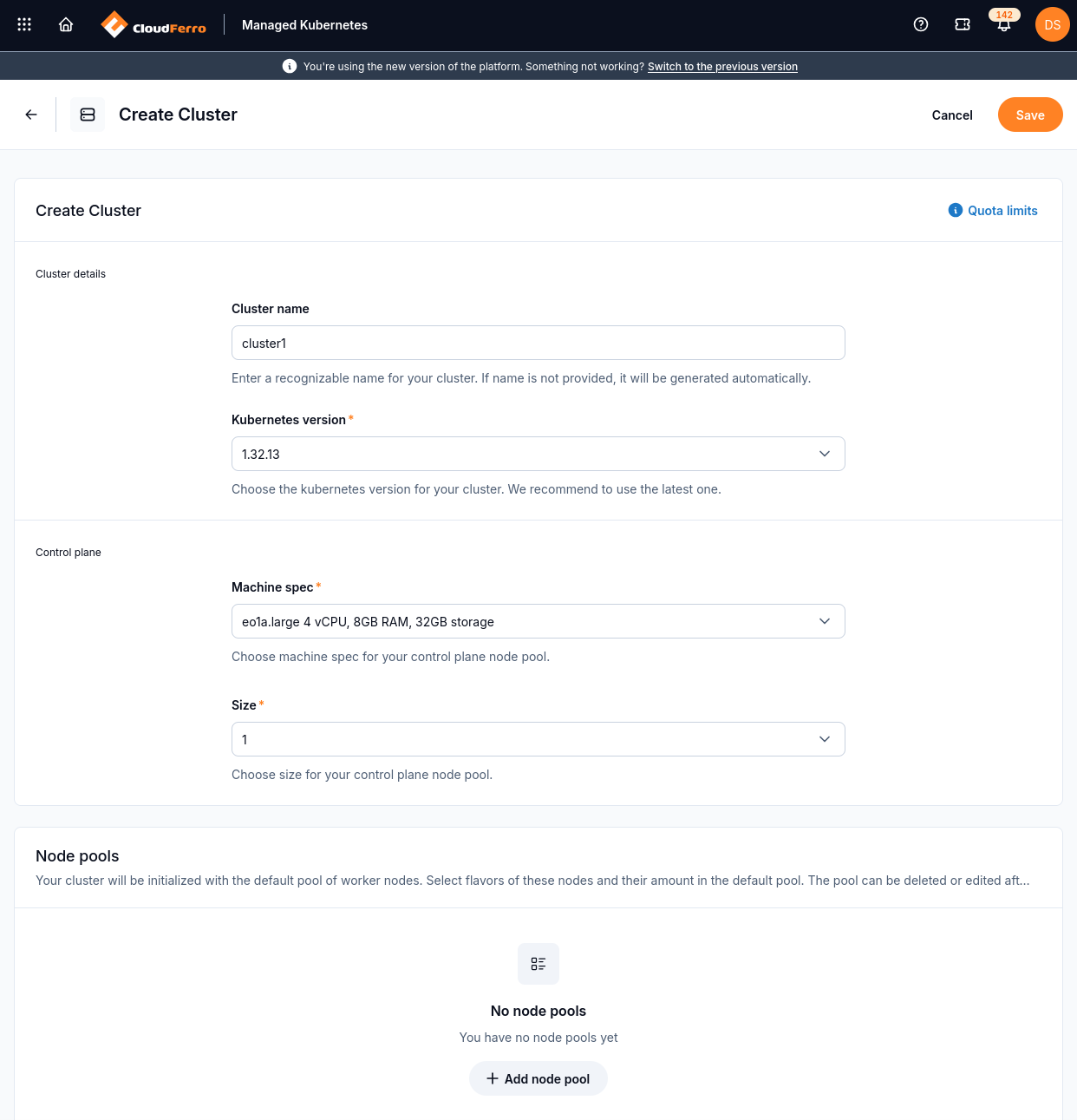
Example configuration for cluster1 without a worker node pool.
In the new launcher, click Save at the top of the form to create the cluster. In the previous launcher, the submission button is Create cluster.
Creating the Cluster
The status will change to CREATING.
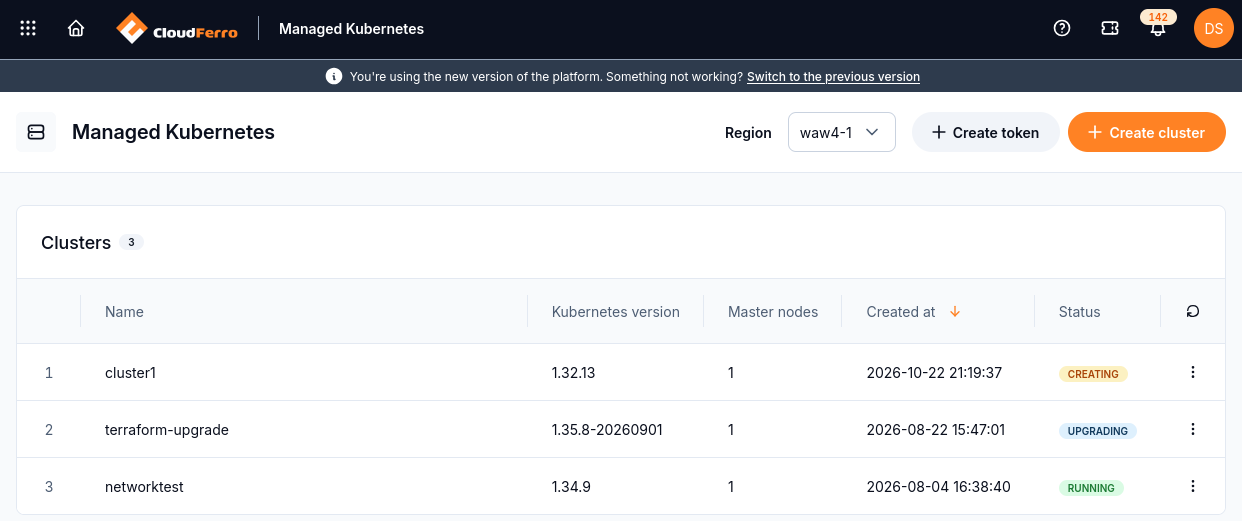
cluster1 is being created; the other rows show separate existing clusters.
Once the creation starts, you see a list of existing Kubernetes clusters.
Cluster List View
Cluster List View will show up if there is at least one cluster present.
After the cluster has been created, its status will become RUNNING.
Single Cluster View: Cluster Details
Open the three-dot menu at the end of a cluster row and select View details. The following screenshot shows the details of an existing cluster named terraform-upgrade.
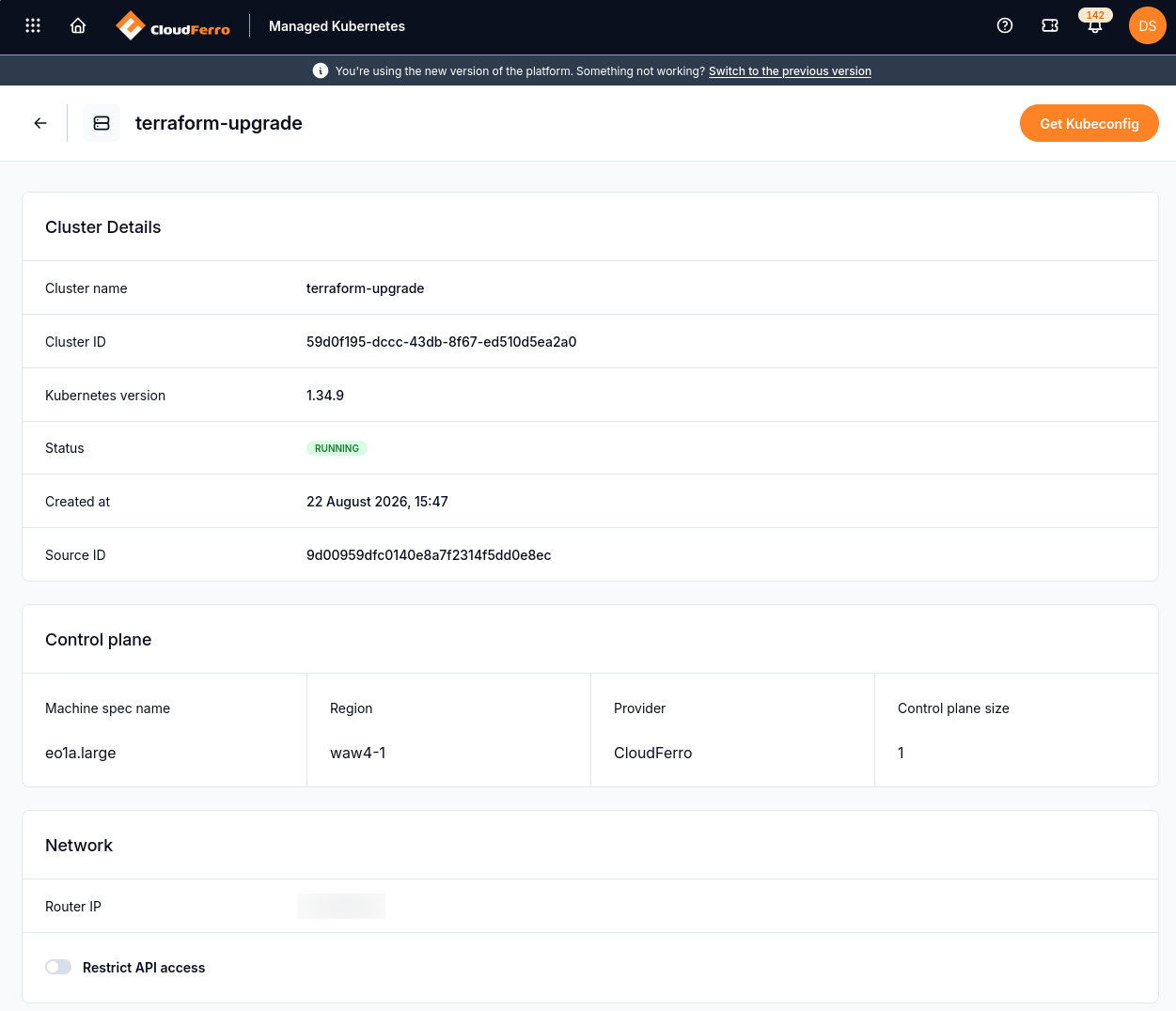
Cluster details show the cluster ID, version, status, control plane and network.
Access the Cluster Using kubectl
To connect kubectl to a cluster, download its configuration using Get Kubeconfig. The filename follows the pattern <clustername>_config.yaml. The example below uses the existing networktest cluster.

Get Kubeconfig downloads the access configuration for the selected cluster.
For a repeated download, the browser may add a suffix such as (6) to the filename. Use the actual downloaded filename in the commands below, or rename it to networktest_config.yaml first.
To configure kubectl:
export KUBECONFIG=networktest_config.yaml
Assuming that the folder already exists, you can also place the config file in a “centralized” folder:
export KUBECONFIG=$HOME/kubeconfigs/networktest_config.yaml
If you get an error like “Unable to connect to the server,” verify the config path, your network access, and that the cluster is RUNNING.
To verify access:
kubectl get nodes -o wide
The following example shows the output for such a cluster:

Example node list with a Ready control plane and Ready workers. Node names and counts depend on your cluster.
The cluster is running and kubectl is working.
Cluster resources
The Resources section is a central place not only to browse what is running, but also to validate, debug, and audit the state of your Kubernetes cluster.
Under Additional Information, select Resources. Choose a category such as Namespaces, Nodes, Workloads or Storage:
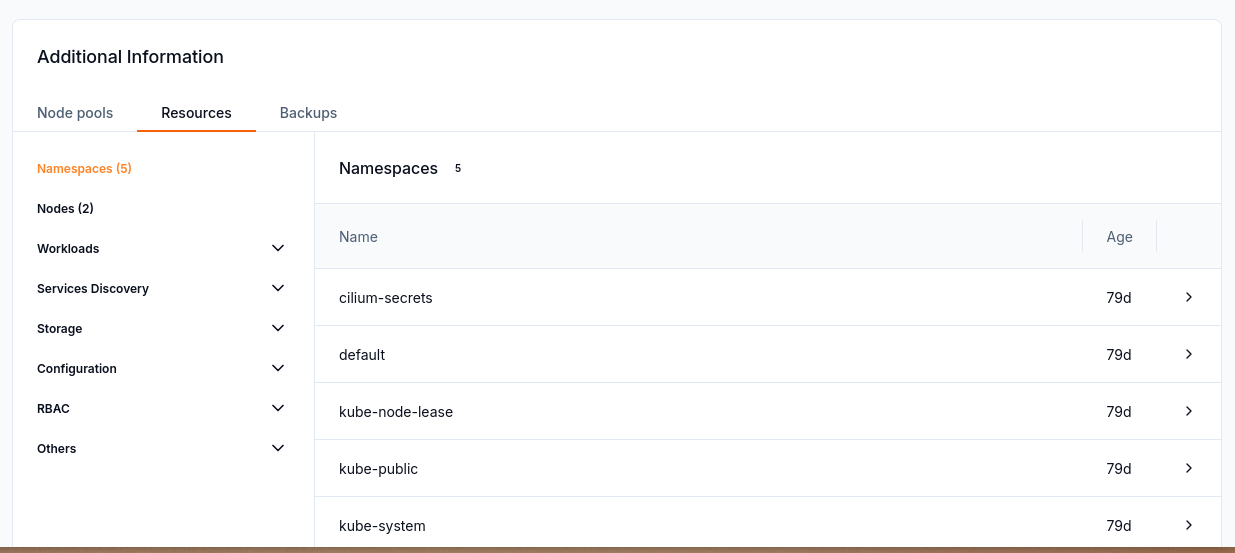
The Resources tab lists namespaces and provides navigation to other resource categories.
Each category can be expanded to display applicable resources; in the image above, it is showing available Namespaces.
Select a resource row to open its JSON representation. In this example, the namespace is in the Terminating phase and its status includes DiscoveryFailed. These values describe the selected namespace; they are not a successful-creation result.
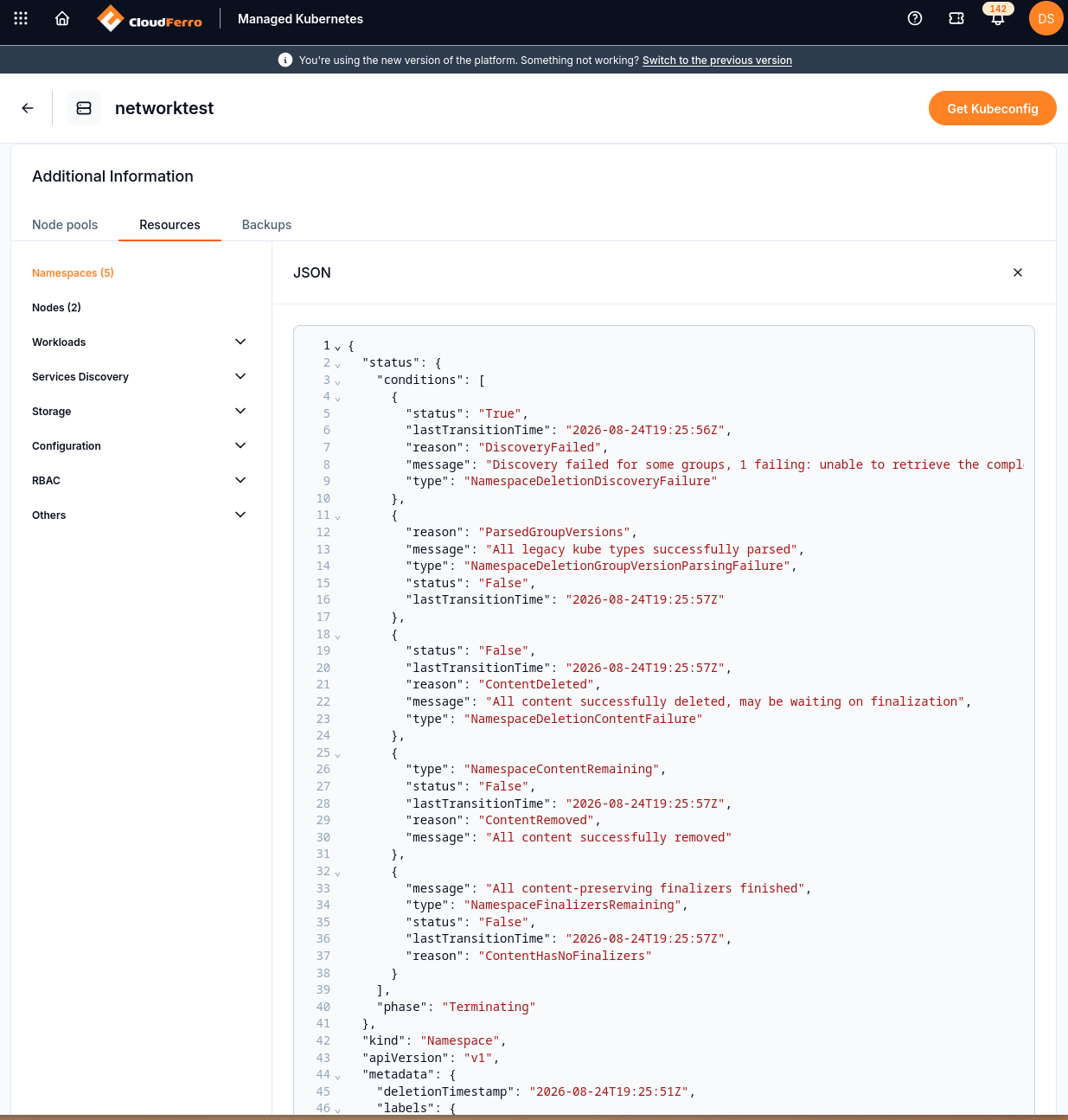
The JSON view exposes the selected resource’s status and metadata.
Cluster backup
The cluster details page provides a Backups tab under Additional Information. Please see an article dedicated to the topic: Managed Kubernetes Backups on CloudFerro Cloud.
Deleting a Cluster
Open the three-dot menu in the cluster list and select Delete. Confirm the deletion only for the cluster you intend to remove.
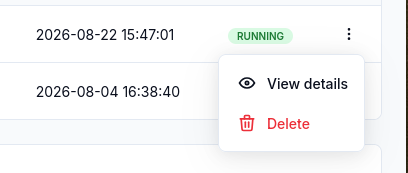
The cluster row menu provides View details and Delete.
The cluster changes to DELETING while removal runs. Wait until it disappears from the cluster list.
Deploying an application on your cluster
Before proceeding with deployments, make sure:
The cluster is in RUNNING state.
You can run kubectl get nodes successfully.
What To Do Next
With your cluster created and kubectl configured, you can start deploying pods, creating services and so on.
To run workloads, you typically add worker nodes by creating a node pool. See article Add node pools to CloudFerro Cloud Managed Kubernetes cluster using the launcher GUI.
To upgrade to a newer version of Kubernetes, see Upgrade Managed Kubernetes cluster on CloudFerro Cloud
You can also create Kubernetes clusters with Terraform: Create a Managed Kubernetes Cluster with Terraform on CloudFerro Cloud.