
Managed Kubernetes Backups on CloudFerro Cloud
Recovering an application requires both its Kubernetes resources and any persistent data it uses. CloudFerro Cloud Managed Kubernetes can schedule Velero backups and store them in an S3 bucket. You can enable backups in the dashboard, verify that a backup completed, and use the Velero CLI to restore application resources on the original cluster or a replacement cluster.
What we are going to cover
Prerequisites
1. Access to the cluster dashboard
Sign in with your CloudFerro Cloud account and open the CloudFerro Cloud Managed Kubernetes dashboard at https://managed-kubernetes.cloudferro.com/. Select the project and region containing your cluster.
2. A running cluster with at least one worker node
The managed backup components need a worker node. If needed, follow How to create a Kubernetes cluster using the CloudFerro Cloud Managed Kubernetes launcher GUI and Add node pools to CloudFerro Cloud Managed Kubernetes cluster using the launcher GUI.
The available CloudFerro Cloud Managed Kubernetes regions are:
FRA1-3
LCJ1-1
WAW4-1
3. Administrative access through kubectl
Download the cluster’s kubeconfig from Cluster Details. Set its path and confirm that you can reach the intended cluster:
export KUBECONFIG=/path/to/cluster_config.yaml
chmod 600 "$KUBECONFIG"
kubectl config current-context
kubectl get nodes
The worker nodes should be Ready. The commands in this article use the selected kubeconfig and the velero namespace.
4. An application recovery plan
Identify the application namespaces, persistent volumes, databases, and external services you need to recover. Decide how often to back them up and how long to retain backups. For a replacement cluster, also record the source Kubernetes version, required operators, storage classes, and network dependencies.
What the managed backup covers
The managed feature installs and configures Velero, creates an S3 backup bucket and credentials, and manages the schedule and retention settings. Restore operations use the Velero CLI; they are not available in the dashboard.
Kubernetes resource definitions and volume contents are separate parts of a backup. Select Enable volume backups when application recovery requires the data in persistent volumes. A saved PVC definition alone does not prove that its volume data was copied. Verify the completed backup and test a restore with the application.
For databases, arrange an application-consistent backup, such as a database-native backup or a coordinated flush and pause in writes. File copies from a running application may contain data from different points in time. Large volumes can take minutes or hours to copy. See the Velero file system backup limitations.
A Velero backup does not recreate the Managed Kubernetes service infrastructure or external services. Create a replacement cluster separately when the original cluster is unavailable.
Enable and schedule backups
Open the cluster and select Backups.
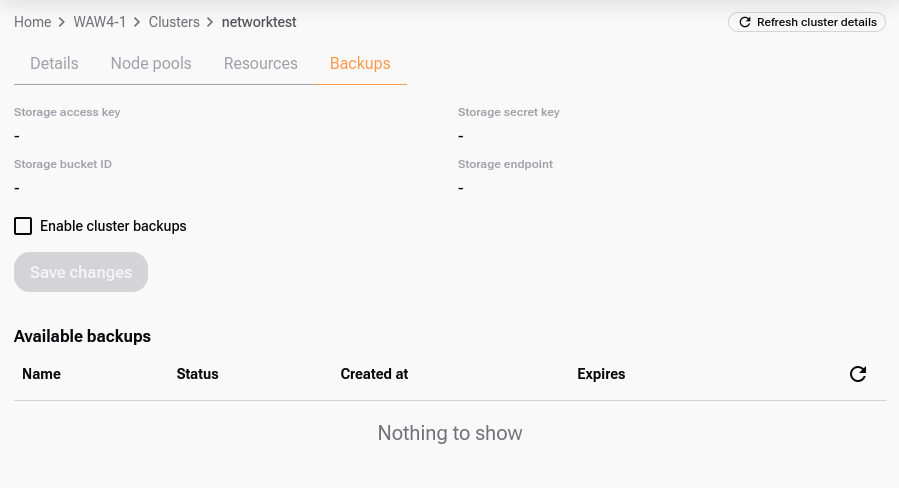
The Backups tab before enabling the managed backup feature.
Select Enable cluster backups.
Choose Daily, Weekly, or Custom (CRON). Set Delete backups older than to the required retention period, for example 30d.
Select Enable volume backups if the application needs persistent data restored.
Click Save changes.
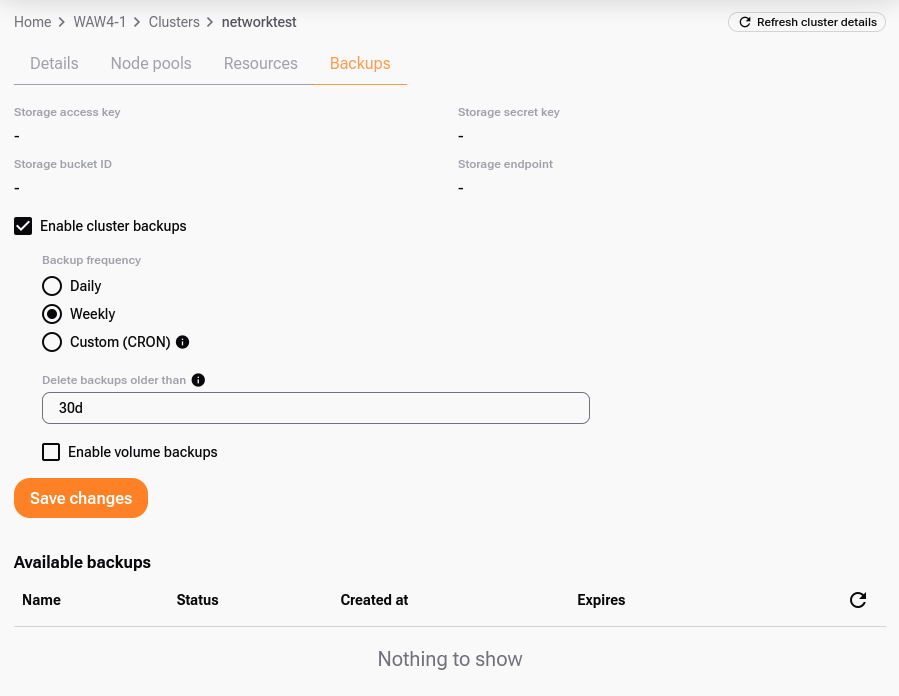
Frequency, retention, and volume backup settings. Volume backups are unchecked in this example.
The cluster may enter Configuring while the platform installs the backup components. Wait for configuration to finish.
The dashboard then displays four generated storage values:
Storage access key
Storage secret key
Storage bucket ID
Storage endpoint
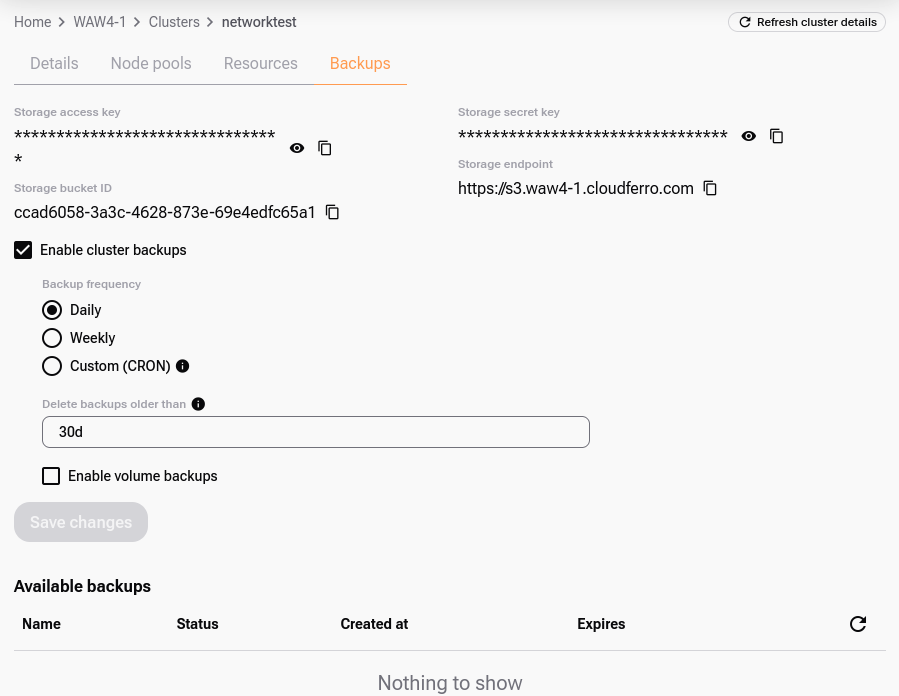
Storage values appear after backups have been enabled. Use your cluster’s values when restoring.
Save these values securely outside the cluster. They are needed if a replacement cluster must read the backup bucket. The storage endpoint belongs to the backup bucket; do not substitute the Managed Kubernetes API endpoint or another region’s S3 endpoint.
Important
Backups linked to a deleted cluster may also be deleted. Before deleting the source cluster, preserve the backups and volume backup data in storage you control, retain the required credentials, and verify a restore from that copy. Saving the bucket name and keys alone does not preserve its contents.
Verify the managed Velero installation
Run the following commands after backup configuration finishes:
kubectl get namespace velero
kubectl -n velero get deployments,pods,daemonsets
kubectl -n velero get backupstoragelocations.velero.io
kubectl -n velero get schedules.velero.io
Confirm that the Velero deployment is available, its pods are running, the backup storage location has phase Available, and a schedule exists.
You can also see the velero namespace in the dashboard under Resources:
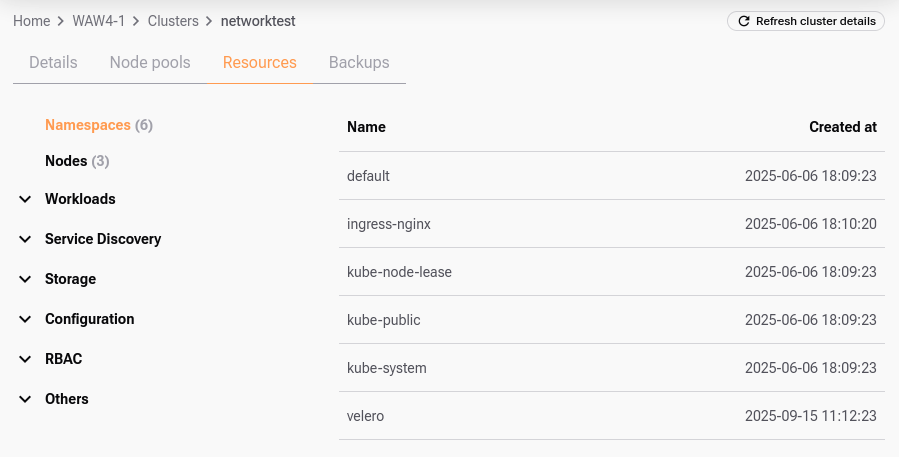
The velero namespace appears in the resource list after the backup components are installed.
To select a compatible local CLI, first inspect the managed Velero image:
kubectl -n velero get deployment velero \
  -o jsonpath='{.spec.template.spec.containers[?(@.name=="velero")].image}{"\n"}'
Install the matching Velero CLI release for your operating system and architecture using the Velero CLI installation instructions. Install only the local CLI; the managed service has already installed the server components.
Check the client and server:
velero version --client-only
velero version
The velero namespace is missing. Confirm that backups are enabled on the selected cluster and that configuration has finished. Check the kubeconfig context and worker nodes. If the namespace remains absent, contact Support with the cluster ID and region; do not start restore commands.
The backup location is unavailable. Inspect its status and the Velero deployment logs:
kubectl -n velero describe backupstoragelocations.velero.io
kubectl -n velero logs deployment/velero --tail=100
Resolve the storage or installation error before relying on a backup. Manage the default backup settings through the dashboard; the service may overwrite direct changes to its Velero configuration.
Create and verify a backup
With Daily or Weekly selected, the first backup may not appear until the next scheduled run. Refresh Available backups in the dashboard and check its status.

A backup listed as COMPLETED in the dashboard, with its creation and expiration times.
For an optional immediate test, create one backup from the existing schedule. This uses the schedule’s template without changing its frequency. Find the managed schedule name, then replace SCHEDULE_NAME below:
velero schedule get
velero backup create recovery-test --from-schedule SCHEDULE_NAME --wait
Use a different backup name for subsequent tests. This one-off workflow follows the Velero backup reference. There is no need to change the schedule to run every minute.
List backups and inspect the chosen backup. Replace BACKUP_NAME with its actual name, such as recovery-test:
velero backup get
velero backup describe BACKUP_NAME --details
velero backup logs BACKUP_NAME
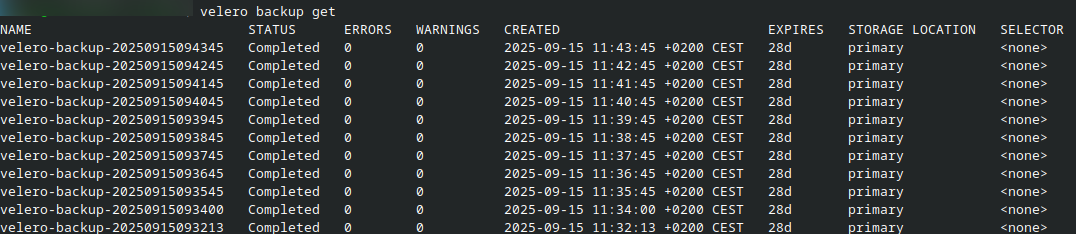
Example velero backup get output. The STATUS, ERRORS, and WARNINGS columns help identify backups that need attention.
Require phase Completed and review warnings, errors, included namespaces, and volume backup results. PartiallyFailed means that some requested items were not backed up successfully. Resolve the reported errors and create another backup before using it for recovery.
Clicking a backup name in the dashboard opens its resource definition. Retain a known-good backup while you test restoration; an entry in the backup list alone is not a recovery test.
Restore application resources on the existing cluster
Use this procedure to recover missing application resources while the original cluster is still accessible. Keep backups enabled and verify the kubeconfig context.
Important
By default, Velero skips most resources that already exist. A restore does not automatically roll a running application or its existing volume data back to the backup state. The update resource policy also does not restore the contents of an existing PVC. See the Velero restore policy.
For a full recovery test, use a separate cluster as described below. Avoid deleting working resources simply to make a restore overwrite them.
Select a completed backup and review its contents:
velero backup get
velero backup describe BACKUP_NAME --details
Restore the application namespace. Replace BACKUP_NAME and APP_NAMESPACE with your values. Use a unique restore name:
velero restore create application-recovery \
  --from-backup BACKUP_NAME \
  --include-namespaces APP_NAMESPACE \
  --wait
Inspect the restore and test the application:
velero restore describe application-recovery --details
velero restore logs application-recovery
kubectl -n APP_NAMESPACE get pods,pvc,services
Confirm that the expected workloads are ready, PVCs are Bound, and the application’s data is readable. Resolve any restore errors or skipped resources before treating the recovery as complete.
Restore on a replacement cluster
This procedure connects a replacement cluster, Cluster B, to the backup bucket from Cluster A. It assumes the bucket and any required volume backup data are still accessible.
Prepare Cluster B
Create Cluster B with the same Kubernetes minor version as Cluster A and sufficient worker capacity. Prefer the same region and compatible storage classes. If that version is no longer offered, confirm a supported recovery path with Support. Do not restore to an older Kubernetes version.
Prepare the operators, custom resource definitions, and external dependencies required by the application. Access to an S3 bucket alone does not make cloud volume snapshots portable across regions.
Enable managed backups on Cluster B and wait for its Velero installation and default backup location to become available.
Switch to Cluster B’s kubeconfig and verify the destination:
export KUBECONFIG=/path/to/clusterB_config.yaml
chmod 600 "$KUBECONFIG"
kubectl config current-context
kubectl get nodes
velero version
velero backup-location get
For filesystem or data-mover backups, the destination also needs compatible repository credentials. If Cluster A used a custom repository password, arrange access with the operator before restoring. Do not overwrite Cluster B’s repository credentials after it has created its own backups. See the Velero repository credentials and cluster migration requirements.
Register Cluster A’s backup storage
Create a credentials file locally with permissions restricted to your user:
install -m 600 /dev/null credentials-cluster-a
Edit credentials-cluster-a and add the storage credentials saved from Cluster A:
[default]
aws_access_key_id=YOUR_ACCESS_KEY
aws_secret_access_key=YOUR_SECRET_KEY
Create a separate Secret in Cluster B. The file contents are stored under the key cloud:
kubectl -n velero create secret generic cluster-a-s3-credentials \
  --from-file=cloud=credentials-cluster-a
Register a separate, read-only backup location. Replace YOUR_BUCKET_ID and S3_ENDPOINT with Cluster A’s saved bucket ID and full storage endpoint, including https://:
velero backup-location create cluster-a-bsl \
  --provider aws \
  --bucket YOUR_BUCKET_ID \
  --config 'region=default,s3ForcePathStyle=true,s3Url=S3_ENDPOINT' \
  --access-mode ReadOnly \
  --credential cluster-a-s3-credentials=cloud
The cloud key must match the key used when creating the Secret. For example, the WAW4-1 screenshot uses https://s3.waw4-1.cloudferro.com. Always use the actual endpoint of the source backup bucket.
Keep Cluster B’s default backup location unchanged. The separate ReadOnly location prevents Cluster B’s Velero from writing or expiring backups in Cluster A’s bucket. See Velero backup storage locations.
Wait for the location to become Available and for its backups to synchronize:
velero backup-location get
velero backup get
velero backup describe BACKUP_NAME --details
Confirm that the chosen backup belongs to cluster-a-bsl. If the location is unavailable, check its status, bucket ID, endpoint, credentials, and network access before proceeding.
Restore and validate the application
Select a completed backup and the application namespace to recover. Replace the placeholders and use a unique restore name:
velero restore create cluster-b-recovery \
  --from-backup BACKUP_NAME \
  --include-namespaces APP_NAMESPACE \
  --wait
velero restore describe cluster-b-recovery --details
velero restore logs cluster-b-recovery
kubectl -n APP_NAMESPACE get pods,pvc,services
The following capture illustrates the terminal response when a restore request is submitted:
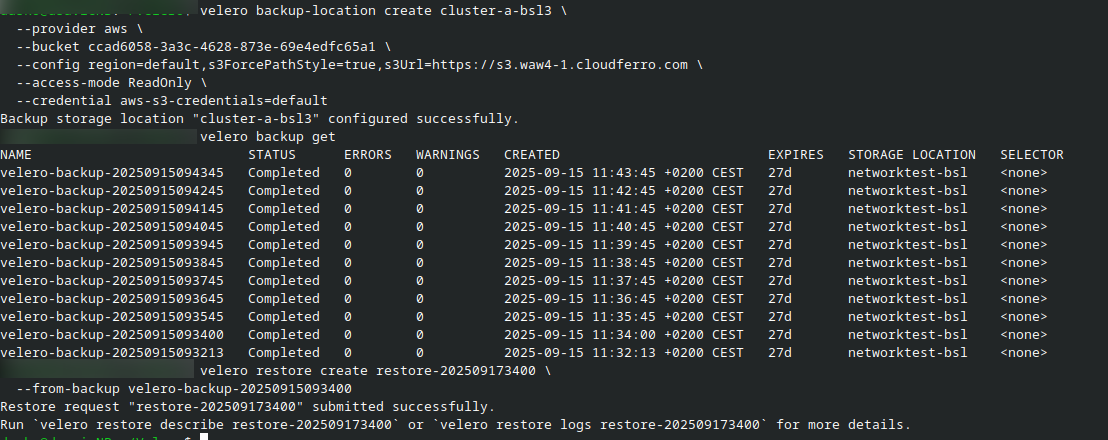
Example restore session with different backup and location names. This capture uses the credential key default; the commands above use cloud. A submitted request still needs completion checks.
The example limits recovery to an application namespace. For applications spanning several namespaces, provide their comma-separated names and verify all required cluster-scoped dependencies. Do not indiscriminately restore the source cluster’s managed system namespaces over the replacement cluster.
Check application readiness, stored data, service endpoints, and external integrations. Keep the original backup until these checks pass. A Completed restore still needs application-level validation.
Check restored LoadBalancer Services
A restored LoadBalancer Service may retain annotations pointing to the old OpenStack load balancer. If the old identifiers are present and the Service needs a new load balancer, remove those annotations from that Service:
kubectl -n APP_NAMESPACE annotate service SERVICE_NAME \
  loadbalancer.openstack.org/load-balancer-address- \
  loadbalancer.openstack.org/load-balancer-id-
kubectl -n APP_NAMESPACE get service SERVICE_NAME --watch
Replace APP_NAMESPACE and SERVICE_NAME. Wait for the external address, test connectivity, and update DNS or external clients if the address changed. Removing these annotations can cause the cloud controller to provision a new load balancer.
Change settings, delete backups, or disable the feature
Change frequency, retention, and volume backup settings in the dashboard and click Save changes. The new settings apply to future backups; they do not change the contents of backups already taken.
To remove a backup, use its delete icon in Available backups. Keep the managed backup feature enabled while deleting historical backups so Velero can process the deletion. Delete only backups you no longer need for recovery.
Disable backups before deleting the cluster’s last node pool. If you need a fully custom Velero installation, first disable the managed backup feature and plan how to retain and access its existing backups. Manage the custom installation separately.
What to do next
Test a restore periodically and before a planned Kubernetes upgrade. Keep the recovery instructions, required credentials, and a verified backup outside the cluster being protected.