
Add node pools to CloudFerro Cloud Managed Kubernetes cluster using the launcher GUI
In this tutorial, you will learn how to add worker nodes to an CloudFerro Cloud Managed Kubernetes cluster by creating one or more node pools in the launcher GUI.
What we are going to cover
Prerequisites
No. 1 Existing cluster
You can add a node pool to a RUNNING cluster created according to article How to create a Kubernetes cluster using the CloudFerro Cloud Managed Kubernetes launcher GUI.
Or, you can also apply the steps from this article when adding a node pool already during the cluster creation.
No. 2 Quotas and resources
Make sure you have enough quota to create worker nodes. If you need more resources for your cluster, contact Support and request quota extension before creating node pools.
No. 3 Sharing networks
It is possible to share networks between cluster pods and a VM outside of the cluster. See Accessing OpenStack Resources from CloudFerro Cloud Managed Kubernetes Using Shared Networks
Single Cluster View – Node Pools
How to add a node pool
Open the cluster details and scroll to Additional Information. Select Node pools, then Add node pool. For a cluster without worker nodes, the tab shows No node pools:
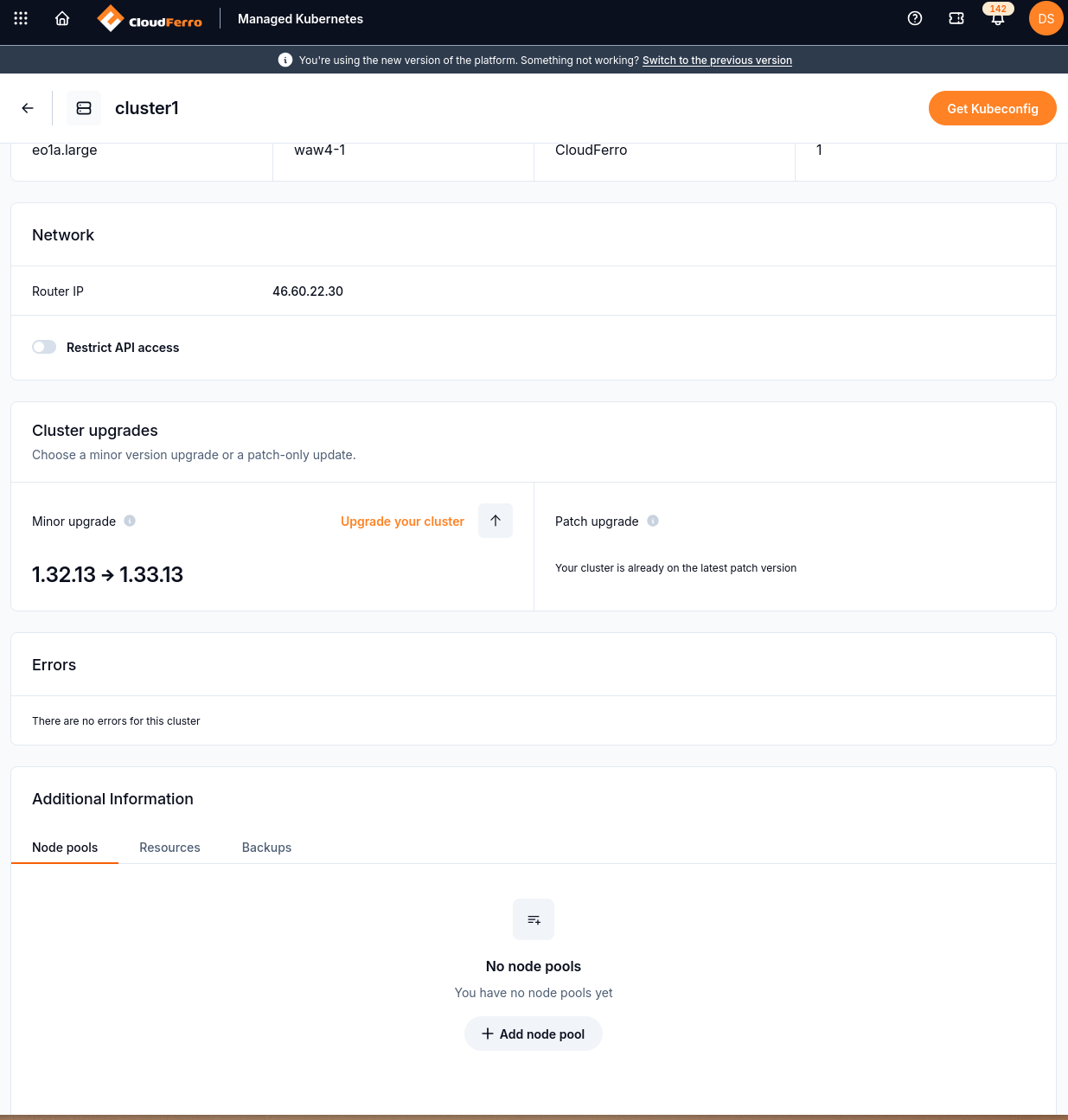
The Node pools tab provides Add node pool when no worker pools exist.
The node pool creation form looks like this:
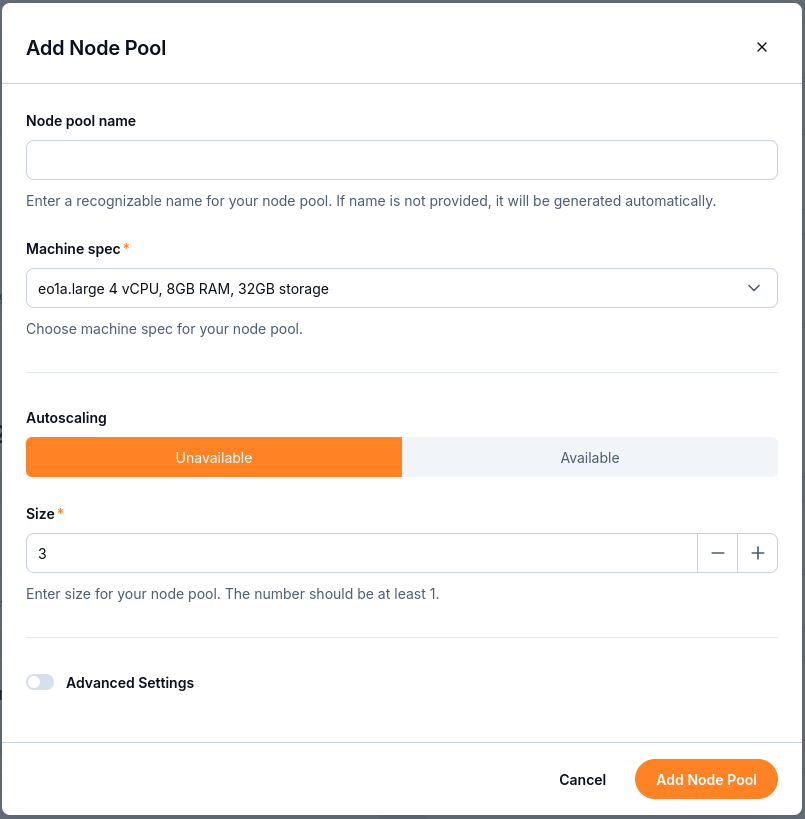
Set the node pool name, machine specification, autoscaling mode and size.
- Node Pool Name
If left empty, the name will be generated automatically.
- Machine spec
Choose a flavor based on the CPU, memory and storage required by your workloads.
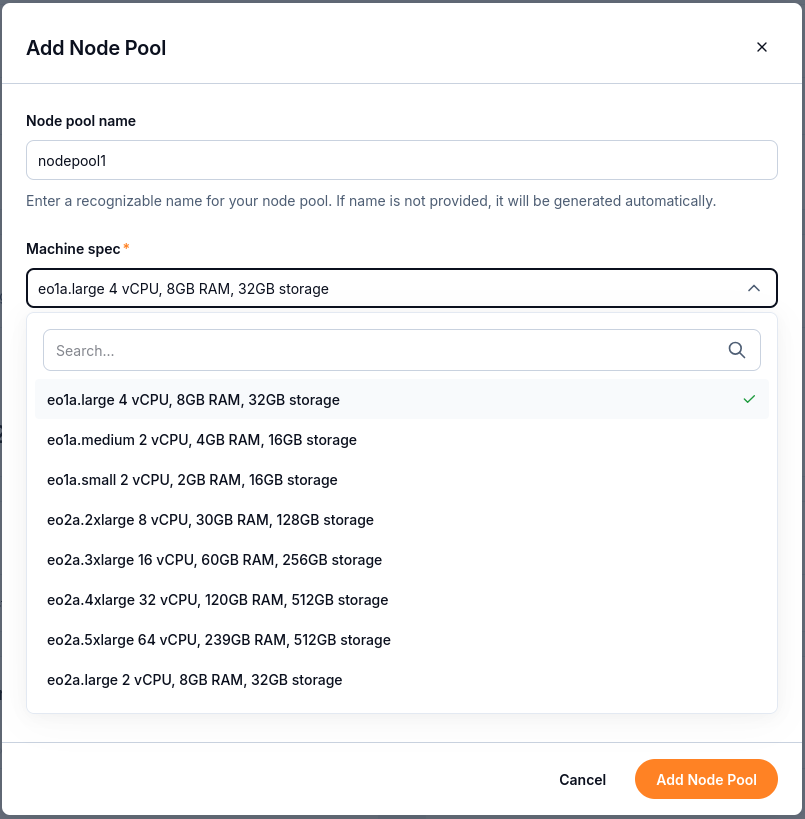
Machine specifications show the resources allocated to each worker node.
Tip
When creating node pool with one of the vGPU machine specs (flavor), the NVIDIA GPU Operator gets installed on the cluster. To use GPU acceleration by a workload e.g. pod, apply this setting in the pod’s spec.containers definition:
resources:
  limits:
    nvidia.com/gpu: 1
By default, the first pod scheduled on a given node in such created node pool will utilize the full (v)GPU unit assigned to this node. To enable splitting the (v)GPU between more pods, see the NVIDIA GPU Operator - Time Slicing documentation.
- Autoscaling
Choose Available to enable autoscaling or Unavailable to use a fixed size. With autoscaling enabled, the cluster can increase or decrease the number of worker nodes based on demand.
The cluster autoscaler adds or removes nodes based on pending pods. This complements the Horizontal Pod Autoscaler (HPA), which adjusts the number of pods inside existing nodes.
Tip
The cluster autoscaler is most effective when combined with pod resource limits and requests. Make sure your workloads define them correctly.
- Size
For a fixed-size pool, enter the number of worker nodes. The form requires at least 1 node. You can resize the pool later.
- Advanced Settings
In Advanced Settings, you can:
Specify OpenStack shared network IDs
Assign initial Kubernetes labels and taints; they are, however, out of scope of this article.
Click Add Node Pool. The new pool appears in the list with status CREATING while the worker nodes are provisioned. Wait for RUNNING before using the new capacity.
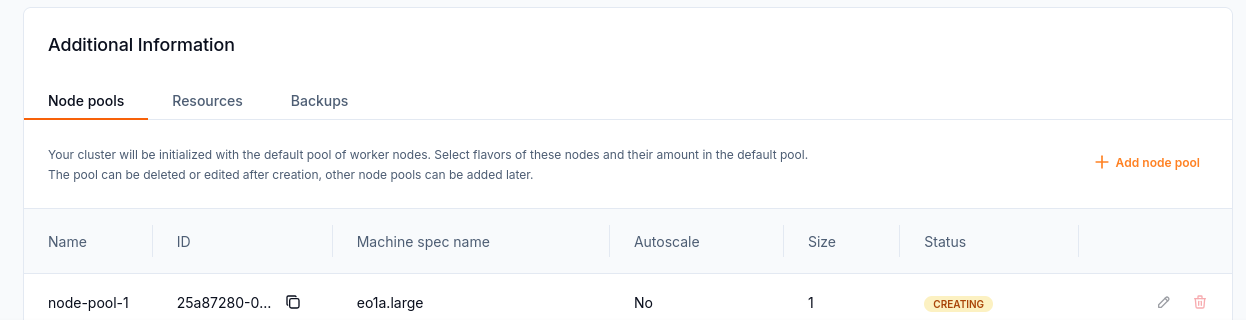
A node pool with one worker node is being created.
With your cluster kubeconfig configured, check the provisioned nodes:
kubectl get nodes -o wide

Example node list with a Ready control plane and Ready workers. Node names and counts depend on your cluster.
How to edit a node pool
To change an existing node pool, click the pencil icon at the right side of its row.
The following settings captures show an earlier interface:
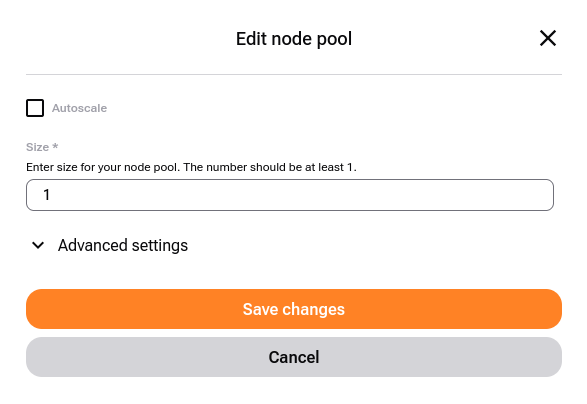
Edit an existing node pool to change its size or autoscaling settings.
You cannot change the name or the flavor of the node pool but you can adjust worker capacity in two ways:
- Define a range
Enable Autoscaling and set the minimum and maximum node counts:
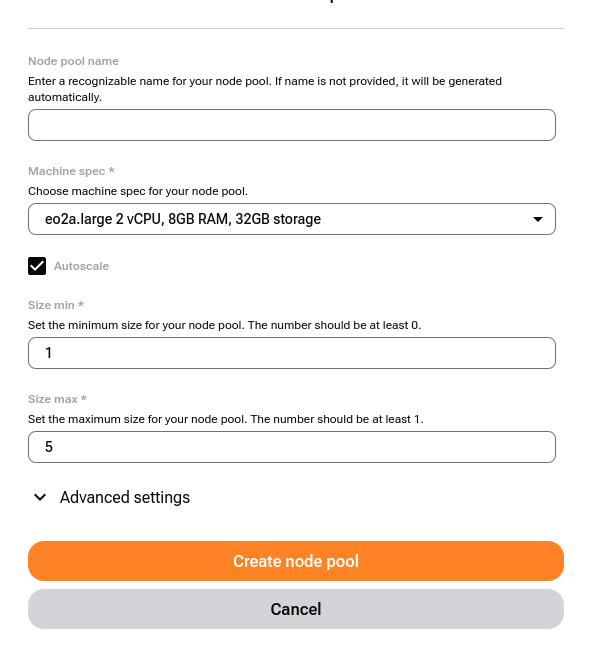
Minimum and maximum worker counts with autoscaling enabled in an earlier node pool form.
- Redefine fixed size of node pool
Just enter the required number in that field and Save changes.
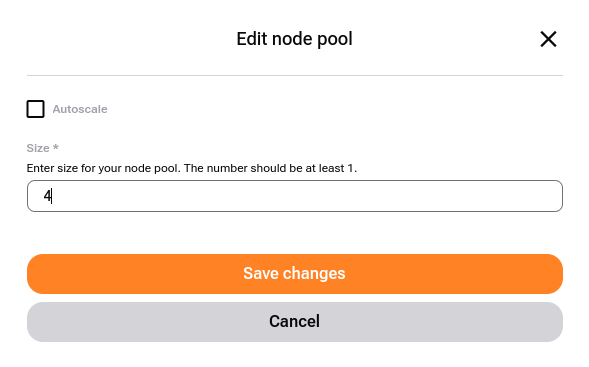
Example fixed-size pool set to four workers before saving the change.
Scale worker nodes manually. Status temporarily changes to SCALING.
When editing, in Advanced settings you can change the related networks. The same group of settings also appears during node pool creation:
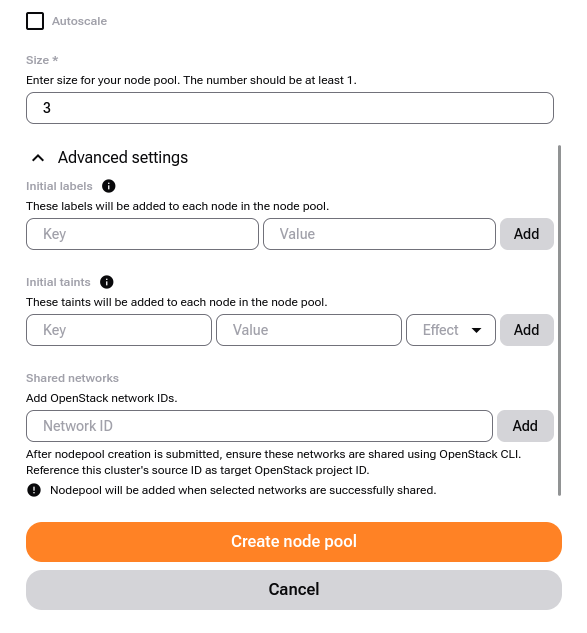
Earlier node pool form showing labels, taints, and the Shared networks field.
Delete a Node Pool
Click the trash-can icon next to the node pool.
What To Do Next
With worker nodes added, you can start deploying pods, creating services and so on.
If you already have a cluster, you can back it up with Managed Kubernetes Backups on CloudFerro Cloud
Learn how to connect a VM to your Kubernetes network: Accessing OpenStack Resources from CloudFerro Cloud Managed Kubernetes Using Shared Networks