
Create your first NATS account on CloudFerro Cloud
Before an application can send events through Message Streaming, it needs an account in the region where it will run. My Portal creates that account on the shared NATS cluster and lets you set its capacity limits.
Prerequisites
No. 1 Portal account and organization access
You need access to My Portal and the Message Streaming page for your organization.
No. 2 Product availability and permissions
Your organization needs an active service or contract, and your account needs the role required to use Message Streaming. The product must be available in the region where you will create the resources.
No. 3 Capacity for the intended workload
Complete Prepare your Message Streaming account on CloudFerro Cloud to check organization quotas and choose the capacity for your workload. Have the selected region, account name, version, and message size, storage, and duration values ready for the creation form.
Open Message Streaming in My Portal
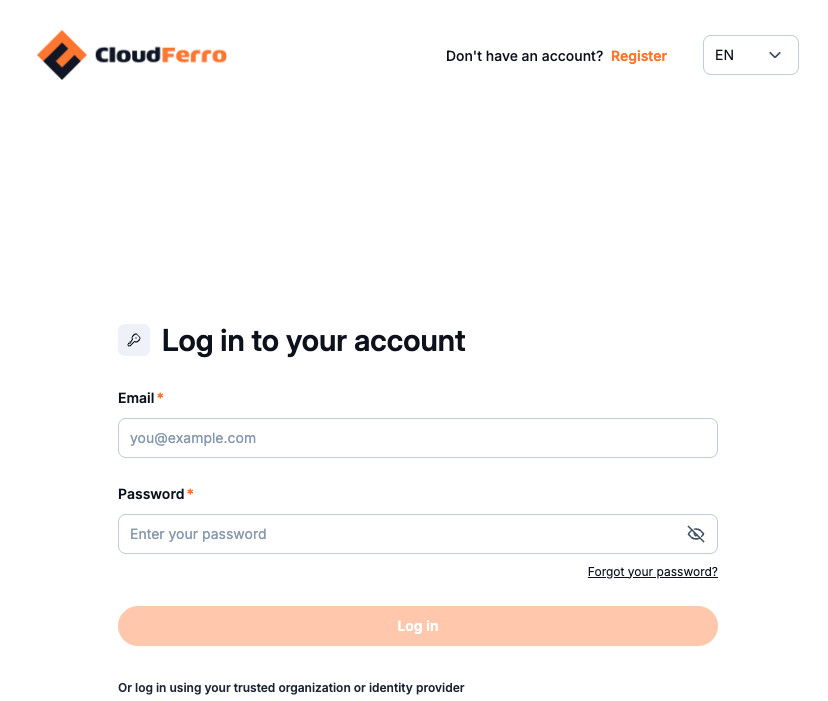
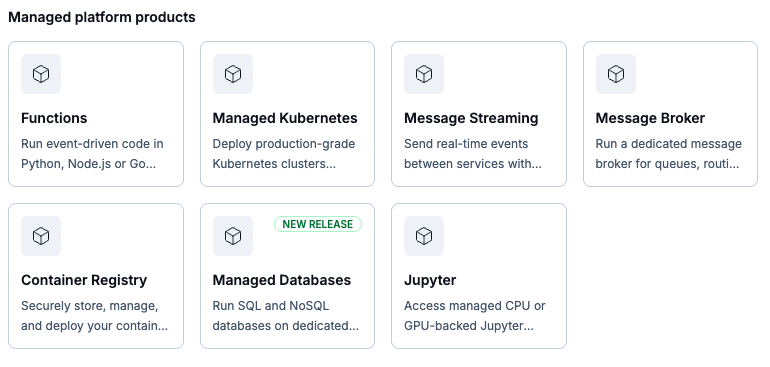
Choose the region
The Control Plane and the resources are regional. Resources are not replicated between regions automatically.
Region selection:
is remembered in the browser;
is stored separately for each service;
is selected automatically when only one region is available;
when several regions are available, uses the last selection, the default region, or the first available region.
Changing the region in Functions does not change the region in RabbitMQ or NATS. Before you create a trigger, check the region of both resources.
The region identifies the data center where the account will run. Select it before opening the creation form; the region is read-only in that form.
Create an account
In My Portal, open Message Streaming.
Check the region.
Select Create NATS Account.
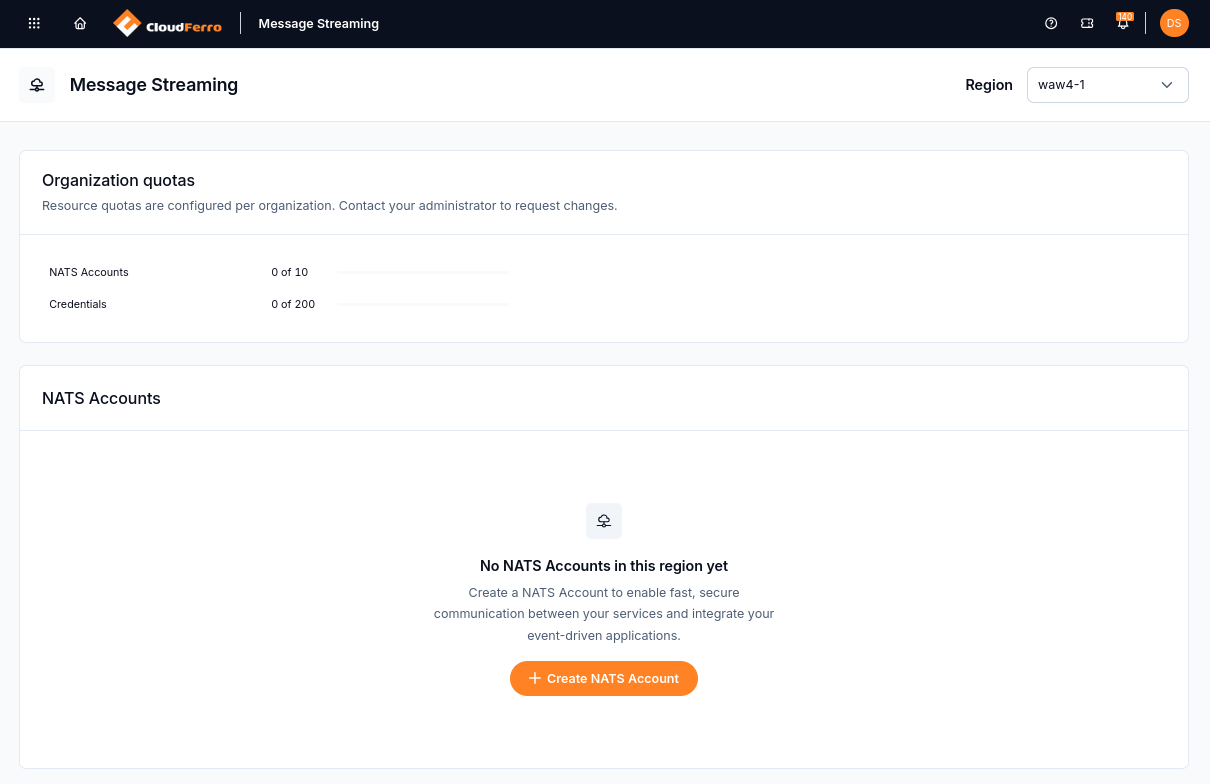
Create NATS Account opens the form for the selected region.
Enter a NATS Account name, such as nats1. The form accepts up to 15 characters: lowercase letters, numbers, and dashes.
Select a Version from the catalogue.
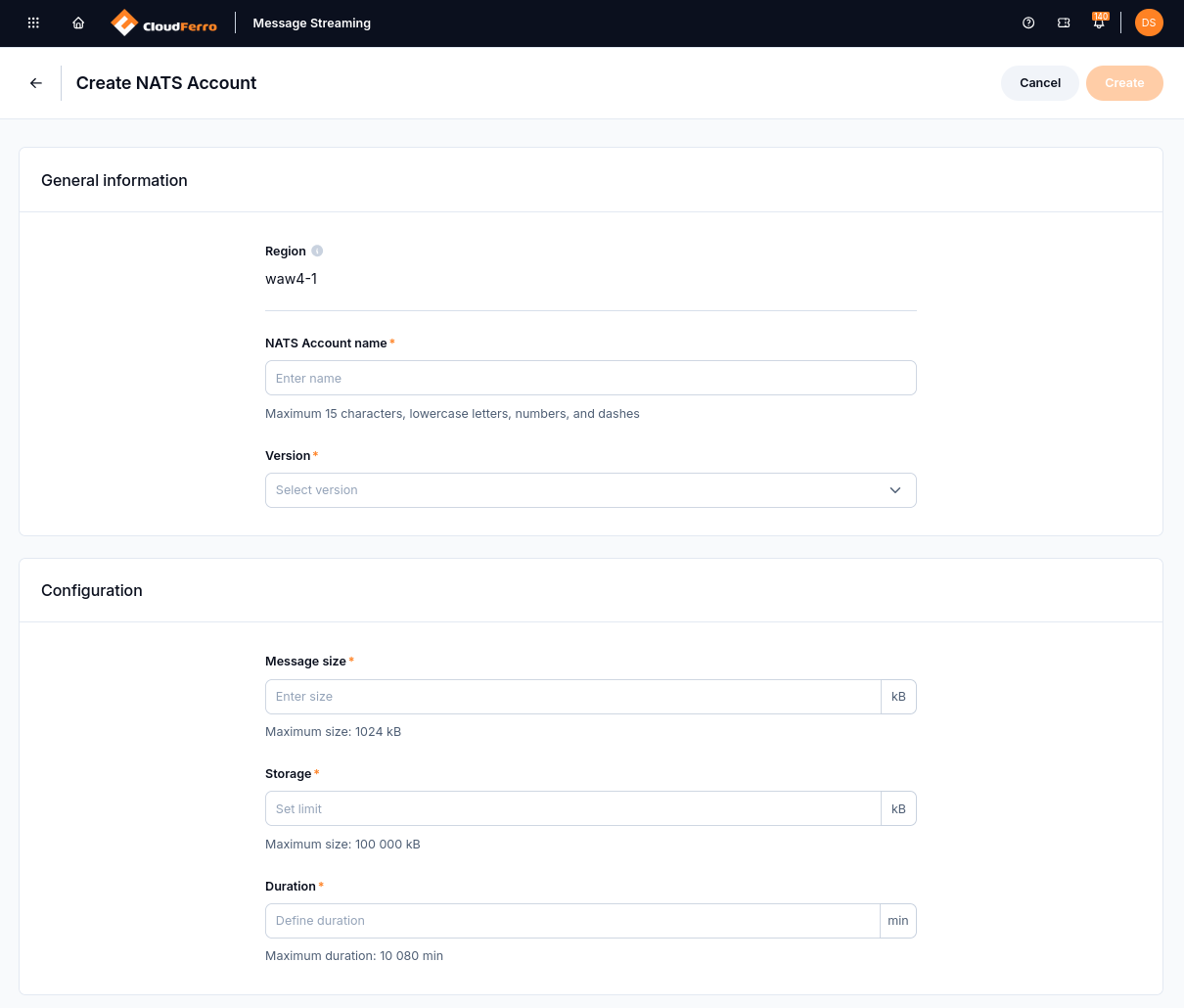
General information identifies the account. Configuration sets its message size, storage, and duration.
Under Configuration, enter Message size and Storage in kB, and Duration in minutes. The form displays the maximum allowed for each field.
Select Create. A notification confirms that account provisioning has started.
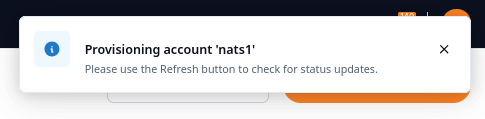
Provisioning has started. Use Refresh to check for status updates.
The account appears in the list with the status Creating. Wait for Active before generating credentials.
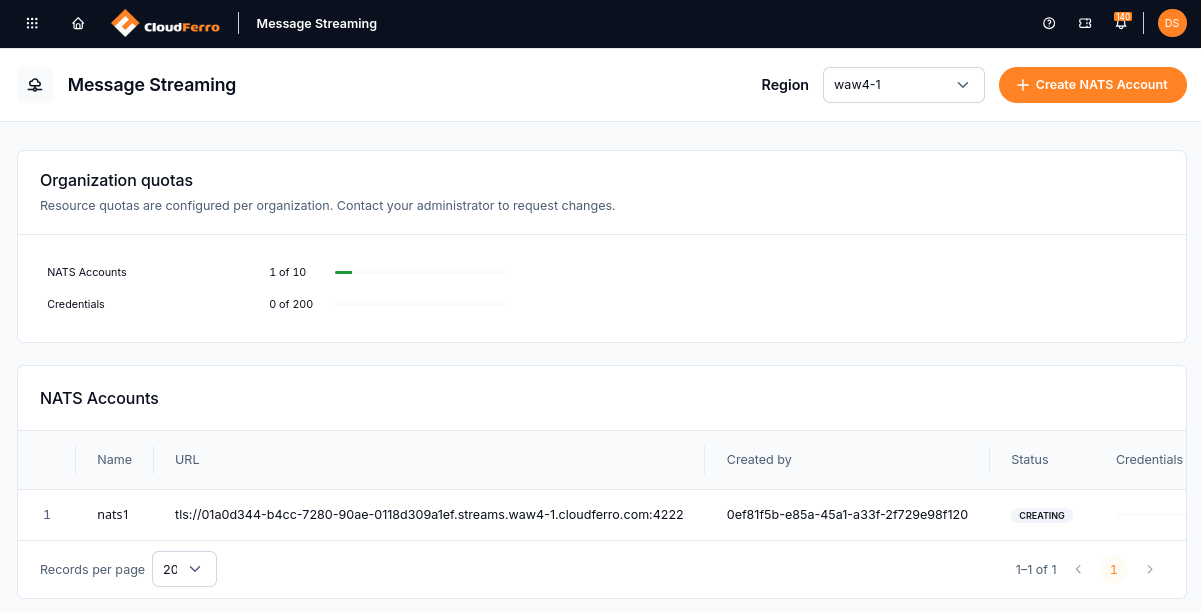
Creating means the new account is still being provisioned.
Open the account row’s three-dot menu and choose See Details.
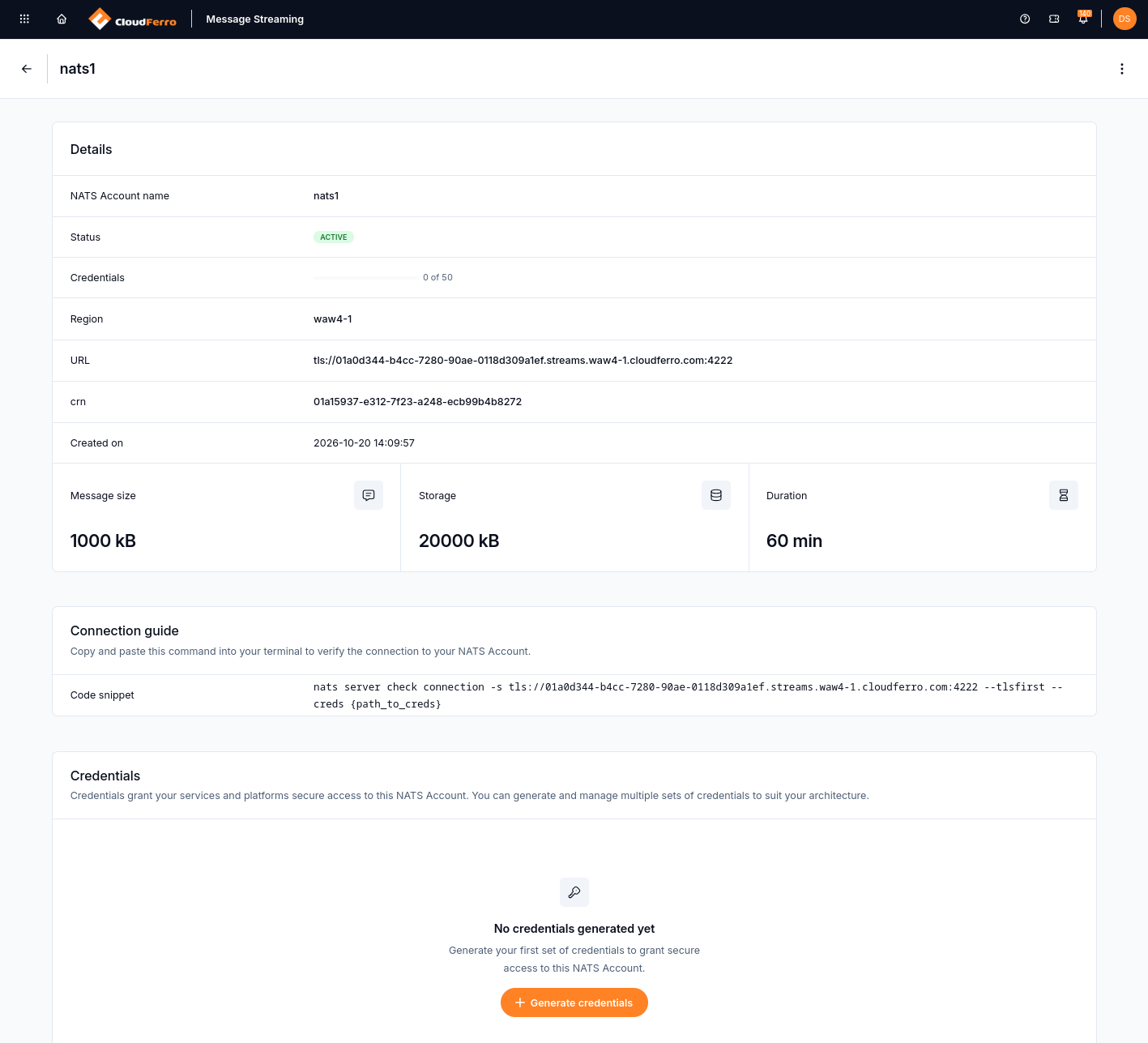
The Active account is ready for credentials. Its details page shows the connection URL and the message size, storage, and duration selected during creation.
The platform selects the shared cluster; you do not choose it in the form. The new account does not yet contain a named stream.
What to do next
Continue with Generate and replace NATS credentials on CloudFerro Cloud to create a NATS user and download its credentials. If the product or creation action is unavailable, Troubleshoot Message Streaming on CloudFerro Cloud covers organization access, permissions, and regional availability.