
Introduction to Message Streaming on CloudFerro Cloud
A processing job may need to tell a dashboard that it has started, then notify another application when its output is ready. A reporting service may need the same updates later, after the job has finished. Message Streaming carries these events between applications and uses NATS JetStream to retain them within the configured limits.
The examples below show where that is useful, then follow an account named nats1 through My Portal. The screenshots introduce the account, connection details, and credentials used in the later guides.
Where events help
The same event history can support several kinds of work:
Live processing progress: a worker on a VM or in Kubernetes publishes changes in job status. A dashboard reads the updates so users can see which jobs are running or have finished.
Catch-up processing and reporting: a reporting application resumes after downtime and reads the events it missed, while those events remain in the stream. Separate consumers let the dashboard and reporting application track their own progress.
Moving between processing stages: an uploader stores a dataset in Object Storage and publishes its object key. A function can respond to the event and retrieve the object with its own S3 credentials. A Workflows task can similarly publish an event when a scheduled stage finishes.
These connections are made through application code or a configured Functions trigger or output. Use Message Streaming with other products on CloudFerro Cloud develops the examples and explains the preparation for a Functions integration. Message Streaming can also be used independently of Functions and Message Broker.
You can follow the screenshots before preparing your own setup. The prerequisites below apply when carrying out the actions in your organization.
Prerequisites
No. 1 Access to Message Streaming in My Portal
Sign in to My Portal and select an organization with an active service or contract. You need permission to use Message Streaming, and the product must be available in the selected region.
No. 2 Available capacity when creating an account
Before creating resources, complete Prepare your Message Streaming account on CloudFerro Cloud to check quotas and choose the account settings. If your team already has an account, ask its administrator for connection details and application credentials.
Open Message Streaming
In the product catalogue, open Streams for NATS. The Message Streaming page shows the Region selector, Organization quotas, and the list of NATS Accounts.
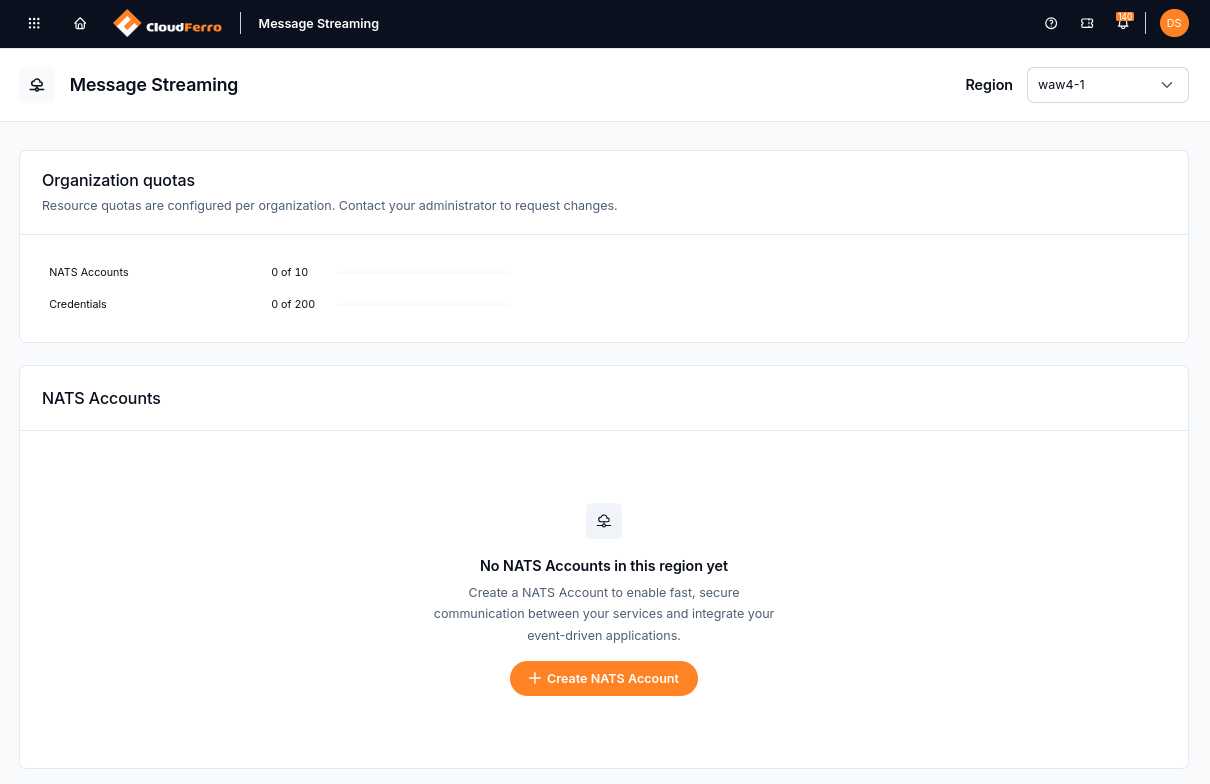
Create NATS Account opens the form for adding the first account to this region.
The selected region determines where the account runs. Message Streaming remembers this selection separately from Functions and Message Broker, so check it before opening the form.
The account creation form
The form separates General information, such as the name and version, from Configuration, which sets the message size, storage, and duration limits.
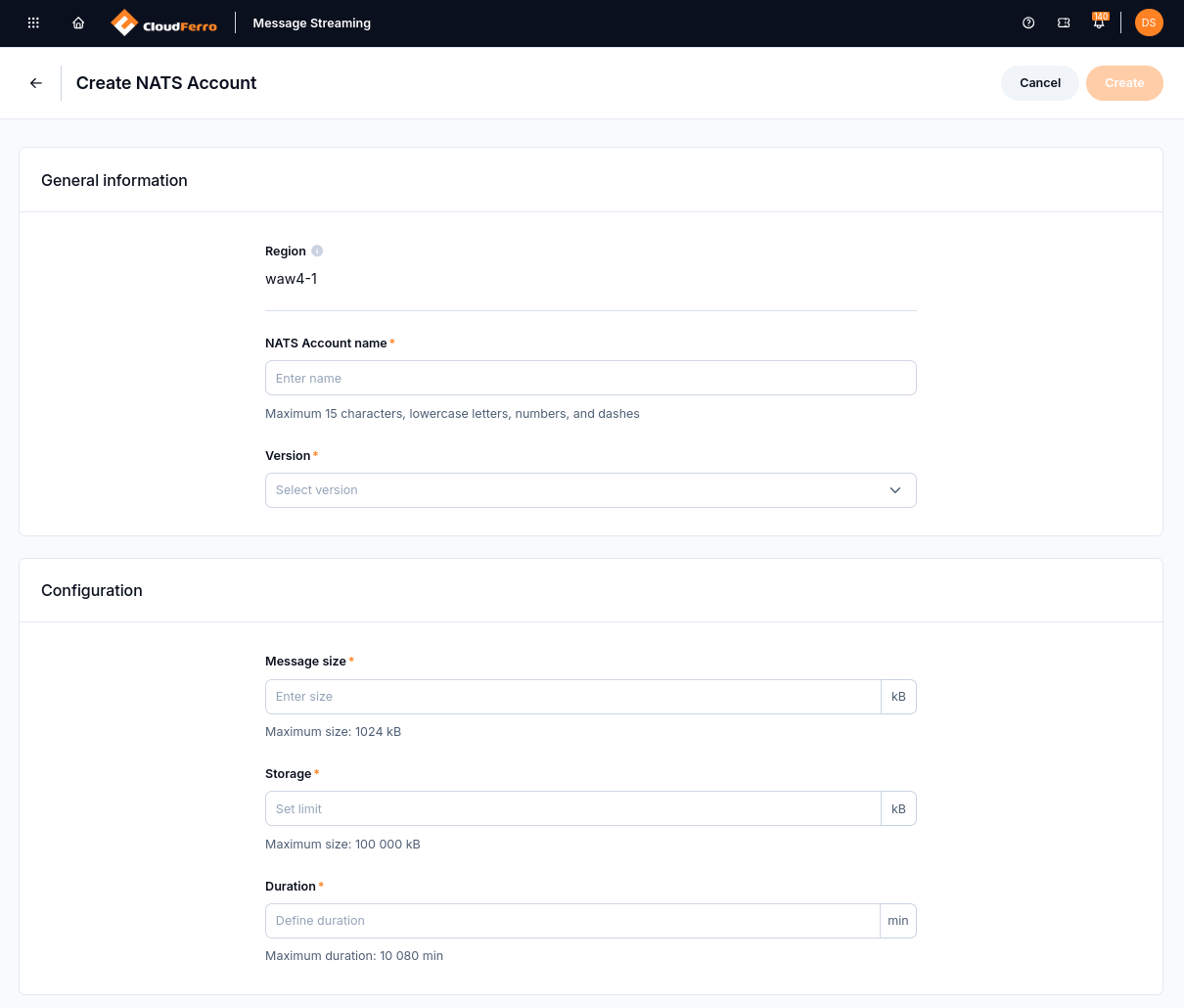
The region is read-only here. The configuration fields describe the capacity assigned to the account.
After submitting the form, the example account nats1 passes through Creating to Active. Create your first NATS account on CloudFerro Cloud walks through the form and the provisioning states.
What the managed service provides
The platform places the account on a shared NATS JetStream cluster. Your account has its own users and capacity limits; you do not choose the cluster. Once the account is Active, open its action menu and select See Details.
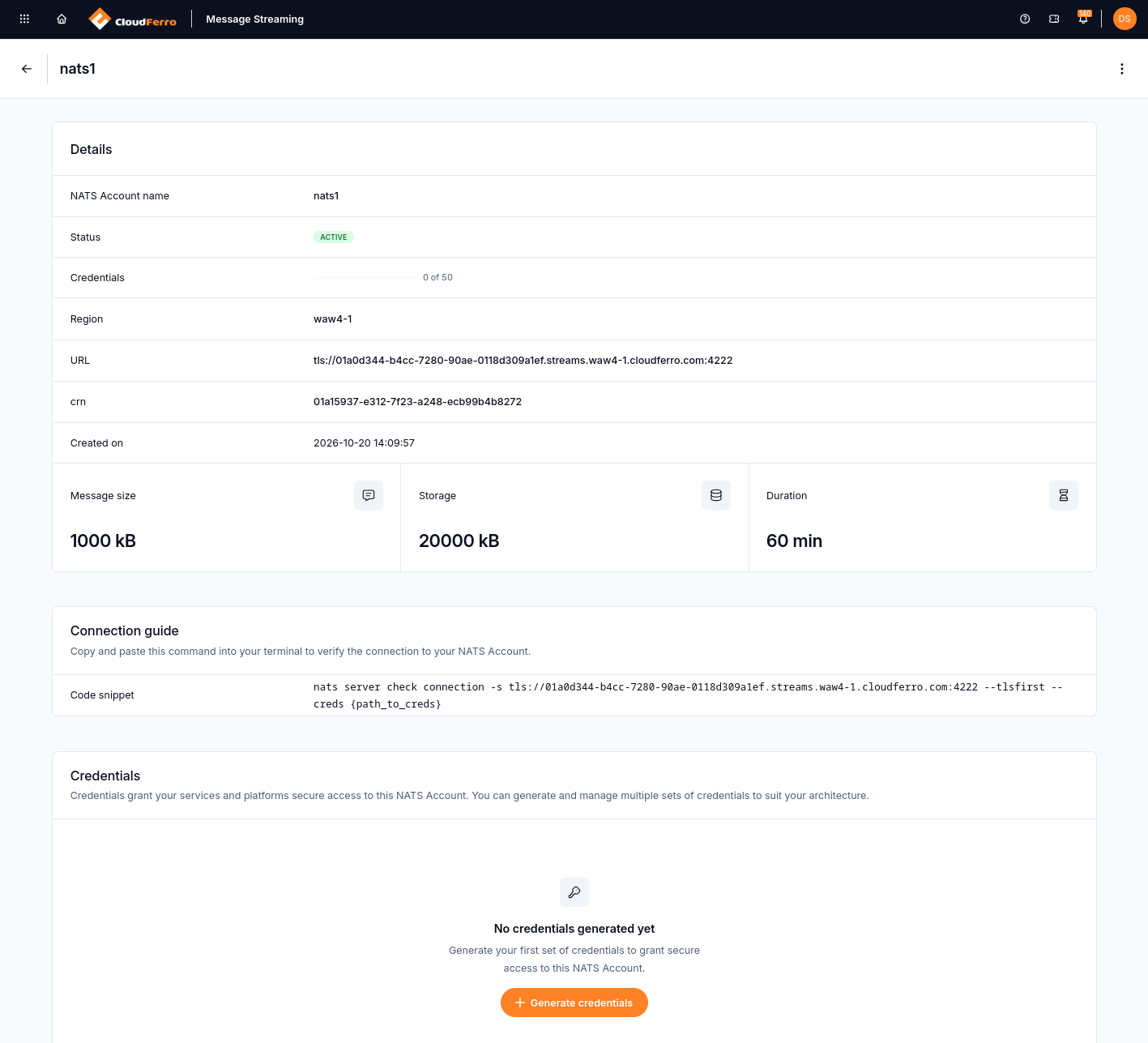
The account details bring together its status, connection address, capacity, and credentials.
The URL is the public TLS endpoint applications use to connect on port 4222. The configuration values show the account’s capacity. The Credentials section is empty because no NATS user has been created yet.
My Portal also provides metrics and audit logs for operating the account. Monitor and remove a NATS account on CloudFerro Cloud explains what to check as applications begin using it.
Give an application credentials
Generate credentials opens a dialog for a named credentials entry, such as cred1. You can create multiple NATS users so that an application’s credentials can be replaced independently.
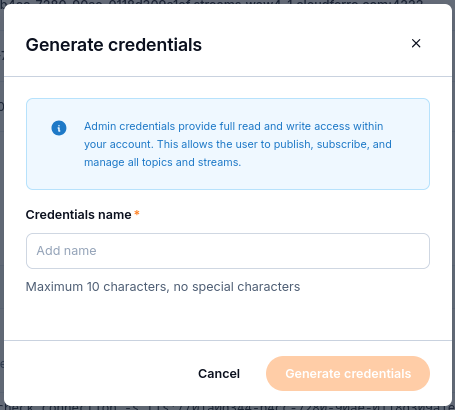
The dialog states that these credentials provide full read and write access within the account.
The entry starts in Creating and must reach Ready to Download. Its .creds file can be downloaded only once, so store it securely when it becomes available. Generate and replace NATS credentials on CloudFerro Cloud covers generation, download, replacement, and revocation.
From My Portal to the terminal
The account’s connection guide supplies a command for checking access. It combines the endpoint with the path to your downloaded credentials file.

Use the command from your own account and the path to your own credentials file.
The connection requires --tlsfirst. Connect with the NATS CLI on CloudFerro Cloud covers CLI installation and the connection check. A successful check confirms access to the account; creating the streams is a separate step.
Subjects, streams, and consumers
In the job-status example, a worker publishes messages to the subject jobs.status. A stream named JOB_STATUS retains those events, with separate consumers for the dashboard and reporting application. Their progress is independent, while the stream’s retention settings determine which events remain available.
My Portal manages the account and its NATS users. You create streams and consumers with the NATS CLI or an SDK; the Control Plane does not manage them. Work with streams and consumers on CloudFerro Cloud explains how to put those parts together.
What to do next
Continue with Definitions of terms on CloudFerro Cloud to put names to the parts you have just seen. The preparation guide then helps you choose the organization, region, and capacity for your own account.