
Access tokens and logging in on CloudFerro Cloud
Private container images need to be available to the applications and jobs that use them. Some clients only download images, while others also publish new versions.
Access tokens let you give each client the permissions it needs. You can create a token, configure login for container tools or Kubernetes, and rotate or revoke the credentials when access requirements change.
Prerequisites
No. 1 Portal access to create or manage a token
The portal access instructions explain account and organization access. RegistryDeveloper or RegistryAdmin can create tokens. Portal roles control what you can manage in My Portal; a registry token controls what a container client can pull or push. If you already received a token from your administrator, you can proceed to login without creating another one.
No. 2 The target project and registry endpoint
Have an existing project ready, following Manage registry projects on CloudFerro Cloud if you need to create one. Record its name and the registry endpoint shown in Push commands. The commands use my-project and the waw4-1 endpoint as examples; substitute your project’s values consistently.
No. 3 The client for your task
For the first login, prepare Docker using the Docker prerequisites. Run the shell examples in Bash. Podman, Helm, ORAS, and crane are alternatives for their respective workflows; install only the client you intend to use.
The optional Kubernetes example needs a configured kubectl, a cluster, and permission to create Secrets and Pods in the selected namespace. It uses the hello-world container image published as my-app:1.0.0 in Publish your first container image on CloudFerro Cloud; have that image available in your project before trying the example. The container image must support the CPU architecture of the cluster nodes.
Create an access token
Container tools authenticate with project access tokens. Each token belongs to exactly one project and is valid for all repositories in that project. Create separate tokens for applications or teams that need separate credentials. Use separate projects when their access must be restricted to different sets of repositories.
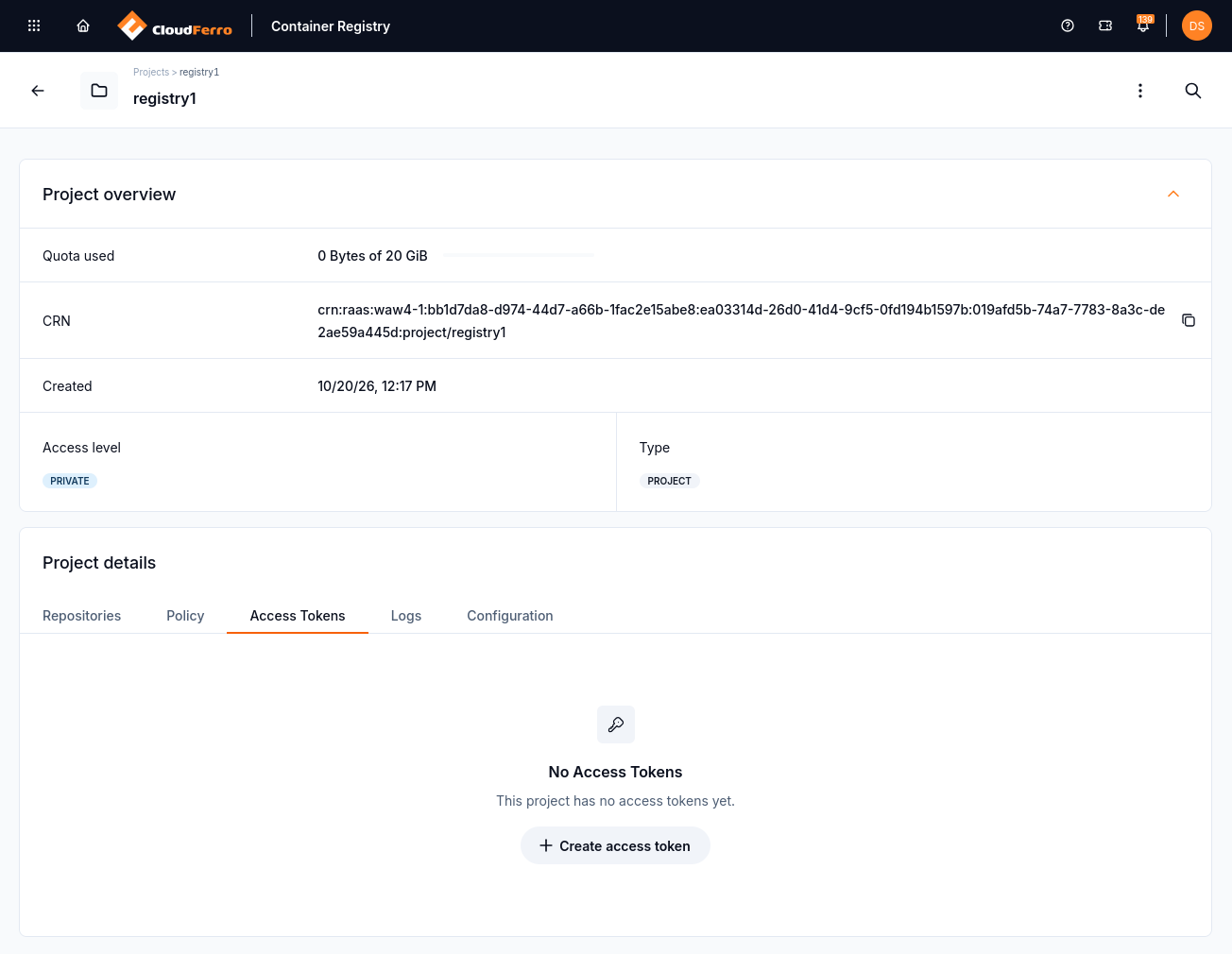
Open Access Tokens in the target project to create its first client credential.
Open the project and go to Access Tokens.
Select Create access token.
Enter a Name: lowercase letters, digits,
.,_, and-, starting with a letter or a digit, at most 62 characters.Optionally enter a Description.
Set the expiry: turn on the expiry switch and enter the number of days (30-3650). With the switch off, the token does not expire.
Select the permissions:
Pull - always on;
Push - turn it on for CI/CD jobs that publish artifacts.
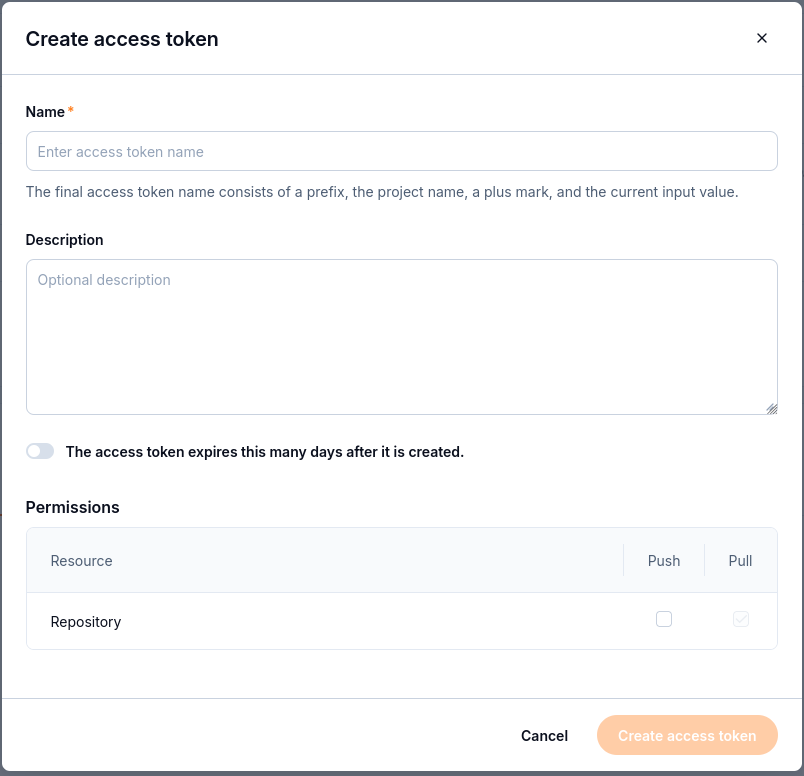
Enable Push as well as Pull when the client needs to publish container images.
Create the token.
Copy the secret and store it in a secrets manager.
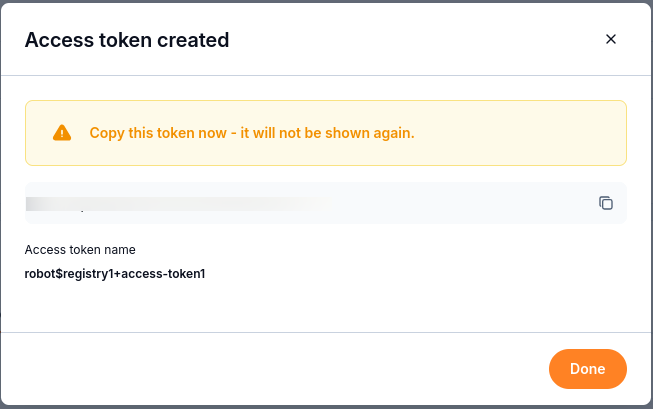
Copy the secret while this dialog is open; it will not be shown again. The secret is obscured in this screenshot.
The secret is shown only once. The platform does not store it. If you lose it, rotate the token (Manage tokens) or create a new one.
The final token name is built from a prefix, the project name, +, and the name you entered. For
a project my-project and the name ci-push, the user name is:
robot$my-project+ci-push
Use this full name as the user name in every login command. Replace the example with the full name of your own token when it differs.
Log in
The user name contains $. Put it in single quotes, otherwise the shell treats $... as a
variable.
docker login registries.waw4-1.cloudferro.com -u 'robot$my-project+ci-push'
Enter the token secret at Docker’s password prompt. Do not use your portal password. Docker reports Login Succeeded when authentication succeeds; the token’s permissions still determine whether a later push or pull is allowed.
In CI/CD (automated build and deployment pipelines), provide RAAS_TOKEN_SECRET through your pipeline’s secret configuration. Pass the secret to the login command on standard input:
echo "$RAAS_TOKEN_SECRET" | docker login registries.waw4-1.cloudferro.com \
  -u 'robot$my-project+ci-push' --password-stdin
Choose the login command for your installed client; these are alternatives, not a sequence:
podman login registries.waw4-1.cloudferro.com -u 'robot$my-project+ci-push'
helm registry login registries.waw4-1.cloudferro.com -u 'robot$my-project+ci-push'
oras login registries.waw4-1.cloudferro.com -u 'robot$my-project+ci-push'
printf '%s' "$RAAS_TOKEN_SECRET" | crane auth login registries.waw4-1.cloudferro.com \
  -u 'robot$my-project+ci-push' --password-stdin
Pull secret for Kubernetes
This optional example runs the first-use sample as a Pod, a Kubernetes resource that runs containers. Create a separate project token named k8s-pull with Pull permission only. Choose an existing namespace in which you can create Secrets and Pods; default is used below. The Secret and the Pod must be in the same namespace.
REGISTRY_NAMESPACE=default
read -r -s -p 'Pull token secret: ' RAAS_TOKEN_SECRET
printf '\n'
kubectl --namespace "$REGISTRY_NAMESPACE" create secret docker-registry raas-pull \
  --docker-server=registries.waw4-1.cloudferro.com \
  --docker-username='robot$my-project+k8s-pull' \
  --docker-password="$RAAS_TOKEN_SECRET"
unset RAAS_TOKEN_SECRET
The command should report that raas-pull was created. The prompt keeps the secret out of a literal shell-history command, although the expanded argument can be visible to local process inspection while kubectl runs. Do not print or share the Secret’s contents.
Save the following as registry-check.yaml. Replace the registry endpoint and project if yours differ. imagePullSecrets tells Kubernetes which Secret to use when downloading the container image.
apiVersion: v1
kind: Pod
metadata:
  name: registry-check
spec:
  restartPolicy: Never
  imagePullSecrets:
    - name: raas-pull
  containers:
    - name: registry-check
      image: registries.waw4-1.cloudferro.com/my-project/my-app:1.0.0
      imagePullPolicy: Always
Create the Pod in the same namespace and inspect its result:
kubectl --namespace "$REGISTRY_NAMESPACE" apply -f registry-check.yaml
kubectl --namespace "$REGISTRY_NAMESPACE" get pod registry-check
kubectl --namespace "$REGISTRY_NAMESPACE" logs registry-check
Allow time for the download before reading the logs. With the hello-world sample, the Pod should finish with status Completed and its logs should contain the Docker greeting. If downloading fails, inspect kubectl --namespace "$REGISTRY_NAMESPACE" describe pod registry-check and check the endpoint, project, token, and Secret name.
After the check, remove only these example resources when they are no longer needed:
kubectl --namespace "$REGISTRY_NAMESPACE" delete pod registry-check
kubectl --namespace "$REGISTRY_NAMESPACE" delete secret raas-pull
Manage tokens
The Access Tokens tab lets you check the tokens already created for the project. Compare each token’s state, permissions, and expiry with the access its client needs.
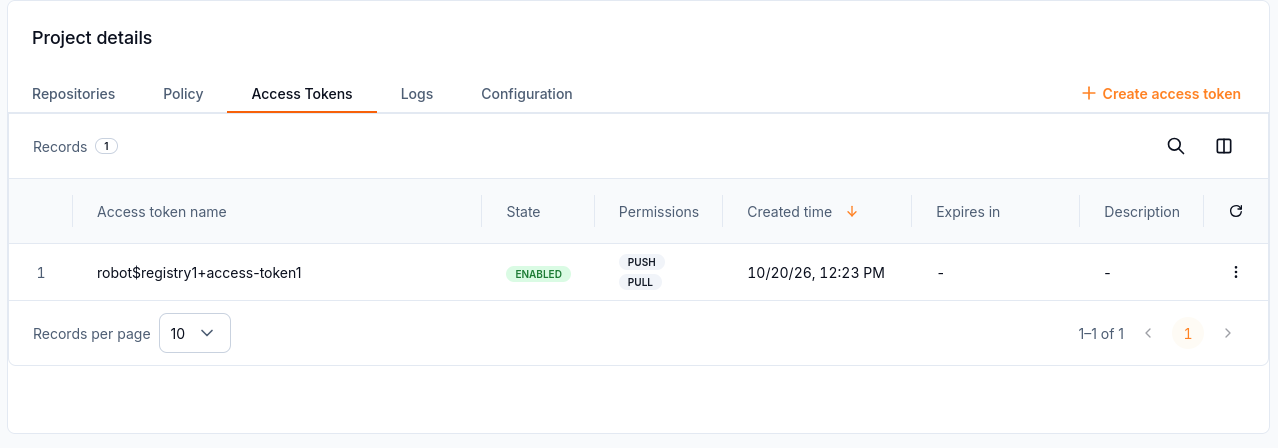
The list shows the full token name, state, permissions, creation time, and expiry information.
The operations below describe API and Terraform capabilities. Before rotating a secret, identify every pipeline or workload that uses it. After rotation, update those consumers with the newly returned secret and check that each can still perform its required push or pull. Deleting a token is a revocation action, not a way to retrieve a lost secret.
The Management API and the Terraform provider support:
listing tokens and reading their metadata (name, created, expires, permissions, state, description);
changing permissions, expiry, description, and state (enabled or disabled);
rotating the secret - the new secret is returned once;
deleting a token, which revokes its access at once.
The platform can send a warning before a token expires. The default warning threshold is 7 days.
Good practice:
one token per pipeline or cluster, so you can revoke one without affecting the others;
Pull only, unless the job really pushes;
an expiry date for every token used outside your own machine;
never write secrets to logs or commit them to Git.
What to do next
For a first upload, download, and run check, follow Publish your first container image on CloudFerro Cloud.
For other clients and artifact types, use Push and pull artifacts on CloudFerro Cloud.
Configure a cache for public container images with Proxy cache projects on CloudFerro Cloud.
Investigate login or permission errors with Troubleshooting and frequently asked questions on CloudFerro Cloud.