
Introduction to Container Registry on CloudFerro Cloud
A container image on your computer is not yet available to colleagues or deployment systems. They need a shared location from which to download the application version you want them to run.
Container Registry provides that location, with controls for access, storage, and security. A tour of the project screens shows where you prepare a place for your container images, give a client access, and inspect what has been uploaded.
Where you would use it
Share an application with colleagues. Publish a container image once, then let testers download the same version on their computers. The first-upload exercise demonstrates this with a small sample application.
Publish from an automated build. Give the build job credentials that allow uploads, while a deployment uses credentials that only allow downloads. The access token guide covers these permissions and a Kubernetes example.
Reuse public container images. A proxy cache project stores container images fetched from an upstream registry for later pulls.
The registry stores container images; it does not run the application. Docker or a platform such as Kubernetes runs a container from the downloaded image. You will see push used for uploading and pull for downloading.
Open Container Registry in My Portal
Sign in to My Portal, select the organization that will own your registry projects, and open Products, then Container Registry. If you need help signing in or obtaining access, use the portal access instructions.
The screenshots below are a tour: you can read them before creating anything. To carry out the setup, you need RegistryAdmin to create a project, or access to an existing project prepared by your administrator.
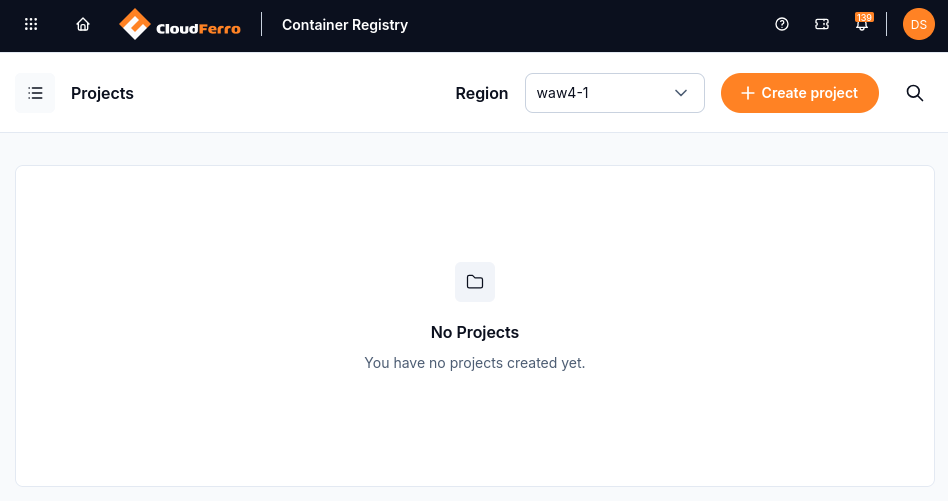
The first screen lists projects for the selected region. No Projects is the starting state before one has been created.
A project is the place where your team stores container images under shared access rules and a storage allowance. Check the region before creating one; the screenshots use waw4-1.
Prepare a place for your container images
Create project opens a form with three choices: a permanent project name, its storage quota in GiB, and whether it will be a proxy cache. For your own uploads, leave Proxy cache off.
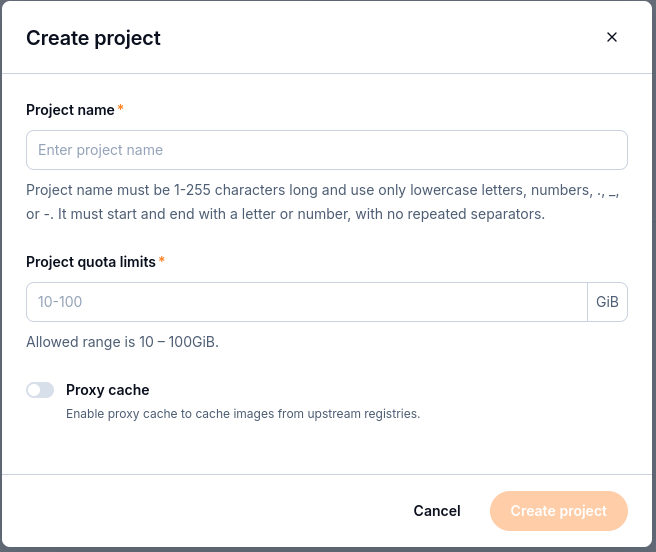
The name becomes part of the container image address. The quota limits how much content the project can store.
The article Manage registry projects on CloudFerro Cloud takes you through these choices and the creation steps. If your administrator has already created a project, open that project instead.
Find the controls inside a project
The example project registry1 is private and has a 20 GiB quota. Its overview shows the current storage use. Below it, Project details groups the controls you will use in the later guides.
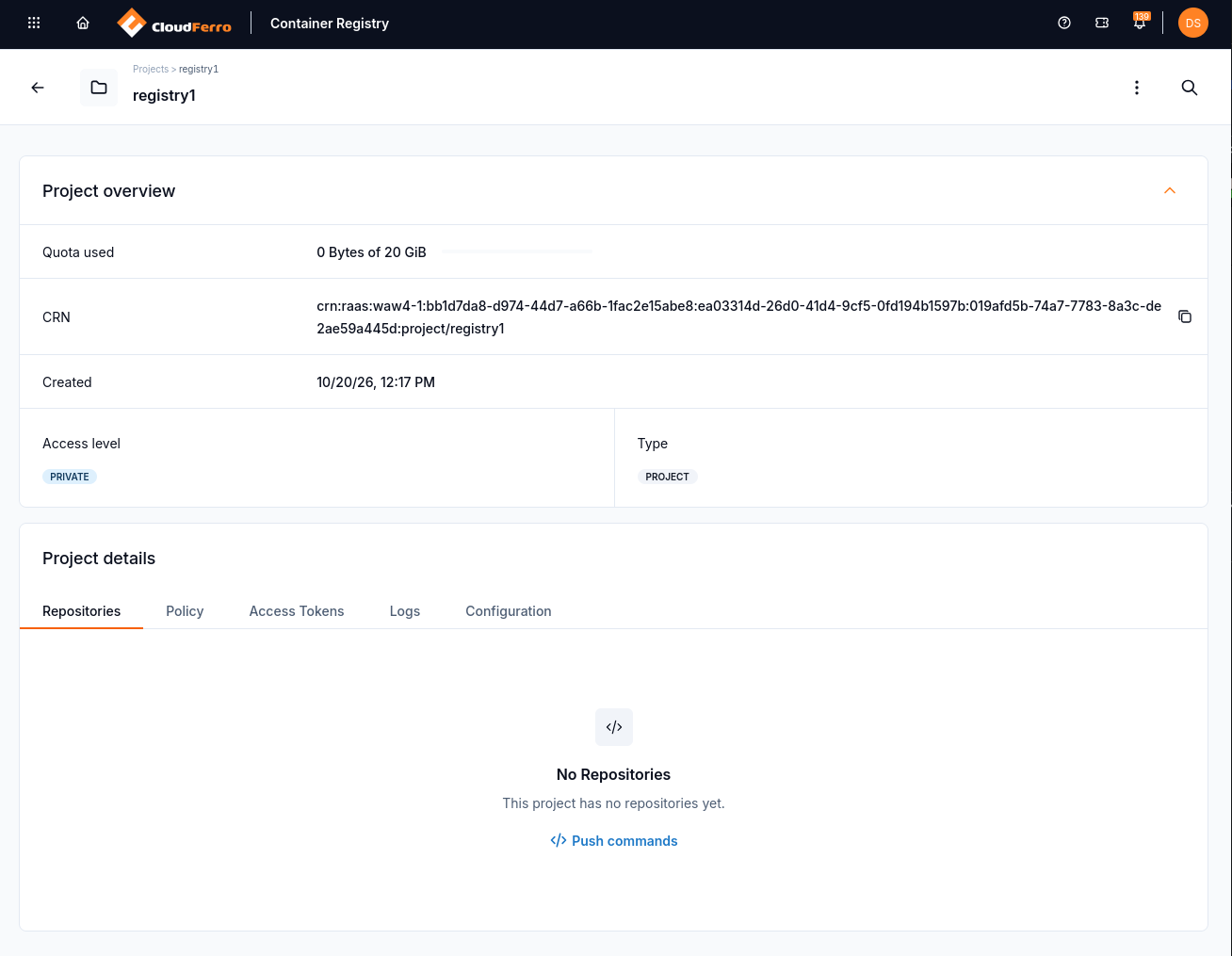
The project exists, but No Repositories shows that no container images have been uploaded yet.
Use the tabs to find the task you need:
Repositories lists the uploaded content. A repository groups versions of a container image and appears after the first push. Push and pull artifacts explains how to browse the stored content.
Access Tokens holds the client credentials used by Docker and automated jobs to download or upload content. Signing in to My Portal does not sign Docker in.
Policy controls which versions must remain unchanged and which can be cleaned up. Tag immutability and retention covers both choices.
Logs records operations in the project and their results.
Configuration controls public access and the security checks applied to container images. Scan and sign container images explains the reports and security settings.
Move from the portal to your first upload
Open Push commands on the Repositories tab. The panel shows the registry address and example commands for tools such as Docker. You run these commands in a terminal on your computer, after preparing an access token and logging the client in.
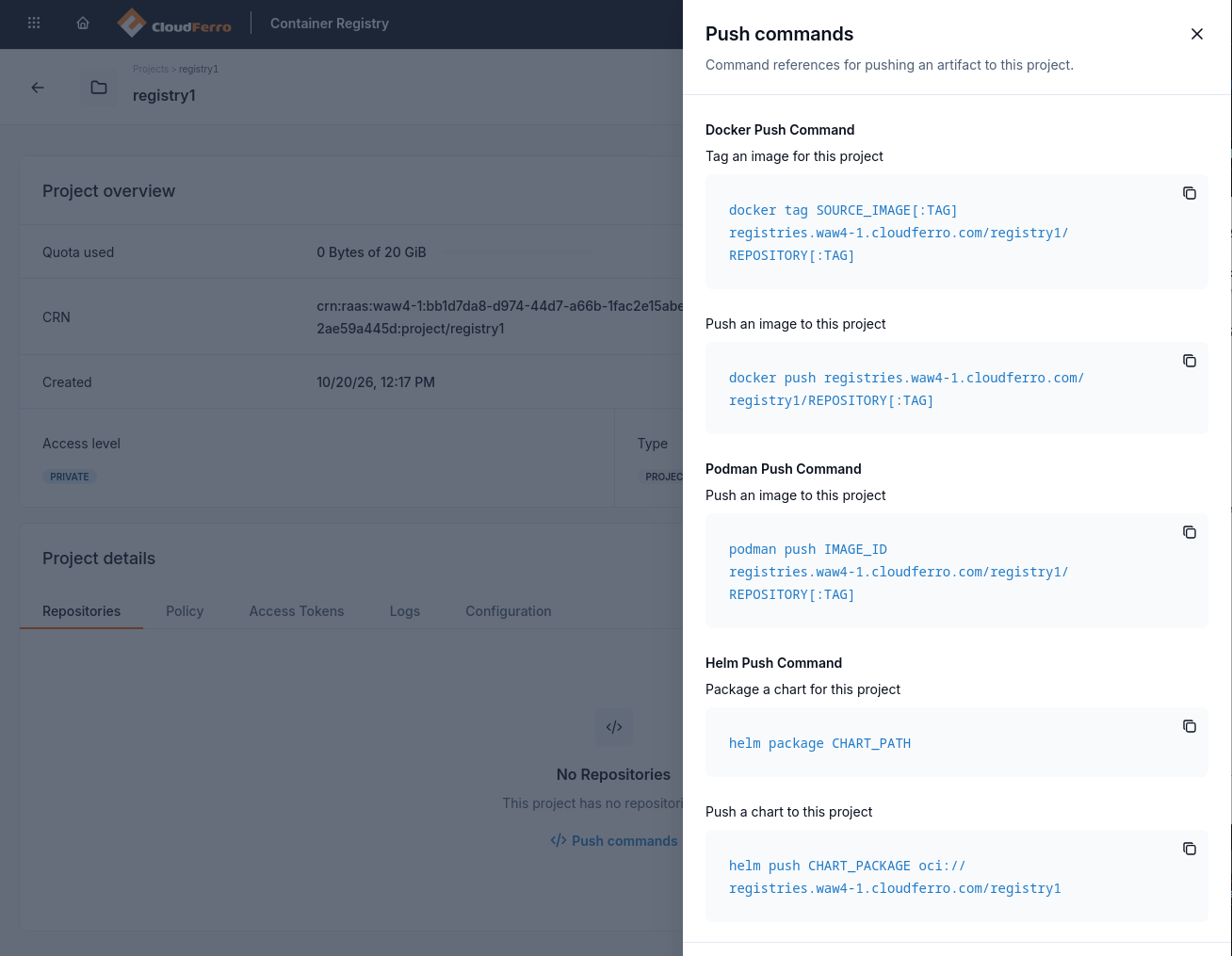
The commands include both the registry host and the project name. This panel uses registry1; the first-upload exercise uses my-project as its example name.
The first exercise uses Docker to upload a small container image, find it in Repositories, download it again, and run it. You only need Docker for that exercise; the Podman and Helm commands shown in the panel are alternatives for other tasks.
What to do next
Connect the names in these screens with Definitions of terms on CloudFerro Cloud.
Prepare your project’s name, storage allowance, and access settings with Manage registry projects on CloudFerro Cloud.
If a project and upload token are already available, continue with Publish your first container image on CloudFerro Cloud.