
Push and pull artifacts on CloudFerro Cloud
Sharing a container image or Helm chart means being able to publish a version and retrieve it again from another machine. The registry address and commands depend on the content and the tool you use.
The Docker, Helm, and other client examples pair registry addresses with commands for uploading and downloading your content. The portal instructions then help you inspect stored artifacts and manage their tags and labels.
Prerequisites
No. 1 A project and client credentials
Use an existing project prepared with Manage registry projects on CloudFerro Cloud. For uploads, your token needs Push and Pull permissions; a download-only client needs Pull. Follow Access tokens and logging in on CloudFerro Cloud to authenticate the client you will use. Have the project’s endpoint and full token user name ready.
No. 2 The tool and content for the chosen example
The Docker upload uses the local my-app:1.0.0 container image from Publish your first container image on CloudFerro Cloud, or your own image with its name substituted. Building a new image is optional and requires your application’s Dockerfile and build files. Podman, Skopeo, and crane are alternative clients, not additional required tools.
For charts, install Helm; the example creates a small chart scaffold before packaging it. Installing the chart into a cluster is optional and requires a configured Kubernetes context and permission to deploy into the chosen namespace. The ORAS example needs ORAS and a new working directory for its sample configuration file. Run shell commands in Bash.
Artifact address
A registry address identifies where to store or retrieve content. In the following forms, replace the angle-bracket placeholders; do not include the brackets in an actual address.
registries.waw4-1.cloudferro.com/<project>/<repository>:<tag>
registries.waw4-1.cloudferro.com/<project>/<repository>@sha256:<digest>
Part |
Example and meaning |
|---|---|
Registry host |
registries.waw4-1.cloudferro.com: the endpoint for the example region. |
Project |
my-project: the project that holds the repository and defines access. |
Repository |
my-app: the collection that holds versions of this container image. |
Tag |
1.0.0: a version label after the colon. |
Digest |
sha256:…: the content identifier, used after @ instead of a tag. |
A repository name can contain /. For example, team-a/backend is a repository name and my-project/team-a/backend is its path within the registry. The first push creates the repository; you do not need to create it separately in My Portal.
Docker
For an existing local container image, add the registry address as a tag, upload it, then check that it can be downloaded:
docker tag my-app:1.0.0 registries.waw4-1.cloudferro.com/my-project/my-app:1.0.0
docker push registries.waw4-1.cloudferro.com/my-project/my-app:1.0.0
docker pull registries.waw4-1.cloudferro.com/my-project/my-app:1.0.0
The uploaded artifact should appear under my-app in the project’s Repositories tab with tag 1.0.0. Successful push and pull commands report a digest.
If you want to build your own application first, run this alternative command from the directory containing its Dockerfile and build files. The final . means that directory supplies the build context:
docker build -t registries.waw4-1.cloudferro.com/my-project/my-app:1.0.0 .
Then use the push command above. Building for multiple CPU architectures is an optional workflow that needs Docker Buildx and a builder configured for the target platforms.
Multi-architecture container images:
docker buildx build --platform linux/amd64,linux/arm64 \
  -t registries.waw4-1.cloudferro.com/my-project/my-app:1.0.0 --push .
Podman, Skopeo, crane
Choose the example for your installed client. Podman needs the source container image in its own local image store:
podman tag my-app:1.0.0 registries.waw4-1.cloudferro.com/my-project/my-app:1.0.0
podman push registries.waw4-1.cloudferro.com/my-project/my-app:1.0.0
Skopeo copies the example from Docker Hub to your project:
skopeo copy docker://docker.io/library/alpine:3.19 \
  docker://registries.waw4-1.cloudferro.com/my-project/alpine:3.19
Crane provides another way to copy the same source image:
crane copy alpine:3.19 registries.waw4-1.cloudferro.com/my-project/alpine:3.19
Helm charts
A Helm chart packages the Kubernetes templates and settings used to deploy an application. Charts are stored as OCI artifacts, and the chart name becomes the repository name. In a new working directory, generate a sample chart:
helm create my-chart
Check that my-chart/Chart.yaml has name my-chart and version 0.1.0 for the commands below; use your own name and version when packaging an existing chart.
helm registry login registries.waw4-1.cloudferro.com -u 'robot$my-project+ci-push'
helm package ./my-chart            # creates my-chart-0.1.0.tgz
helm push my-chart-0.1.0.tgz oci://registries.waw4-1.cloudferro.com/my-project
helm pull oci://registries.waw4-1.cloudferro.com/my-project/my-chart --version 0.1.0
The package my-chart-0.1.0.tgz should be created locally, and the chart should appear in repository my-chart after the push. In helm push, the target is the project, not the repository. The chart’s version supplies the tag.
Optional deployment: with the intended Kubernetes context and namespace selected, install the chart. This creates Kubernetes resources:
helm install my-release oci://registries.waw4-1.cloudferro.com/my-project/my-chart --version 0.1.0
Other OCI artifacts (ORAS)
In a new working directory, create a sample file named config.yaml containing message: hello from Container Registry. The upload stores that file in repository configs with tag v1:
oras push registries.waw4-1.cloudferro.com/my-project/configs:v1 \
  ./config.yaml:application/yaml
To check the result without overwriting the original file, switch to another empty directory and download the artifact:
oras pull registries.waw4-1.cloudferro.com/my-project/configs:v1
The new directory should contain config.yaml with the same message.
Vulnerability scanning and SBOM generation apply to container images. Other artifact types can be stored, but they are not scanned.
Repositories and artifact details
On the Repositories tab, open a repository to see its artifacts. The artifact row menu has:
Open artifact;
Scan vulnerabilities;
Copy digest;
Download SBOM;
Manage labels;
Delete.
The Artifact overview shows: Project / Repository, Config, Digest, Labels, Author, Push time / Pull time, Created, Vulnerabilities, Signed, Size, Architecture, and OS. Below it, the Tags table lists the tags with push and pull times. Create tag adds another tag to the same artifact. The artifact page also has the Vulnerabilities and SBOM tabs.
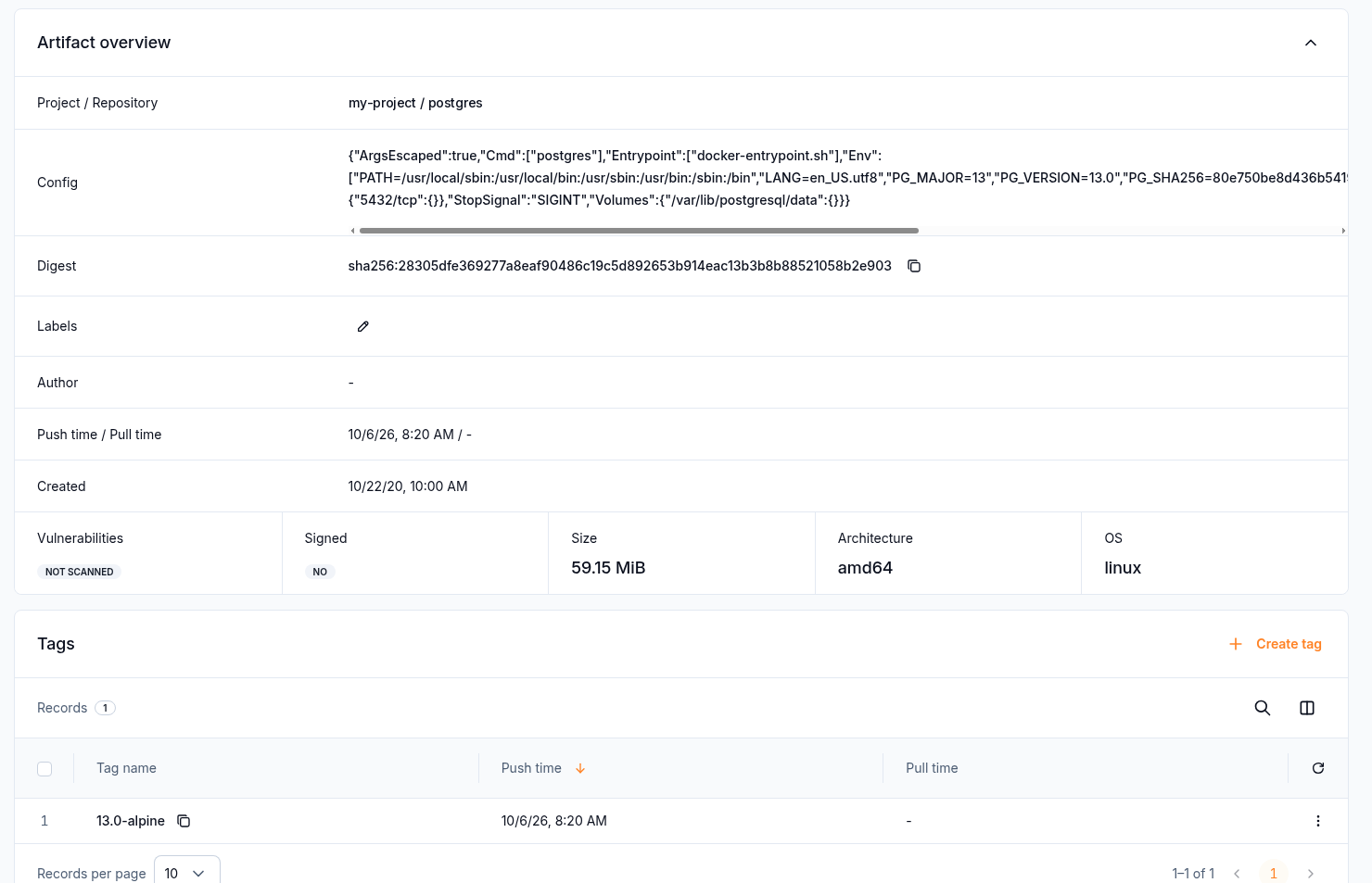
Artifact overview
Labels
Labels are project-level markers, for example prod or approved. Use Manage labels on an
artifact to attach or remove them. The Management API and Terraform (raas_label,
raas_artifact_label) can also create, change, and delete labels.
What to do next
Inspect the uploaded container images with Scan and sign container images on CloudFerro Cloud.
Protect tags and retain required versions with Tag immutability and retention on CloudFerro Cloud.
Check storage constraints in Quotas and limits on CloudFerro Cloud.