
Scan and sign container images on CloudFerro Cloud
Before deploying a container image, you need to know which packages it contains and whether a scan has found vulnerabilities.
Vulnerability reports and package inventories provide that information. Alongside the report-reading steps, the signing example and project settings show how to require signatures and restrict downloads based on scan results.
Prerequisites
No. 1 Portal access to the project
Use the portal access instructions to open the correct organization and region. RegistryViewer can read reports; RegistryDeveloper can start scans and SBOM generation; RegistryAdmin can also change project security settings. Have the role needed for the operations you intend to perform.
No. 2 A published container image
Complete Publish your first container image on CloudFerro Cloud or use an existing container image in your project. Record its repository and tag. For signing, open the artifact in My Portal and use Copy digest to obtain its full sha256: identifier.
No. 3 Signing tools, only if you will sign an image
The Cosign example requires Cosign installed and registry login prepared through Access tokens and logging in on CloudFerro Cloud. Use a project token with Push and Pull permissions to publish signatures. Keep the complete digest ready and use a new working directory for the example key pair; do not overwrite an existing signing key.
Vulnerability scanning
Scan on push
With Automatically scan images on push turned on (the default), every pushed container image is scanned. The scan runs asynchronously. The push does not wait for the result. The report of a typical image should be ready within about a minute.
If you turn the option off, new pushes are not scanned. Existing reports remain.
Manual scan
Open the repository.
Open the artifact row menu.
Select Scan vulnerabilities.
Refresh the list after a while. The status goes from
PENDINGto the result.
Reading the report
A CVE (Common Vulnerabilities and Exposures) ID identifies a publicly recorded vulnerability. CVSS (Common Vulnerability Scoring System) expresses its technical severity as a score. The report connects those findings to packages and versions in your container image.
The artifact list shows a summary, for example 276 VULNERABILITIES, NO VULNERABILITY, or
NOT SCANNED. The Vulnerabilities tab of the artifact lists the findings:
Column |
Meaning |
|---|---|
Vulnerability |
The CVE ID. |
Severity |
Critical, High, Medium, Low, or Unknown. |
CVSS3 |
CVSS v3 scores by source, for example nvd: 9.8 redhat: 9.8. |
Status |
The status reported by the scanner, for example affected. |
Package |
The affected package. |
Current version |
The package version in the container image. |
Fixed in version |
The first version that fixes the CVE, when known. |
Listed in CVE allowlist |
Yes if the CVE is in the project allowlist. |
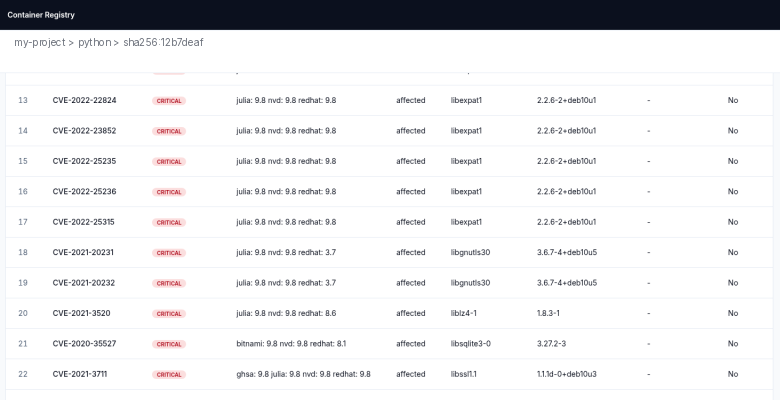
Vulnerability report (excerpt)
The severity comes from the scanner’s data source and can differ from the CVSS score shown next to it.
How to act on the report:
Start with Critical and High findings in packages your application actually uses.
Rebuild on a newer base image, or update the package, and push a new tag.
Add a CVE to the allowlist only when you have assessed that it does not affect you.
Export a project CVE report
To request a report for the project, return to the Projects list, open its row menu, and select Export CVE.
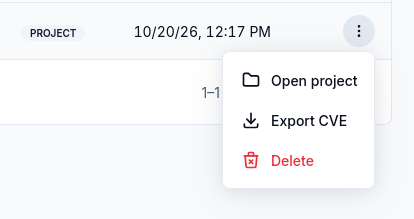
Choose Export CVE from the project row menu to request a report.
The portal displays Exporting CVE report while it prepares the file. The dialog closes when the file is ready.
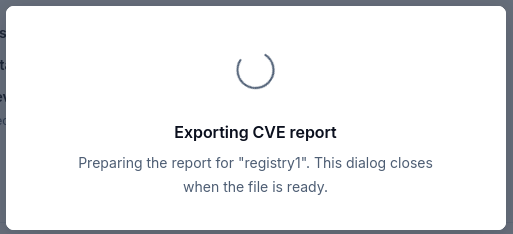
The progress dialog remains open while the project report is prepared.
CVE allowlist
Open Configuration.
In CVE allowlist, select Add CVE ID and enter one or more IDs, for example
CVE-2024-6345.Optionally select Set expiration time. After that date, the allowlist no longer applies.
Select Save changes.
Allowlisted CVEs are marked in the report (Listed in CVE allowlist) and do not count when Prevent vulnerable images from running decides whether to block a pull.
Prevent vulnerable images
When Prevent vulnerable images from running is on, the registry refuses to pull container images with vulnerabilities at or above the selected minimum severity (critical, high, medium, low, or none). Use it together with scan on push.
Turn it on only after you have reviewed current reports. Otherwise running deployments can fail to pull their images, for example after a node restart.
SBOM
An SBOM (Software Bill of Materials) is the list of packages and licenses in a container image. It is generated on push, as an SPDX 2.3 JSON document stored with the artifact.
SBOM tab of the artifact - lists the packages and their licenses.
Download SBOM - in the artifact row menu or on the SBOM tab. The file is SPDX 2.3 JSON.
Generate SBOM - shown when the artifact has no SBOM yet.
The downloaded SPDX file contains one more package than the SBOM tab: the image itself.
Container image signing
The Deployment security section on the Configuration tab enforces signatures. With Cosign or Notation turned on, only artifacts that carry a signature of that type can be pulled. The Signed field in the artifact overview shows whether an artifact is signed.
Replace <digest> below with the characters after sha256: in the copied digest; do not duplicate the prefix. cosign.key is the private signing key and cosign.pub is the public key used for the local verification command. The key-generation command prompts for a password to protect the private key.
Signing with Cosign, after logging in to the registry:
cosign generate-key-pair
cosign sign --key cosign.key \
  registries.waw4-1.cloudferro.com/my-project/my-app@sha256:<digest>
cosign verify --key cosign.pub \
  registries.waw4-1.cloudferro.com/my-project/my-app@sha256:<digest>
The verification command checks the signature against cosign.pub. A verification failure must be investigated before using the signed artifact. This client-side check is separate from the registry enforcement settings described above.
Sign by digest, not by tag. Keep the private key in a secrets manager. Turn enforcement on only after every container image used by your deployments is signed.
API reference (optional)
These endpoint references are for automation clients. API authentication and client setup are separate from the portal procedures above.
The Management API can start scans for up to 50 artifacts of one repository in one request (POST
/api/raas/v1/projects/{project}/repositories/{repository}/artifacts/scan).
Project-wide reports (API)
The Management API also provides:
a project compliance summary with severity counters (
GET .../projects/{project}/compliance/summary);an asynchronous CSV export of all project CVEs (
POST
.../projects/{project}/vulnerabilities/export
).
SBOM formats
The Management API returns the SBOM as a flat package list (format=inventory, default), the SPDX
document (format=spdx), or a CycloneDX 1.5 BOM (format=cyclonedx):
GET /api/raas/v1/projects/{project}/repositories/{repository}/artifacts/{digest}/sbom?format=cyclonedx
What to do next
Publish rebuilt container images with Push and pull artifacts on CloudFerro Cloud.
Review project configuration in Manage registry projects on CloudFerro Cloud.
Investigate blocked downloads with Troubleshooting and frequently asked questions on CloudFerro Cloud.