
Publish your first container image on CloudFerro Cloud
A container image stored on your computer is not yet available to the colleagues or deployment systems that need to run it. Publishing it to a registry gives them a shared location from which to download it.
Starting with a local container image, you will create a private registry project, give Docker permission to upload to it, and publish a version. The final check is to find the image in My Portal and review its scan result.
Prerequisites
No. 1 Portal account and organization access
Sign in to My Portal. If you need an account, follow Registration and Setting up an Account. Ask your organization administrator for an invitation if needed, then select the organization that will own the registry projects.
No. 2 Container Registry availability and permissions
Container Registry must be available for your organization in the selected region. Creating a project requires RegistryAdmin. RegistryDeveloper can create access tokens and manage artifacts in an existing project. Ask your organization administrator to arrange the access needed for the operations you will perform.
No. 3 Docker installed and running
Install Docker using the Docker installation instructions for your operating system. Run the command examples in a Bash terminal on the computer where Docker is installed. Run docker info to check that your account can use the running Docker daemon; your computer must also be able to reach the registry endpoint.
For basic Docker commands, use How to install and use Docker on Ubuntu 24.04.
No. 4 A registry project and an upload token
Create a standard, private project by following Manage registry projects on CloudFerro Cloud, then create an access token with Push and Pull permissions using Access tokens and logging in on CloudFerro Cloud. The example uses project my-project and token ci-push. Keep the full token user name and its secret available for the login step; if an administrator prepared the project and token for you, use the values they supplied.
No. 5 A local container image to publish
If you already have a container image, use docker image ls to find its name and tag. The upload example uses my-app:1.0.0; substitute your own name and tag if they differ. For a first exercise without an application of your own, prepare Docker’s small hello-world demonstration image:
docker pull hello-world:latest
docker tag hello-world:latest my-app:1.0.0
docker image ls my-app
The final command should list repository my-app with tag 1.0.0. This gives the downloaded demonstration image a local name for the exercise; it does not build a new application. The sample download requires access to Docker Hub.
Container Registry as part of My Portal
In My Portal, open Products and choose Container Registry. Confirm that you are working in the organization that owns your registry project. Products lists the available offering; Active Services shows resources already associated with your organization. Service visibility depends on the brand, region, and your permissions.
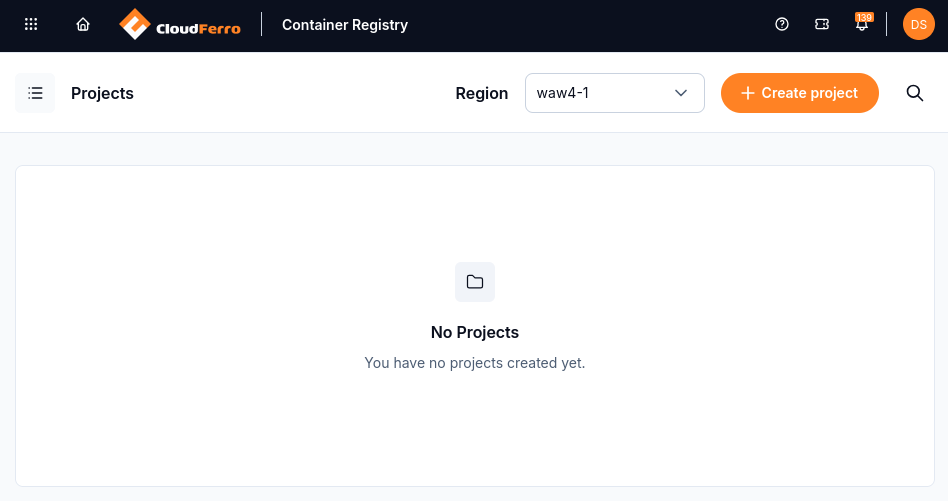
The Projects page shows No Projects before the first project is created.
The command examples use the waw4-1 registry endpoint, registries.waw4-1.cloudferro.com. Check the endpoint in your project’s Push commands dialog and replace the example host if your project uses a different endpoint.
My Portal provides the sign-in session and organization context used by Container Registry. Signing in to the portal does not log Docker in to the registry; Docker uses the access token prepared above.
First run
The project, token, and local container image should now be ready. Use the registry endpoint shown for your project in every command below; waw4-1 is the example region.
Log in from your computer’s Bash terminal:
docker login registries.waw4-1.cloudferro.com -u 'robot$my-project+ci-push'
Enter the token secret at the password prompt, rather than your portal password. If you chose different project or token names, use the full token user name shown in the portal. A successful login reports
Login Succeeded.Tag and push a container image:
docker tag my-app:1.0.0 registries.waw4-1.cloudferro.com/my-project/my-app:1.0.0
docker push registries.waw4-1.cloudferro.com/my-project/my-app:1.0.0
A successful push ends with a digest beginning with
sha256:. Keep that value if you want to identify the exact uploaded content.Open the project’s Repositories tab. The my-app repository should contain an artifact tagged 1.0.0. Review its scan status; scanning runs after the upload, so the report may still be pending.
Download the published container image:
docker pull registries.waw4-1.cloudferro.com/my-project/my-app:1.0.0
The command should finish successfully and report the container image’s digest. Docker may reuse layers already present on your computer; that is normal. On another computer, log in there with a token for this project before pulling.
If you used the hello-world sample, run it to check the downloaded container image:
docker run --rm registries.waw4-1.cloudferro.com/my-project/my-app:1.0.0
The sample prints a Docker greeting and exits. Your own application’s run options depend on that application; the command above is the check for the sample.
The Push commands dialog on the Repositories tab shows the registry host name and useful commands for reference.
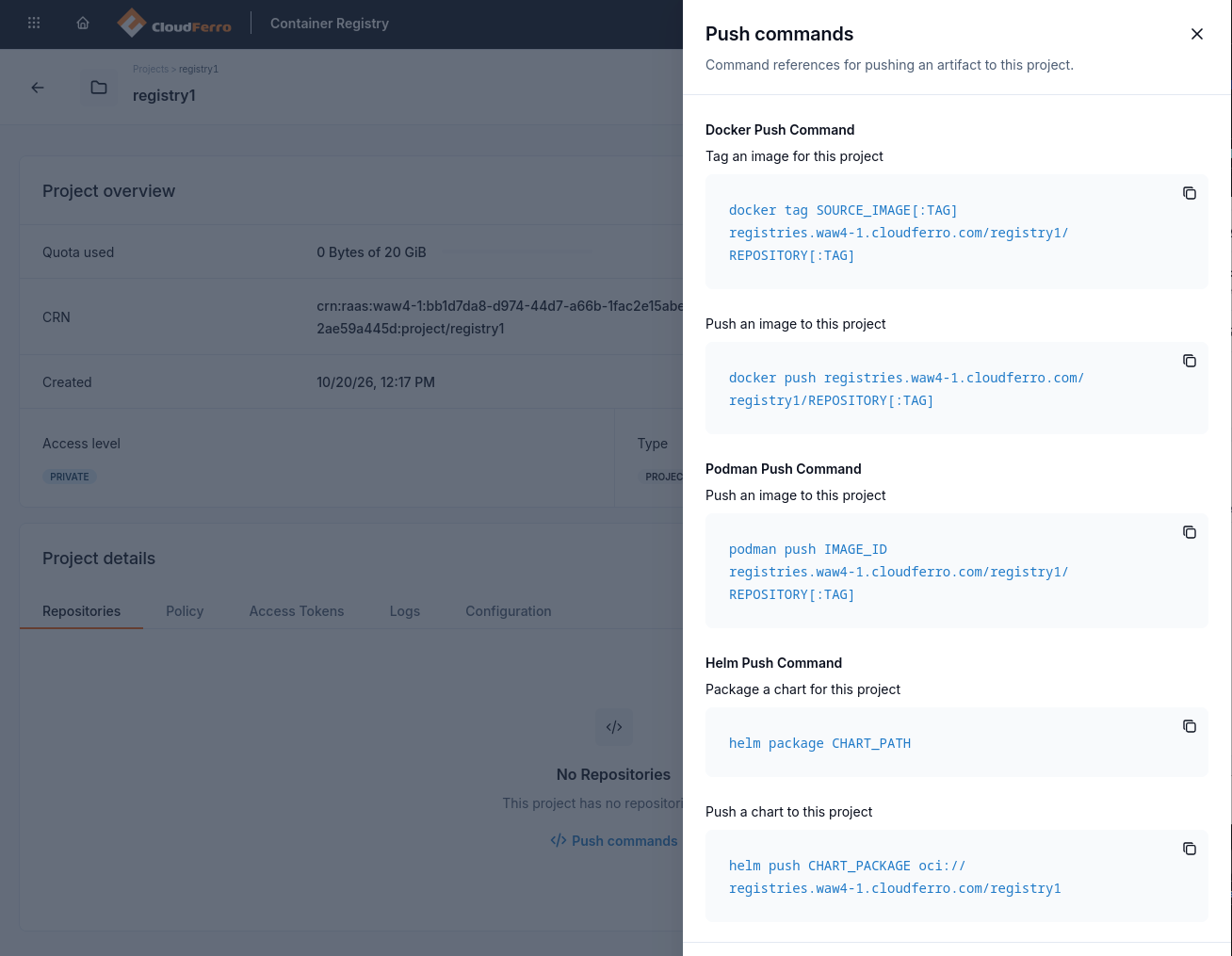
The panel uses registry1, the project captured here. Replace my-project in the tutorial commands with your own project name.
Portal access reference
Product availability and roles
Container Registry can be hidden, or can show an error page, when the product is not available for your brand or region, or when you do not have the required role. Access is granted with these Identity and Access Management (IAM) roles:
Role |
What it allows |
|---|---|
RegistryAdmin |
Full control, including creating and deleting projects and changing policies and configuration. |
RegistryDeveloper |
Read access, plus creating, rotating, and deleting access tokens, deleting repositories and artifacts, managing tags and labels, and starting scans and SBOM generation. |
RegistryViewer |
Read-only access to projects, repositories, artifacts, access token metadata, labels, vulnerability reports, and SBOMs. |
RegistryAccessTokenOperator |
A narrow role for automation: read and rotate access tokens. |
An access denied message does not mean the registry has failed. First check the organization and your role.
Regions
The registry is regional. The current production region is waw4-1, with the registry endpoint
registries.waw4-1.cloudferro.com. Projects, artifacts, and access tokens are not replicated
between regions. Before you create a project, check the region selected in the portal.
What to do next
Publish other versions, charts, or files with Push and pull artifacts on CloudFerro Cloud.
Review reports and signing options in Scan and sign container images on CloudFerro Cloud.
Protect release tags and plan cleanup with Tag immutability and retention on CloudFerro Cloud.