
Manage registry projects on CloudFerro Cloud
Applications or teams that share a registry may need different access rules and storage limits. Keeping their container images in separate projects lets you manage those settings independently.
In My Portal, you can create a project with its own storage quota and configure its visibility and security settings. After setup, the project overview and audit log help you track its contents and activity, while the deletion instructions cover removing resources you no longer need.
Prerequisites
No. 1 Portal access and project administration permission
Sign in to My Portal with access to the intended organization, as described in the portal access instructions. Creating, configuring, or deleting a project requires RegistryAdmin. Have the intended organization and region selected before opening the creation form.
No. 2 A project name, storage quota, and project type
Choose a name you can keep: it becomes part of container image paths and cannot be renamed later. Check Quotas and limits on CloudFerro Cloud for the allowed quota range. The quota is the project’s storage allowance; Quota used later shows how much of that allowance is occupied.
A standard project accepts your uploads. A proxy cache project fetches public container images from an upstream registry and does not accept your pushes. For the first-upload exercise, choose a standard project. If caching is your goal, prepare with Proxy cache projects on CloudFerro Cloud; this choice is made at creation and cannot be changed on an existing project.
Create a project
In Container Registry, check the region.
Select Create project.
Enter the Project name:
1-255 characters
lowercase letters, digits,
.,_, and-starts and ends with a letter or a digit
no repeated separators, for example my–project or my._project is not accepted.
Set Project quota limits in GiB. The allowed range is 10-100.
Leave Proxy cache off for a standard project. Turn it on only if you chose a proxy cache project in the prerequisites.
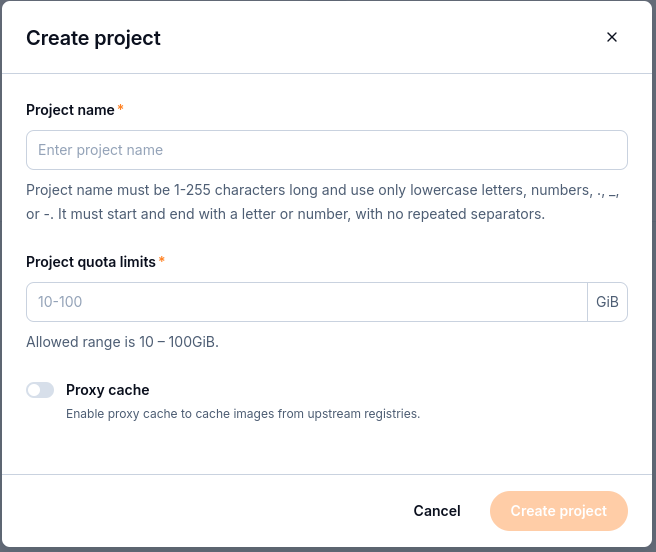
Choose a permanent project name, a storage quota, and whether the project will act as a proxy cache.
Create the project.
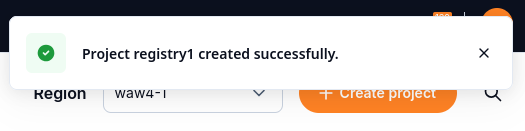
A notification confirms that the example project registry1 was created.
The project is private by default. It is a standard project unless you selected Proxy cache. Visibility and vulnerability scanning can be changed afterwards on the Configuration tab (Configuration).
After creation, the project overview should show the name, quota, region context, and project type you chose. The project name is also part of access token user names.
Find a project in the list
The Projects list shows each project’s name, quota usage, repository count, access level, type, and creation time. The screenshots use registry1 as the example project; substitute your own project name when following the commands in this section.
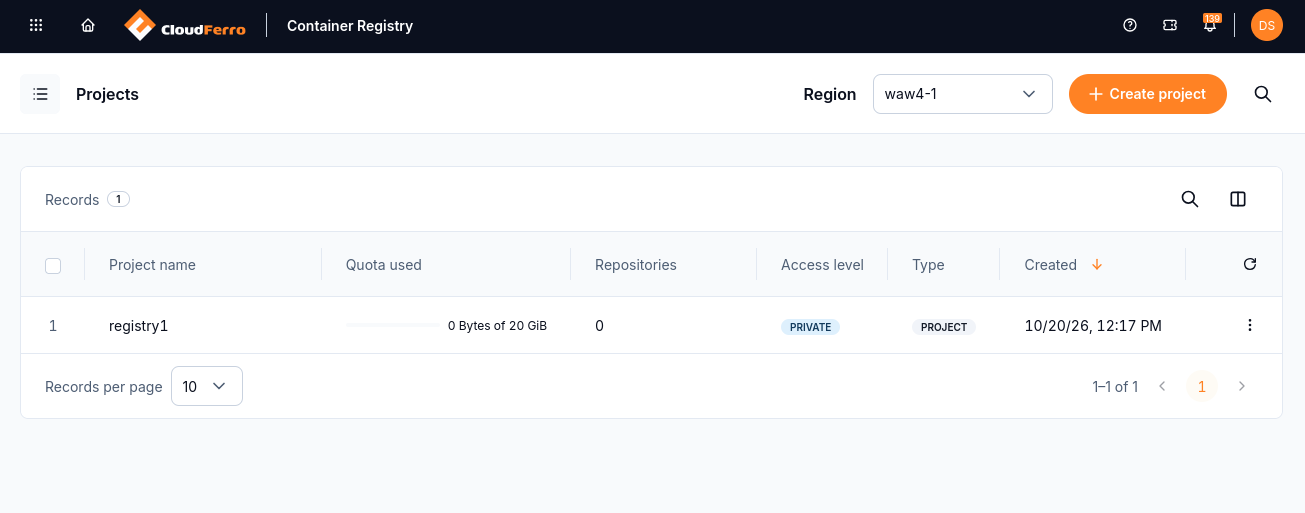
The new registry1 project is private, has a 20 GiB quota, and contains no repositories yet.
Select the columns icon above the list to open Manage columns. Choose the fields you want to display and select Save.
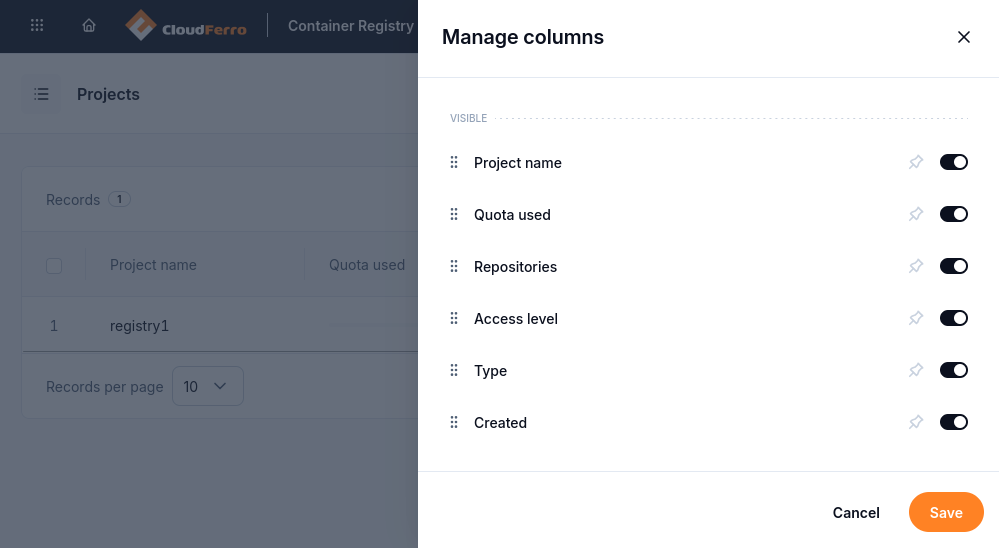
Use Manage columns to choose which project fields are visible, then select Save.
Open a project to view its repositories and settings.
Project page
The Project overview shows:
Field |
Meaning |
|---|---|
Quota used |
Storage in use and the project quota, for example 105.16 MiB of 10 GiB. |
CRN |
The CloudFerro Resource Name of the project, with a copy button. |
Created |
Creation date and time. |
Access level |
PRIVATE or PUBLIC. |
Type |
PROJECT for a standard project, or a proxy cache project. |
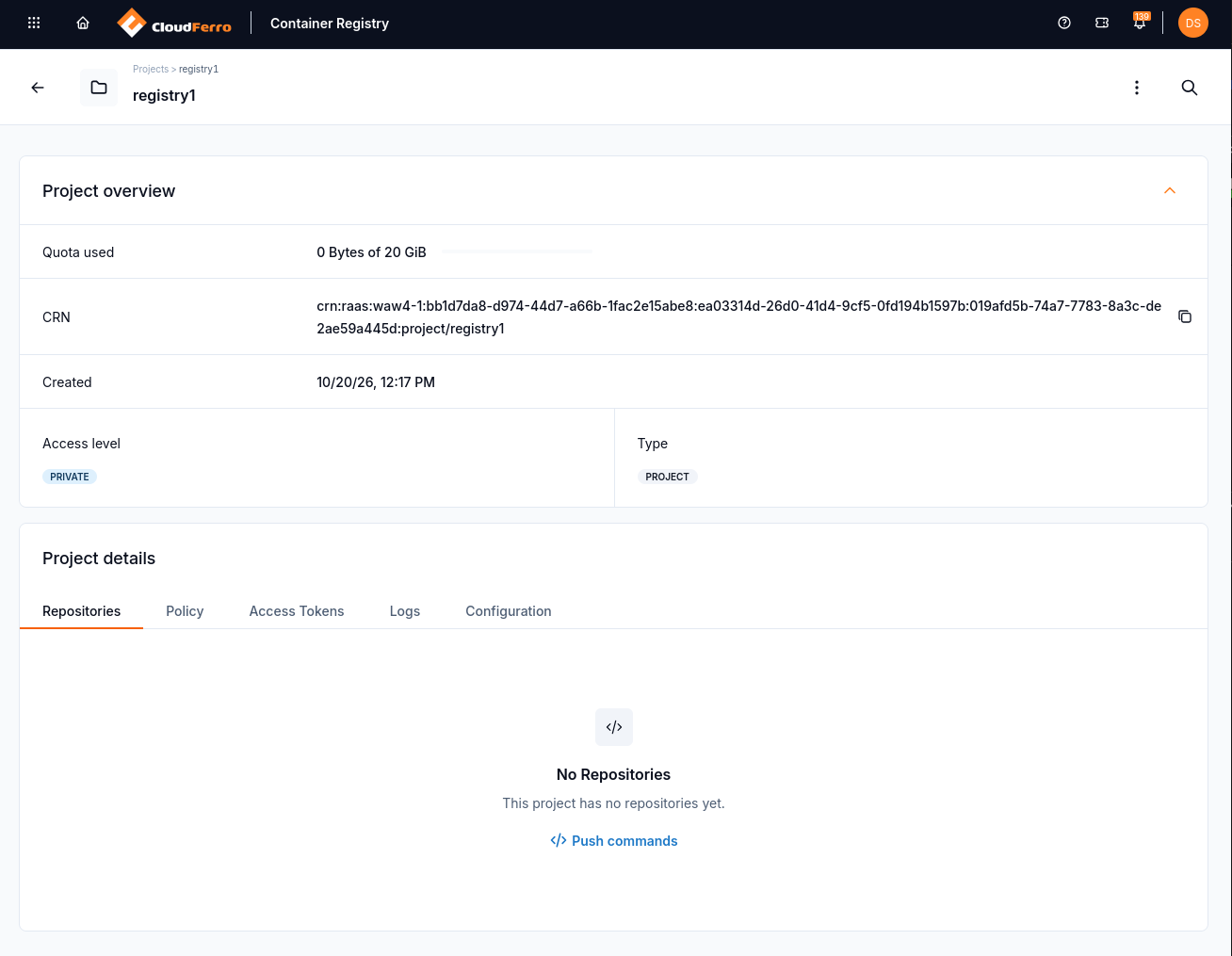
A newly created project has no repositories. The Push commands link provides upload examples.
Project details - tabs
Tab |
Purpose |
|---|---|
Repositories |
Lists repositories with the number of artifacts, pulls, and the last modification time. Opens the artifact list and the Push commands dialog. |
Policy |
Tag retention rules (up to 15) and tag immutability rules (up to 15), retention schedule, and retention runs. |
Access Tokens |
Create, edit, and list project access tokens. |
Logs |
The project audit log. |
Configuration |
Visibility, deployment security, vulnerability scanning, and the CVE allowlist. |
Configuration
The Configuration tab has these sections:
Project visibility - Public project registry. A public project makes all its repositories readable by everyone, without logging in. Push always needs an access token.
Deployment security - “Allow only verified images to be deployed”:
Cosign - only artifacts signed with Cosign can be pulled;
Notation - only artifacts signed with Notation can be pulled;
Prevent vulnerable images from running - blocks pulls of container images with vulnerabilities at or above the selected minimum severity (Prevent vulnerable images).
Vulnerability scanning - Automatically scan images on push. On by default.
CVE allowlist - CVE IDs that are accepted for this project, with an optional expiration time (CVE allowlist).
Changes take effect only after you select Save changes. The button appears when you change a setting.
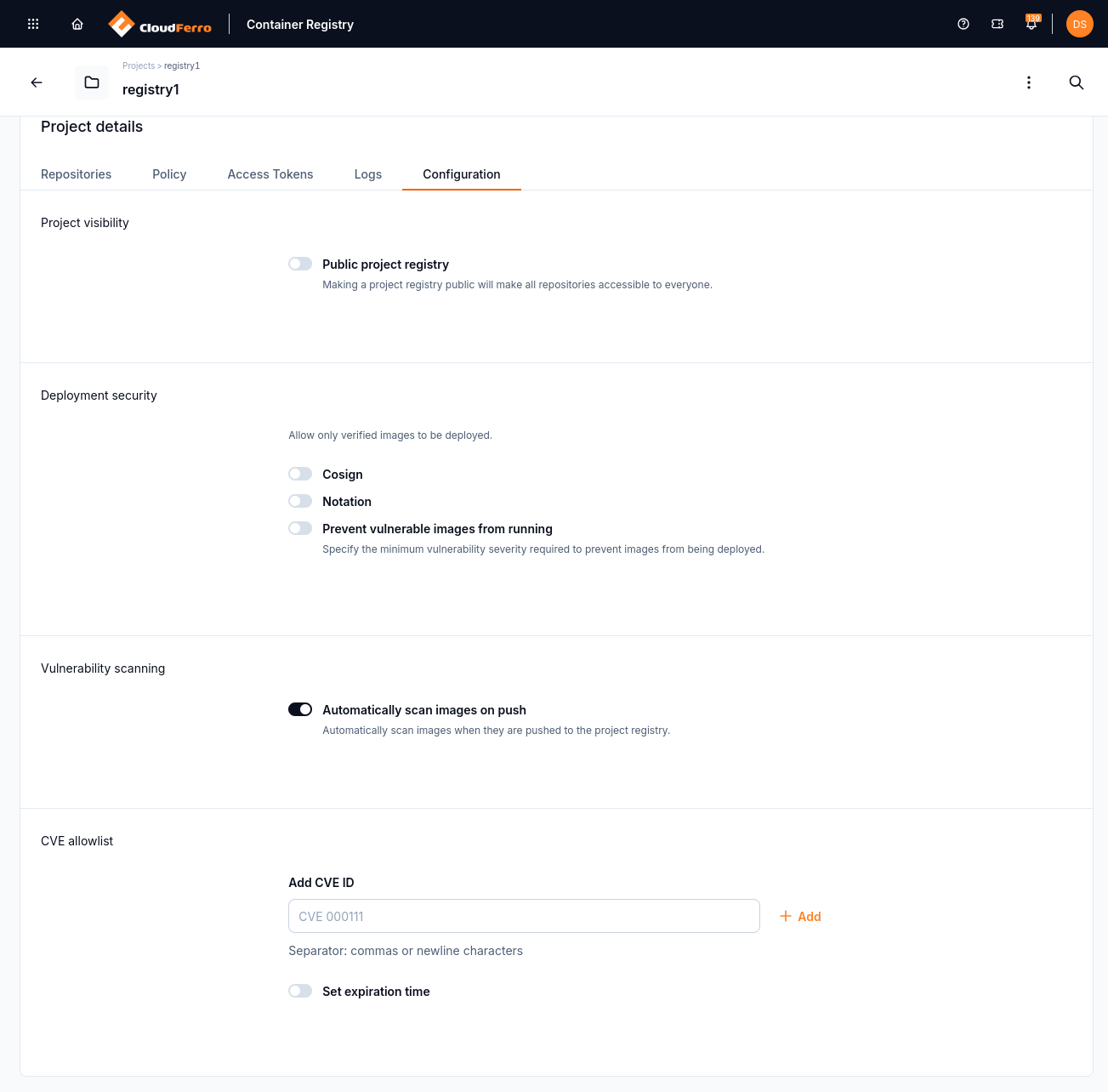
In this example, the project remains private and automatic scanning on push is enabled.
Do not make a project public unless every container image in it may be downloaded by anyone on the internet.
Delete repositories, artifacts, and projects
Artifact - on the repository’s artifact list, open the row menu and select Delete. All tags of that artifact are removed with it.
Repository - deletes all artifacts in it (Management API:
DELETE /api/raas/v1/projects/{project}/repositories/{repository}).Project - deletes the project and everything in it (Management API:
DELETE
/api/raas/v1/projects/{project}
; Terraform: destroyraas_project).
Deleting a project is refused while a tag immutability rule protects tags in it. Remove the rule first, then delete the project again.
Deletion cannot be undone. Before you delete a project:
Check which systems pull from it (CI/CD, Kubernetes clusters, Functions).
Copy any artifacts you still need to another project.
Remove the tag immutability rules that block deletion.
In the Projects list, open the project row menu and select Delete. Check the name in the confirmation dialog, then select Delete project.
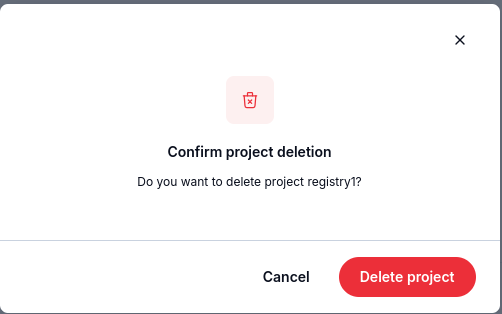
Check the project name before selecting Delete project. Select Cancel to keep the project.
Audit log
The Logs tab shows the project audit log. Each entry has:
the operation (for example create, delete, pull);
the resource and resource type;
who performed it: a user, an access token, or the system;
the time;
whether it succeeded.
Retention deletions are recorded as performed by the system. Use the log to check who pushed, pulled, or deleted artifacts, and when policies changed.
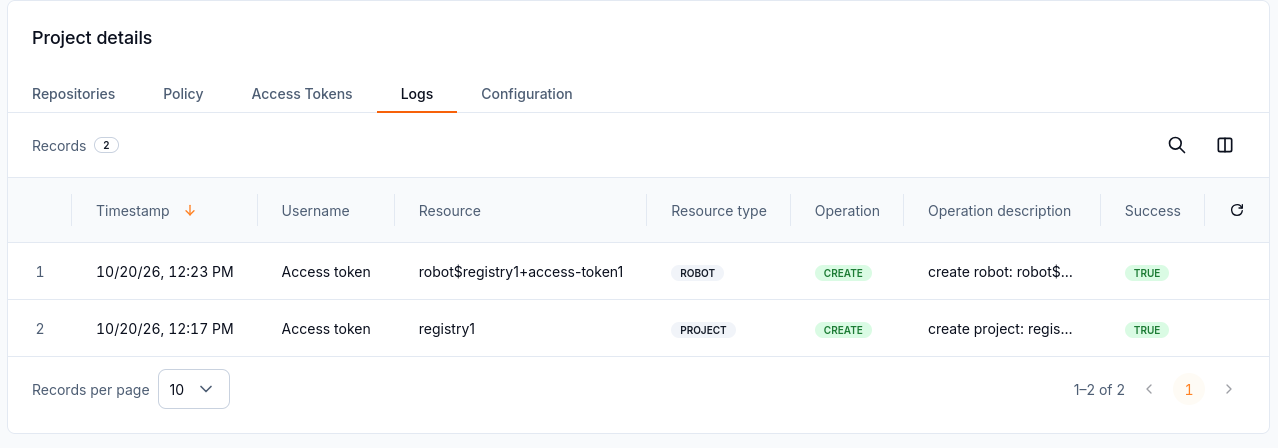
The Logs tab records the operation, affected resource, timestamp, and success status.
What to do next
Create client credentials with Access tokens and logging in on CloudFerro Cloud.
Upload content to the new project with Push and pull artifacts on CloudFerro Cloud.
Protect releases and plan cleanup with Tag immutability and retention on CloudFerro Cloud.